How to access USB device in Parallels Desktop

This guide discusses how to use USB peripherals in a Parallels Desktop virtual machine. We will examine the steps necessary to forward a USB device from the Mac to a guest operating system. Then we look at how to redirect remote USB devices to Parallels Desktop with a third-party solution such as USB Network Gate. We cover both straightforward USB device connections and complex configurations, so you can implement Parallels USB passthrough and use your peripheral devices in a VM.

Sharing Local USB Device with Parallels Desktop Virtual Machine

Users typically leverage Parallels Desktop to run Windows as a guest operating system on a Mac. A locally connected USB device can be accessed directly from the virtual machine using the following steps.

If the guest OS is already running:

1. Connect the desired USB device to your Mac.

2. When the connectivity window opens, choose the VM you want to connect to the USB device.
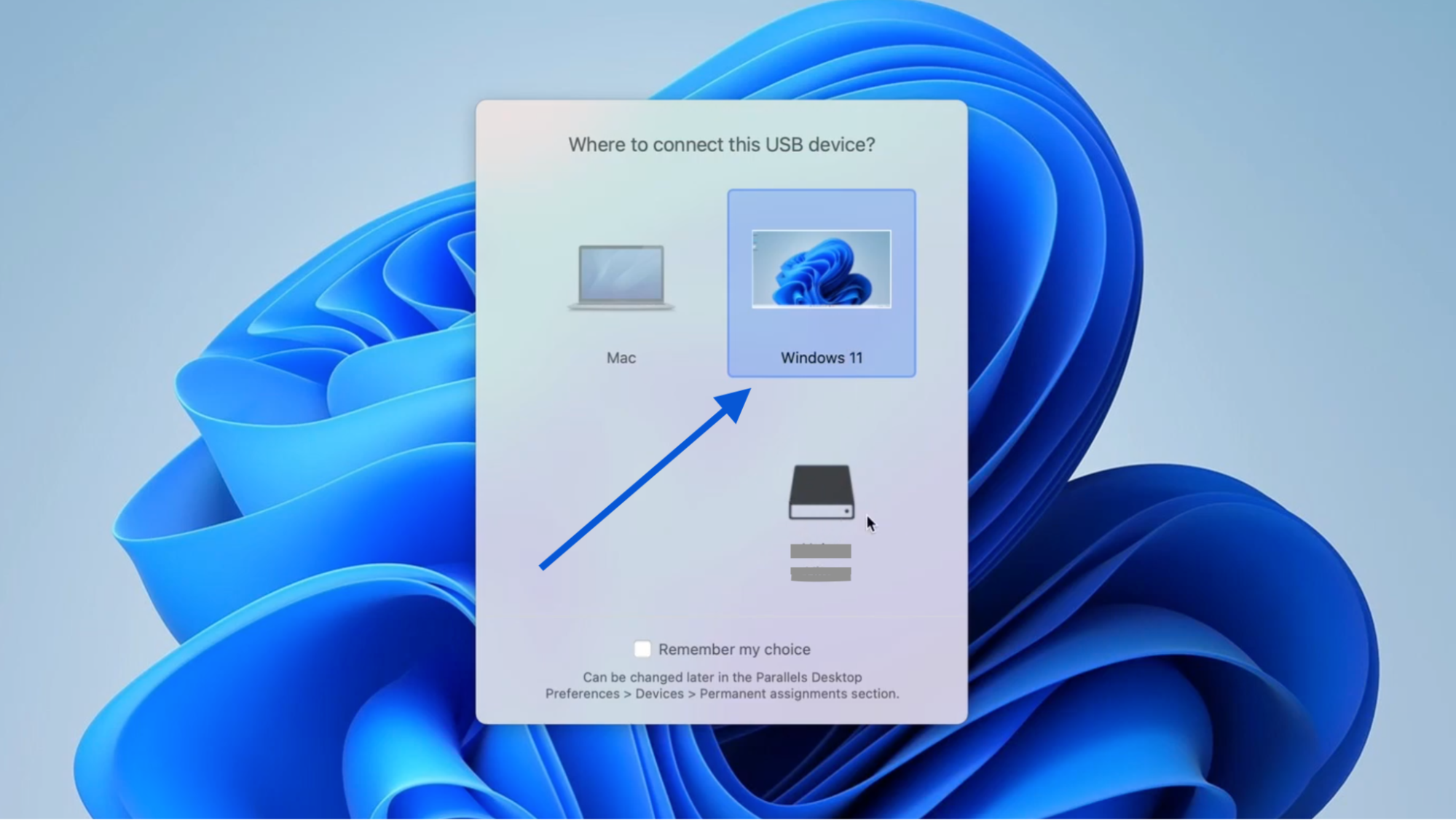
Sharing Local USB Device with Parallels Desktop Virtual Machine

If you need to reconnect the device to the guest machine:

1. Start the virtual desktop.

2. On the Mac, select Devices > USB & Bluetooth > “your device name”.
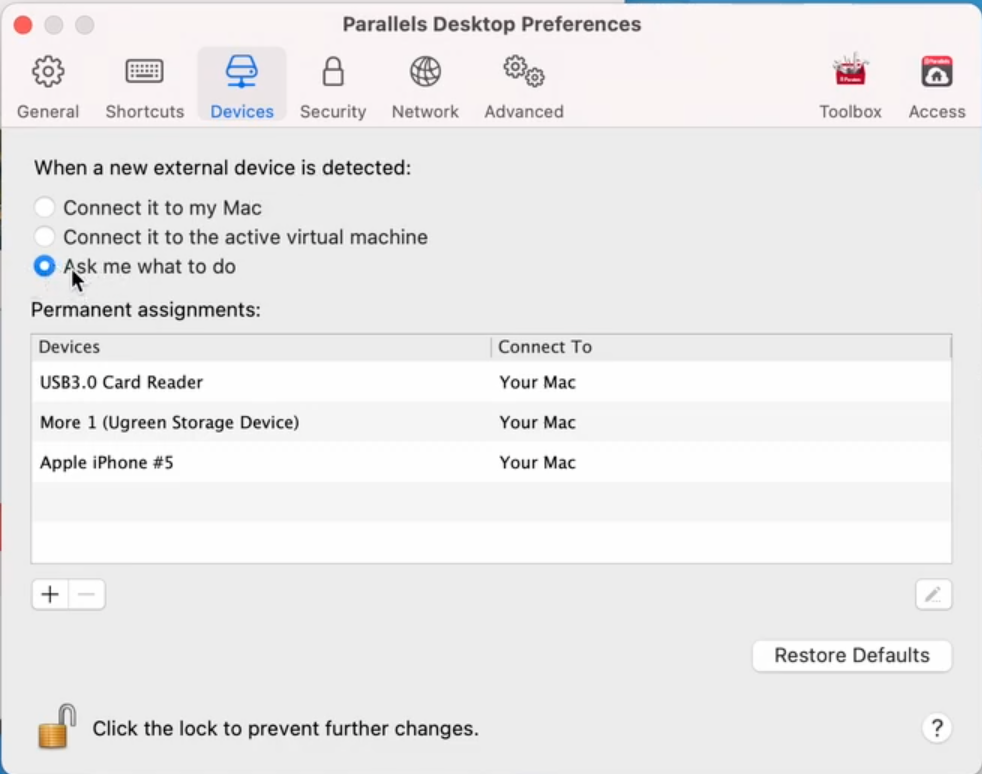
Parallels Desktop Preferences

3. A tick will be displayed next to the selected device, indicating it has successfully connected to the guest VM.
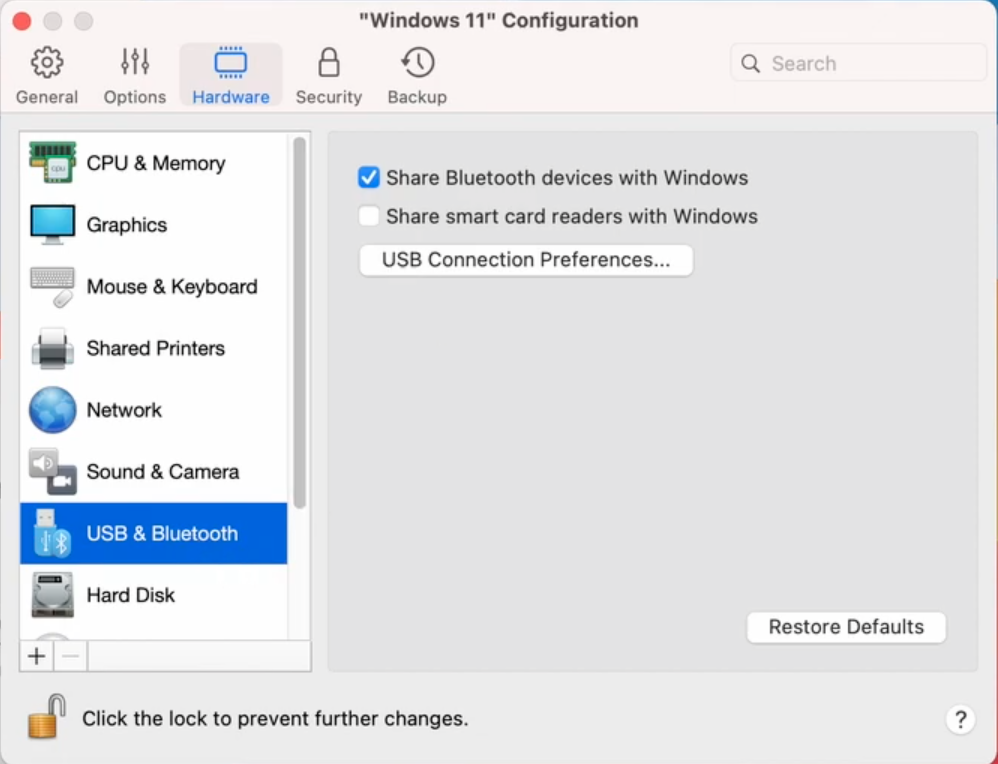
Parallels Desktop Preferences

The USB device is now only available to the VM, not the host macOS operating system. This method implements Parallels USB passthrough with a device directly connected to the host OS. Next, we will look at how to connect the VM to remote USB devices or share a device that Parallels has not recognized.

Establishing USB to Parallels Remote Desktop Connection

Parallels does not natively support connecting a locally attached USB device to a VM running on a remote Mac. You need the assistance of USB over Network (also known as USB Network Gate), a specialized third-party connectivity tool. USB Network Gate is a practical solution for establishing remote connectivity to USB devices and ports over a network.

How to connect a remote USB device in Parallels using USB Network Gate

1. Download and install USB Network Gate on the server machine (the PC with a USB device attached).
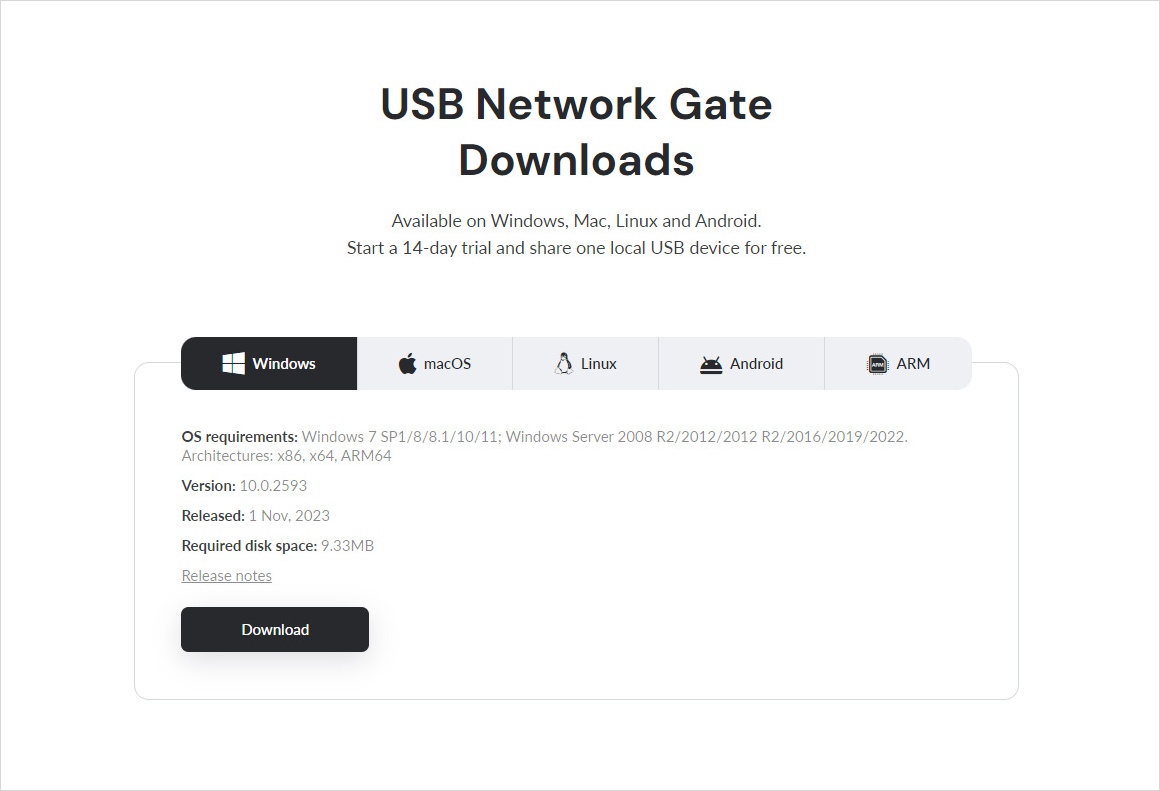
USB Network Gate: Download

2. Launch USB Network Gate and navigate to the “Local USB Devices” tab.

3. Click the “Share” button next to the device you will share over the network.
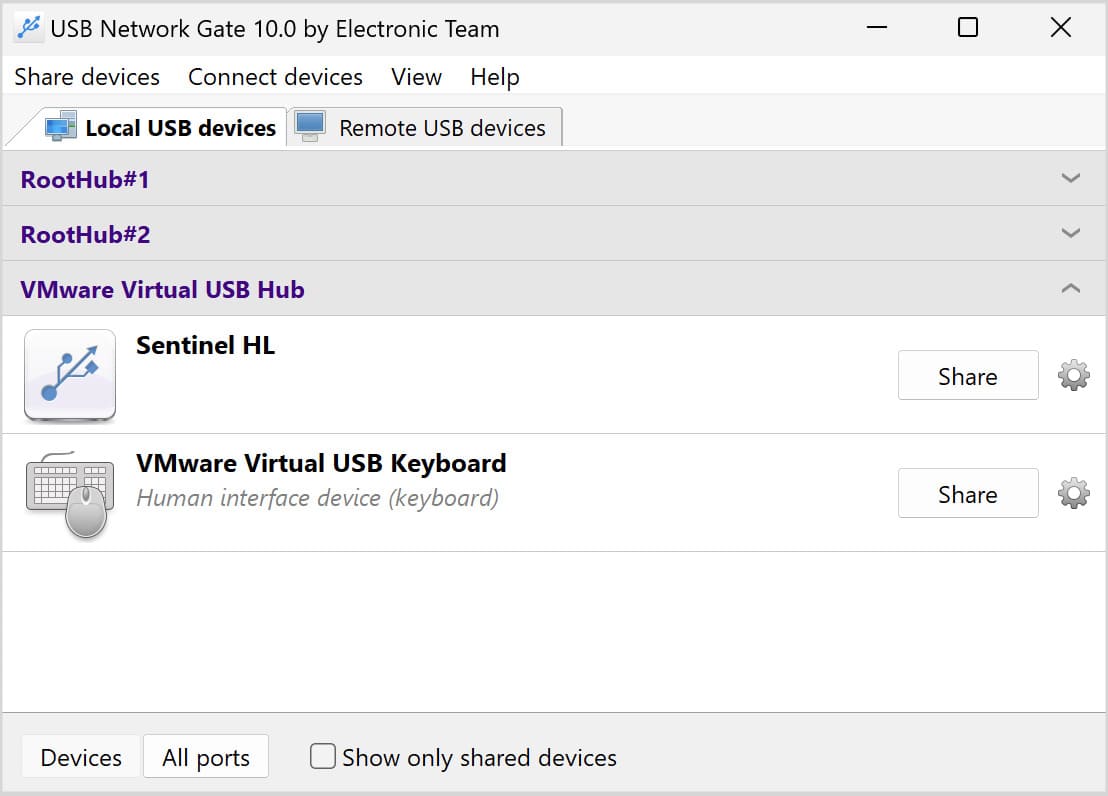
USB Network Gate: Share

4. Install USB Network Gate in the Parallels Desktop VM to connect to the remote USB device.

5. Start the application and locate the device in the “Remote Devices” tab.

6. Click “Connect” next to the device name.
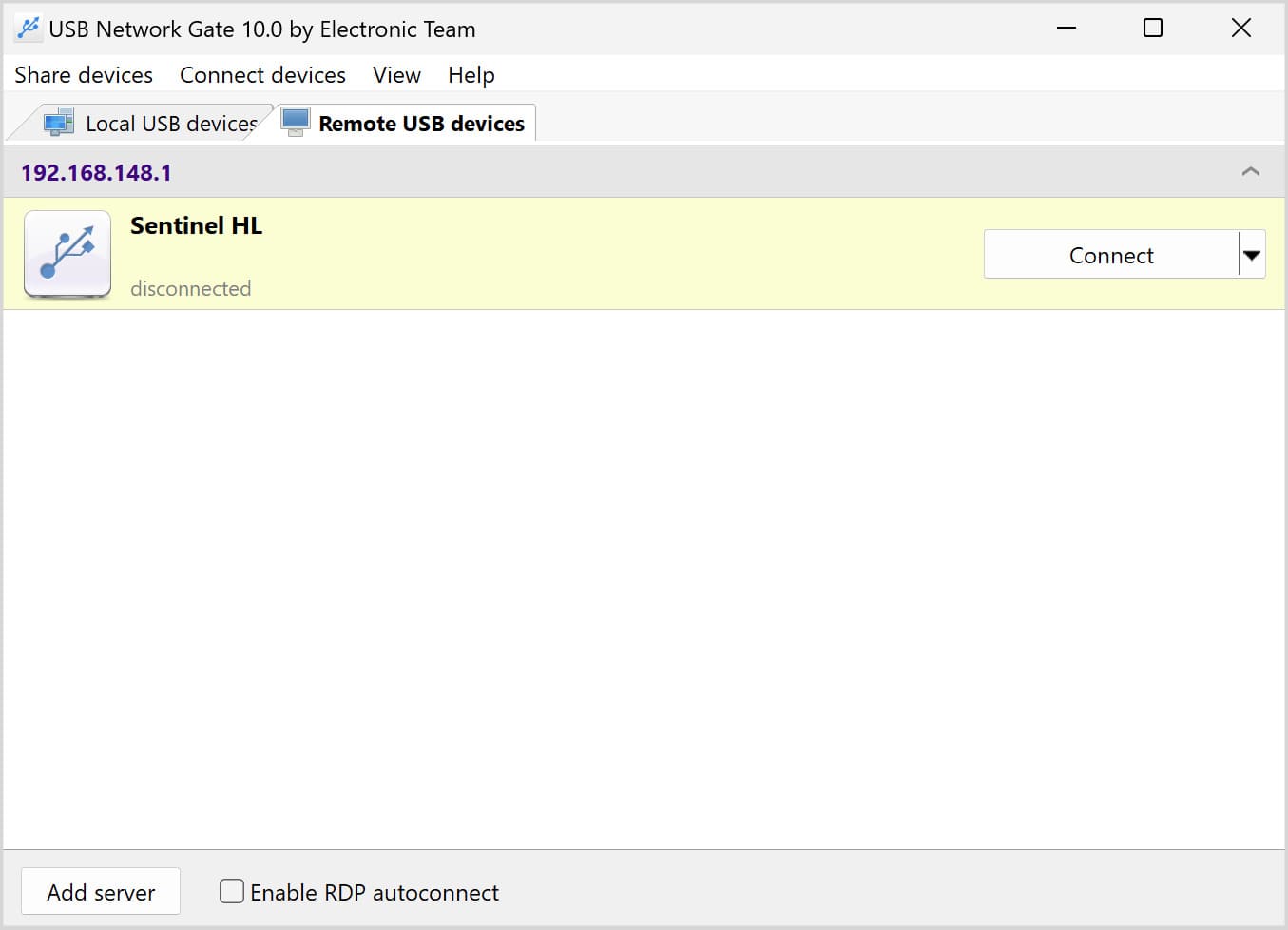
USB Network Gate: Connect

The shared USB device will be recognized by the VM’s Device Manager, providing the same level of access and features as with a physical connection to the virtual machine.

Advanced features of USB Network Gate

USB Network Gate offers users streamlined Parallels USB passthrough as well as the following advanced features.

  • Strong encryption protects your valuable data during transmission over the network.
  • The software supports virtually all types of USB devices.
  • Cross-platform support is provided for macOS, Linux, Windows, and Android operating systems.
  • The app supports USB redirection to VMs, RDP sessions, and remote, network-connected computers.
  • USB Network Gate is compatible with most virtualization platforms, including VirtualBox, Hyper-V, and VMware.

FAQ

Parallels Desktop is a virtualization solution that lets users run Windows applications on a Mac. The tool enables you to get the best of macOS and Windows simultaneously. Parallels lets users launch Windows apps without restarting their Mac. You can launch Windows programs from Finder and drag and drop files to enhance productivity.

Yes, and this is a newer improvement for Apple Silicon Macs. USB device forwarding support was first implemented in Parallels Desktop 20.3.0 (released in 2025) and is now standard in all later versions. On M1/M2/M3 Macs, you can plug in a USB device and choose whether it connects to macOS or to your Windows 11 ARM virtual machine. Parallels will typically prompt you automatically, and you can also manage connections from Devices → USB & Bluetooth. Standard USB devices generally work well, while some specialized hardware may still have limitations depending on driver support in Windows 11 ARM.

If you experience issues with Parallels USB passthrough, you can try several solutions.

  • Reconnect the device.
  • Manually forward the USV device through the Devices menu.
  • Verify you are using the correct drivers in the VM, for example, ARM for Windows on M1 Macs.
  • Enable USB 3.0 support in the VM.