What is Remote USB and How Can You Use It?

Remote USB technology enables users to access USB devices over a network with the same functionality as a direct physical connection. USB devices typically have short cables and are meant to be used in proximity to a single computer. 

Modern distributed and mobile workflows have made remote access to USB devices an essential ingredient for consistent productivity. Users often need to access USB devices remotely from various locations for personal and business reasons.

The Challenge of Accessing USB Devices Remotely

USB devices are not designed with native remote access capabilities. Certain tools, such as VPNs and remote desktop applications, allow users to perform basic tasks like file transfer.

These solutions offer limited functionality that typically does not allow full access to the remote USB device. The limitations make it difficult to remotely use secure peripherals such as security keys or USB license dongles that require direct hardware access. 

Many modern organizations leverage remote USB solutions to centralize access to expensive peripheral hardware in enterprise IT environments. Centralization enables teams to provide access to USB dongles and other specialized devices, streamlining compliance, optimizing licenses, and minimizing hardware duplication. 

Users may try free or open source methods to access USB devices remotely. These tools typically offer limited compatibility with advanced USB devices and are not reliable solutions for a production environment. 

Remote USB software addresses the limitations of remote desktop tools by virtualizing USB devices so they can be accessed over a network, including the Internet. Virtualization lets remote users access devices as if they had a local connection to the equipment.

Remote USB Software Tools

Remote USB software lets users access USB devices remotely over an IP-based network with the same functionality as a direct physical connection. These software tools are essential when basic USB redirection does not provide the direct hardware access and driver communication necessary for interacting with advanced USB devices.

USB Network Gate

USB Network Gate enables sharing USB devices across network-connected computers, supporting hardware centralization. Users can share a USB device physically attached to a computer with other remote machines, eliminating distance constraints and improving productivity.

USB Network Gate key features

  • Network-based USB sharing is supported over a LAN or local network without physically moving devices or cables.
  • Cross-platform compatibility lets users share devices on Windows, Linux, and macOS machines on the same network.
  • Driver independence allows USB devices to be shared without requiring device drivers to be installed on remote computers.
  • Support for virtual and remote environments enables users to access USB devices in VMs and RDP sessions. The virtual environments supported include VirtualBox, VMware, and Hyper-V.
  • Selective access ensures only one computer can use a device at a time.
  • Security is enforced with password-based access to prevent unauthorized use of USB devices.

How to use USB Network Gate

1. Install the software on the machine where the USB device is physically plugged in, and the remote machine that will access the peripheral.
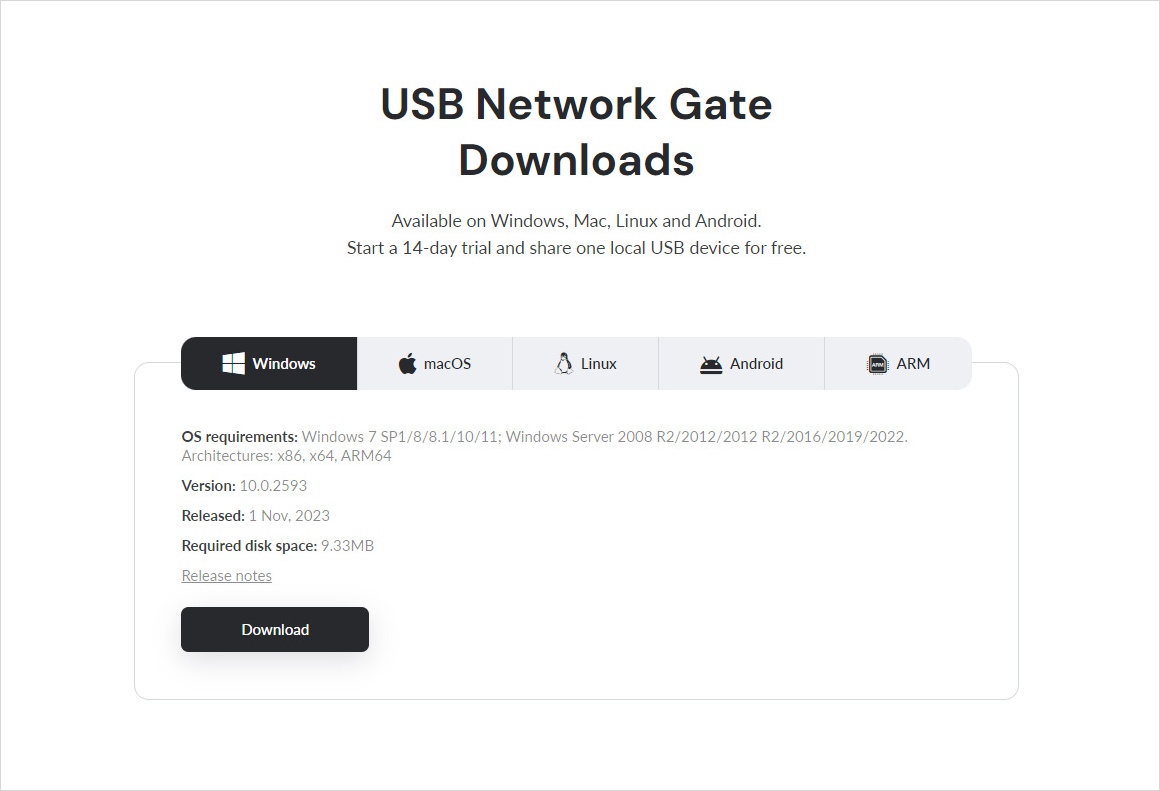
Download and install USB Network Gate

2. Open the “Local USB Devices” tab and share the device.
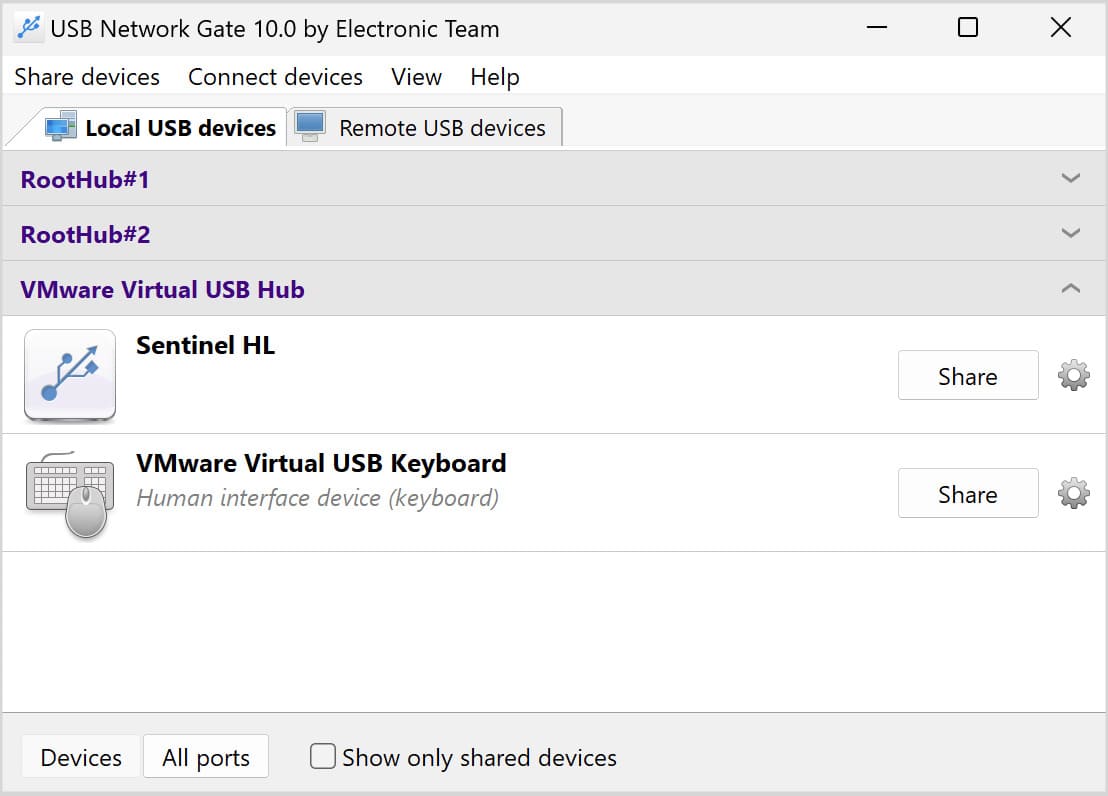
Launch USB Network Gate on the server

3. On the remote machine, open the “Remote USB Devices” tab and click “Connect” to connect to the shared device.
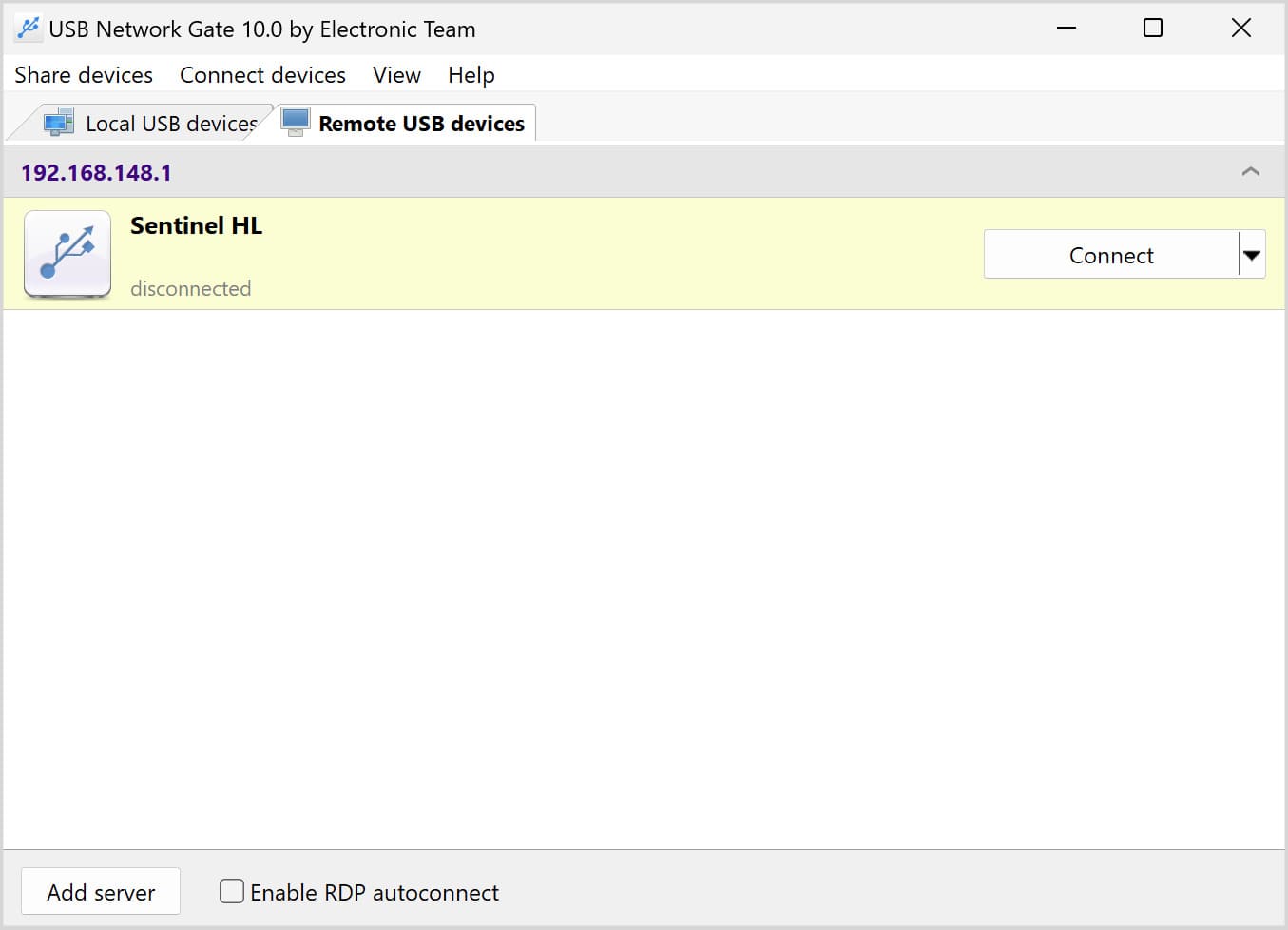
Click Connect next to the shared USB drive

Common Use Cases

Sharing specialized hardware across corporate networks — teams can provide shared access to devices such as biometric scanners and POS terminals without relocating equipment. Learn how this works for printers and hard drives connected to a remote machine.

Virtual and remote desktop environments — USB Network Gate integrates natively with VMware, VirtualBox, and Hyper-V, as well as RDP sessions and thin clients, ensuring USB peripherals behave as if locally connected.

Managing USB device permissions across multiple users — selective access control means only one user can claim a device at a time, making it suitable for shared biometric scanners, POS terminals, and webcams in office or clinical settings.

Industry-specific scenarios — including hospital patient video monitoring, remote vehicle diagnostics, and cloud desktop USB passthrough, where native driver communication over the network is critical.

FlexiHub

FlexiHub is a software solution that lets users easily access USB devices over a network with no complex setup or configuration.

FlexiHub Key Features

  • Remote USB device redirection for remote access to network-connected USB devices as if they were physically attached.
  • The software supports both USB and COM port peripheral devices.
  • Data compression and optimized transport protocols streamline traffic flow, improving performance.
  • Encryption is used to secure USB data transmission.
  • The tool enables tunnel server connectivity, allowing remote USB connections across different networks without a public IP address.
  • Cross-network support lets users share devices across LANs, Internet connections, and subnetworks.
  • Access controls allow teams to manage who can access specific shared devices.

How to use FlexiHub

1. Create a FlexiHub account and Install FlexiHub on the host with a physical connection to the USB devices, and to the client computer that will connect to the device remotely.
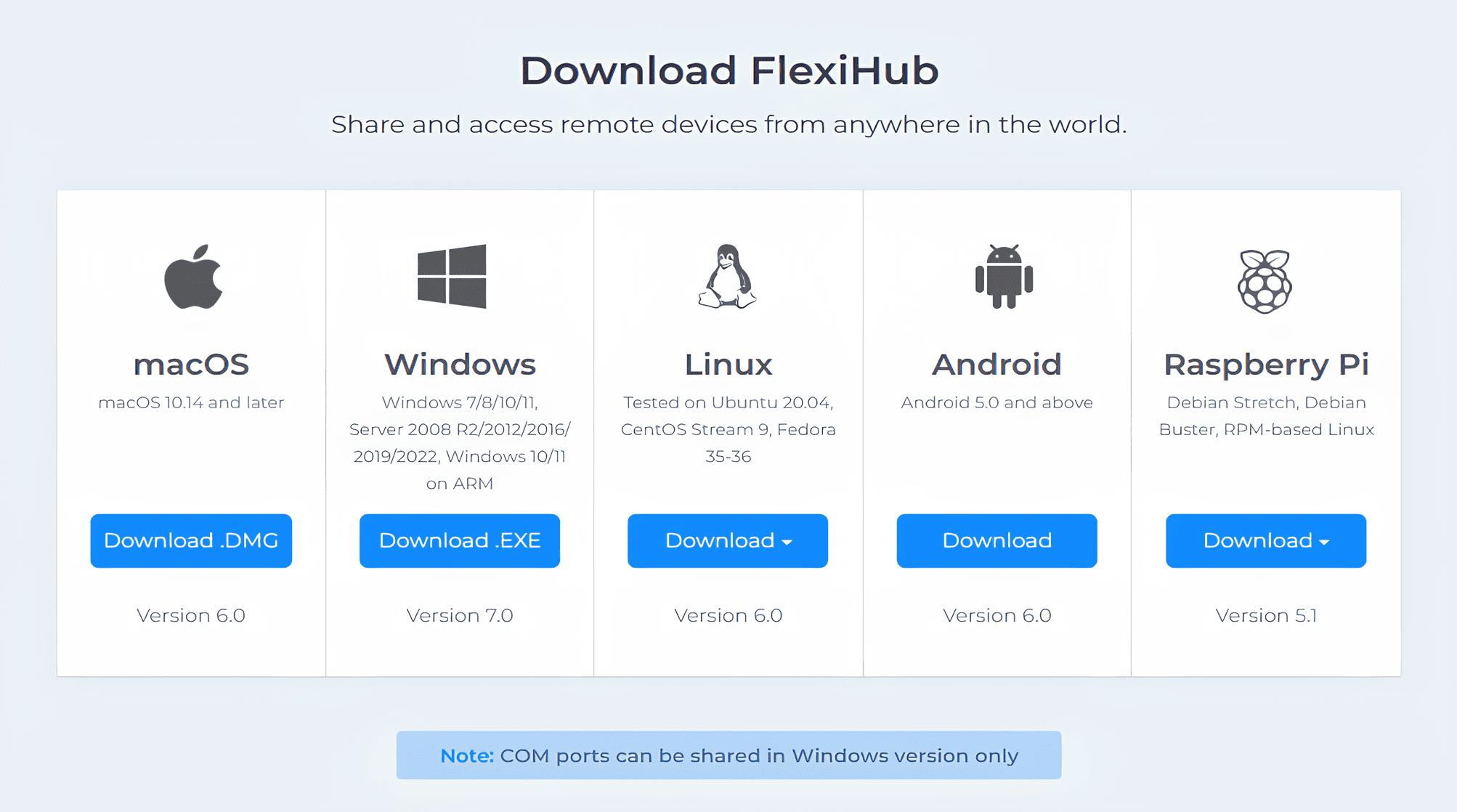
Download and install FlexiHub

2. Sign in to both computers using the same FlexiHub credentials.
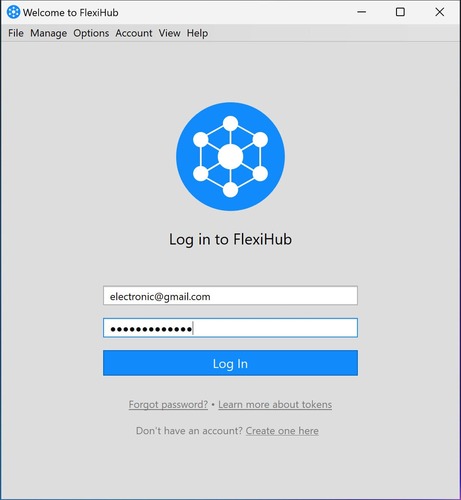
FlexiHub sign in

3. Select the device to establish a remote connection.
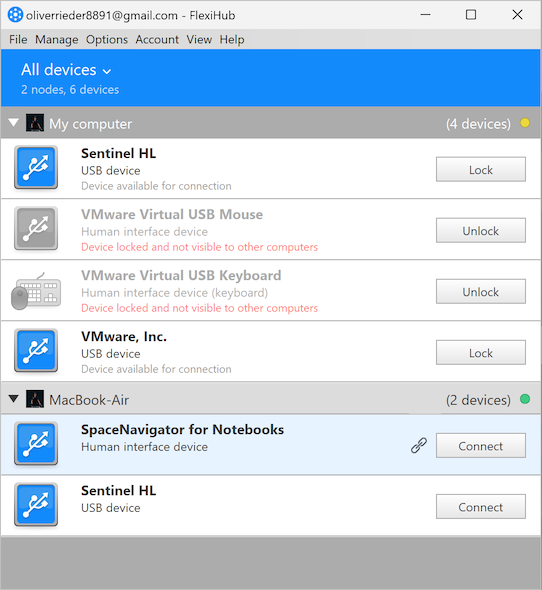
USB Redirector Connection

Common Use Cases

Automotive and remote diagnostics — FlexiHub enables remote OBD vehicle diagnostics without sending technicians on-site, even when the target device sits behind NAT or closed firewall ports.

IoT and cloud infrastructure — teams can manage IoT device control and handle USB and COM redirection to the cloud across distributed environments without requiring a public IP on each endpoint.

Biometrics and access control — FlexiHub supports biometric device maintenance over the network, allowing administrators to service fingerprint scanners and authentication hardware remotely.

Healthcare and clinical environments — sensitive workflows such as medical smart card forwarding via RDP are handled natively, ensuring compliance-sensitive peripherals behave as if locally connected in virtual desktop sessions.

Industrial automation — engineers gain remote PLC and HMI access to factory-floor equipment, eliminating the need for physical presence when monitoring or reconfiguring industrial controllers.

Donglify

Donglify is a dedicated software utility designed to share USB security dongles over a network. The tool lets users share hardware security keys that are physically connected to a system so they can be remotely accessed by other network-attached machines. Donglify enables IT professionals to centralize the management of these expensive devices and provide team members with secure remote access.

Donglify Key Features

  • Share USB dongles over Wi-Fi, LAN, or the Internet without the need to reconnect or move devices.
  • Multiple users can simultaneously use the same dongle for enhanced productivity.
  • Cross-platform support lets you share dongles on Windows and macOS systems.
  • The tool eliminates the physical proximity and port limitations of traditional dongle-sharing hubs.
  • Teams can extend dongle lifetimes by minimizing wear from physically moving devices.
  • The software is easy to install and requires no additional hardware.

How to use Donglify

1. First, sign up for Donglify account. Then download the app and install it on all computers that need to access your USB dongle remotely.
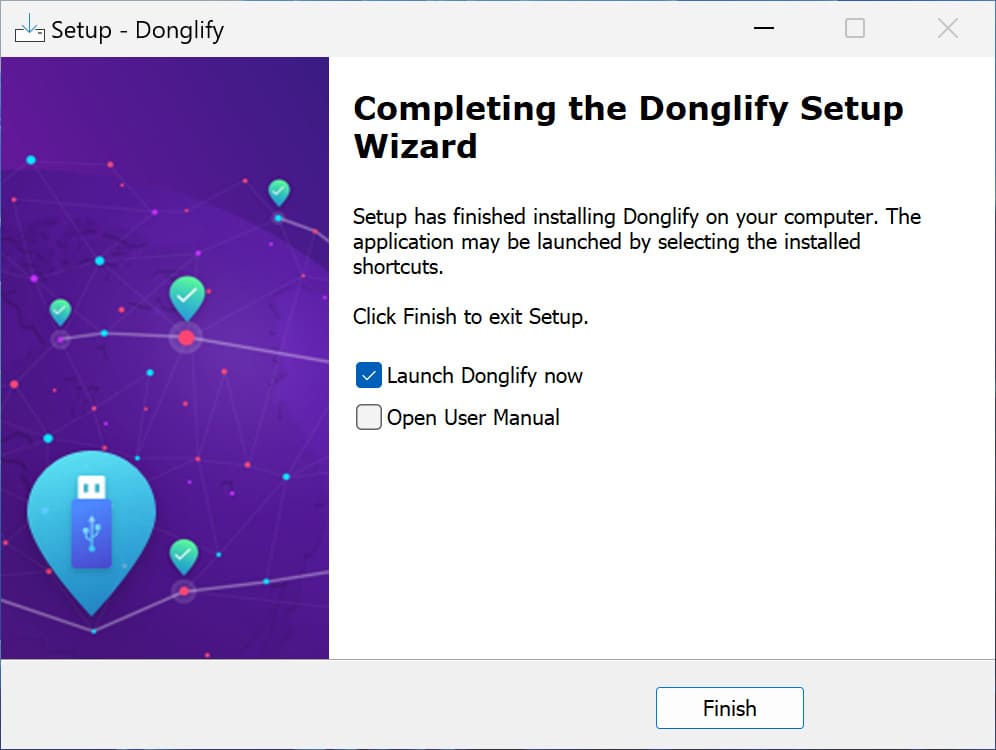
Install Donglify

2. Connect the USB security key to the machine that will serve as the host.
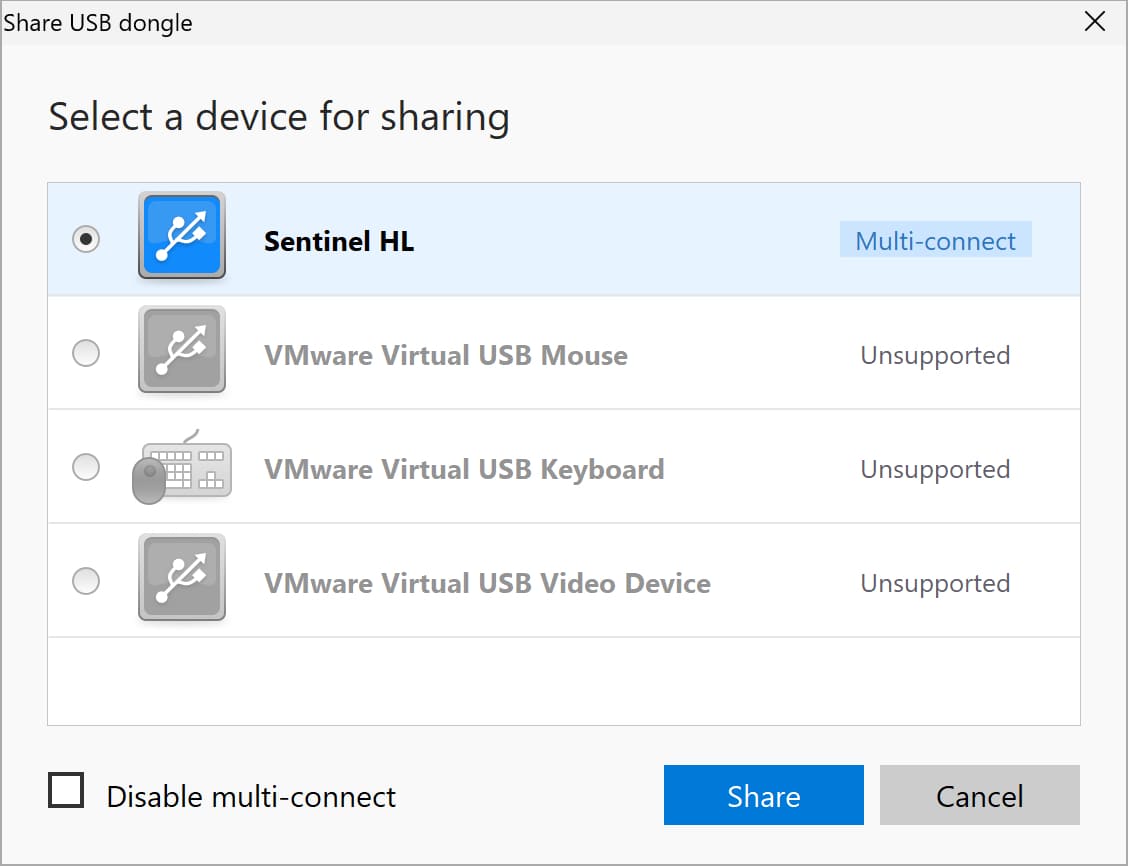
Share dongle

3. Launch Donglify on the host and click the “Share” button next to the dongle.
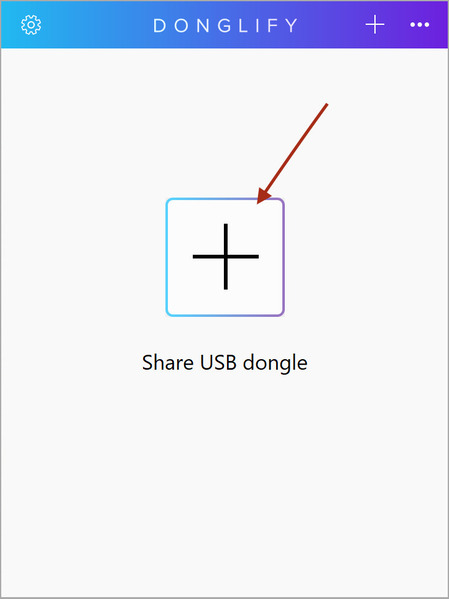
Share dongle

4. Log in to the same Donglify account on the remote client.
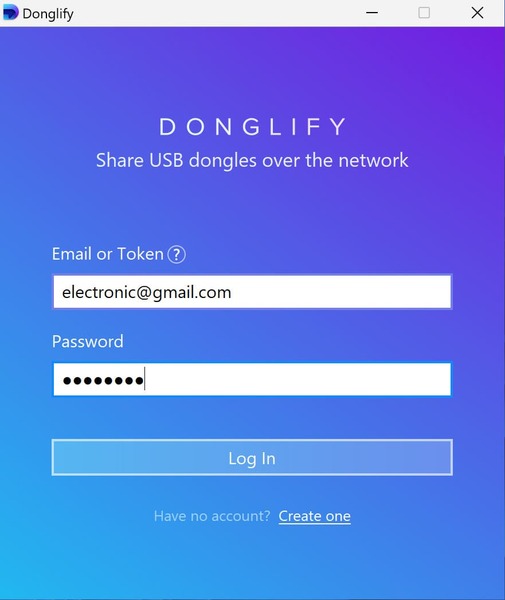
Sign in to Donglify

5. Click “Connect” to connect to the remote dongle.
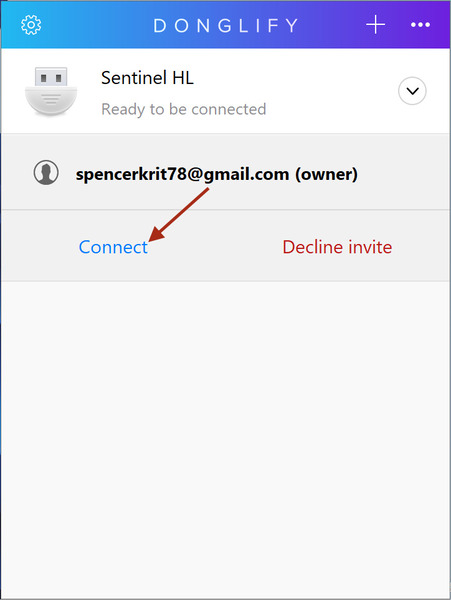
Donglify connection

Common Use Cases

Software licensing and engineering teams — developers, designers, and contractors gain shared access to USB security keys for licensed specialized applications and CAD software without relocating the dongle between workstations or offices. 

Healthcare and scientific facilities — organizations managing fleets of hardware licenses can centralize USB security keys across multiple departments or remote sites, eliminating the need to physically distribute devices. This is especially valuable for clinics sharing access to high-end dental CAD software and advanced diagnostic systems. 

Creative professionals — audio engineers and media production teams share a single protection key across workstations, keeping licensed tools accessible regardless of where collaborators are working.

Corporate IT and access management — IT departments centralize dongle access for protected software across the organization, reducing hardware duplication and simplifying license management.

Educational institutions — schools and universities provide students and staff with access to licensed tools through a single shared device, without issuing individual keys per user.

Conclusion

Decision-makers should consider how they will use the remote USB solution when choosing one.

  • FlexiHub is best for accessing USB devices over the Internet without opening firewall ports, configuring routers, or using public IP addresses.
  • USB Network Gate works best for teams that need reliable performance and granular access control in enterprise environments with LANs, VLANs, or VPNs.
  • Donglify is the right choice to centralize the management of hardware security keys or USB licence dongles.


You can learn more about the differences between the products in the guide: Choose the Right USB Sharing Solution.

FAQ

Dedicated software solutions such as FlexiHub provide full driver support for complex USB devices that RDP redirection does not match. Teams should use RDP redirection only for basic devices, such as printers or storage drives. 

Yes. FlexiHub and USB Network Gate are cross-platform solutions that let you share a device from any OS and access it from another machine running a different OS.

Free and open source projects, such as USB/IP, are available but not suitable for general users as they require substantial technical expertise to configure. A better approach is to test a solution with a free trial before committing.