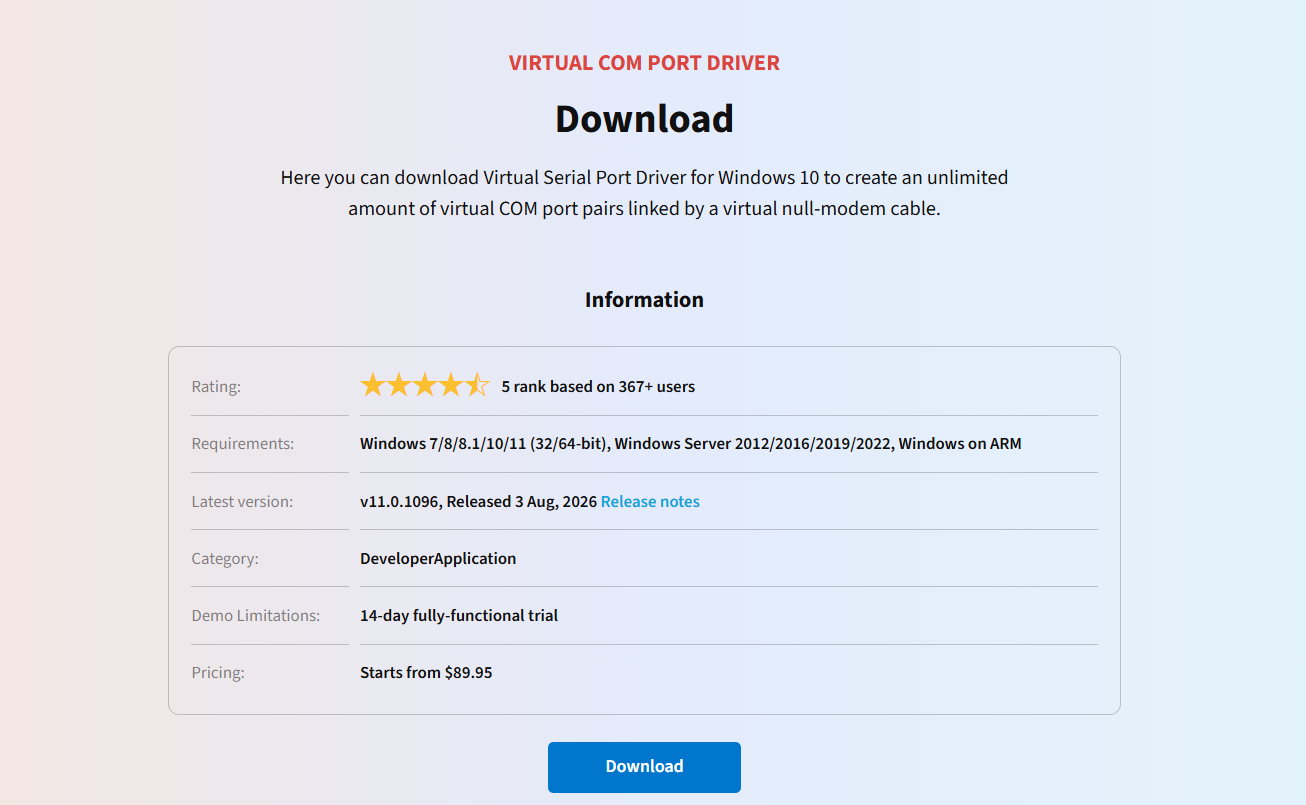
Virtual COM ports are software-created emulations of physical serial interfaces. Virtual ports are commonly used by engineers and software developers for various purposes. Users can use virtual ports to debug applications, test software, and connect to legacy hardware and equipment without physical COM ports. The lack of a built-in tool requires users to rely on a dedicated virtual COM port driver on Windows 10/11.
This guide discusses how to create, check, enable, and diagnose issues with virtual COM ports on Windows systems.
How Do You Check COM Ports in Windows 10/11?
You may want to know if you have COM ports available on your system before creating a virtual COM port in Windows 10 or 11. The following are three methods to check your system’s COM ports.
Command Line
Open CMD and run: mode
This command lists all active COM ports with their current settings.
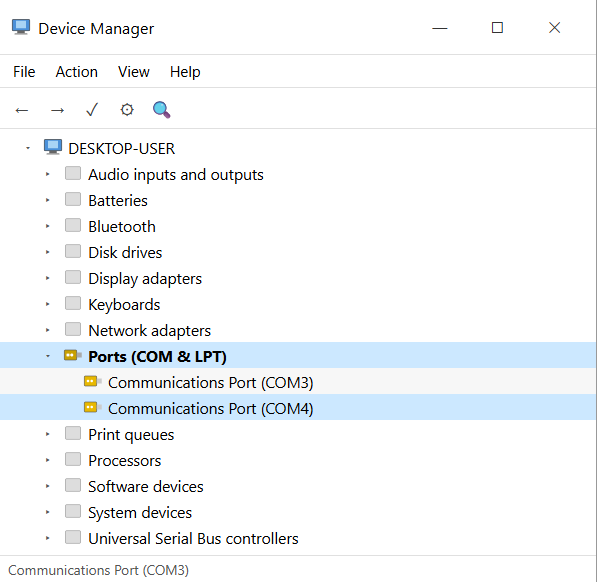
Device Manager
1. Right-click the Windows Start button and choose Device Manager
2. Expand the “Ports (COM & LPT)” section. If this section is missing, no COM ports are being recognized by the OS.
3. A list is returned with all active COM ports and their numbers.
Using PowerShell
Run the following command to list all active COM ports:[System.IO.Ports.SerialPort]::GetPortNames()
For a more detailed view of ports and driver issues, use:Get-PnpDevice -PresentOnly | Where-Object { $_.Class -eq 'Ports' }
How to Create a Virtual COM Port on Windows 11 and 10
Windows 11 and 10 don’t have built-in tools for creating a virtual COM port. The most efficient and reliable third-party solution is Virtual Serial Port Driver by Electronic Team.
Virtual Serial Port Driver by Electronic Team, Inc. is a versatile solution that can create virtual ports and connect them either in pairs or in complex bundles. There are standard settings available, such as baud rate and package size, as well as less common ones, such as the pinouts of individual ports. A free trial is available if you need to be certain whether VSPD will work for your use case.
In addition to creating a null-modem connection between any combination of physical and virtual ports, Virtual Serial Port Driver allows a single port to be split to multiple receivers, output from multiple ports to be joined into a single data stream, or create a bundle where the input and output of each port can be set individually. The loopback feature is highly useful in testing as well.
Enterprises in need of a custom solution should consider the Virtual Serial Port SDK, which allows our virtual port technology to be integrated into your product. Detailed guides and customer support specialists are there to make sure that the integration is successful.
How to Сreate Virtual Ports
2. Install and launch VSPD. Select “Continue Trial” when prompted.
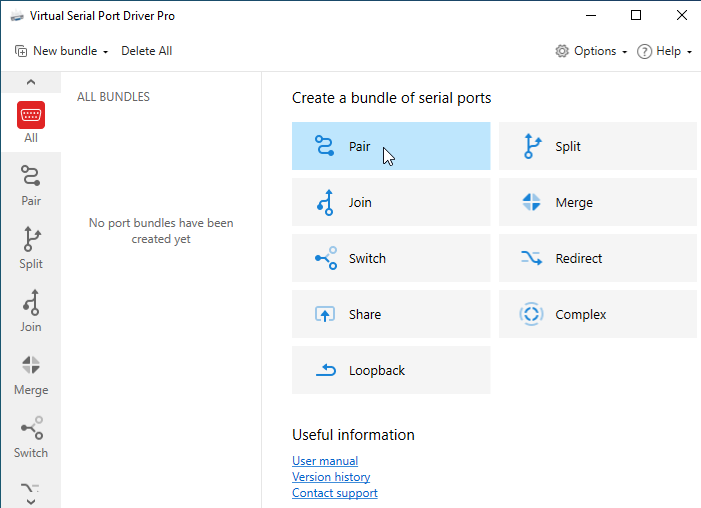
3. Create a virtual port pair. You can use the “mode” command in CMD to check which port numbers are unoccupied.
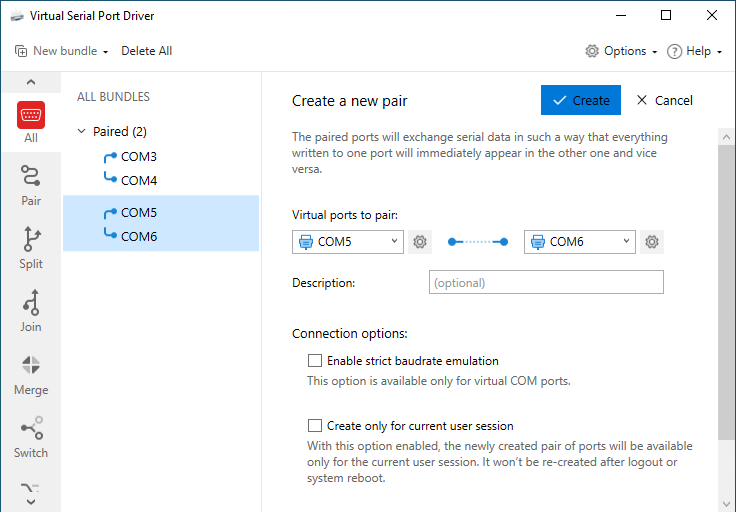
4. Your newly-created virtual ports will show up as ordinary ones if you check with “mode”.
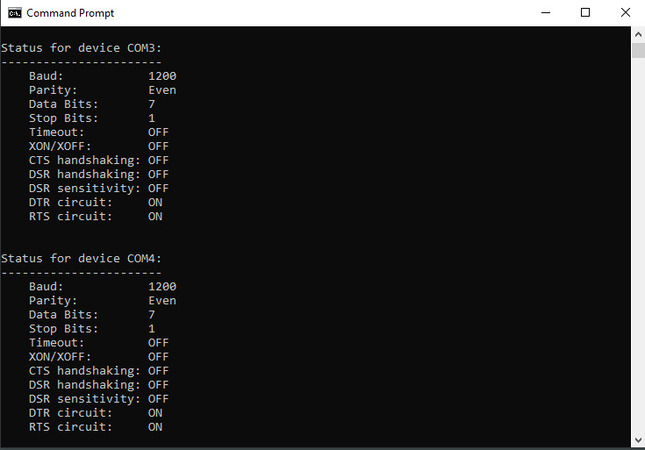
5. Use powershell to open both ports and send a message from one to another.
– Open two PowerShell instances
– Create a New-Object System.IO.Ports.SerialPort for each one
– Open both ports with Open()
– Run ReadLine() on one port and send a WriteLine() message on the other
6. In the message went through, congratulations! The pair is working.
You can also see that some data was transferred. Virtual Serial Port Driver keeps track of the amount sent and received.
Enabling Virtual COM Port Drivers on Windows 10/11
USB serial device drivers typically activate automatically. Use one of the following methods to manually enable a physical or virtual COM port in Windows 10 or 11.
Device Manager
- Open Device Manager.
- Expand the “Universal Serial Bus Controllers” section.
- Right-click your device and select Properties.
- Go to the Advanced tab and enable “Load VCP”.
- Restart the computer.
Update or Reinstall the Driver
If Device Manager displays the port with a yellow warning:
- Right-click the device and choose Update driver.
- Select “Search automatically for drivers”.
- If no drive is found, manually download the latest driver from the manufacturer’s website. Depending on your chipset, the manufacturer is typically FTDI, Prolific, or Silicon Labs.
BIOS/UEFI with onboard serial ports
COM ports may be disabled in the BIOS by default.
- Restart the PC and enter the BIOS.
- Look for “Serial Port”, “COM Port,” or “Integrated Peripherals”.
- Set the selected port status to “Enabled”.
- Save and exit.
Resolving Common Virtual COM Port Issues on Windows 10/11
Virtual COM ports can sometimes behave unexpectedly on Windows 10 and 11, even if the correct driver is installed. The following are some typical problems you may face and how to resolve them.
COM Port is not Displayed in Device Manager
- Enable the “Show hidden devices” option in the View menu in Device Manager.
- Verify that the driver is installed correctly.
- Try using a different USB port.
COM Port Disappears After a Windows 11 Update
- Roll back the port’s driver to the previous version.
- Run the Windows Hardware troubleshooter.
- Reinstall the driver by downloading it from the manufacturer’s website.
Virtual COM Port is Displayed as "In Use"
- Close any application that could be using the port.
- Restart the Windows Serial Port service.
- Check the Task Manager to identify processes that are using the port.
Only One COM Port Shows in Windows 11
You can manually add a COM port in Windows 11 using the following procedure.
- Open Device Manager, select “Action” and then “Add legacy hardware”.
- Select “Communications Port” and follow the wizard’s steps.
Frequently Asked Questions
A virtual COM port is a software-based emulation of a physical serial port. The virtual port fully replicates the functionality of a physical port with no hardware. Serial applications use a virtual port in the same way as a physical port. Common uses of virtual COM ports are testing serial applications, connecting legacy serial software, and testing serial software.
Windows users cannot share a COM port among multiple applications simultaneously using native OS features. Users require a third-party utility, such as Virtual Serial Port Driver, to create multiple virtual copies from a physical COM port. All applications sharing the port receive the same data stream through a dedicated virtual port.
Yes, you can change a COM number in Windows 10/11 with this procedure:
- Open Device Manager and expand Ports (COM & LPT).
- Select a port, then right-click it to open Properties.
- Open the Port Settings tab and select Advanced.
- Choose a new COM port number from those available in the dropdown menu.