Printing from VirtualBox is challenging because there is no built-in “Print” button in its virtual machines. You must find an alternate way to establish communication between the guest operating system and the printer.
This guide explains how to print from VirtualBox using several approaches, including USB passthrough in a virtual machine and native USB support in VirtualBox, so you can choose the solution that best fits your setup.
VirtualBox Native Printer Sharing Methods
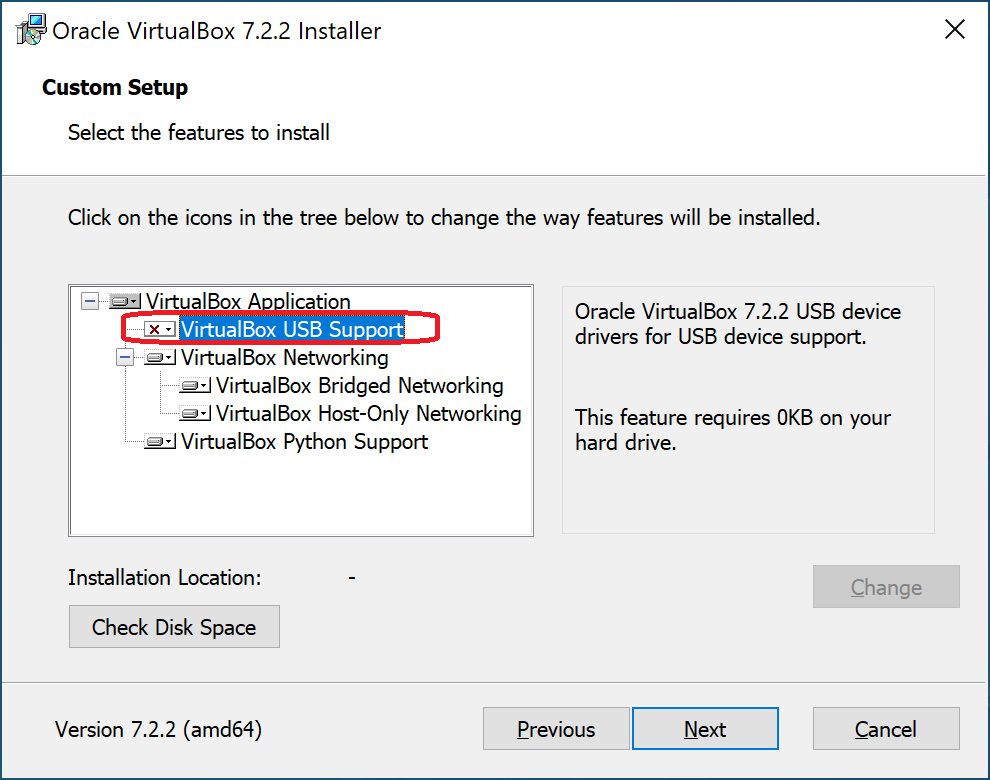
VirtualBox has always allowed guest operating systems to interact with printers connected to the host computer directly, provided the VirtualBox Extension Pack is installed.
VirtualBox versions beginning with 7.0 include native support for USB 2.0 (EHCI) and USB 3.0 (xHCI) in the core, open source package. This support means the Extension Pack is not always necessary to establish basic connectivity between the guest OS and a local printer.
The Extension Pack VirtualBox may be required to connect a printer to VirtualBox with full hardware compatibility.
Users may need the Extension Pack when deploying specific Linux distributions or working with multifunction, high-performance printers, to ensure stable connectivity. The same version of the VirtualBox core package and Extension Pack must be installed to eliminate system incompatibility.
Method 1: USB Printer Passthrough
The most common method for implementing VirtualBox printer sharing is to forward a USB port from the host computer to the virtual machine.
1. Connect your printer to the Host PC with a USB cable.
2. Open VM Settings > USB.
3. Click the “Add Filter” icon and select the printer.
4. Launch the VM and install the printer drivers on the Guest OS.
Unfortunately, this method often results in unstable connectivity for a VirtualBox USB printer. The host operating system may acquire the printer and deny access to the Virtual Machine, resulting in a “Device is busy” error caused by driver conflicts. This error is one of the main reasons users seek alternative solutions.
Pros
- This method is completely free and requires no additional software licenses.
- Direct access is established between the printer and the guest operating system.
- All printer features are supported, including access to the printer’s maintenance tools for cleaning the device or checking ink levels.
Cons
- The Host OS often locks access to the printer and will not release it to the virtual machine.
- This technique requires complex configuration, including setting up USB filters and managing the Extension Pack.
- Driver sensitivity requires installing identical drivers on the host and guest systems.
Method 2: Network Bridged Adapter
You can use this stable method if your printer has Wi-Fi or an Ethernet port.
1. Go to VM Settings > Network.
2. Set “Attached to” to Bridged Adapter.
3. Search for a “Network Printer” inside the virtual machine, the same way you would on a network-attached standalone computer.
Pros
- This method is stable and reliable after the network connection is established.
- The printer is simultaneously available to the host and the guest OS.
- The bridged adapter method eliminates driver conflicts.
Cons
- This method only works with printers that have a network card.
- Users must adjust firewall and network discovery settings.
- Switching from NAT to bridged mode can cause IP conflicts and issues with VM network features.
Method 3: Shared Folder
The shared folder method is a reliable alternative if direct access is failing due to host locking or driver incompatibility. In this technique, you move the document you wish to print from the VM to the host machine.
1. Enable shared folders by going to VM Settings > Shared Folders, then create a link between the VM and a folder on the physical computer. VirtualBox Guest Additions must be installed to create shared folders.
2. Inside the virtual machine, save your document as a PDF and move it to the shared folder.
3. Open the file from the shared folder on the physical computer and print it locally.
Pros
- This method is totally reliable, works every time, and is compatible with any printer.
Cons
- You have to manually save files as PDFs and move them to the shared folder.
- You have no control or visibility of the printer to check ink levels to perform maintenance.
Common VirtualBox Printer Issues
This troubleshooting guide helps you identify the underlying cause of issues with native USB passthrough.
| Problem | Cause | Solution |
| “Device is Busy” | The host OS has a lock on the printer. | Close printing applications on the host or use USB Network Gate. |
| Printer not recognized | Missing drivers or a filter error | Install the official drivers inside the guest OS and check the USB filters. |
| Slow printing performance | Network issues or USB 3.0 conflict | Check the network signal and switch to USB 2.0 mode. |
| Ubuntu: Empty USB list | Permission denied | Run sudo usermod -a -G vboxusers $USER and reboot the VM. |
USB Network Gate provides a reliable alternative that eliminates these problems.
USB Network Gate: A Professional Solution
USB Network Gate is a popular alternative that avoids the potential problems with native USB passthrough methods by redirecting the printer to virtualized USB ports over the network.
Why choose USB Network Gate?
- The software intercepts low-level USB data and prevents the host operating system from locking printer access.
- You can connect to printers attached to remote host computers over the network.
- The application establishes a virtual USB port in the VM so guest drivers can recognize the printer.
- No potential version conflicts between VirtualBox and its Extension Pack.
You can establish a stable printer connection using USB Network Gate in three simple steps.
1. Download and install USB Network Gate on the physical computer or server where the printer is connected, and on the VirtualBox guest operating system, called the Client.
2. Start USB Network Gate on the host machine. Locate the printer in the list of USB devices and click the Share button.
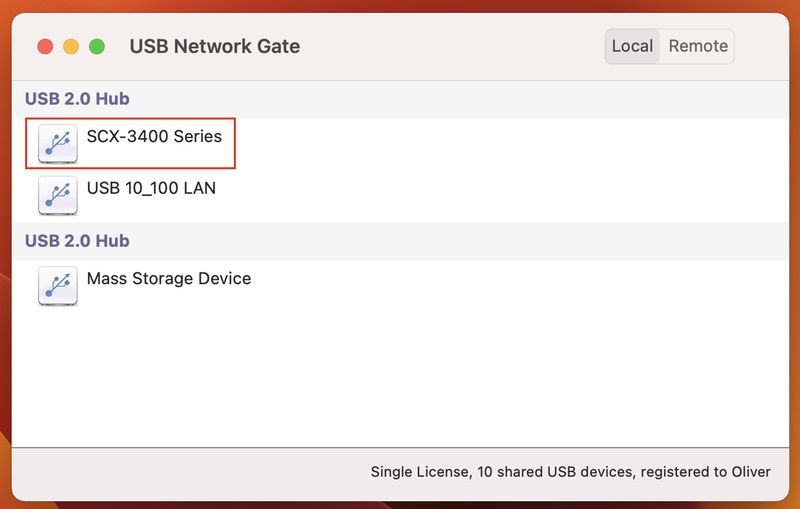
3. Open USB Network Gate inside your VirtualBox VM, locate the printer in the “Remote USB devices” tab, and click Connect.
Learn more from our video tutorial:
Pros
- Enables remote printing over an IP-based network.
- Eliminates the "Host Lock" issue, ensuring the VM always has access to the printer.
- Streamlined setup with no USB filter configuration or verifying Extension Pack versions.
Cons
- The software must be installed on the host and guest machines.
- A paid subscription or license is required to use the software.
Setup for Ubuntu Hosts
Setting up a VirtualBox printer on Ubuntu hosts often fails due to a Linux permission restriction, even when the device is connected and detected by the system. By default, the operating system limits direct access to USB devices. VirtualBox users must be members of a required system group, or their VM will not detect any USB printers.
Accessing a VirtualBox USB Printer on Ubuntu
Printer access in VirtualBox on Ubuntu and most Debian-based Linux distributions requires you to obtain account permission to access USB devices.
Fix: You must add the user to the vboxusers group.
1. Open a terminal on the Ubuntu host.
2. Run the following command:sudo usermod -a -G vboxusers $USER
3. Reboot or log out and log back in.
4. Launch VirtualBox and start the VM.
The printer should now appear in the VM’s USB device list and will be available for USB passthrough.