
VirtualBox allows you to emulate serial (COM) ports inside a virtual machine, making it possible to run legacy applications, connect physical serial devices, or establish communication between virtual systems. By configuring VirtualBox COM ports correctly, you can redirect serial data to the host machine, share real hardware, or create virtual connections using pipes and network sockets.
This article explains how VirtualBox serial ports work, the available configuration options, and practical ways to connect and manage COM ports in a virtual environment.
Serial Port Emulation and Management in VirtualBox
Virtual serial ports created in VirtualBox are recognized by the operating system as a standard 16550A compatible UART device by default. The VBoxManage modifyvm command enables the port to replicate other types of UART devices. Virtual serial ports support data reception and transmission for two-way communication. Connectivity to the host machine is customized using the capabilities of its operating system.
Users set up virtual serial ports with the VirtualBox Settings tab or using the VBoxManage command. Up to four virtual serial ports can be configured for each virtual machine. Port numbers are assigned during configuration and typically replicate standard values such as COM1, COM2, etc. User-defined names are also an option when establishing virtual serial ports.
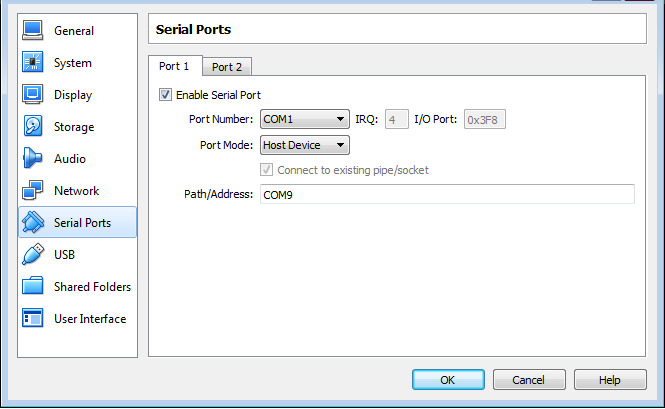
Port Mode Options and Communication Techniques in Virtualbox
Multiple choices are available when selecting the port mode which affects the virtual port’s connection. Your choices are:
- Disconnected – The guest OS recognizes the device but treats it as if it is not connected to the port.
- Host Device – This option links the virtual serial port to the host computer’s physical serial port. Paths reflect the format of the host OS. For example, /dev/ttyS0 is used for Linux and COM1 for Windows systems.
- Host Pipe – This option creates a named pipe on Windows systems or employs a local domain socket on Mac, Linux, or Oracle Solaris. This is the preferred setup for creating pipe connections from software to the host OS.
- Raw File – This mode saves the output of the virtual serial port to a file where it can be used to gather diagnostic data from the guest operating system.
- TCP Socket – Using this mode establishes VirtualBox serial port passthrough and allows the serial data to be forwarded over TCP/IP networks. VMs can act as either a server or a client.
When multiple virtual serial ports are created, interrupt sharing should not be implemented if the ports use the same interrupt level to avoid communication conflict.
Users can establish communication between virtual machines with a null-modem connection. One of the VMs is configured as a pipe or socket that the second VM uses to connect to the first machine.
The TCP socket mode supports the creation of external connections to a guest machine’s serial port over TCP. VirtualBox supports both TCP server mode which is accessible with tools like telnet, and TCP client mode, suitable for virtual null-modem cables.
A knowledge of VirtualBox serial ports provides developers and system programmers with a valuable tool to extend the functionality of their VMs. The ports can be used for device sharing, kernel debugging, or establishing network bridges without requiring physical serial interfaces.
VirtualBox Serial Port Technical Details
VirtualBox supports up to four virtual serial ports per virtual machine. Each port emulates a standard PC COM interface and requires specific hardware parameters to ensure compatibility with legacy software and operating systems.
Default COM Port Settings in VirtualBox
When configuring a serial port manually, you must specify the I/O base address and IRQ number. VirtualBox follows the traditional PC serial port layout:
| COM Port | I/O Base Address | IRQ |
| COM1 | 0x3F8 | 4 |
| COM2 | 0x2F8 | 3 |
| COM3 | 0x3E8 | 4 |
| COM4 | 0x2E8 | 3 |
Using these default values helps avoid conflicts and ensures that guest operating systems correctly detect the serial device.
Configuring Serial Ports via VBoxManage
In addition to the VirtualBox graphical interface, serial ports can be configured using the VBoxManage command-line tool. This approach is useful for automation, scripting, or headless environments.
VirtualBox provides command options such as:
--uart– defines the serial port number and hardware parameters--uartmode– specifies how the port is connected (host device, pipe, socket, file, etc.)--uarttype– sets the type of UART emulation
Command-line configuration allows advanced users to precisely control serial port behavior without relying on the GUI.
VirtualBox Serial Port Passthrough with Serial to Ethernet Connector
To simplify VirtualBox serial port passthrough and enable access to physical serial devices, you can use Serial to Ethernet Connector. This software allows a VirtualBox virtual machine to connect to serial devices attached to a local or remote Windows host by creating virtual serial ports inside the VM.
By using Serial to Ethernet Connector, virtual machines gain full control over network-connected serial peripherals, just as if they were directly attached. This approach adds flexibility to serial device management, allowing hardware to be easily reassigned between virtual sessions without reconfiguring the virtual machine.
Setting up COM ports in VirtualBox
The following steps demonstrate how to establish and share virtual serial ports with your virtual machines.
1. Download and install Serial to Ethernet Connector on the computer that will share a physical serial port.
2. Launch the program and open the Server connection tab.
3. Provide the host machine’s COM port name and the TCP port that will monitor communication.
4. Select Create server connection.
5. Connect the serial port to the virtual machine in the Client connection tab on the guest operating system that will access the shared physical port.
6. Supply the TCP port name defined during server creation and the IP address of the host computer.
7. Select a name for the virtual machine’s serial port.
8. Choose Create client connection.
Video tutorial
COM Port Redirector enables you to access serial ports in virtual machine environments. After establishing a client connection, COM Port Redirector (aka Serial to Ethernet Connector) provides the guest VM with the same level of functionality when using connected devices as with a direct physical connection.