It would be wrong to say that today’s users are short on free remote desktop software for Linux. Remmina, VNC, and RDP clients, SSH-based workflows, browser-based solutions, and self-hosted services are all available. Many of them are free, including both Remmina and HelpWire, with HelpWire positioning itself as always free for personal use. The difference is that many traditional Linux tools are built mainly for access, not for the full support workflow.
A support session needs more than basic screen control. It should start without a lengthy setup, stay responsive enough for troubleshooting, support file transfer and multi-monitor work, and allow the technician to reconnect later if the issue requires follow-up.
HelpWire is built around this workflow, offering a free remote desktop for Linux users who support clients across different operating systems and need unattended access when they have to return to the same machine later.
Seamless Linux Integration for Modern Workflows
HelpWire supports Linux as part of a cross-platform remote support workflow. That means a technician can work from a Linux machine while helping users on other operating systems, without relying only on native Linux remote desktop clients or manually configured protocols.
For Linux, HelpWire is available as a portable .tar.gz package and supports:
- Ubuntu 18.04, 20.04, 22.04, and 24.04; Debian 11 and 12; CentOS Stream 9; RHEL 9; and Fedora 39+.
The product is especially relevant for:
- IT support teams working from Linux workstations
- Solo IT providers supporting multiple clients
- Internal SMB support teams helping employees remotely
- Technicians who need both on-demand and unattended access
- Support teams that want less setup overhead for non-technical users
The important point is not just coverage of distribution, though. It is the workflow: HelpWire gives Linux users a way to start remote support without turning every connection into a configuration task.
Key HelpWire Features for Linux Remote Support
HelpWire is built for practical remote support from Linux, especially when technicians need to connect quickly, work without unnecessary interruptions, and return to the same device later.
Key features include:
- Link-based session start – send a secure connection link, and let the remote user approve access without dealing with IDs, passwords, or manual protocol settings.
- On-demand remote support – connect when the user is present and needs immediate help with troubleshooting, setup, or configuration.
- Unattended access – return to the same remote machine (Linux, Windows, or macOS) later for follow-up work, updates, or maintenance without restarting the whole support flow.
- Full remote control – use keyboard, mouse, and clipboard access to work directly on the remote computer.
- File transfer – send files during a session by simply copying and pasting into the HelpWire remote control window.
- Multi-monitor support – view and manage multiple remote screens.
- Built-in support chat – communicate with the user during the session without switching to a separate messenger.
- Client and team management – organize client profiles, manage multiple devices, and let support teams divide work between operators.
- Secure, firewall-friendly connections – HelpWire uses TLS/SSL, AES-256 encryption, Auth0 authentication, and AWS-based infrastructure, while avoiding manual port forwarding in typical support scenarios.
How to Set Up HelpWire Remote Desktop on Linux
Here is the basic workflow for starting a Linux remote desktop support session with HelpWire.
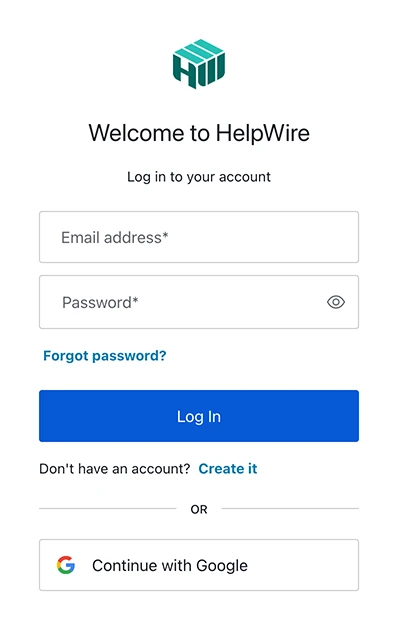
1. Log in or create a HelpWire account
Open the HelpWire web portal and log in. New users can create an account with an email address or a Google profile.
2. Download the Linux Operator app
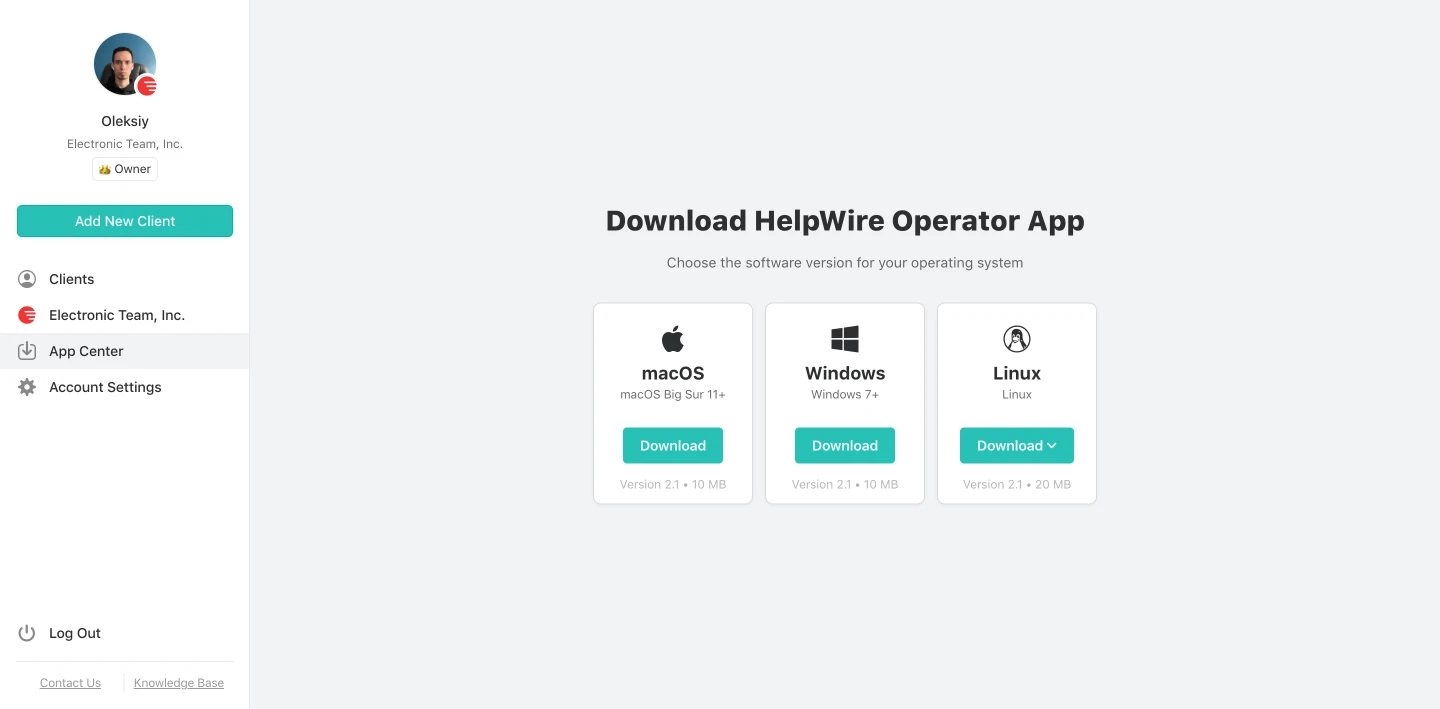
From the App Center, download the HelpWire Operator app for Linux. This is the application the technician uses to start and control support sessions.
3. Create or select a client
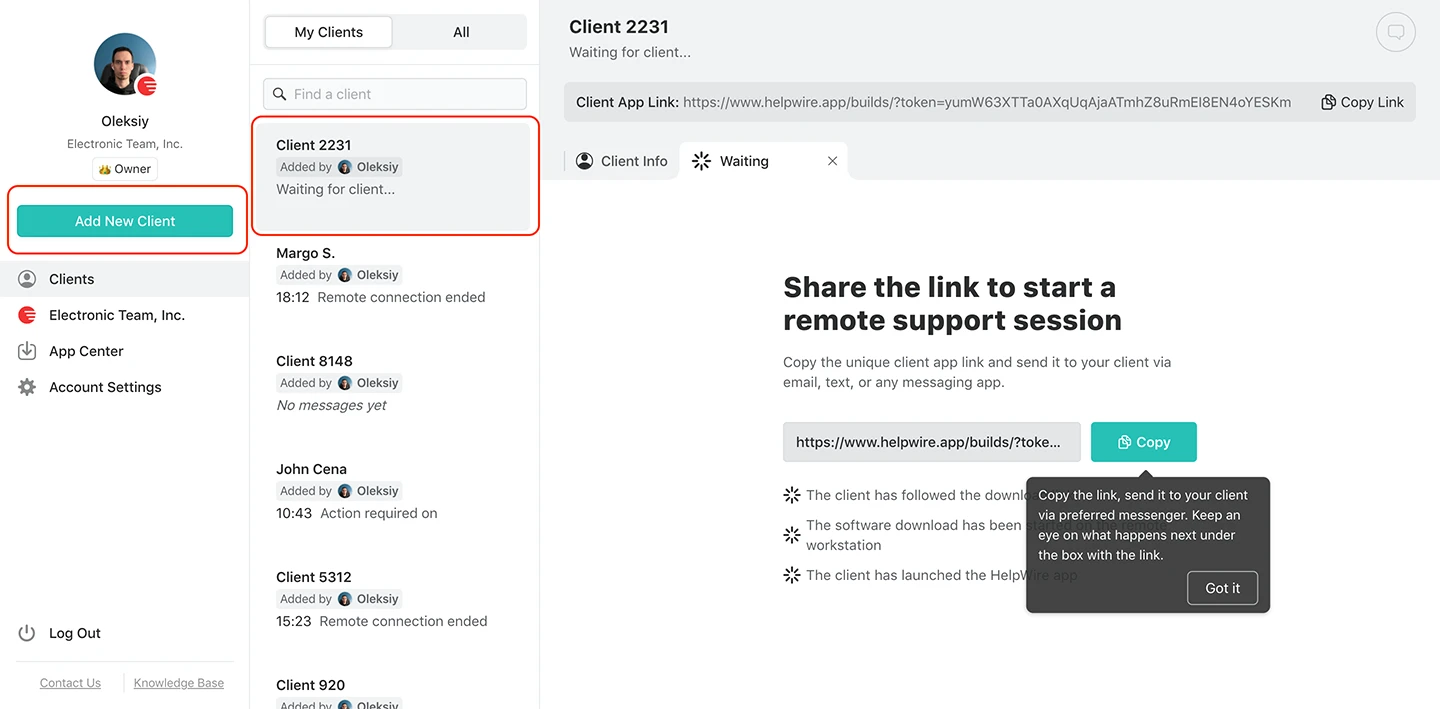
Choose an existing client from your client list, or create a new client profile if this is the first time you are supporting that user or device.
4. Share the client app link
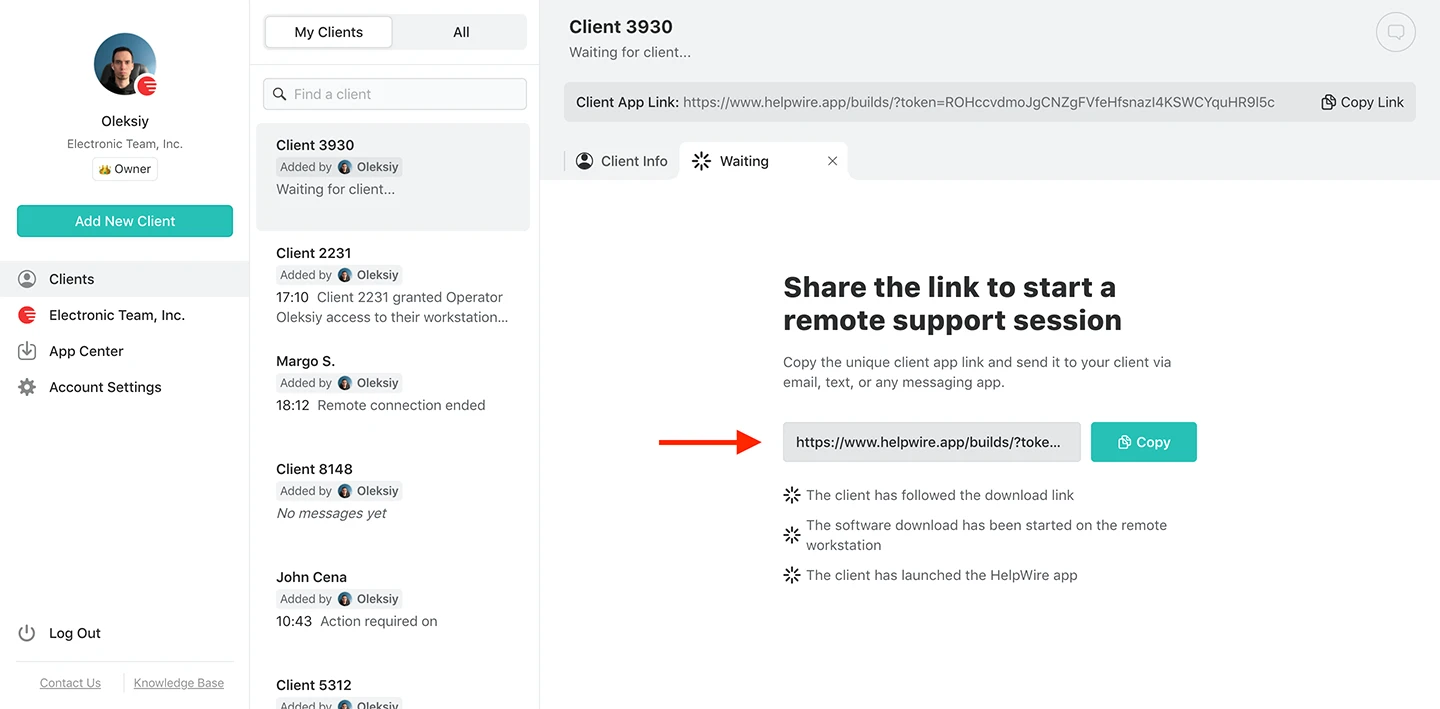
Copy the unique client link from the client profile and send it to the remote user through a secure channel such as email, chat, or a company support system.
5. Request access
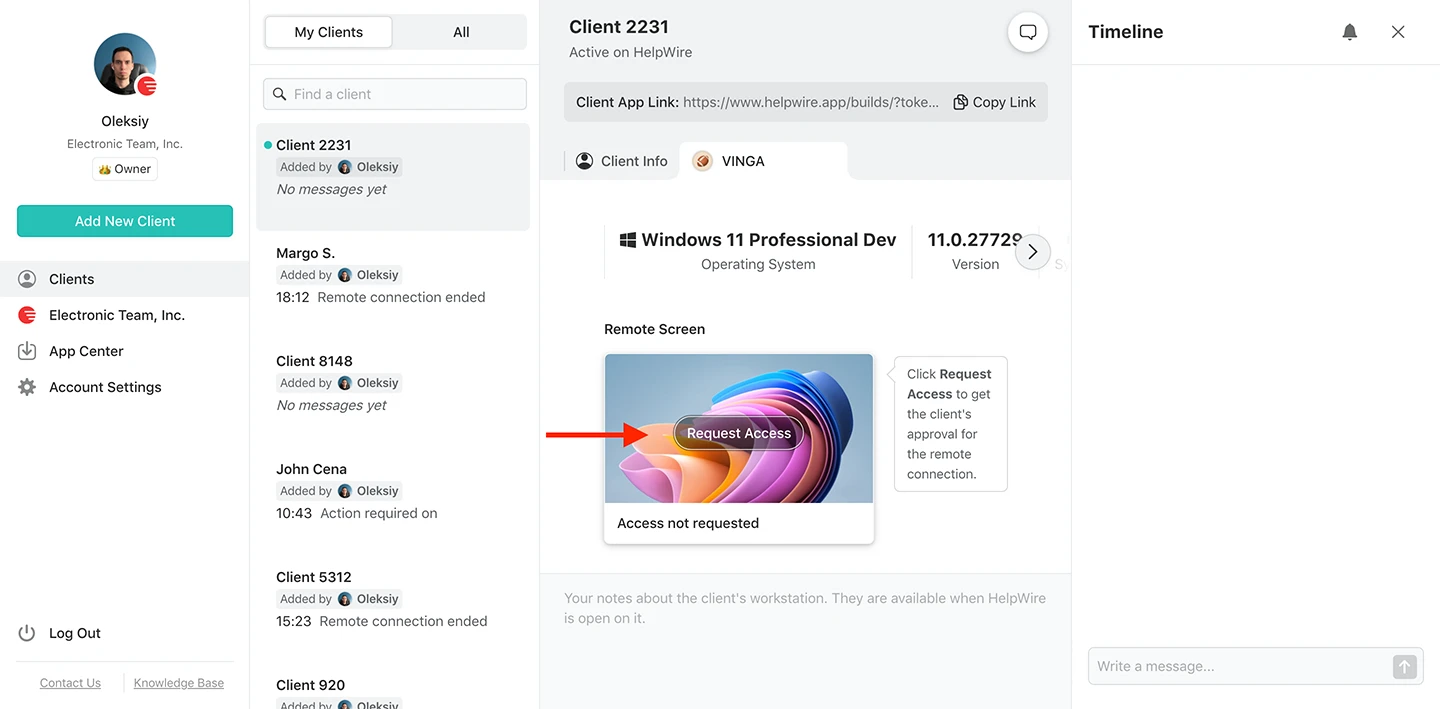
Press the Request Access button after the client installs and launches the HelpWire client app, and wait for the client’s approval.
6. Start remote control
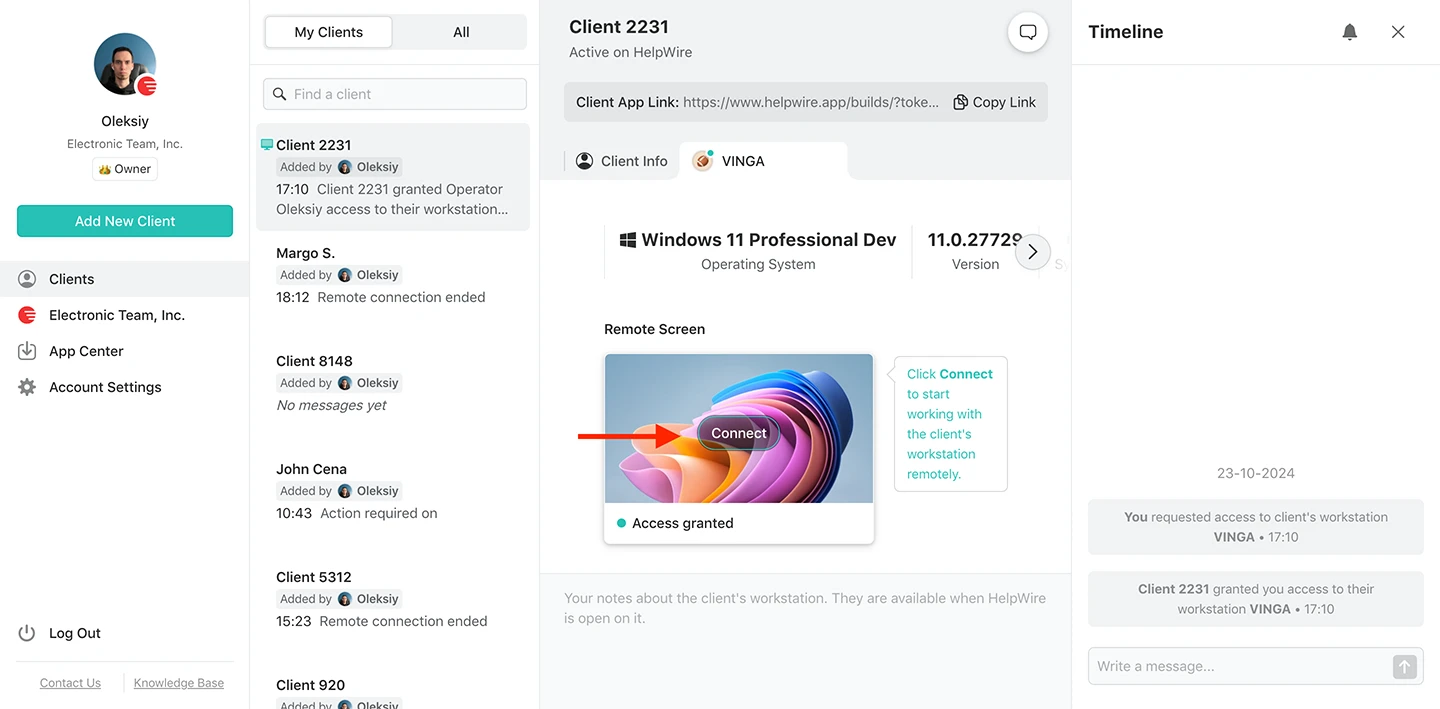
Once permission is granted, connect to the remote device and begin the support session.
7. End the session when the work is complete
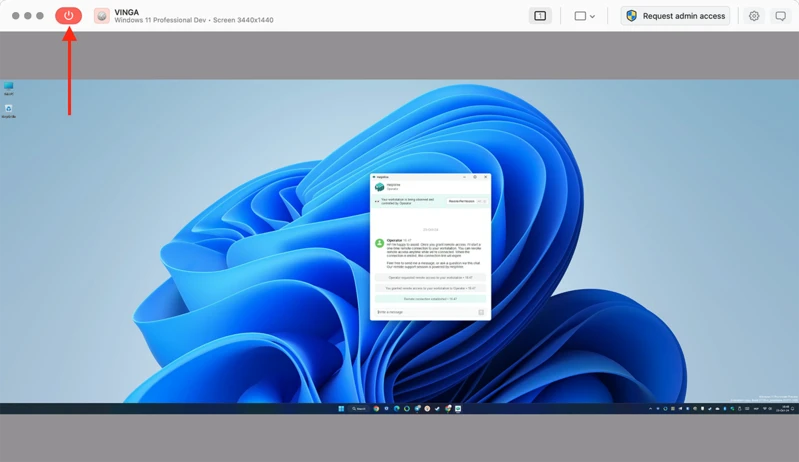
The session can be closed from the Operator app, from the remote Client app, or through the session control button in the HelpWire toolbar.
Best Free Linux Remote Desktop: HelpWire vs Remmina
Remmina is a strong and widely used Linux remote desktop client. It supports protocols such as RDP and VNC, and for many Linux users, it is the default tool for connecting to known machines.
Remmina is useful when you already know how the remote machine is configured, which protocol you want to use, and how to reach it. It is a good fit for technical users connecting to prepared systems.
HelpWire is better suited to support scenarios where the remote user may not know how to configure anything. Instead of asking the user to set up an RDP or VNC endpoint, the technician sends a link and works through a guided support flow.
A practical comparison:
| HelpWire | Remmina | |
| Price | Free | Freemium |
| Main use case | Remote support workflow | Protocol-based remote access |
| Best for | IT support teams, solo technicians, SMB support | Linux users connecting to known systems |
| Open-source | No | Yes |
| Session start | Link-based client flow | Manual protocol/server setup |
| File transfer | Drag-n-drop or copy-paste | Sharing access to a remote folder |
| Shared clipboard | Yes | Yes |
| Client organization | Client profiles and support history | Connection profiles |
| Unattended follow-up | Supported | Depends on remote host setup |
| Firewall complexity | Designed to avoid manual port forwarding | Depends on protocol/network setup |
Final Thoughts
While Remmina, SSH, or VNC are excellent for Linux users managing their own configured machines, HelpWire is designed for the human side of IT support. Its real value isn’t just screen sharing – it’s the elimination of pre-session friction.
For IT teams and solo providers looking for the best free remote desktop software for Linux, HelpWire’s value is not just screen sharing, but a shorter path to a working session. Instead of manual setup and repeated configuration, technicians can send a link, connect quickly, and use unattended access when follow-up is needed.