Remote Desktop Camera Access with USB Network Gate

While Remote Desktop clients offer limited support for audio and video devices, it’s common for a user to find that their specific camera is not supported, or exceeds the bandwidth that native redirection can provide. Luckily, there’s always USB Network Gate – a free utility for network USB device redirection.

How to Access Webcam Remotely over RDP

1. Request the Free Version of USB Network Gate.
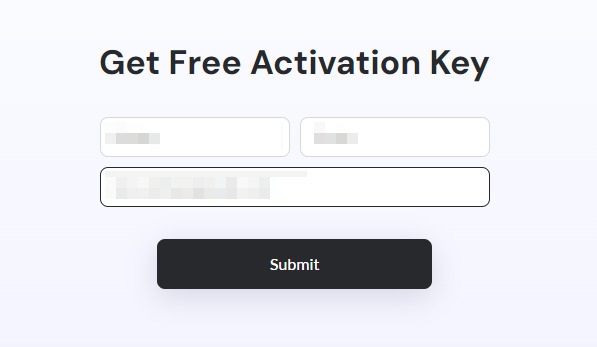
Activation key request form

2. Once you’ve submitted a request, download and install the app on the local computer (not the RDP session host).
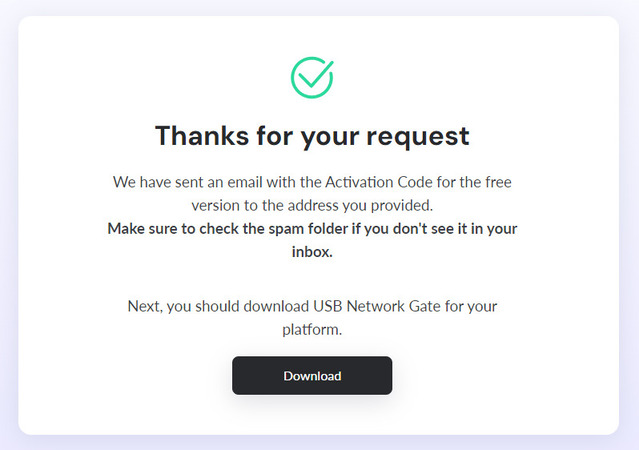
The request for a USB Network Gate license is approved

3. Use the code you got through email to activate USB Network Gate and allow device sharing.
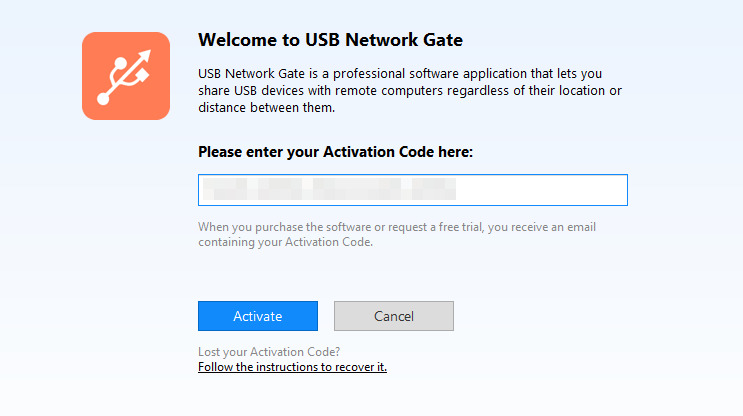
Activating USB Network Gate after installation

4. Click “Share” next to the webcam in the device list.
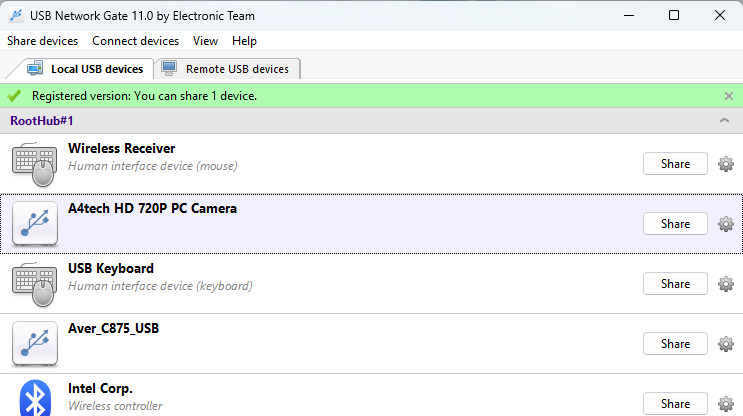
Sharing a webcam from USB Network Gate

5. Alternatively, you can click the gear icon and modify the connection settings.
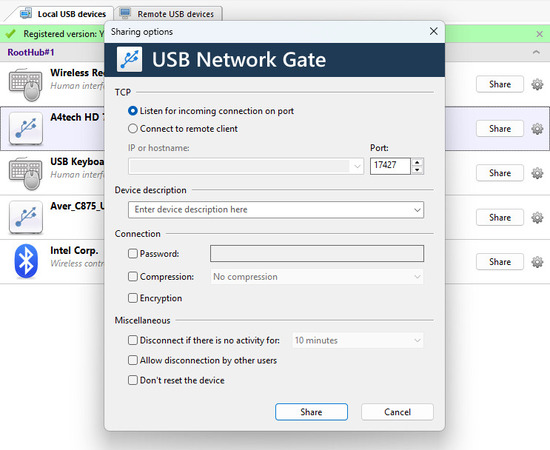
Configuring a USB Network Gate connection

6. Start the RDP session without enabling any “Local Resources” settings.

7. When installing USB Network Gate on the remote host, it’s best to change the installation settings to connect-only. Enable device isolation as well, if the session is hosted on a multi-user system.
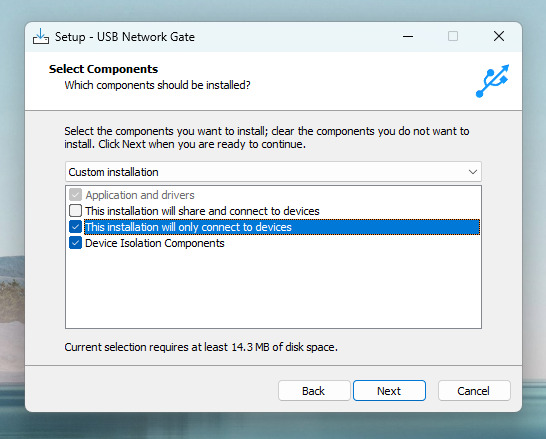
Client-specific settings during installation

8. Open USB Network Gate and click “Connect” next to the webcam. You can use the “Add Server” button to manually search for the local computer’s IP address, if the device isn’t showing up.
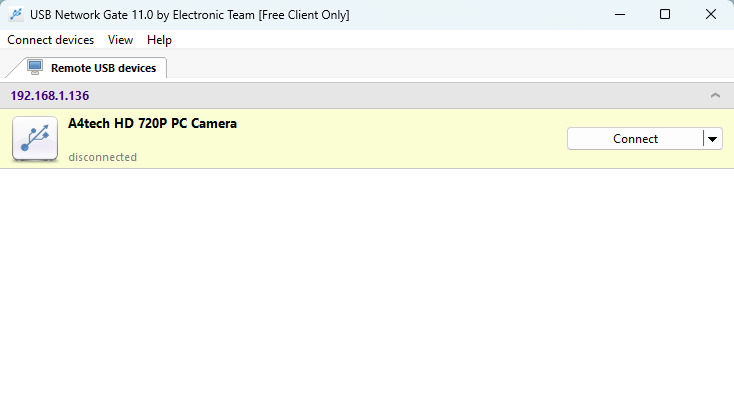
The webcam appears in the device list

9. You now have access to the webcam!
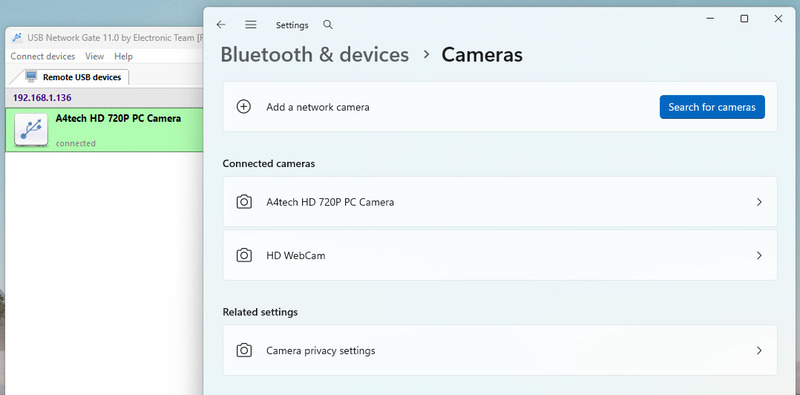
Check whether the webcam is connected in the "Bluetooth & devices" section of Windows settings

USB Network Gate Features for RDP

USB Network Gate is available for free, and it has several traits that make it perfect for Remote Desktop camera redirection. First off, it’s cross-platform, with versions available on Windows 11 and older versions, Linux, macOS, and Android. The capabilities of RDP hosts and clients on various platforms may vary, so it’s safer to have an app like USB Network Gate that will work the same on any hardware.


The features of USB Network Gate also target specific problems that can occur during an RDP session. Isolation components ensure that your device is only accessible to your account, and not to every other user in a multi-user environment. Privacy can also be enhanced by using the options for automatic timed disconnection, password protection, and packet encryption.


Features:


– Cross-platform, with Windows, Linux, and macOS support
– Works with most types of USB devices
– Driver not required on the local computer
– Device isolation for multi-user environments
– Plenty of security-related settings

If you enjoyed the free version of USB Network Gate, you can purchase a USB Network Gate license to share 10 devices at the same time and save your settings between sessions.

Other Ways to Access a Remote Webcam

This tutorial concerns webcam redirection for immediate use, such as joining a video call from a remote workstation. However, there are other reasons to access a remote webcam, including its use as a security camera. If that’s what you need, consult our article on how to access a remote webcam.

Frequently Asked Questions

When using the Remote Desktop Connection client on Windows, the device redirection options are under Local Resources > More > Video capture devices. Note that this may not work for every webcam, and may interfere with redirection software like USB Network Gate if enabled.

While the easiest option is trying USB Network Gate (it’s free, after all), you can also consult the administrator of the RDP server on whether webcams are allowed by its group policies. Policies for RemoteFX may need to be enabled for some cameras.