USB dongle licensing ties software access to a physical device, which works until the dongle is somewhere else. Remote workers, VM environments and distributed teams regularly hit the same wall: the license is valid, the software is installed, but the key is plugged into a machine in another location. Shipping the dongle back and forth is impractical. Passthrough to a VM is unreliable. And when the dongle goes missing or fails, access is gone entirely until the vendor gets involved.
Using dongle-protected software when the dongle is remote is a solvable problem. Donglify addresses this by sharing the USB dongle over the network, whether over Wi-Fi, LAN or the internet, so any authorized machine sees it as locally attached. The physical dongle stays in one place; access travels to wherever the work is happening.
What Real Users Say About Dongle Access Problems
The frustration with dongle-based licensing shows up consistently in IT communities, and the complaints fall into three categories.
The most common is multi-device access. As one user put it: “I’m trying to use the software on multiple devices remotely, but it’s a hassle to keep moving the dongle around.” That single sentence describes the situation most shared-license environments are in.
VM passthrough comes up just as often, and the results are consistently mixed. One commenter described trying the obvious workaround and hitting a wall: “Run the software in a VM with dongle passthrough… Sadly the software is defective by design.” The protection mechanism itself is the obstacle, not the user’s setup.
The worst cases involve dongles that go missing or fail. Users end up locked out of software they legally own: “I have some older software that requires a physical dongle… the dongle has either been misplaced or stopped working.” No access, no workaround, no timeline for resolution without vendor involvement.
Across those threads, users mention Donglify as the best way to use software without a dongle.
How Donglify Helps to Use Software Without Dongle
Donglify is the best solution to use a dongle-protected software without a dongle when the physical USB dongle is connected to another machine. The physical dongle stays connected to a host, and remote computers access it over Wi-Fi, LAN, or the Internet as though it were locally attached. Donglify needs to be installed on the machine hosting the dongle and on the remote machine that will access it.
Donglify describes itself as a software-based USB virtualization tool for sharing USB dongles over a network. On the remote side, the shared USB key appears in the system as though it were physically connected to that computer.
Whether that works in practice still depends on the protected application, the dongle type, and the environment, so testing before deployment is still important.
Donglify Technical Specifications
Connection and access
Donglify shares USB dongles over Wi-Fi, LAN, or the Internet, including for Remote Desktop and virtual-machine use.
Encryption and security
Donglify states that it uses 2048-bit SSL encryption and supports token-based access sharing.
Platform support
Donglify supports Windows 7/8/10/11, Windows Server 2008 R2 through 2025, Windows 10/11 on ARM, and macOS 10.15+.
Multi-Connect and VM compatibility
Donglify says Multi-Connect can allow multiple users to access the same dongle at once. It is also intended for VM use, including environments such as VMware, VirtualBox, and Hyper-V.
How to Set Up Remote Dongle Access With Donglify
Setup is straightforward:
1. Create a Donglify account.
2. Install Donglify on both the host machine with the physical dongle and the remote machine that will run the software.
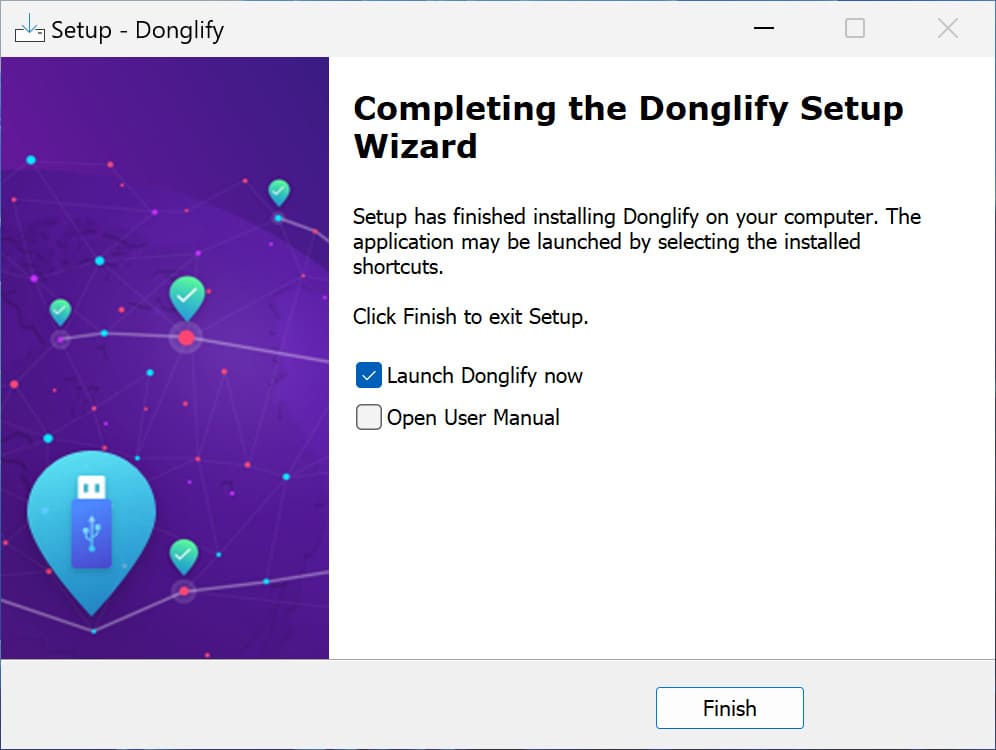
3. Sign in on both systems.
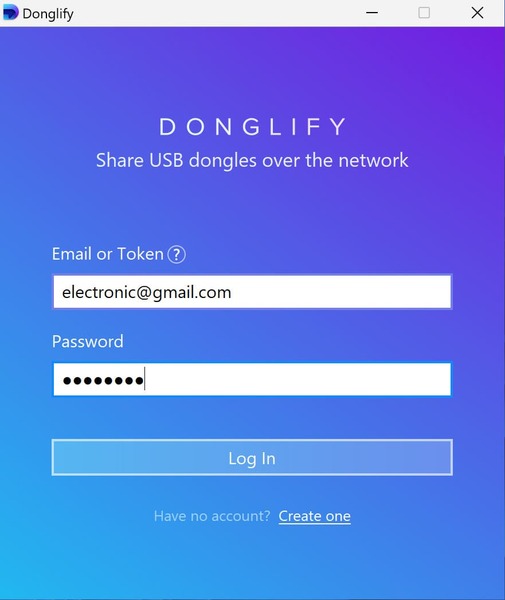
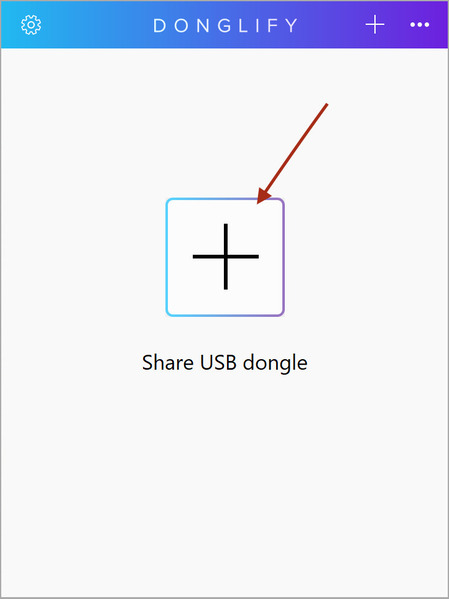
4. On the host, click “+”, choose the dongle, and click Share.
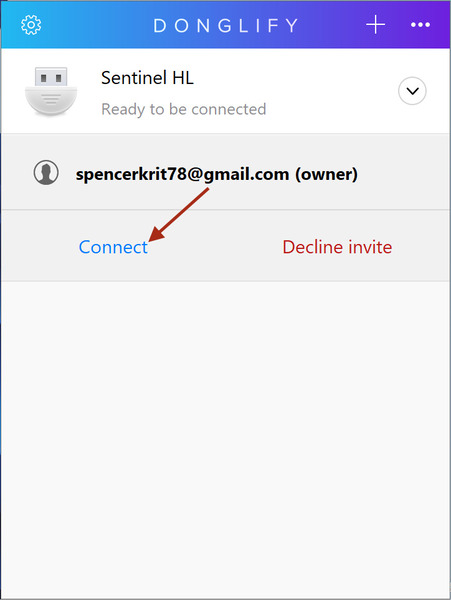
5. On the remote machine, select the shared dongle and click Connect.
6. If other users need access, either invite them by email or create a token from the Donglify web interface.
7. If you need concurrent access, confirm that the dongle supports multi-connect before planning a shared workflow.
If the application accepts the virtualized connection as valid, it runs as though the dongle were locally attached.
Bottom line
Dongle-based licensing was built for a world where everyone sat at the same desk, plugged into the same machine. That world is mostly gone.
Donglify works by moving USB communication to the network layer while keeping the physical dongle as the authoritative device. Donglify does not replace the physical dongle, but compatibility and license terms still need to be verified before deployment.
For IT teams, the practical value is straightforward: less time managing physical hardware, more consistent access for distributed users. That said, compatibility testing and license term validation are not optional steps. They’re the difference between a clean deployment and a support ticket.
The dongle works fine. The environment around it is what changed.
