Using a USB dongle over RDP often fails: the device is connected locally, but the remote application does not detect it. This is a common issue with licensing dongles, USB tokens, and security keys.
The reason is architectural. RDP USB redirection works well for standard devices but struggles with specialized hardware like licensing dongles, certificate tokens, and security keys, which require a level of direct device access that RDP was never designed to provide. Windows does offer built-in options like USB passthrough and smart card redirection, but they are limited, require significant configuration, and are often unreliable for licensing hardware.
For reliable remote desktop dongle access, a network-level solution like Donglify is more effective. It shares the USB device over the network so it appears as locally connected on the remote machine, avoiding the limitations of native RDP redirection entirely.
Why USB Dongles and Security Keys Don’t Work Over RDP
RDP was designed to deliver a remote session to a local screen. Keyboard input, display, clipboard, and audio all map to it naturally. USB dongles, certificate tokens, and security keys do not, and the reasons differ by device type.
Software licensing dongles such as Sentinel, HASP, and CodeMeter rely on proprietary drivers and continuous presence checks. The application polls the dongle at intervals, and if USB communication is interrupted or delayed, the software locks or shuts down entirely.
Certificate tokens and digital signature keys depend on middleware such as PKCS#11 or Microsoft CryptoAPI. The problem over RDP is not polling but reach: the remote machine needs the right libraries installed and a way to access the physical device as if it were local.
Hardware security keys, including many FIDO2 devices, behave differently again. Some work reasonably well with native RDP smart card redirection, depending on the specific device and Windows environment.
Windows does support broader USB redirection through Group Policy, and for standard device types like storage, printers, and PIV-compatible smart cards it works reliably. For licensing dongles it is worth trying first in a controlled Windows environment, but results vary by dongle type, driver support, Windows version, and network conditions. Even when it works, native redirection supports only one RDP session at a time and requires additional setup: policy changes, driver management, and a Windows-only environment.
Seamless Solution to Redirect USB Dongle over RDP: Donglify
Where native RDP falls short for USB dongle redirection, Donglify provides a more practical alternative. It lets a remote desktop session access a USB dongle connected to a local machine over the network, so the device appears as if it were directly attached. No protocol workarounds, no single-session limitations, and no Group Policy configuration are required.
Donglify supports many major USB dongle brands and models, including Sentinel, HASP, and CodeMeter keys commonly used in engineering and design environments. With straightforward setup and no need for complex infrastructure changes, it is a practical solution for teams that need reliable dongle access over RDP.
Donglify Main Features
Multi-connect support. For supported dongles, Donglify lets multiple remote machines access one physical USB dongle at the same time.
No reliance on native RDP USB passthrough. Donglify shares the dongle over the network, making it useful in remote desktop and VM scenarios where USB passthrough is limited.
Encrypted traffic. Donglify says its shared connections are encrypted, and its security materials describe TLS 1.2 and end-to-end encryption.
Software-only setup. No extra hardware is required to start sharing a dongle over the network. Donglify is available for Windows and macOS.
How to Set Up Donglify for RDP Dongle Access
The setup process is relatively straightforward. No Group Policy edits are required, and no driver matching between machines, though the remote machine still needs the appropriate device drivers installed separately.
1. Create a free Donglify account at donglify.net.
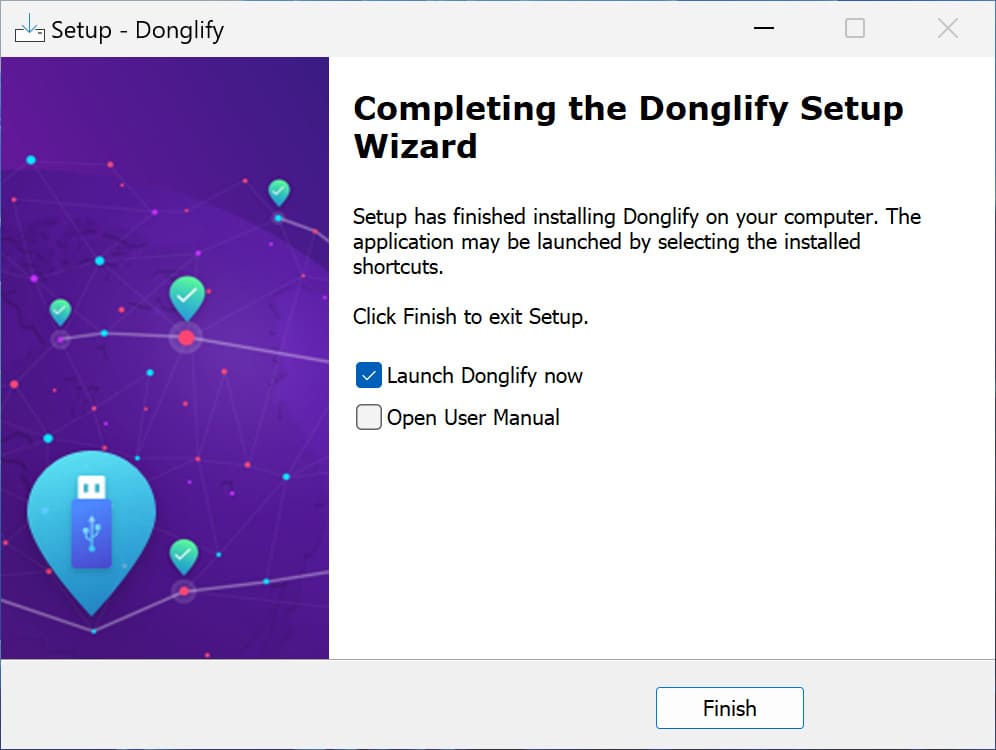
2. Install Donglify on the server machine, the one with the USB dongle physically attached, and on every remote client machine that will need access to it.
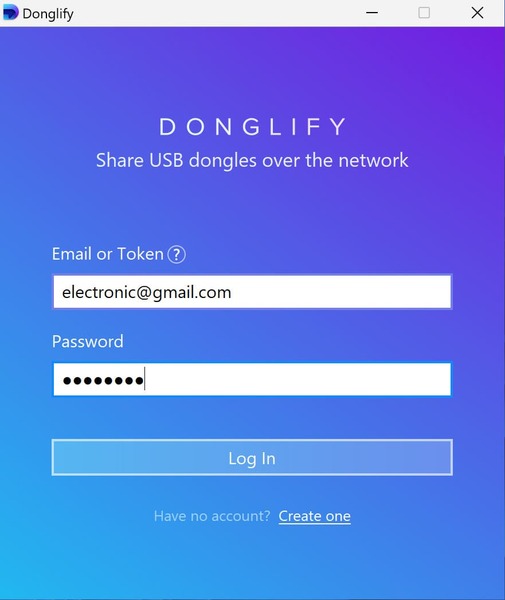
3. Launch Donglify on both machines and sign in with the same account credentials.
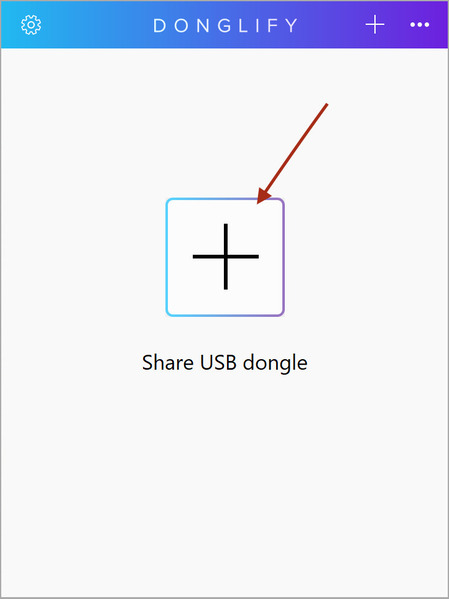
4. On the server machine, click the “+” icon to display a list of connected USB devices.
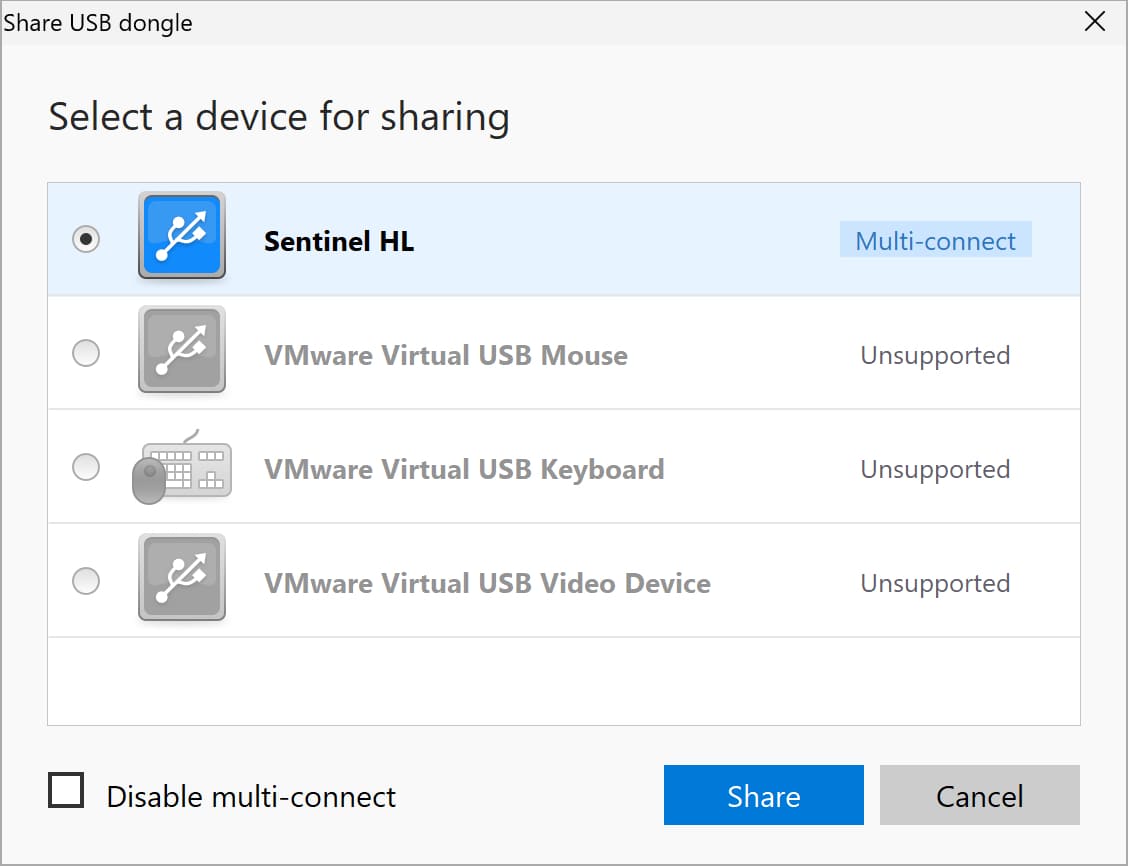
5. Select the dongle you want to share using the radio button next to its name, then click Share.
6. On the client machine, find the shared dongle in the Donglify interface and click Connect.
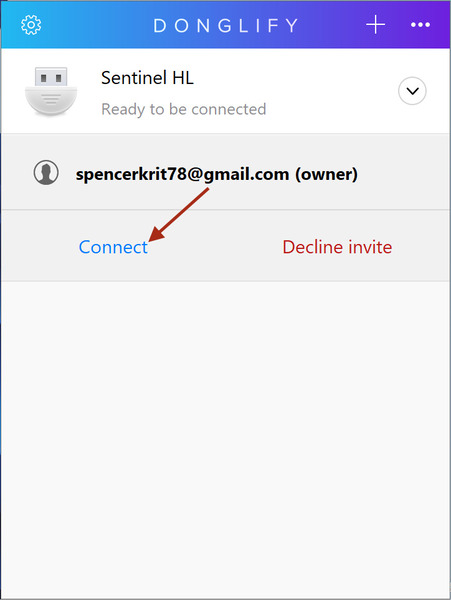
7. Once the connection is established, the dongle appears in the remote machine’s Device Manager as a locally attached device. For most standard licensing dongles, including Sentinel HL, HASP HL, and CodeMeter sticks, the licensed software recognizes it and the session runs normally. Highly specialized or firmware-protected dongles still require testing against your specific device before relying on it in production.
Choosing Between Native RDP and a Network-level Approach
Native RDP USB redirection is worth trying first, particularly for PIV-compatible smart cards, standard Windows-supported devices, and controlled VDI environments where the configuration overhead is manageable. It requires no additional software and handles many common scenarios adequately.
For licensing dongles that fail under native RDP, certificate tokens with vendor-specific middleware, multi-user access requirements, or cross-platform environments, a network-level USB sharing tool like Donglify addresses the problem at a different layer. The architecture avoids the translation issue rather than trying to work around it. That’s the practical reason it tends to work where native redirection doesn’t, not because it’s a universal fix, but because it doesn’t rely on the same abstraction layer that causes the failure in the first place.
