
Connecting an external hard drive to a VirtualBox virtual machine (VM) can extend the capabilities of your VM, allowing it to access data from physical drives. However, there are certain limitations and risks involved, so understanding the best methods and potential issues is essential. This guide will explain how to mount an external hard drive to VirtualBox using both native features and third-party tools, as well as address common risks and troubleshooting steps.
Reasons to Mount an External Hard Drive in VirtualBox
There are several reasons to mount a hard drive in VirtualBox, such as retaining your old OS and data as you move to a new system, isolating two OS versions, or just increasing productivity and the functionality of your VMs.
- A physical hard drive attached to a VirtualBox VM adds flexibility to your computer. It allows you to run multiple operating systems simultaneously to facilitate software testing or run programs that require a specific environment.
- An external hard drive may be necessary to enable users to run certain applications or operating systems that are incompatible with virtual drives. You can install an alternate OS or applications on a physical drive and then access and run them from VirtualBox to eliminate compatibility issues.
- You can make an old operating system and its data available from a VM by using an external hard drive to store the data and code from the previous OS. Users can access the old OS through VirtualBox.
- Implementing a physical hard drive with VirtualBox lets you isolate an operating system or application, minimizing possible security concerns. Sensitive data can remain on the external drive rather than being transferred to a virtual drive that may be less secure.
How to Mount a Hard Drive to VirtualBox (Native Methods)
Preparing Your System
Before connecting your external hard drive, ensure that VirtualBox is installed and updated. Versions 7.x and above support USB 2.0 and 3.0 passthrough natively. However, older versions of VirtualBox may require the Oracle Extension Pack to enable USB passthrough.
Native Method: Using USB Passthrough (For External Hard Drives via USB)
USB passthrough allows VirtualBox to connect an external USB hard drive to the guest VM. Here’s how you can set it up:
1. Select the VM you want to configure and click on Settings.
2. Under the USB tab, enable the USB Controller and select USB 2.0 or USB 3.0 based on your external drive.
3. Add a USB filter by clicking the Add button and selecting your external hard drive from the available devices list.
4. Start the VM, and the external hard drive should automatically appear in the guest operating system.
This method is a native feature of VirtualBox, assuming you are using a compatible version. It’s simple to set up and works well for many external hard drives.
Native Method: Using Raw Disk Access (For Direct Access to Physical Hard Drive)
If you need to access the full physical hard drive rather than just a USB connection, raw disk access is a more direct method. This lets the VM access the physical drive itself, bypassing the virtual disk layer.
Here’s how to set it up:
1. Open the VM Settings in VirtualBox and select Storage.
2. Add a new hard disk, then choose the option to create a VMDK file. This VMDK file links directly to the physical hard drive on the host machine.
3. Use the VBoxManage command to create the raw disk link:
Windows: VBoxManage internalcommands createrawvmdk -filename "C:\path\to\disk.vmdk" -rawdisk \\.\PhysicalDrive#
macOS/Linux: VBoxManage internalcommands createrawvmdk -filename "/path/to/disk.vmdk" -rawdisk /dev/sdX
4. After creating the VMDK file, go back to Settings > Storage in VirtualBox, select your VM, and add the VMDK file as a hard disk.
5. Start the VM, and the external hard drive should be mounted directly as a virtual disk.
This method is ideal for direct interaction with the external drive, but note that it comes with certain risks, including potential data corruption if not handled carefully (e.g., not safely ejecting the device).
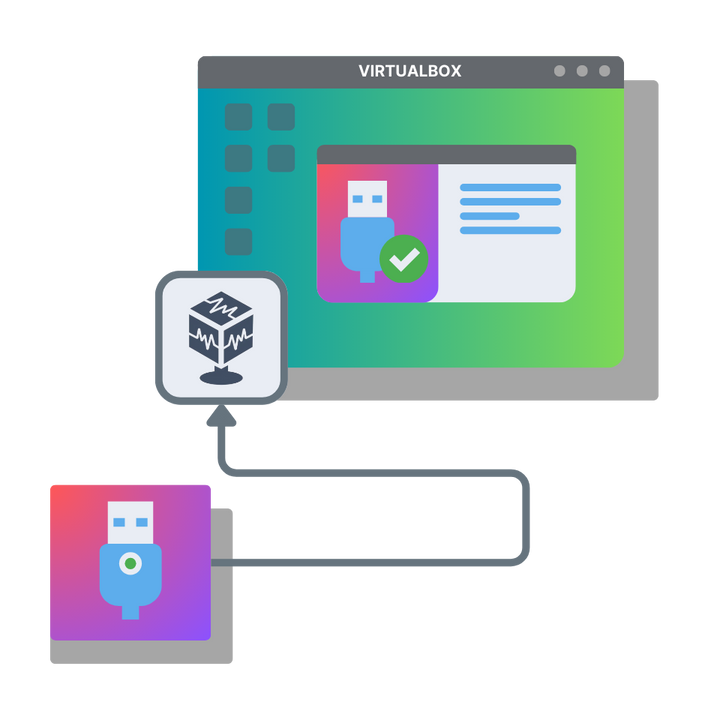
Using Third-Party Software to Mount USB VirtualBox: USB Network Gate
If VirtualBox’s built-in USB passthrough features aren’t sufficient, USB Network Gate is a third-party tool that can help to connect external hard drive to VirtualBox. It allows USB devices (including external hard drives) to be accessed over a network, making it easier to share drives between a host and guest system or even between remote machines.
USB Network Gate is particularly useful when VirtualBox’s USB passthrough is limited or doesn’t recognize certain devices. This tool supports remote connections, allowing USB devices to be shared seamlessly between multiple computers, making it ideal for setups where devices are physically far from each other.
You can set up VirtualBox access to USB hard drive with just three steps:
1. Download and install the USB Network Gate application on the machine with the attached USB drive.
2. Use the software interface to share the drive.
3. On a virtual machine, install USB Network Gate. Start the app and connect it to the VirtualBox external hard drive.
To fix this issue, you can stop VBoxUSBMon.sys driver or use another virtual machine instead of VirtualBox.
Watch our VirtualBox USB passthrough video guide
Risks and Limitations of Using External Hard Drives in VirtualBox
Although VirtualBox is powerful, there are several risks and limitations to be aware of:
- Data Corruption: If you improperly disconnect an external hard drive from the VM, you risk losing data or damaging the file system. Always ensure that the drive is safely ejected before disconnecting.
- Performance: Accessing large files through USB passthrough or raw disk access may not offer the same performance as accessing them directly on the host. This can be a bottleneck for data-heavy tasks like video editing or gaming.
- Device Compatibility: Not all external hard drives or USB devices are compatible with VirtualBox. Some USB 3.0 devices may require additional configuration to work properly, while HID devices (such as USB security keys) can sometimes fail to pass through.
Troubleshooting External Hard Drive Passthrough in VirtualBox
Here are some common issues and troubleshooting steps:
- Device Not Detected: Ensure the device is not in use by any other program on the host system and is properly connected.
- Permission Issues on Linux Hosts: On Linux, ensure the user running VirtualBox is part of the
vboxusersgroup to allow access to USB and raw disk devices. - Drive Not Accessible in the VM: Verify that the external hard drive has the correct file system for the guest OS and is properly formatted.
- VirtualBox Version: Ensure you’re using the correct version of VirtualBox that supports USB passthrough or raw disk access without the Extension Pack.
Final Thoughts
VirtualBox’s native USB passthrough and raw disk access are powerful tools, but they require careful setup and may not meet all user needs. For more complex use cases, third-party tools like USB Network Gate can provide additional flexibility and solve some of the limitations of VirtualBox’s native features.
Always ensure that your VirtualBox installation is up-to-date, and consider using third-party solutions when necessary to achieve the best experience. As of 2026, VirtualBox continues to improve its USB support, but there are still cases where additional tools and configuration may be needed to fully access external hard drives within virtual machines.