


Submit your email address to get a link for quick download on your desktop and get started!
You might need to access serial ports from within a VMware virtual machine either for configuration, logging communication, or debugging purposes. It’s easy to add new serial ports, both physical and remote, in VMware Workstation Pro as long as you meet the prerequisites.
However, accessing them for later use within the virtual environment is another matter. And that’s where Serial Port Redirector comes into the picture.
In this post, we’ll show you how to add a serial port in VMware virtual machines, explain the different connection types, and demonstrate how to access it in a VM.
Adding a serial port (or COM port) to a virtual machine (VM) allows you to interact with serial devices like routers or development boards within the VM environment. There are many ways you can connect a virtual serial port, including connecting to a physical port, file, named pipe, and network.
Virtual machines can have a maximum of 32 COM ports. However, when creating a VM, you can actually choose not to include any at all. If you choose that approach, the guest operating system (the OS running inside the VM) simply won't see any available serial ports.
Before adding a virtual serial port, ensure that your virtual machine is turned off already.
Make sure that you’re aware of the right media types and vSPC connection details relevant to your port configuration. vSPC (Virtual Serial Port Concentrator) is a network-based service that allows serial ports to be accessed remotely by virtual machines. You also need to grant a Virtual machine.Config.Add or remove device (Virtual machine > Configuration > Add or remove device) privilege to continue.
Specific connection types have unique prerequisites, too. For example, the following firewall rule sets are needed if you want to use your serial port over a network:
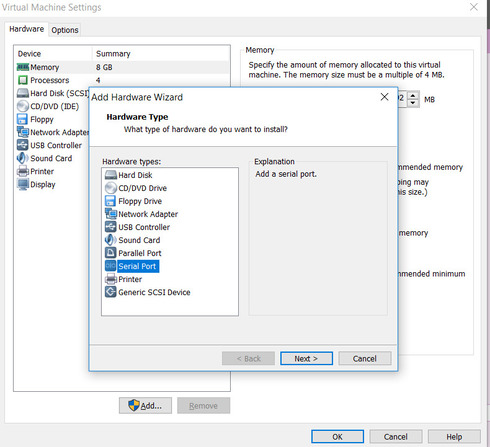
With that established, here’s how you configure a VMware virtual serial port.
Depending on what kind of data processing you want to achieve, you need to select a particular connection type for your virtual serial port. Here’s a quick breakdown of the four different connection methods you can use:
Physical serial port: This is the most common setup, allowing the VM to interact with physical devices like modems.
File on the host computer: Data sent through the virtual port is written to a file on the host computer. This allows you to record information about certain processes running in your VM, which is useful for logging communication.
Host-side named pipe: This creates a direct connection for data exchange between the VM and an application or another VM on the host machine. Think of it as connecting two separate machines with a serial cable, except that they’re on a single computer. It’s a common method used for remote debugging.
Network port or vSPC URI: This uses the virtual serial port concentrator (vSPC) to establish the connection over the network. In other words, you use this mode to communicate between the virtual serial port and a remote device.
\\.\pipe\namedpipe).If you choose a network connection type, you can also select whether to set up your serial port for a client or server connection.
Server Connection Mode
If you opt for a server connection, you gain control over the virtual machine connected to your serial port. It makes your VM act like a server, waiting for an incoming connection from your host. This is ideal for scenarios where you want occasional control over the VM, like during debugging or configuration.
Client Connection Mode
Meanwhile, choose a client connection if you want to use your virtual machine as the client. In other words, the VM actively initiates the connection to a designated program upon startup. It’s common for logging applications where you automatically send data to another system.
Server Connection Example
To configure your VM with a serial port server connection with a telnet://:11111 URI (Uniform Resource Identifier), run the following command.
telnet yourESXiServerIPAddress 11111
Client Connection Example
Meanwhile, you can also set up your serial port using a client connection by running the Telnet Server on Linux on port 11 (telnet://yourLinuxBox:11). Use the following command.
telnet://yourLinuxBox:11
VMware includes native serial port passthrough features that allow virtual machines to communicate with serial-connected devices. While these built-in options work for basic scenarios, they can be limiting when remote access, device compatibility, or stable performance is required.
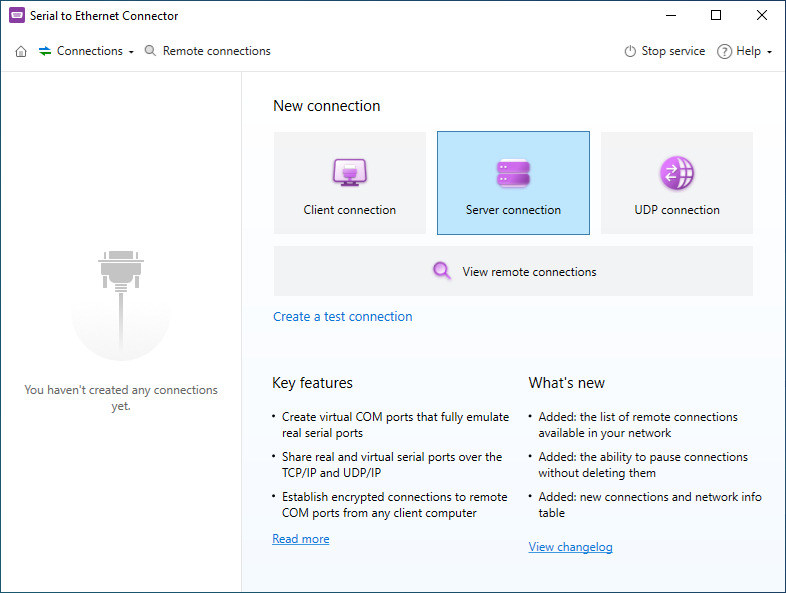
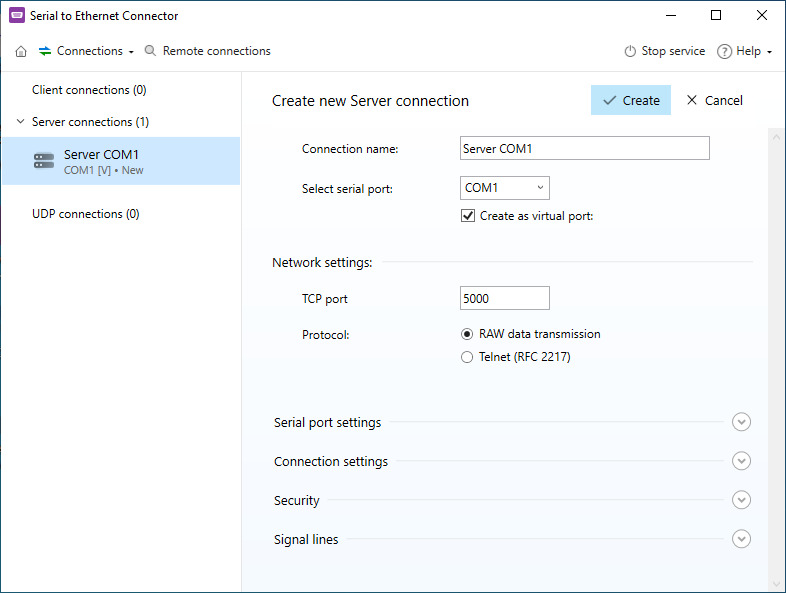
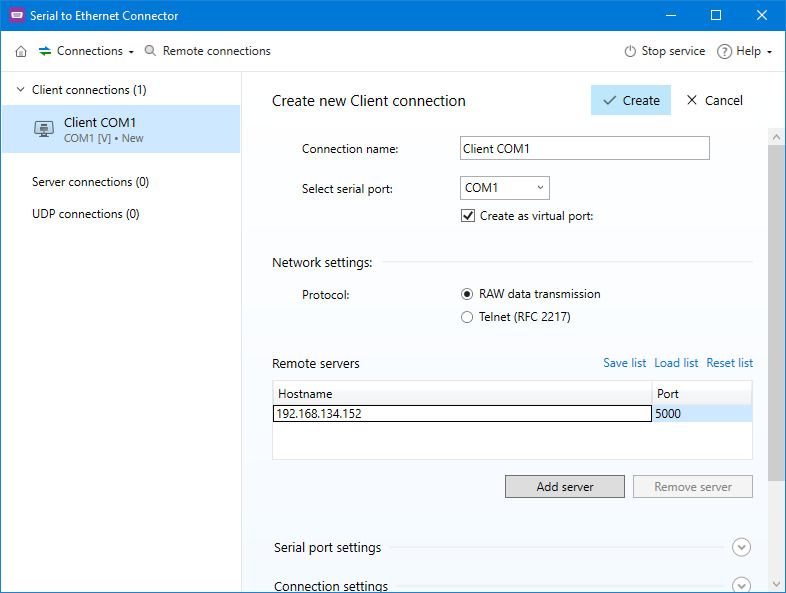
Serial to Ethernet Connector provides a more flexible approach to serial port integration in VMware environments. Instead of relying on direct physical attachment to the host, it enables serial ports to be redirected over a network. This allows virtual machines to access serial devices remotely, making it easier to work with distributed infrastructure and modern virtualized deployments.
Step-by-step guide:
Many industrial systems and legacy devices still rely on serial communication, which makes reliable serial port access essential in virtual environments. However, VMware serial port passthrough can present several challenges.
Remote access limitations
Accessing serial-connected hardware remotely is difficult when using physical passthrough, especially in cloud or data-center environments where direct hardware access is not practical. Serial to Ethernet Connector resolves this by virtualizing serial ports and making them accessible over a network.
Compatibility constraints
Some serial devices require specific drivers or configurations that may not function properly inside a virtual machine. By redirecting serial communication at the network level, Serial to Ethernet Connector reduces dependency on device-specific VM configurations.
Performance and latency issues
Physical serial passthrough can introduce latency and instability, particularly when data is transferred over long distances or between multiple systems. Network-based serial redirection helps provide more consistent data transmission and fewer interruptions.
Limited support for legacy hardware
Virtual platforms often provide limited native support for older serial devices. Serial to Ethernet Connector extends VMware’s capabilities by allowing legacy equipment to be accessed as virtual serial ports, even when native integration is unavailable or unreliable.
Virtual serial ports are handy when it comes to debugging or logging purposes. They’re easy to add via VMware Workstation Pro, but accessing them inside the virtual environment is still done most easily with Serial to Ethernet Connector.
SEC for Windows
SEC for Linux