In this guide, you’ll learn how to redirect a COM port over a TCP/IP network so that you can access serial devices remotely as if they were connected directly to your computer. You’ll find clear, step-by-step instructions for setting up both server and client connections, including how to share physical and virtual COM ports and forward them across Windows and Linux systems. By the end, you’ll understand how serial port forwarding works, how to extend the reach of your serial hardware, and how this can simplify remote access and device management in networked environments.
Redirect COM port over TCP/IP (for Windows and Linux OSes)
There are many scenarios where you may use dedicated COM Port Redirector software (Linux and Windows operating systems) for remote access to serial port devices. An example might be RS232 port redirection to a remote computer over the network when a direct connection between PCs is not possible.
When you need to use a serial device that supports the Telnet protocol (RFC 2217) but doesn’t have the device physically present near your PC, you can connect to it remotely after sharing it over the Internet or LAN with the help of professional Serial Port Redirector.
Want to know how you can forward COM port to TCP/IP? Below is a simple step-by-step guide:
Redirect COM port on your local (server) computer:
1. Install and start COM Port Redirector app. Select Connection > New server connection in the main menu or click Server connection in the Home window.
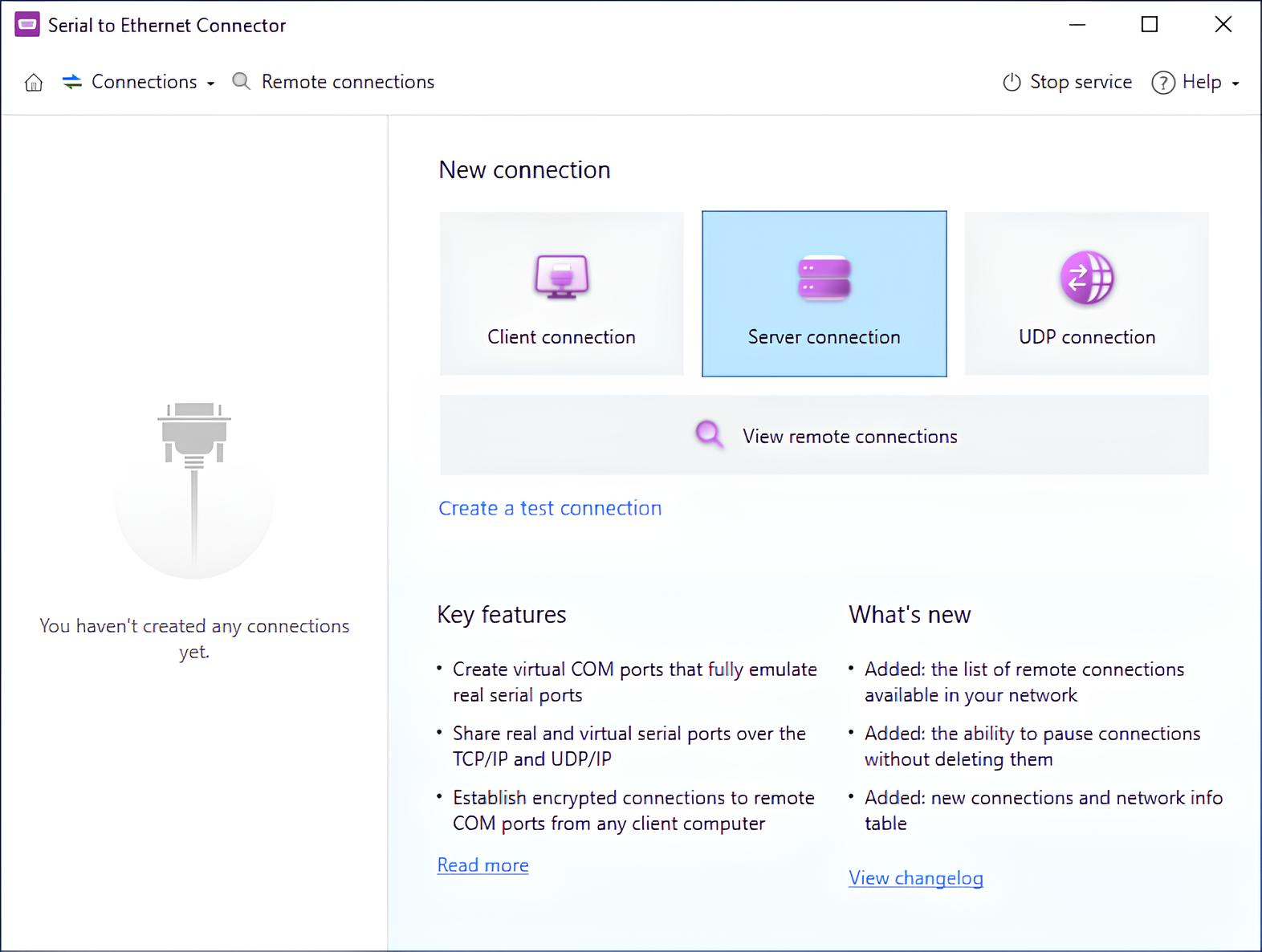
2. Choose a name for your connection.
3. Select the COM port that needs to be shared with remote client PCs.
4. In the network settings:
- Specify the TCP port which will be used to listen for a client connection.
- Make sure this port is allowed by your firewall and is not occupied by any other application.
- Choose the protocol to redirect COM data. It can be either the Raw data transmission protocol or Telnet protocol with RFC 2217 extension.
5. Hit the Create button!
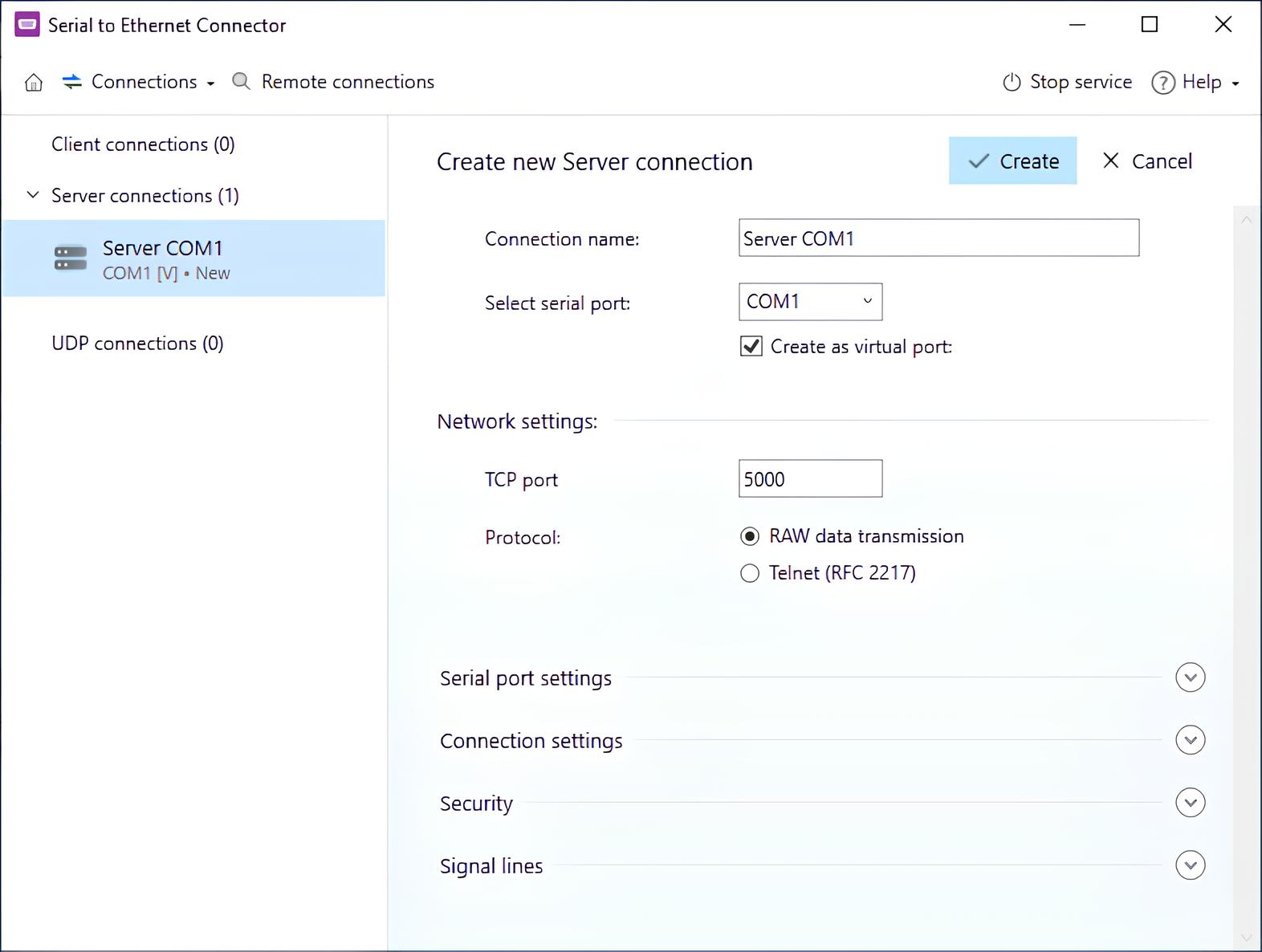
6. Once you’ve done it, the serial port becomes available for remote client connections over the TCP/IP network.
Redirect COM port on a remote (client) computer:
1. Start the program and Select Connection > New client connection in the main menu.
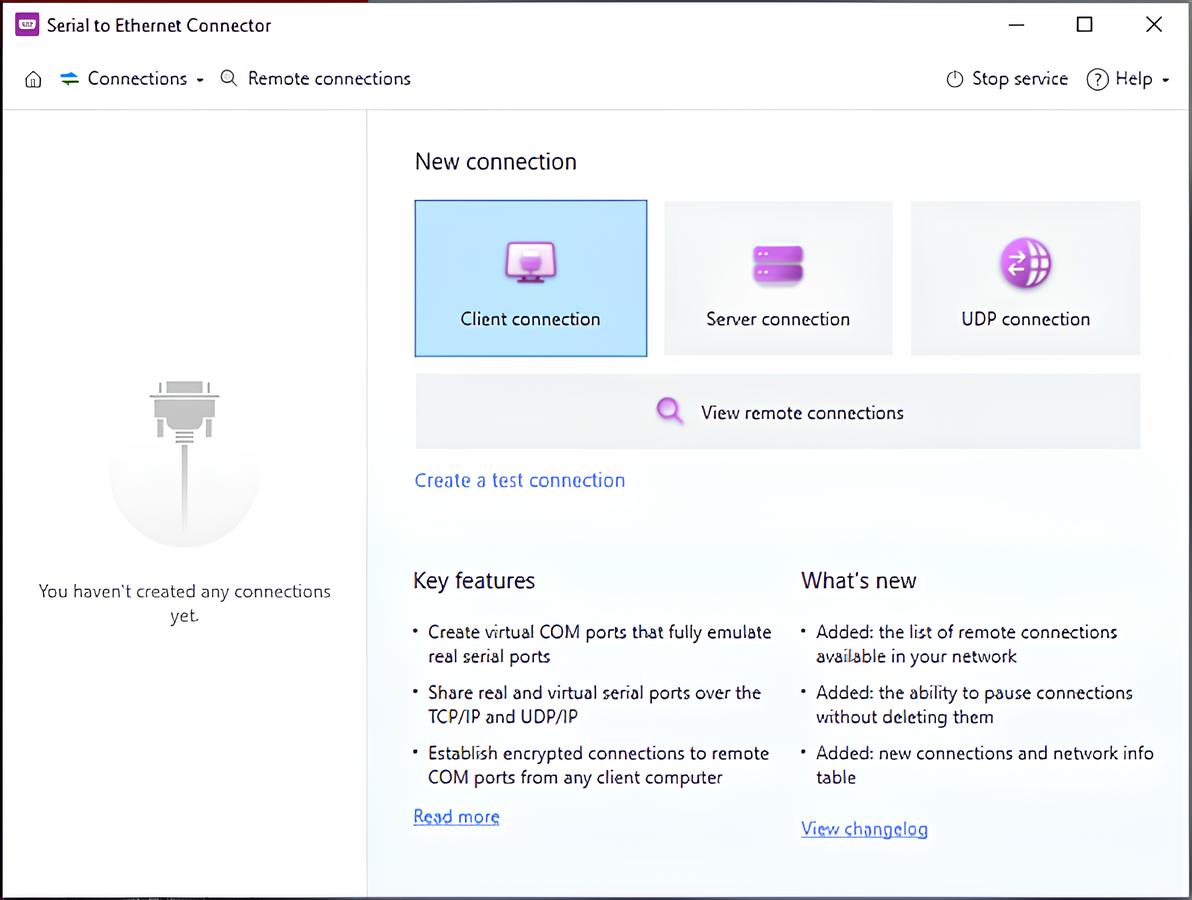
2. Specify the name of the connection you create.
3. Select which of the local COM ports will be used for the connection.
4. Enable the Create as virtual port option to have a virtual COM port created in your system. This port will emulate the behavior of a real COM interface and will be used on the client end to exchange data with the remote server’s port.
Note: If you decided to use a virtual serial port, we recommended that you enable the Strict baudrate emulation option to prevent potential data loss when communicating with a real serial interface.
5. Choose the data transmission protocol.
6. Type the computer name or IP address of the server you are going to connect to and the TCP port you’ve chosen when creating the Server connection.
7. Click Create!
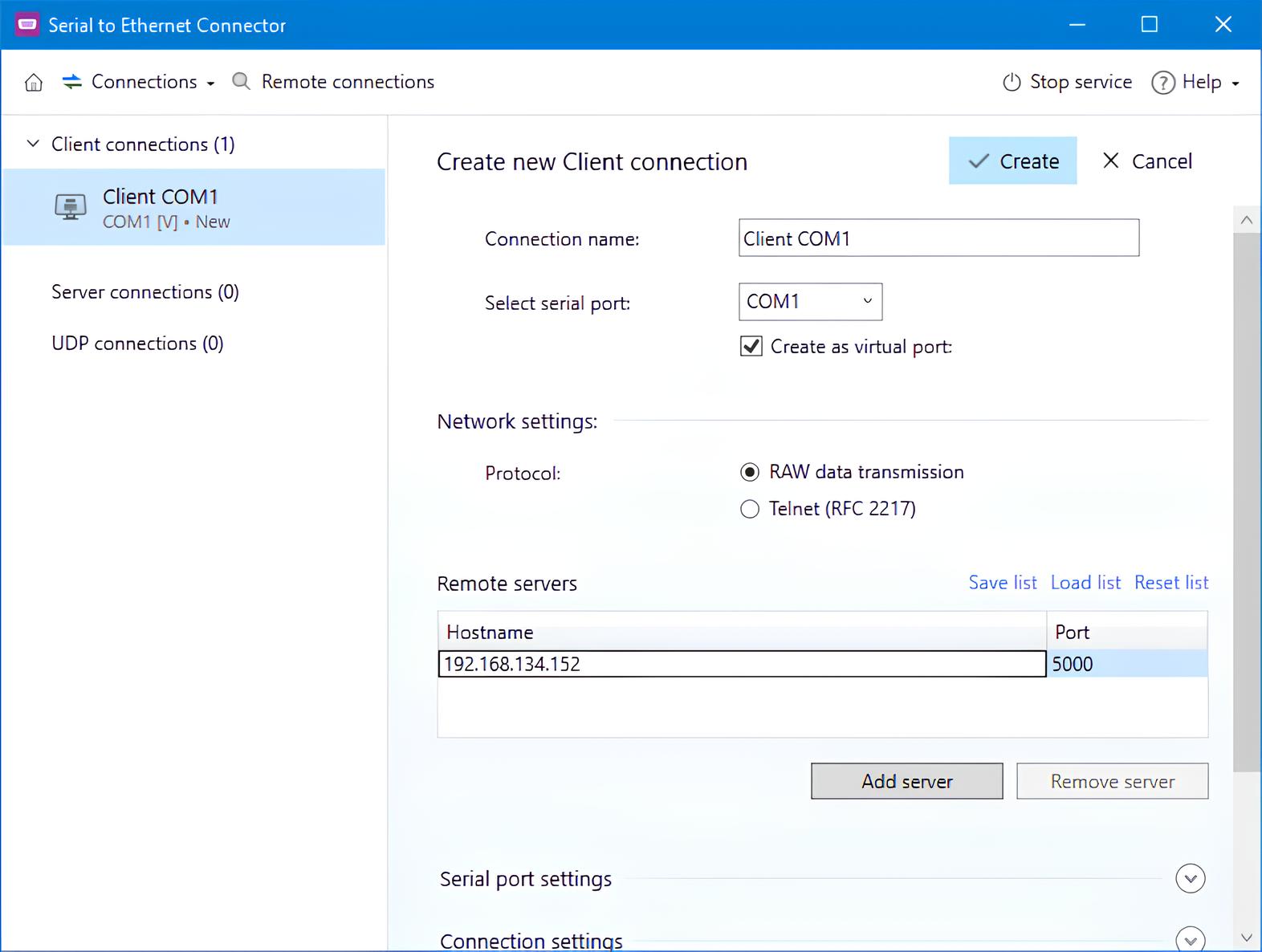
That’s it! Now the client computer is connected to the server PC over a TCP/IP channel. This means whatever serial device you connect to the COM port shared on the server, it will appear on the client computer as though the peripheral were attached directly to that machine. So, the COM Port Redirector will add serial ports to your remote machine.
How to redirect COM port Linux with ser2net
There is also a way to forward COM ports between two Linux machines by using free and open source ser2net that’s already available in the repository. It’s a bit more intricate.
- Start by installing ser2net on the receiving device
apt install ser2net - Configure ser2net by adding this line to
/etc/ser2net.conf.
Specify the receiving port. Also, “/dev/ttyS0” can be replaced with any necessary serial port.<receiver port>:raw:400:/dev/ttyS0:57600 8DATABITS NONE 1STOPBIT - Now, you can launch ser2net without arguments and get started on the sending computer. Install socat:
apt install socat - Create a directory to house the virtual device that will be linked to the receiver:
mkdir ~/dev/ttyV0 - Run socat with the following arguments:
socat pty,link=$HOME/dev/ttyV0,waitslave tcp:<receiver IP address>:<receiver port> - The connection can be tested with minicom:
minicom $HOME/dev/ttyV0 - After opening it, minicom will act like a console and send text to the remote device.
There are various ways to work with remote serial ports. One option is to map the COM port on a Linux machine and redirect it over a network using Serial to Ethernet Connector. As previously mentioned, Electronic Team’s COM port redirector software can be used on both Windows and Linux without any issues while using it. So it is a better yet simpler option for daily usage.
