When you troubleshoot issues, sync data, or provide support, it is crucial to have a reliable, high-performing remote access iPhone tool to count on.
With these tools, technicians can connect to your device remotely to provide assistance or run diagnostics instead of having to visit a service center in person. This simplifies the process of diagnosing and resolving software problems, which significantly saves time and money.
In this guide, we present foolproof methods for how to remotely access iPhone or iPad, ranging from Apple’s native features to trusted third-party software solutions.
Native Methods for iPhone/iPad Remote Access
Apple provides native or built-in features that are simple and secure. Most of these features help in accessing or controlling your iPhone or iPad remotely. There is no need to install these features or any third-party software (but be cautious, as some have technical and connectivity limitations).
For these systems to work, both devices must be on the same Wi-Fi network. They must also be using a common trusted source that can access any application or surface. Meanwhile, the user must be mindful when granting remote access to another user and verify their trustworthiness.
Control Nearby Devices
Apple’s Control Nearby Devices feature allows you to control one iOS device from another. For this feature to work, both devices must be signed in with the same Apple ID and connected to the same Wi-Fi network.
- Visit Settings > Accessibility > Control Nearby Devices on the device that will control the other.
- Toggle the switch to enable the feature.
- Choose the target device from the available list. Once selected, you can use the on-screen controls to interact with the other device.
Switch Control
Switch Control helps users with mobility constraints operate their devices more easily. You can set up one iPhone or iPad as the main controller and operate another Apple device using switches or adaptive tools.
Both devices must be on the same Wi-Fi network and signed in to the same iCloud account. This feature offers a new way to interact with iOS devices for enhanced independence and user experience.
- On your primary device (iPad or iPhone), set up Switch Control.
- Activate the Switch Control feature on the device you wish to control.
- Go to Settings > Accessibility > Switch Control on both devices.
- Check if the devices are connected to the same Wi-Fi network. If so, you can now control the target device.
FaceTime Screen Sharing with Remote Control (iOS 18+)
FaceTime Screen Sharing with Remote Control lets a user control and manage another person’s iPhone or iPad during a FaceTime call. This feature works only if both devices have iOS 18 or a later version.
- Initiate a FaceTime call with the person whose device you want to control.
- Ask the person to share their screen.
- You also need to request remote control, which the other person must approve.
Alternative Methods to Control an iPhone Remotely
Apple’s built-in features work well for most users, but third-party software can offer additional options and greater control for a more convenient and reliable remote connection.
While these tools may provide more advanced functions, exercise caution when selecting them. Always download apps from trusted sources to keep your device secure. Before granting someone access to your device, ensure you trust and verify them.
iPhone from PC with USB Network Gate
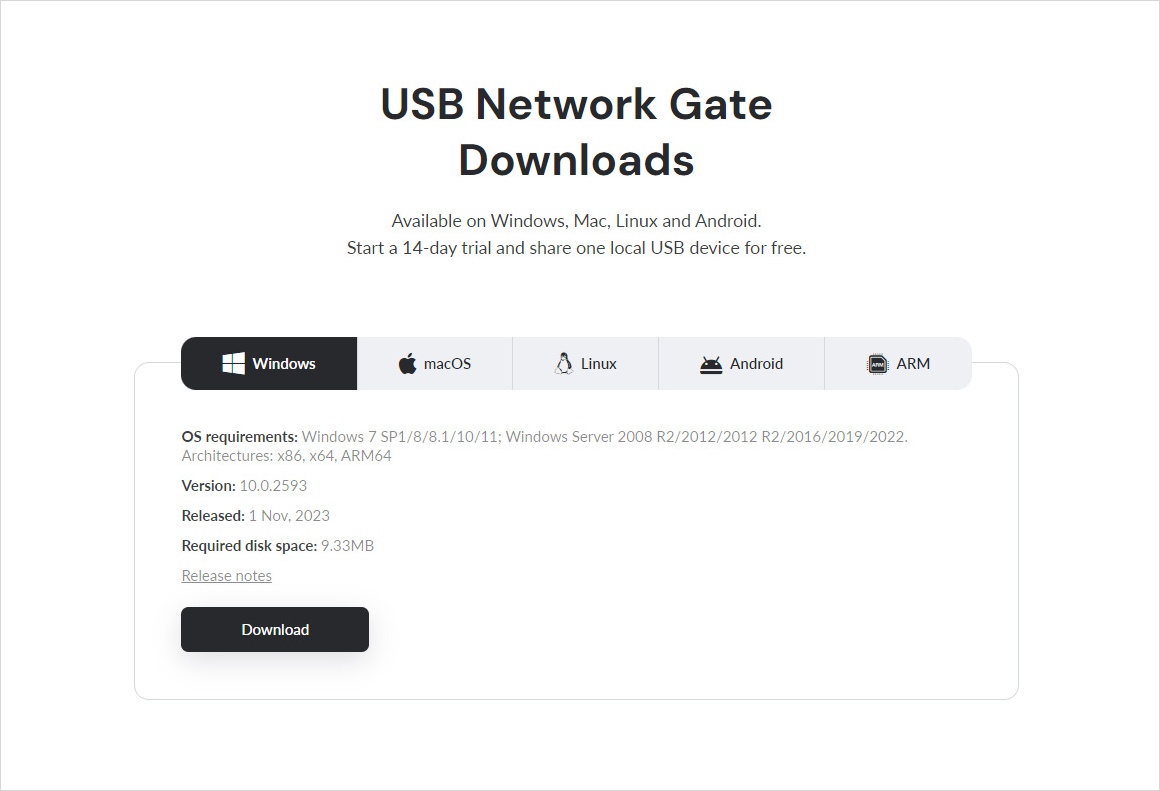
USB Network Gate is a high-performing tool for remote access and control of iPhones and iPads. As you remotely manage an iPhone with this tool, you can create a secure USB over Ethernet connection that enables remote management of iOS devices.
Why Use USB Network Gate?
- iOS remote access via USB Network Gate works across various networks and uses advanced encryption to ensure secure communication.
- It supports all iOS devices, which offers full cross-platform compatibility between Mac, Windows, and Linux systems.
1. Install USB Network Gate on a computer that you’ll make into the USB Server. Connect your iPhone to this machine via a USB port.
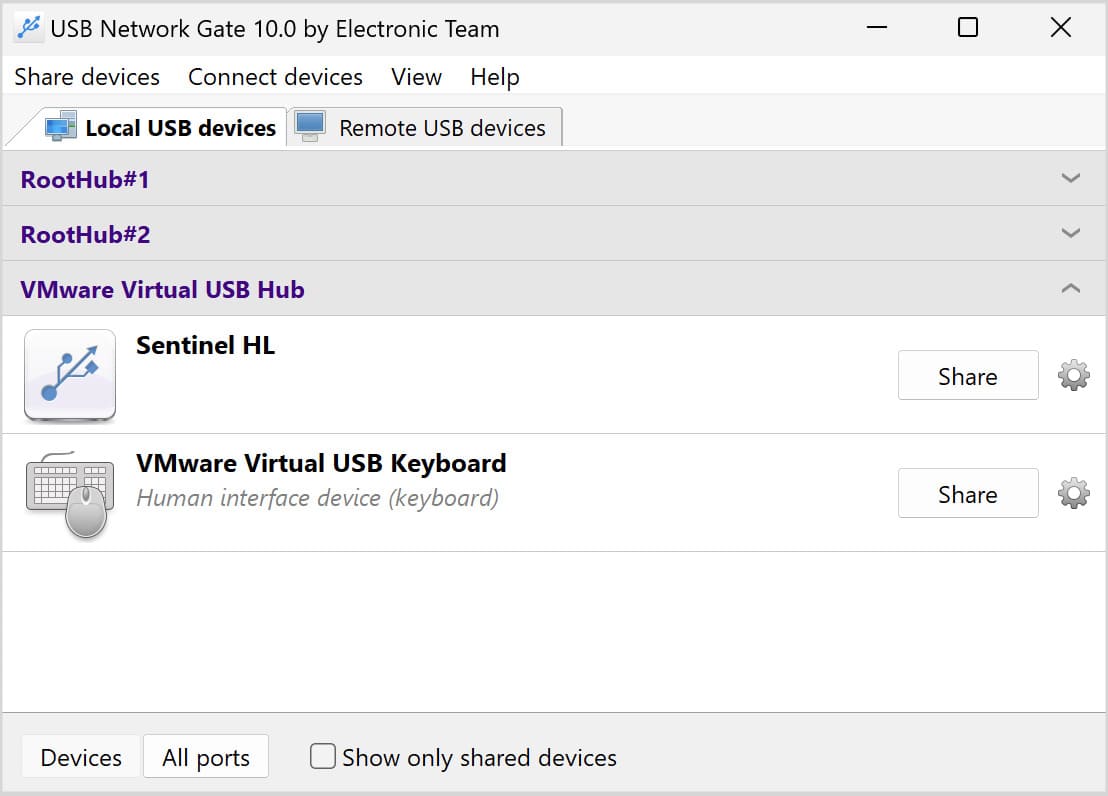
2. Share the device on the Server in the software interface.
3. Install USB Network Gate on client PCs where the shared iPhone will be used.
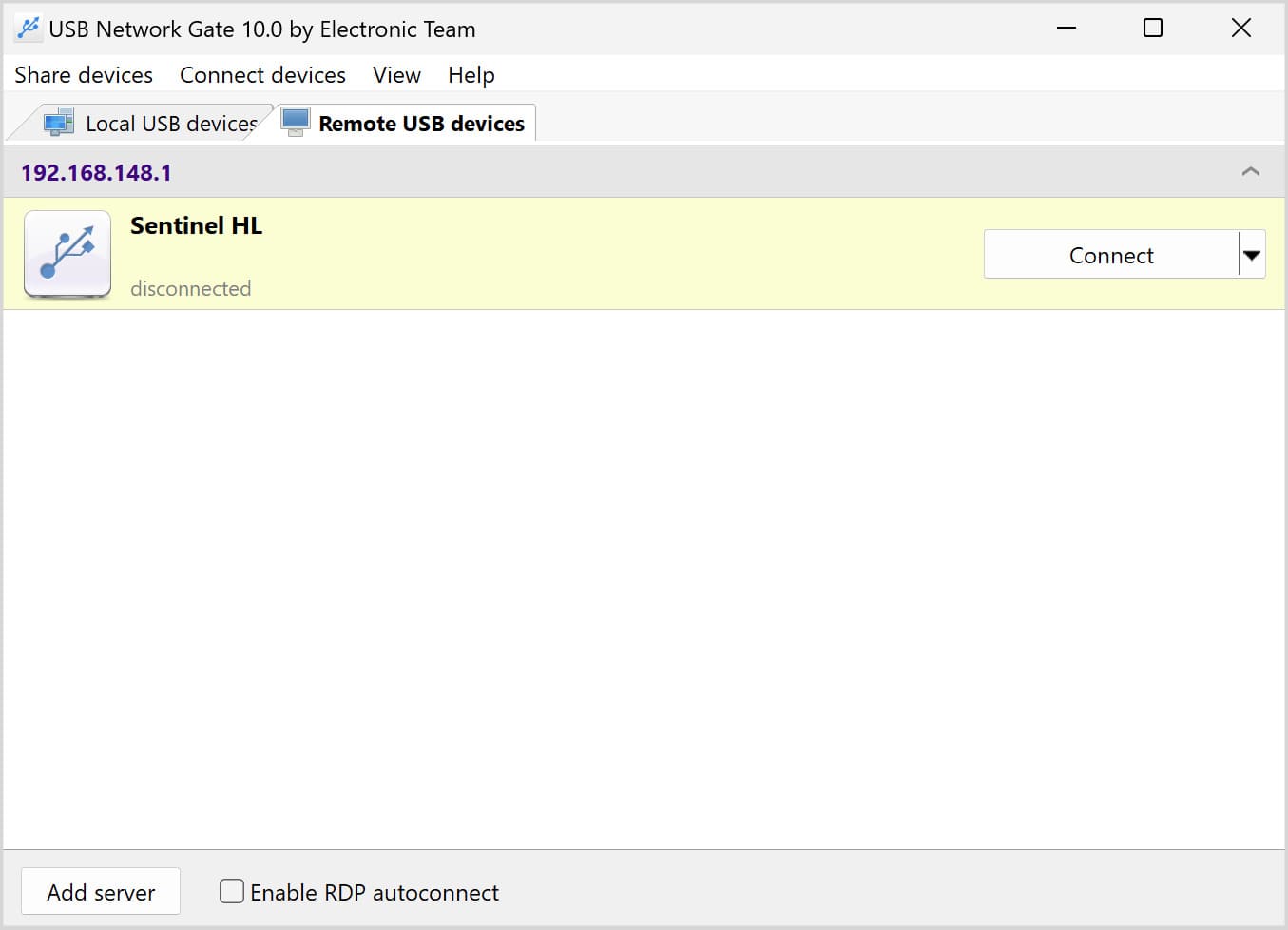
4. Start the app on a remote machine, go to the “Remote Devices” tab, find the device in the list and click “Connect” next to it.
TeamViewer
TeamViewer is a well-known third-party platform that provides remote control and screen-sharing functionalities between devices. This tool supports iPhones and iPads, as well as cross-platform remote access to Windows, macOS, and Linux.
- Install TeamViewer on both devices.
- Sign in with the same account and initiate the connection.
- Using your second device, you can remotely control your iPhone or iPad.
AnyViewer
AnyViewer is a remote desktop software that supports iOS devices for screen mirroring and remote control. It is a great remote manage iPhone option for accessing your iPhone or iPad from other devices, including Windows and Android.
- Download and install AnyViewer on both devices.
- Sign in and create a connection to remotely control your iPhone.
Wrap Up
When choosing the optimal way to control your iPhone or iPad from a distance, you must consider your operational needs and requirements. For instance, built-in options like Control Nearby Devices and Switch Control are easy to use and safe, especially if both devices are on the same network. These options work well for users who want simple control in accessibility situations. But if you plan to connect with a wide range of types of devices from a distance, trusted third-party apps may offer advanced features. Regardless of the app you choose, make sure to be careful when granting remote access to other users.
