Getting a USB license key to work inside a Hyper-V VM is not straightforward. Hyper-V does not implement generic USB passthrough for non-storage devices, so your dongle either fails to appear in the guest entirely or appears but does not authenticate. For production use, Donglify is the option with confirmed reliability for supported license keys. Enhanced Session Mode and usbipd-win are also covered here. Both have real uses, but neither is a dependable path for most license dongles. If you already know native options are not working, skip ahead to the Donglify setup below.
Why Hyper-V Does Not Support USB Dongle Passthrough Natively
Hyper-V does not expose a wire-level USB bus to guest virtual machines. Microsoft’s built-in path for local-device access is Enhanced Session Mode, which redirects selected resources, drives, printers, smart cards, audio, and supported plug-and-play devices, but not as raw USB controller passthrough. License dongles from manufacturers like Thales (Sentinel HL), Aladdin (HASP HL), and Feitian (Rockey) rely on vendor-specific USB protocols, and many do not work reliably through RDP-style redirection. The only native Hyper-V workaround for USB devices applies to storage only: take the drive offline in Disk Management and attach it as a Physical Hard Disk under the SCSI controller in Hyper-V Manager. That method does not apply to license dongles.
The failure states users report are consistent across Microsoft Q&A, vendor support forums, and r/sysadmin: the dongle does not appear in Device Manager inside the guest at all; the protected software launches but immediately reports “no dongle found” or enters trial mode; or the dongle appears in Device Manager but the application still fails to authenticate the key, which happens when a USB over Ethernet tool enumerates the device without preserving the low-level protocol fidelity that HASP and Sentinel drivers require. Vendor support documentation for Sentinel and HASP-style dongles confirms that direct hardware dongle use in Hyper-V is not supported without a USB redirection layer.
Donglify: Confirmed Reliable for License Keys in Hyper-V
Donglify is the most practical software-based way to connect supported USB license dongles to a Hyper-V guest. It redirects the physical dongle over the network, bypassing Hyper-V’s USB stack entirely. It solves the Hyper-V USB dongle problem by redirecting the physical dongle over TCP/IP, bypassing Hyper-V’s USB stack entirely. The Hyper-V guest sees the dongle as a locally connected device because Donglify operates at the network layer rather than through any Hyper-V USB abstraction. This is the most dependable software-based approach for production environments using supported dongle models. For a broader comparison of tools built for this exact job, see our overview of dongle server software options.
How to Connect a USB Dongle to a Hyper-V VM
Install Donglify on two machines: the physical host where the dongle is plugged in (the server), and the Hyper-V guest VM where your protected software runs (the client). Both must be signed in to the same Donglify account. The guest VM needs a working network connection to the host, over the local virtual switch or over the Internet if the host is remote.
1. Create a Donglify account at account.donglify.net/user/registration/.
2. Download and install Donglify on the server from donglify.net/download/.
3. Install Donglify on the Hyper-V guest VM using the same installer.
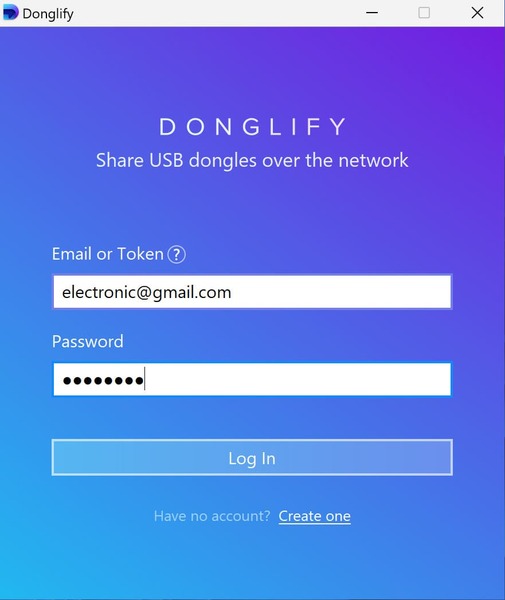
4. Launch Donglify on both machines and sign in with the same credentials.
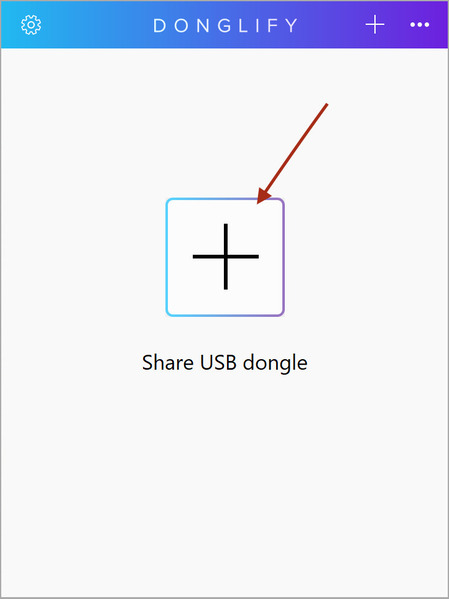
5. On the server, click the + icon to open the device list, connected USB dongles appear here.
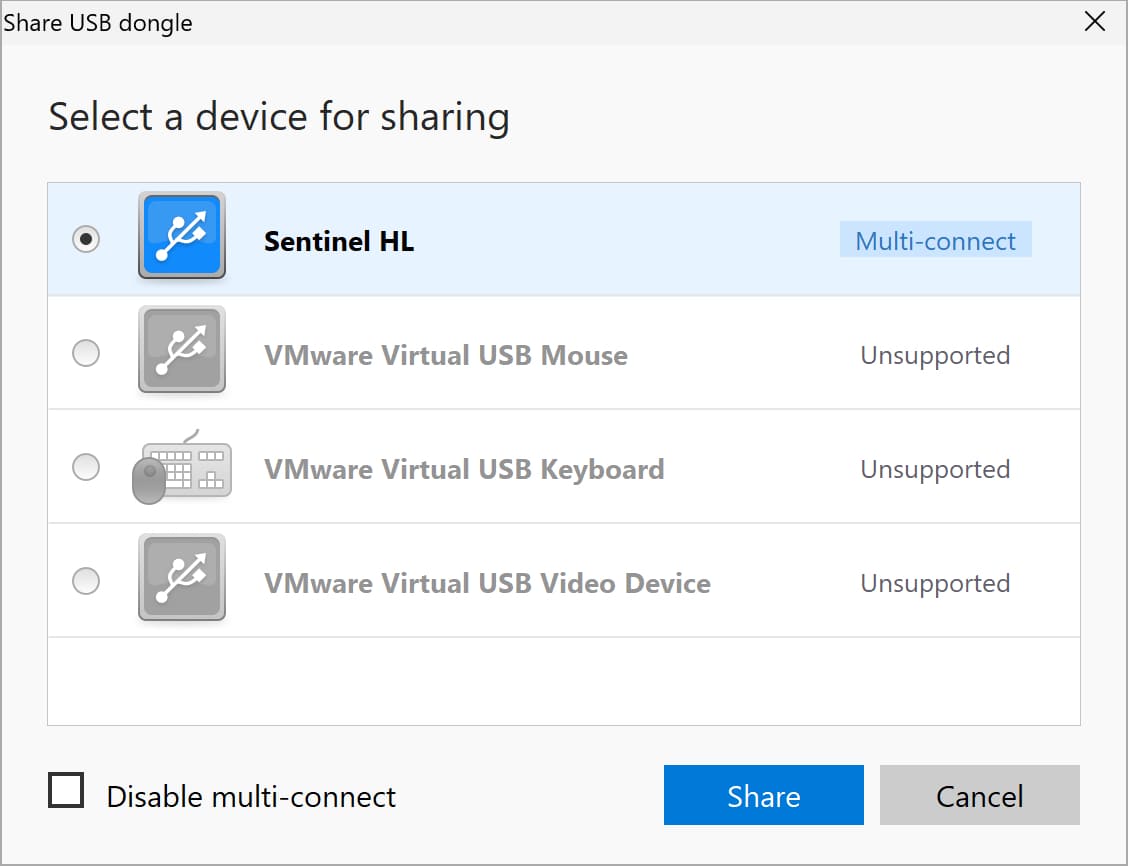
6. Select the radio button next to the target dongle and click Share.
7. On the Hyper-V guest, open Donglify, the shared dongle appears in the device list.
8. Click Connect; the dongle will appear in Device Manager inside the guest as if physically attached.
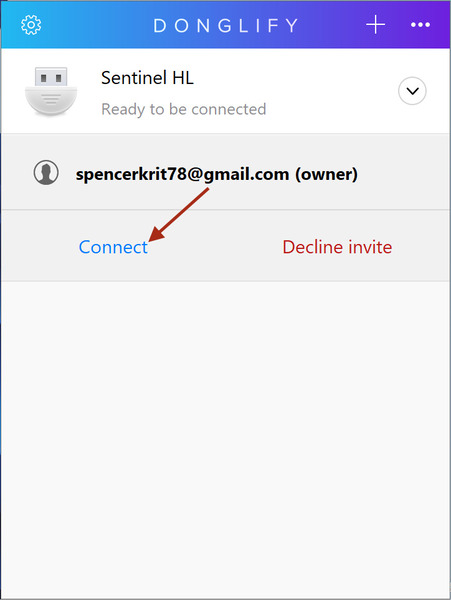
9. Launch your protected software; it will find the license key through the Donglify connection.
How It Works
Donglify redirects the physical dongle over TCP/IP so the Hyper-V guest sees it as a locally connected device, bypassing Hyper-V’s USB stack entirely. That’s effectively a virtual dongle reachable from any Hyper-V guest on the network. All dongle traffic is encrypted in transit. Donglify selects the fastest available connection mode automatically and falls back gracefully if a direct path is blocked, if you see [R] below the device name in the interface, you are on relay mode, and opening TCP port 5000 inbound on the server will allow a faster direct connection.
Benefits: Donglify for Hyper-V USB Dongle Passthrough
- Protocol fidelity — built specifically for USB security keys, so HASP, Sentinel HL, Rockey, and CodeMeter keys authenticate reliably where RDP redirection fails.
- Remote access — the dongle can be physically connected to a machine anywhere, not just the local Hyper-V host, including across the Internet over standard TCP/IP.
- Team sharing — multi-connect mode lets multiple Hyper-V guests access one physical dongle simultaneously for supported models, including Sentinel HL 4.27–6.01, HASP HL Pro 3.25, WIBU CodeMeter, and Feitian Rockey series. The dongle remains usable on the host machine at the same time.
- Failover cluster support — Donglify’s Advanced plan supports up to 50 simultaneous connections with individual login tokens per team member, no credential sharing required.
- Persistent connection — if the network briefly drops, Donglify maintains the dongle connection for several minutes rather than immediately disconnecting the guest.
- Works over RDP — if you are accessing the Hyper-V guest over RDP, Donglify detects this automatically and routes the dongle through the RDP channel with no additional configuration needed.
You can start a seven-day free trial with full feature access, no payment is required until the trial ends.
Limitations: Donglify for Hyper-V
- Paid subscription after the 7-day trial.
- Multi-connect depends on the dongle model, not all keys support simultaneous connections.
- Requires installation on both the server and guest VM.
Video guide
Enhanced Session Mode (Worth Testing First, Often Not Enough)
Enhanced Session Mode can expose some local USB and plug-and-play devices to a supported guest OS, but it is not raw USB controller passthrough. For USB license dongles, success depends entirely on whether the dongle and its driver tolerate RDP-style device redirection, and for most HASP and Sentinel-style keys, they do not. It is worth a quick test before committing to a paid tool, but set expectations accordingly.
Enhanced Session Mode is also session-dependent: redirection is active only while a user is connected via VMConnect or RDP. Software that must access the dongle as a background service without an active user session will lose the key when the session closes. For a dedicated article on using hardware security keys over RDP, that scenario is covered in more depth separately.
Enabling Enhanced Session Mode
Enhanced Session Mode requires Remote Desktop Services in the guest and is primarily relevant for supported Windows guest VMs. On Windows 10/11 hosts it is on by default. On Windows Server 2016, 2019, and 2022 hosts it must be enabled manually:
- Open Hyper-V Manager.
- Select the host computer name in the left pane.
- Click Hyper-V Settings in the Actions pane.
- Under Server, select Enhanced Session Mode Policy and check Allow enhanced session mode.
- Under User, select Enhanced Session Mode and check Use enhanced session mode.
- Connect to the VM using VMConnect, click Show Options before connecting.
- Go to Local Resources, click More, and select the available local resource, drive, smart card, or supported plug-and-play device if it appears in the list.
If your dongle does not appear in the list at step 7, or appears but the protected application still reports no license, the dongle’s USB protocol is not compatible with RDP-style redirection. At that point, Enhanced Session Mode is not a viable path for your key and Donglify is the next step.
usbipd-win (Free, Best for Labs and Linux Guests)
usbipd-win is a free, actively maintained open-source tool (v5.3.0, October 2025) that shares USB devices over the USB/IP protocol to other machines, including Hyper-V guests and WSL 2. It is the most practical no-cost option for lab environments and Linux guests, but it is not a confirmed production path for Windows guests running license dongles.
For non-WSL Windows guests, compatible client-side USB/IP tooling is required separately, this is not included in usbipd-win itself, which makes the Windows guest setup more involved than it appears. For Linux guests the path is more straightforward.
It installs via Windows Package Manager:
winget install usbipd
Once installed, it runs as a Windows service (display name: USBIP Device Host) and opens TCP port 3240 for incoming connections. To share a device, run the following with administrator privileges:
usbipd list usbipd bind --busid=<BUSID>
Binding is persistent across reboots on the server side. Attaching the device inside the guest requires a separate command after each guest reboot, it is not a hands-off persistent setup.
The more significant limitation for license dongle use is driver compatibility. Some HASP and Sentinel HL drivers reject the USB/IP abstraction layer and report no valid license even when the device appears in Device Manager. Community results confirm usbipd-win works well for Wi-Fi adapters, Zigbee dongles, and HID devices. For production HASP or Sentinel HL deployments, results are inconsistent enough that it should not be counted on.
For USB dongle passthrough in VirtualBox or VMware USB dongle passthrough, both hypervisors support native USB passthrough and usbipd-win is generally not needed.
Side-by-Side Comparison
| Donglify | Enhanced Session Mode | usbipd-win | |
| Recommended for production license dongles | |||
| Works with HASP / Sentinel HL | Yes, for supported dongle models | Unreliable for most license dongles | Inconsistent, depends on driver |
| Works without active user session | |||
| Persistent across guest reboots | Partial, bind persists, attach does not | ||
| Multiple VMs simultaneously | Yes, for supported multi-connect models | ||
| Windows guest support | Yes, supported Windows guests only | Requires separate client tooling | |
| Cost | Paid, 7-day trial | Free (built-in) | Free |
Which Option to Use
For production environments running HASP HL, Sentinel HL, Rockey, or WIBU CodeMeter dongles inside Hyper-V, Donglify is the answer. It is the only option on this list with confirmed reliability for vendor-specific license keys across production deployments.
Enhanced Session Mode is a reasonable first check, it takes under ten minutes and costs nothing, but if your software requires HASP or Sentinel HL authentication, the likelihood of it working is low. Treat it as a quick elimination test, not a solution.
usbipd-win is worth knowing about for lab work, WSL 2 environments, and Linux Hyper-V guests. For Windows guests running dongle-protected production software, it is not the right tool.
FAQ
No, Hyper-V does not support direct USB passthrough for non-storage devices, including license dongles. Microsoft’s hypervisor does not expose a wire-level USB bus to guest VMs. Enhanced Session Mode redirects selected local resources over RDP, but many HASP HL, Sentinel HL, and similar license keys require vendor-specific USB protocols that RDP-style redirection does not preserve. A software USB redirection tool operating over TCP/IP is the standard workaround.
Device Manager visibility and license driver communication are separate things. Some USB over network tools enumerate the device but do not preserve the low-level USB protocol the license enforcement driver needs to authenticate the key. HASP and Sentinel HL drivers communicate directly with the security chip using vendor-specific commands that generic USB redirection does not relay faithfully. Tools designed specifically for dongle sharing, like Donglify, address this by maintaining higher protocol fidelity.
Yes, with Donglify’s multi-connect mode, if your specific dongle model supports it. Supported models include Sentinel HL 4.27–6.01, HASP HL Pro 3.25, WIBU CodeMeter, and Feitian Rockey series. If the multi-connect icon does not appear next to your device in the Donglify interface, only one connection at a time is available for that key.
It works for some device types but is inconsistent for HASP and Sentinel HL license dongles. usbipd-win uses the USB/IP protocol, which not all license dongle drivers accept. Some installations report the dongle appearing in Device Manager but the application still failing to find a valid license. For Windows Hyper-V guests, compatible client-side USB/IP tooling is also required separately. usbipd-win is better suited to testing than production license enforcement.
TCP port 5000 inbound on the server is needed for Direct connections from Hyper-V guests. The Donglify service uses outbound TCP port 12063, TCP port 5018, and UDP port 5002 to Donglify account and relay servers. The Donglify GUI uses outbound TCP port 8063 for account login. Windows Firewall is configured automatically at install; custom firewalls need these rules added manually.