Virtual Dongle: How to Create and Use One Remotely

You need a piece of dongle-protected software, but the physical USB key is plugged into a computer in another office, or a locked server room you cannot reach. The license check fails the moment the key is absent, and moving a costly hardware dongle between machines by hand is slow and risky. A virtual dongle, sometimes called a virtual USB dongle, solves this by making one genuine key reachable from remote computers over a network. This guide covers what a virtual dongle is, how it differs from a dongle emulator, and how to create one with Donglify on Windows and macOS. The setup steps and the limitations worth knowing come further down.

What Is a Virtual Dongle

A virtual dongle is a genuine USB security key made reachable to other computers over a network, so remote machines read it much like a locally connected device. The term covers USB dongle redirection, where the physical key stays plugged into one computer, called the server. Other computers, called clients, connect to it across a local network or the internet and pass the same license checks they would with the key in hand, without the key being copied or altered. If you are new to these devices, our overview of what a USB security dongle is covers the basics.

How Donglify Сreates a Virtual Dongle

Donglify creates a virtual dongle by redirecting a genuine physical key over a network, so remote machines reach the real device instead of a copy of it. 

The term virtual dongle is sometimes used for a different approach, dongle emulation, where software reproduces a key so protected programs run without the hardware present. Solutions like that are widely promoted, but they sit in a legal and security grey area, and they tend to break the moment a vendor ships an update. Donglify does not emulate anything. The physical key stays where it is plugged in, and Donglify never reads or copies its contents. For a legitimate alternative, see our guide to using software without a dongle.

You install the software on the machine holding the key and on every machine needing access, then share the key from the host. Remote systems talk to the key in real time over the connection, so the vendor’s protection sees an authentic device responding exactly as designed. Because the genuine device handles the license checks, the setup stays stable across protection updates that would defeat an emulated key.

How Donglify Works

  • When you share a key, Donglify transports its USB traffic across the network to the client, and the client system registers the device as if it were plugged in locally.
  • The remote operating system reads and writes to the key in real time, so the vendor’s protection sees an authentic device responding to every check.
  • Donglify selects the fastest available path automatically, in the order Direct, QUIC, UDP, then the Redirection Server relay, all under TLS 1.2.
  • Direct and QUIC run point to point between the two machines, and inside a Remote Desktop session Donglify uses the Microsoft RDP channel directly.
  • Only the Redirection Server relay routes device data through Donglify servers, and it is the last resort when no direct path exists.

How to create a virtual dongle with Donglify

1. To get started, create the Donglify account. Then download and install the application on the computer with the dongle physically attached to it and on the client machines that require remote access to that shared dongle.
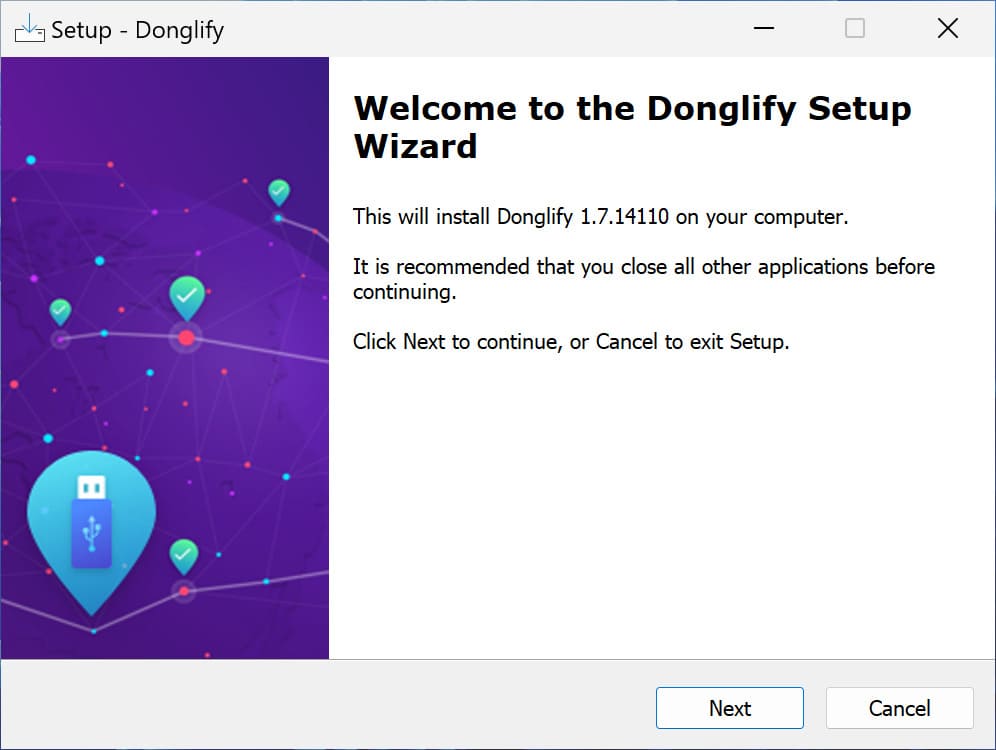
Install Donglify

2. Connect the USB dongle to the server computer and open Donglify.
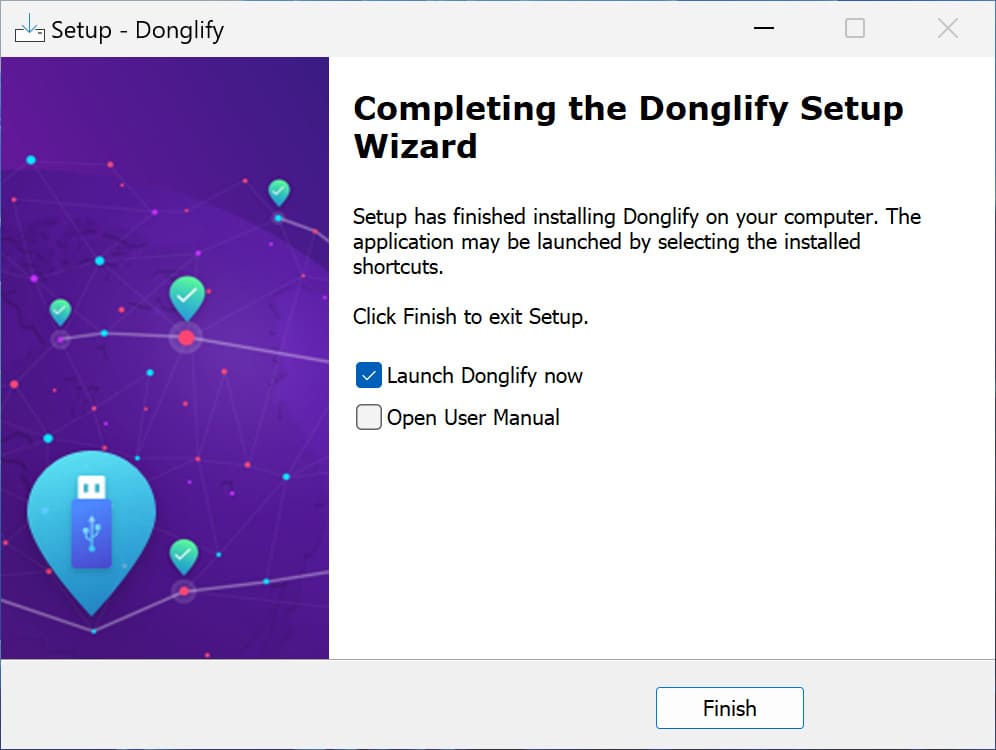
Launch Donglify

3. Log in with your email and password, a Google account, or a login token.

4. Click the plus icon to open the local device list. Each device shows a Multi-connect, Single-connect, or Unsupported label.
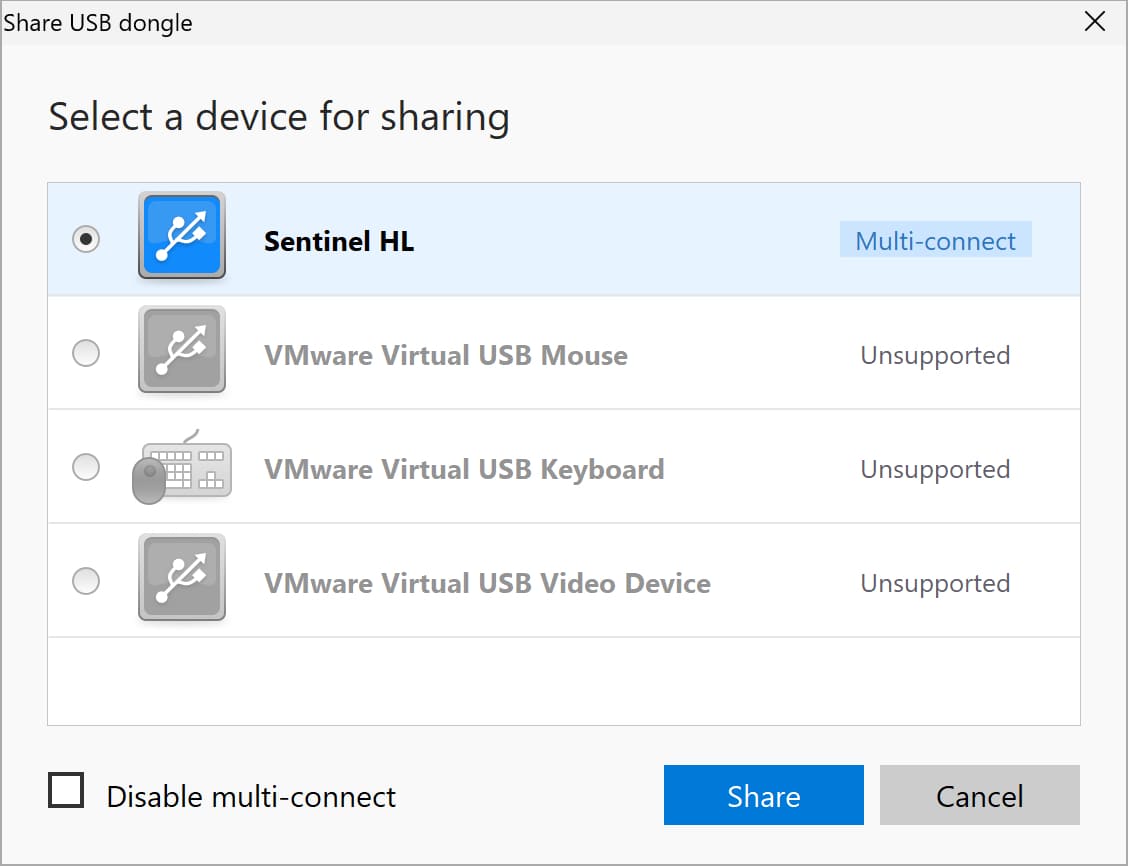
Select the USB key

5. Select the radio button next to your dongle and click Share.
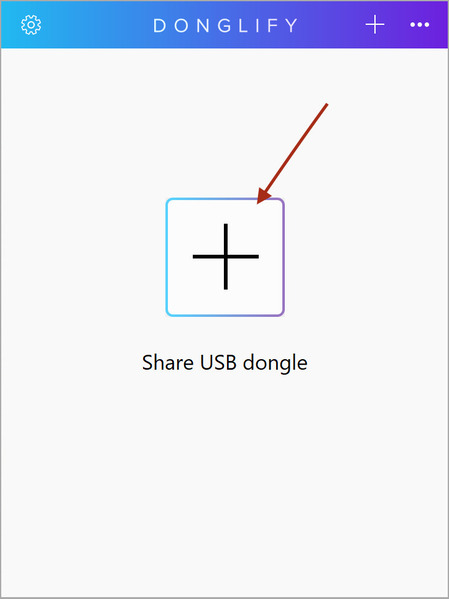
Share dongle

6. On the client computer, open Donglify and log in to the same account.
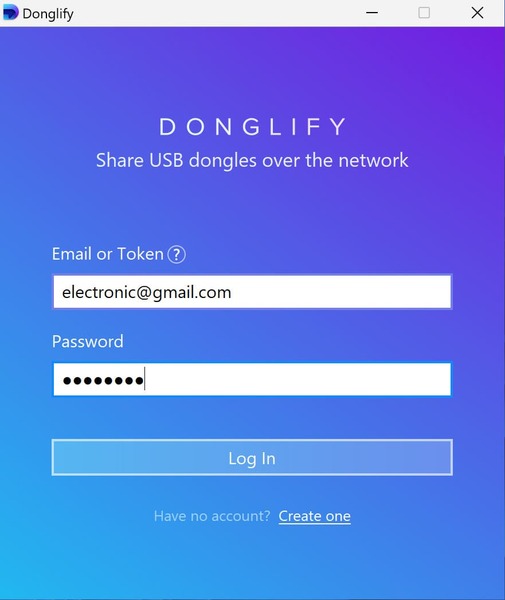
log in to the same account Donglify

7. Find the shared dongle in the device list and click Connect.
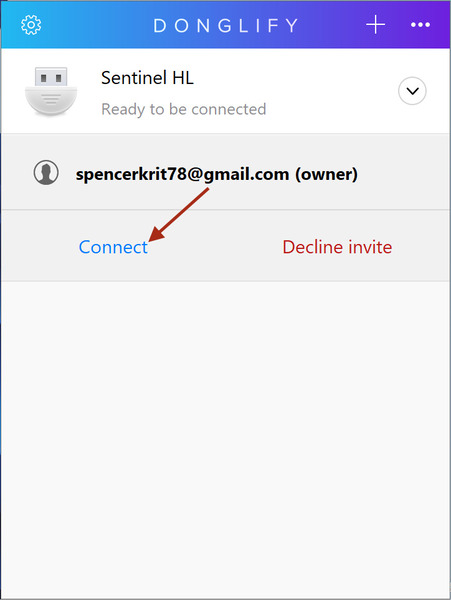
Donglify connection

8. Work with the key as if it were local. Click Disconnect when you finish.

Donglify offers a seven-day trial with full feature access, so you can test it against the exact key you depend on before you pay.

On Windows

On Windows, Donglify configures Windows Firewall on its own. Behind a corporate or custom firewall, open outbound TCP 12063 for the main server, TCP 5018 for the Redirection Server, and UDP 5002 for UDP connections, plus inbound TCP 5000 for direct connections. Account login uses outbound TCP 8063 to account.donglify.net.

To rename a shared key for easier identification, click the Pencil icon next to its name and press Enter.

On macOS

On macOS, Donglify prompts for your Mac username and password during install, and again for updates or removal. Renaming works by clicking the device name directly rather than a pencil icon.

One version limit matters here. On M1 Macs running macOS 11 Big Sur, Donglify runs in server mode only, so it can share a local key but cannot connect out to a remote one. Full client and server support starts at macOS 12 Monterey, and the current supported floor is macOS 10.15 Catalina.

Using Virtual dongle in VM or over RDP

A virtual dongle works inside a virtual machine or an RDP session because Donglify presents the key to the remote environment as if it were locally attached. This is particularly useful when the physical dongle cannot be connected directly to the virtual or remote machine.

The server side runs on the machine physically holding the dongle, and the client side runs in the environment needing access to it, whether a virtual machine or a remote physical computer.

Inside an RDP session Donglify uses the Microsoft RDP channel directly, with no extra configuration. The specifics differ enough by platform to warrant their own guides.

For platform-specific setup, see our walkthroughs on USB dongle access in VMware or VirtualBox USB dongle passthrough.

Donglify Benefits and Limitations

A virtual dongle buys you reach and convenience at the cost of depending on your network. The benefits are clearest for teams sharing one costly key. Read the limitations before you rely on it.

Benefits

  • Purpose-built for security dongles. Donglify handles USB security and license keys specifically, not general USB devices, and Multi-connect lets several clients use a supported key at once without disconnecting one before another can reach the license.
  • Remote access without moving the key. One physical key serves machines across different locations and environments, including virtual machines and RDP sessions, so a team stops passing the device from computer to computer.
  • Less physical handling. Keeping the key on a secured server cuts physical handling, so the dongle lasts longer and is less likely to be lost or stolen.
  • Protected network connections. Every connection runs under TLS 1.2, and every mode except the Redirection Server relay stays point to point.

Limitations:

  • Network dependency. Every machine needs a stable network or internet connection, and a drop pushes Donglify onto slower fallback modes.
  • Windows and macOS only. Donglify runs on Windows and macOS only, with no Linux client, so a mixed fleet needs another tool for Linux nodes.
  • Paid subscription. It is a paid subscription, where a free option like USB/IP exists for technical users comfortable without a packaged cross-platform application.
Note: See our overview of dongle server software options for how Donglify compares to alternatives like USB/IP.

Supported Dongles and Multi-Connect

Multi-connect is available for a defined set of key families, and a device shows its status the moment you open the share list. A Multi-connect label means several clients can use the key at once while it stays live on the host. A Single-connect label means one client at a time. An Unsupported label means Donglify does not handle that device type.

Supported families include Aladdin, Safenet, Gemalto and Thales keys such as HASP HL and Sentinel HL, Feitian devices like the Rockey series, and WIBU keys including CodeMeter, alongside others like KEYLOK II and Guardant Stealth II. For the full list of supported keys and versions, see our guide to multi-connect dongle sharing.

If your key shows Single-connect and you need several people on it at once, or your device shows as Unsupported, Donglify support can add support for it on request.

FAQ

A virtual dongle is legal when it redirects a key you are authorized to use rather than copying it. Redirecting a genuine dongle avoids creating or duplicating the key itself, which is the behavior raising licensing and copyright questions. Whether remote or concurrent use is permitted still depends on the license terms of the protected software, so check the vendor’s agreement before sharing a dongle between machines. Emulating or dumping a key you do not own is a separate matter with its own legal exposure.

No, Donglify is not a dongle emulator. It shares a physical key over a network and leaves the key and its firmware untouched, where an emulator reproduces a key’s behavior in software. The practical result is stability, because the genuine device answers every protection check, which makes redirection generally less exposed to protection updates than emulation. The difference is real hardware accessed remotely against a software copy of it.

Device traffic can travel over a local network, but Donglify still signs in to its account server to start a session. When the server and client sit on the same LAN, a Direct connection carries the device data locally and is the fastest mode, so the key traffic does not leave your network. Logging in to the Donglify account uses an outbound connection to account.donglify.net over TCP 8063, so a fully offline setup is not supported.

Remote access across separate sites needs internet on both ends, and if a link drops briefly, Donglify keeps the connection to the key active for several minutes rather than closing it immediately.