VirtualBox USB Dongle Passthrough: Setup and Fixes

A USB dongle plugged into a VirtualBox host does not always appear inside the guest on its own. VirtualBox passes the dongle through only after the VM has a USB controller enabled and a USB filter tells it which device to capture. Until then, the host operating system often grabs the dongle first, most commonly after driver updates, VirtualBox upgrades, or macOS security prompts.

Below is the native passthrough setup for Windows, macOS, and Linux hosts, the checks to run when the dongle still refuses to attach, and the point where Donglify becomes the better option for reaching a license dongle on another physical machine.

Choosing Between Native Passthrough and Donglify

Pick native passthrough when the dongle and VirtualBox share one machine. Pick Donglify when the dongle lives somewhere else on the network.

Situation Best option
Dongle is plugged into the same physical machine as VirtualBox Native passthrough. No extra software or internet connection required.
Dongle is on another computer, in another office, or in a server rack Donglify over LAN or internet. Both sides require internet access for account authentication.
You use VirtualBox 7.x Native USB 2.0 and 3.0 passthrough works without the Extension Pack.
Several VMs need the same dongle simultaneously Donglify, but only for supported multi-connect dongles and where the software license permits concurrent use.

Setting Up Native USB Passthrough

Native passthrough needs two things: a USB controller enabled on the VM, and a USB filter to catch the dongle.

In VirtualBox 7.0 and later, USB 2.0 and USB 3.0 controller support ships in the base package — no Extension Pack needed. On 6.x and older, install the Extension Pack matching your exact VirtualBox version. Note: some Extension Pack metadata (VBoxManage list extpacks) still lists “USB 2.0 and USB 3.0 Host Controller” as a feature on 7.x builds — this is a leftover description string, not a real requirement. In 7.x, the Extension Pack is only needed for VRDP, webcam passthrough, disk encryption, and PXE boot ROM.

Enable the USB Controller

  1. Power off the VM.
  2. Open VM Settings > USB, enable the USB controller.
  3. Select USB 3.0 (xHCI) for modern guests, or USB 2.0(EHCI) if the guest is older or the dongle is unstable under xHCI.
  4. Save.


Create a USB Filter

  1. Connect the dongle to the host.
  2. Open VM Settings > USB, click Add USB Filter, and select the dongle.
  3. Keep only Name, Vendor ID, and Product ID unless you need to tell apart identical dongles.
  4. Unplug the dongle, start the VM, wait for the guest to finish booting, then plug the dongle back in. VirtualBox captures it and passes it to the guest.


Finding Vendor/Product ID: Windows — Device Manager > Properties > Details > Hardware Ids (VID_xxxx/PID_xxxx). macOS — Apple menu > About This Mac > System Report > USB (approve the accessory prompt on Apple silicon). Linux — lsusb; also add your user to the vboxusers group and log out/in before testing.

Why the Dongle Still Won't Attach

Symptom Cause Fix
Filter set, dongle still not captured; error like UUID is busy with a previous request or E_INVALIDARG (0x80070057) Host OS, license manager, or another app already claimed the dongle Run VBoxManage list usbhost on the host. If it shows Busy/Unavailable, close the software holding it — eject storage devices, or close the vendor license service for HID/smart-card/vendor-specific dongles. Unplug, start the VM, reconnect only after boot.
Host detects the dongle, but VirtualBox doesn’t see it (Linux) User not in vboxusers group Add the user to vboxusers, then log out/in or reboot.
VirtualBox itself won’t start, or USB silently fails (macOS) System security blocked VirtualBox’s driver/component On 6.x, a Kernel driver not installed (rc=-1908) error blocks the VM from starting at all when the support kext isn’t approved — it’s a whole-VM issue, not USB-specific, but rule it out first if the guest won’t boot. On 7.x, macOS uses no kernel extensions, so this error no longer applies; a blocked component fails differently, usually at install or first launch. Reinstall cleanly, approve prompts under System Settings > Privacy & Security, and retest with a simple USB device.
USB 2.0/3.0 device not captured at all (6.x only) Missing or mismatched Extension Pack File > Preferences > Extensions — confirm the Extension Pack version matches your VirtualBox version exactly. Not applicable on 7.x, where base USB support needs no Extension Pack.
Note: Native filters only catch devices on the same physical computer running VirtualBox — a dongle on a colleague’s laptop, in a server rack, or in another office stays out of reach. VirtualBox does have a remote-USB feature through VRDE, but it requires the Extension Pack and an RDP client that specifically supports USB redirection — most, including Windows’ built-in mstsc.exe, don’t. For sharing a license dongle across a normal network, Donglify is the more general option.

Sharing a Dongle to a Remote VM With Donglify

Donglify moves the dongle over TCP/IP, so it sidesteps the same-machine limit of native passthrough. The guest sees the key as a locally attached device even when the physical dongle sits on another host.

Donglify installs on both ends: the machine holding the dongle and every VirtualBox guest connecting to it. A seven-day trial covers the full feature set, enough to confirm your dongle model works over the network before you commit.

How to Redirect a USB Dongle to VirtualBox

  1. Create a Donglify account.

2.  Install Donglify on the host with the dongle physically connected (the server) and on every VirtualBox guest connecting to it (the clients).
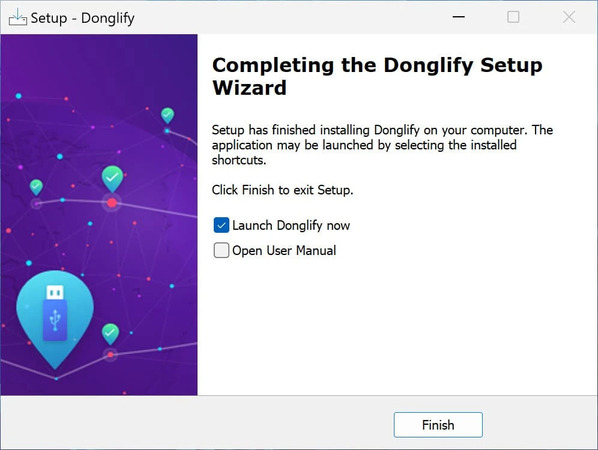
Install Donglify

3.  On the server, launch Donglify and sign in.
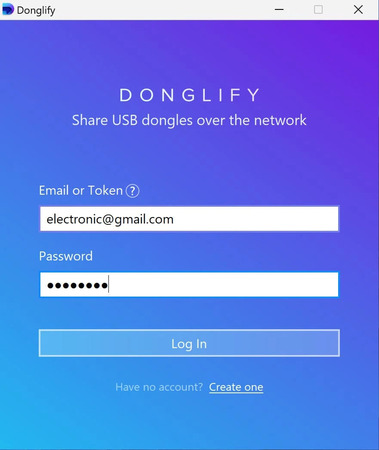
Sign in to Donglify

4.  Click + to open the list of connected USB keys, select the radio button next to your dongle, and click Share.
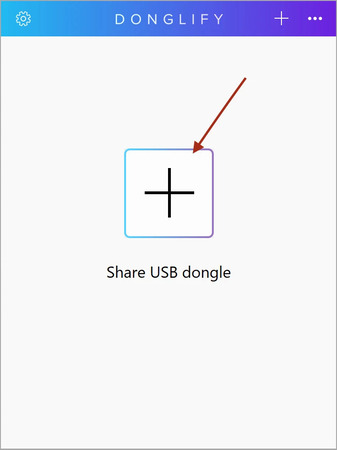
Share dongle

5.  On the client, launch Donglify, sign in to the same account, find the shared dongle in the list, and click Connect.
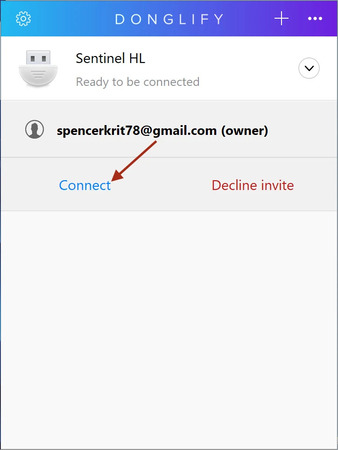
Donglify connection

6.  Device Manager inside the guest shows the dongle as a local device, and the licensed application reads the USB token from the VirtualBox VM.

The same workflow applies to other hypervisors. For VMware, follow the steps for using a USB dongle inside VMware virtual machines. For Microsoft’s hypervisor, see USB dongle access in Hyper-V virtual machines.

Donglify Benefits

Native VirtualBox USB passthrough is limited to USB devices physically connected to the VirtualBox host. Donglify removes that limitation by making a USB security dongle available to a virtual machine over the network, even when the dongle is connected to another computer.

Access Remote USB Dongles

The dongle remains plugged into its original computer while appearing inside the VirtualBox guest as a locally attached USB device. This allows you to use license keys located in another office, server room, or colleague’s workstation without physically moving the hardware.

Cross-Platform Compatibility

Donglify supports sharing compatible USB security dongles between Windows and macOS systems. For Mac deployments, install the current Donglify version on both the computer sharing the dongle and the machine connecting to it.

Built for License Dongles

Unlike general-purpose USB-over-network tools, Donglify is designed specifically for USB security dongles. Device compatibility focuses on hardware license keys used by commercial software rather than the full range of USB peripherals.

Internet Requirement

Both the computer sharing the dongle and the VirtualBox guest need internet access to authenticate with your Donglify account, even when both systems are connected to the same local network.

FAQ

The host operating system grabs the dongle before the filter captures it, in most cases. Run VBoxManage list usbhost and look for a Busy or Unavailable state, confirm the VM finished booting before you replugged the dongle, and on Apple silicon Macs confirm VirtualBox is allowed under Privacy & Security, Accessories. Reducing the filter to Vendor ID and Product ID clears most detection failures on its own.

No. Standard USB 2.0 and USB 3.0 passthrough works from the base install on VirtualBox 7.0 and later, since EHCI and xHCI support ships with it. The Extension Pack still covers disk encryption, host webcam passthrough, PXE boot ROM, and VRDP remote display. Anyone on a version older than 7.0 needs it for any USB support beyond USB 1.1.

Yes, through a network redirection tool like Donglify. Native passthrough reaches only devices on the same physical machine. Donglify installs on the computer holding the dongle and inside the guest OS, not on the VirtualBox host alone, because the host and guest count as separate operating systems for USB. Once the connection is live, the guest sees the dongle the same way it sees a locally captured device.

Not through native VirtualBox passthrough. It locks a captured device to a single guest or the host, never several at once. Donglify supports simultaneous multi-VM access on dongle models with explicit multi-connect support, listed in its device compatibility documentation. Dongles outside the supported list stay single-connection, whichever tool manages the share.