USB Dongle in VMware: Native and Network Methods

Native VMware ESXi passthrough connects a dongle to a virtual machine only when the key is plugged into the physical ESXi server. A license key attached to another computer stays out of reach through vSphere alone, so software protected by a hardware key fails inside the guest. Donglify closes that gap, redirecting the key over the network so a supported Windows or macOS guest reads it as a local USB device.

This guide covers both methods: native ESXi passthrough for a dongle connected directly to the host, and Donglify when the key needs to stay on another computer.

Which method do you need?

Dongle connected directly to the ESXi host: use native VMware passthrough.
Dongle connected to another computer: use Donglify.
Several supported clients need the same dongle: use Donglify Multi-connect.

Native VMware Passthrough vs Donglify

  Native VMware ESXi passthrough Donglify
Dongle location Physical ESXi server Another supported Windows or macOS computer
Access One guest per USB device Supported keys can use Multi-connect with several clients
Setup vSphere configuration + guest runtime Donglify on the dongle host and VMware guest
Connection Local host-to-VM USB path Encrypted network redirection
Cost Included with VMware Paid, with a 7-day trial

If your dongle is connected to another computer, continue with Donglify below. If it is already plugged into the physical ESXi server, jump to Native USB Dongle Passthrough in VMware ESXi.

Connect a Remote USB Dongle to VMware with Donglify

Donglify redirects a USB dongle to a supported Windows or macOS guest running in VMware, even when the key is attached to another computer. A small service runs on the machine holding the key (the server, in Donglify’s terms) and another runs inside the guest, then the two link up over the network. Donglify tries its connection modes in priority order: Direct, then QUIC, then UDP, then RDP, and finally a Redirect relay if nothing else works. Every mode encrypts traffic with TLS 1.2, but device data only passes through Donglify’s own servers on that last Redirect fallback; the other modes stay point to point between the two machines.

On the dongle’s side, the server service claims the device and makes it available to share. On the guest side, the client works down that same priority list until a connection mode succeeds, then the driver recreates the key on the virtual USB stack. From there, the guest OS enumerates it as a local device, listed in Device Manager on a Windows guest. That’s effectively a virtual dongle any VMware guest on the network can reach.

Why Use Donglify with VMware?

  • Reaches a Sentinel or HASP key on any networked computer, not only the ESXi server.
  • Works with VMware Workstation, Fusion, or ESXi, since it operates at the guest OS level.
  • Multi-connect shares one supported key to several guests, and the key stays usable on the host machine.
  • Installs on the dongle host and the guest, never on the ESXi hypervisor itself.


Donglify handles other hypervisors the same way, whether you enable USB security dongles in VirtualBox or connect a license key to a Hyper-V virtual machine.

How to Set Up Donglify for a VMware Virtual Machine

Setup runs once on the machine holding the dongle and once inside the guest.

1. Create a Donglify account on the official website.

2. Install Donglify on the dongle host and inside the VMware guest. The Windows service runs as donglify64.exe or donglify32.exe, and macOS runs the app from Applications.
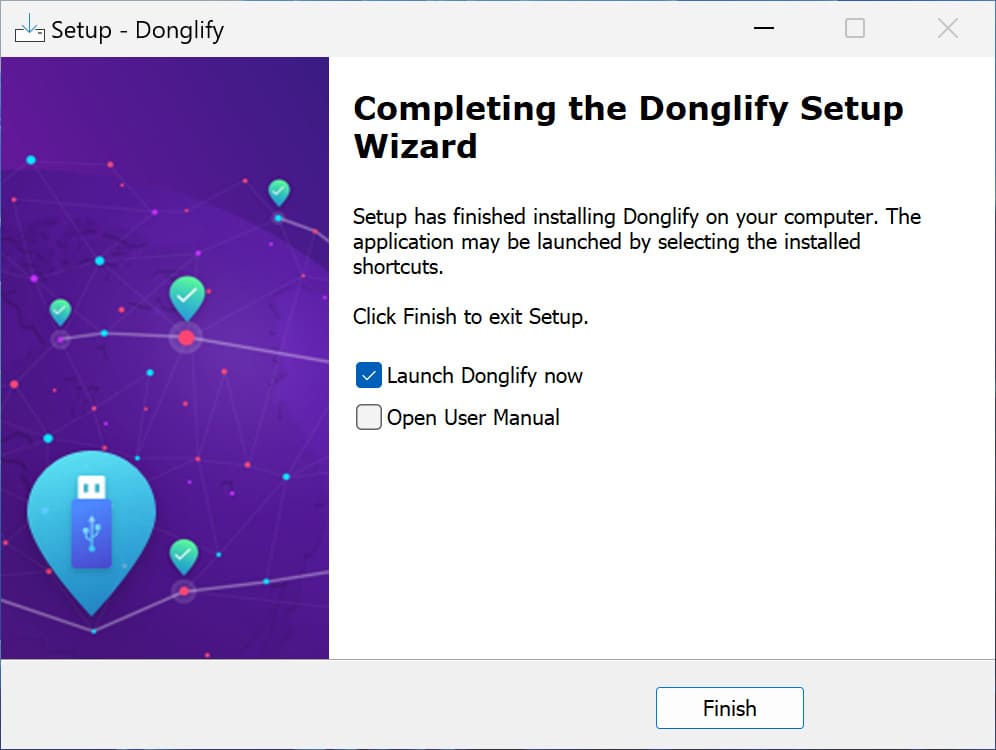
Install Donglify

3. Launch the app on both machines and sign in to the same Donglify account.
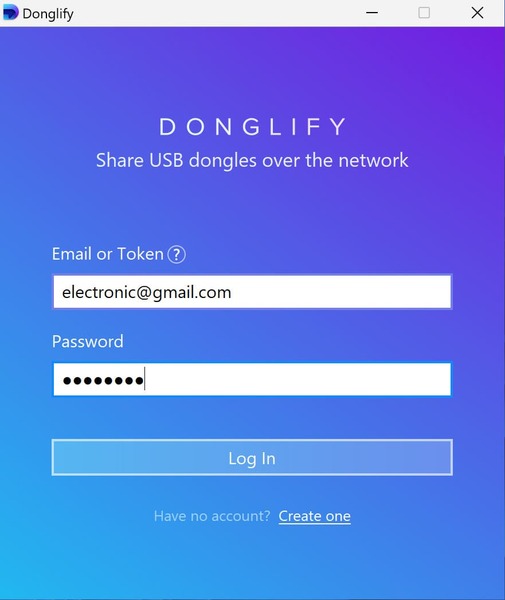
Sign in to Donglify

4. On the dongle host, click the “+” icon to list local USB keys.
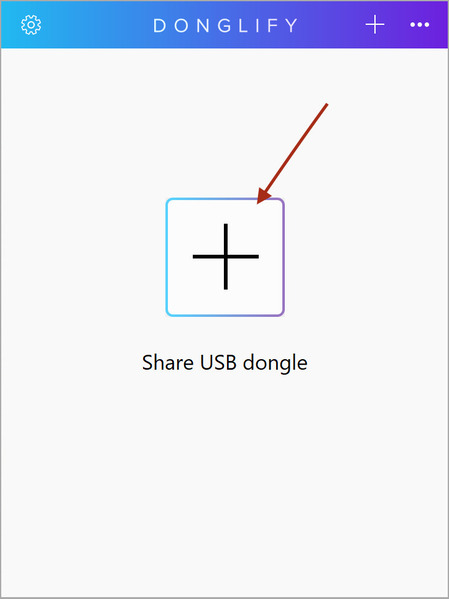
Share dongle

5. Select the radio button next to the dongle and click “Share”.
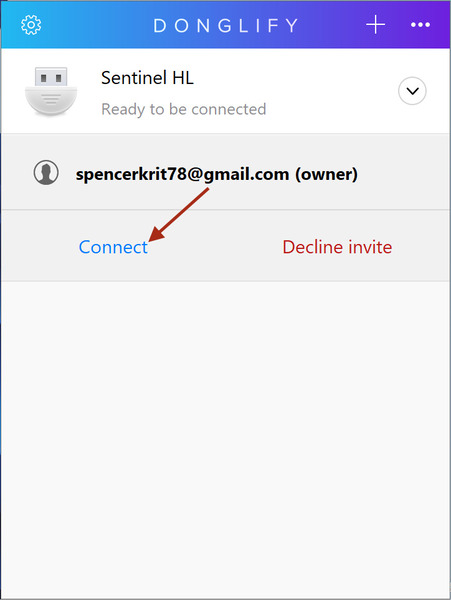
Donglify connection

6. In the guest, find the shared dongle and click “Connect”. The guest OS reads it as a local key, shown in Device Manager on Windows.

7. Confirm the protected application detects the key, then click “Disconnect” when you finish.

A 7-day Donglify trial runs with full features, so you can test a live Sentinel or HASP key against your own VMware guest before you buy. For a dongle several people read at once, multi-connect access to one dongle keeps it available to more than one guest.

Native USB Dongle Passthrough in VMware ESXi

Native passthrough is the simpler option when the physical USB license key can be plugged directly into the ESXi server.

The USB Arbitrator service on the ESXi host makes eligible USB devices available for passthrough, while a virtual USB controller provides the USB interface inside the guest. A physical device assigned to one guest cannot simultaneously be assigned to another through native passthrough.

A dongle attached to a different physical computer has no native passthrough route to the ESXi guest. That scenario requires network USB redirection instead.

How to Connect a USB Dongle Directly to an ESXi Guest

  1. Connect the dongle to a USB port on the physical ESXi server.
  2. Confirm that ESXi detects the device and that the USB Arbitrator service is running.
  3. In vSphere Client, right-click the virtual machine and select Edit Settings.
  4. Open Virtual Hardware and confirm that the VM has a USB controller.
  5. Click ADD NEW DEVICE and select Host USB Device.
  6. Expand New Host USB Device and select the required dongle.
  7. Configure vMotion support according to the capabilities of the device and your vSphere environment.
  8. Click OK.
  9. Install the dongle vendor runtime inside the guest if required.
  10.  Confirm that the protected application detects the hardware key.

Limitations of Native VMware ESXi Passthrough

  • The USB dongle must be physically connected to the ESXi host.
  • A given USB device can be assigned to only one guest at a time.
  • The VM requires compatible virtual hardware and a supported USB controller.
  • Migration while a USB device is attached depends on the device and vSphere configuration.
  • Native passthrough cannot reach a dongle connected to another physical computer.

Donglify Requirements and Compatibility

Network Requirements

Donglify requires network connectivity between participating systems and uses the available connection mode automatically. An Internet connection is also required for Donglify account services, including when the participating computers are on the same LAN.

In restricted corporate environments, verify the current Donglify firewall requirements before deployment.

Supported Operating Systems

Donglify supports Windows and macOS. Check the current system requirements before deployment, particularly when using older macOS releases or Apple silicon hardware.

Supported USB License Dongles

Donglify supports multiple USB security-key families, including common Sentinel, HASP, CodeMeter, Rockey, KEYLOK, and similar devices. Compatibility and Multi-connect support vary by individual dongle.

Vendor family Example keys
Aladdin, SafeNet, Gemalto, Thales HASP HL, Sentinel HL, eToken
Feitian Rockey, Rockey2, Rockey4, ET299 Token
WIBU CodeMeter, WIBU-BOX/RU, CodeMeter-Stick
Other KEYLOK II, Guardant, SenseLock, SuperDog
Use Donglify's current compatibility information or the trial to confirm your exact dongle model.

When Native VMware Passthrough Is the Better Choice

Donglify isn’t necessary in every VMware setup.

If the dongle is already connected directly to the ESXi server and only one guest needs it, native passthrough provides the shorter path with no additional redirection software.

Donglify is designed specifically for USB license and security dongles. For printers, scanners, storage devices, or other general USB hardware, use a general-purpose USB over IP solution instead. For a broader look at how it compares, see our overview of dongle server software options.

Donglify also requires Internet connectivity for its account infrastructure, so it isn’t suitable for a completely isolated environment with no Internet access.

FAQ

A HASP key may remain unavailable if ESXi does not list it as an eligible passthrough device, the USB Arbitrator service is unavailable, the VM has no USB controller, another VM already owns the device, or the required Sentinel/HASP runtime is missing from the guest. Start by checking Add New Device → Host USB Device in vSphere and confirming that the correct runtime is installed inside the VM.

Not through native ESXi passthrough. Native passthrough works with USB devices physically connected to the ESXi host. To access a dongle attached to another supported Windows or macOS computer, install Donglify on the dongle host and inside the VMware guest and connect the shared key over the network.

Supported Donglify Multi-connect dongles can be accessed by several remote clients simultaneously. Dongles without Multi-connect support can be connected to one remote client at a time. Software licensing terms still apply regardless of the technical sharing capability.

No. Donglify runs on the Windows or macOS computer holding the physical dongle and inside the supported guest OS. It does not need to be installed on the ESXi hypervisor.