
As the name suggests, Wi-Fi USB connections leverage Wi-Fi networks, allowing you to remotely access USB peripherals and manage them. Using this solution, you will enjoy the same features as you did with wired USB connections.
In this detailed guide, you will explore different wireless USB solutions. It will help you learn:
- What’s the best software for wireless USB connection: software or hardware?
- How to share USB devices over Wi-Fi?
- How to make a USB device wireless?
- What are the best wireless USB solutions?
Read on to get valuable insights that will help you experience the benefits of using USB over Wi-Fi and explore how to declutter your workspace, improve collaboration, and remotely access devices.
Hardware-Based USB over WiFi Solutions
Hardware-based USB over WiFi solutions offer a physical approach to wirelessly connecting USB devices without relying on software alone. These solutions such as wireless USB hubs, extenders, or adapters enable traditional USB peripherals like storage drives, printers, and scanners to communicate with a computer over a Wi-Fi network, helping to reduce cable clutter and provide more flexible device placement. While they deliver a truly wireless experience and support multiple devices, they also come with some limitations in range, throughput, and functionality compared to wired connections.
Let’s understand hardware-based USB over Wi-Fi solutions.
Wireless USB Hub
Wireless USB Hub allows you to connect multiple USB devices wirelessly to a single computer or device. It acts like a central hub or you may take it as your computer USB port’s wireless extension. This eliminates the need for additional cables to connect various devices.
Key features:
- Support for multiple USB devices, such as storage drives, printers, scanners, etc.
- A single computer can be used to connect many USB devices wirelessly.
- Truly wireless experience and a cleaner workspace, without cable clutter.
Pros:
- More versatile than single wireless adapters.
- Ideal to establish simultaneous connections between multiple devices.
- More cost-efficient than the scenario when you buy separate wireless adapters for individual devices.
Cons:
- Data transfer speeds are slower than those of wired connections. It’s significant for large file transfers.
- Wireless connections are susceptible to interference from crowded networks and multiple devices.
- Limited range, requires the connected device to be placed at a closer proximity from the hub.
Usage: USB over Wi-Fi hardware solutions are ideal for users seeking to connect multiple USB systems (such as keyboards, scanners, printers, etc.) to a single computer while keeping the workspace clean without messy cables. In this system, the hub is wirelessly connected to the computer while your devices are plugged into this hub as done on a wired, traditional USB hub.
Wireless USB Extender
Can a USB be extended wirelessly? Yes! A Wireless USB Extender can extend an existing USB connection’s range with the help of a receiver and transmitter pair. It will help you wirelessly extend a single USB connection’s range.
This is useful when you want to connect a USB device placed at a distance from a computer that a standard USB cable can’t reach.
Key features:
- Wireless range extension of USB connections.
- Connects a USB device located at a distance from the hub computer.
- Offers several connection options, including dedicated wireless protocols,
Wi-Fi, etc.
Usage: Wireless USB Extender is ideal for situations where you need to locate your USB device at a high distance (like a different building or room) from the hub. It leverages wireless technology to solve this challenge, enabling the device to easily communicate with the hub computer as if you are connecting it directly through a cable.
Wireless USB Adapter
A wireless USB adapter allows you to convert a wired USB device into a wireless device. This means even if a device doesn’t support wireless consecutively natively, you can make it one using this solution.
Are you wondering – How to connect a printer to WiFi without a cable? Well, it’s possible. You can wirelessly connect a wired scanner or printer to your network using a wireless USB adapter.
Key features:
- Makes a device wireless even if it was traditionally configured as a wired device.
- Easy to convert a wired mouse, headset, or keyboard to wireless devices.
- Uses protocols such as proprietary wireless connections or Bluetooth.
Usage: A wireless USB adapter is useful when adding the Bluetooth function or connecting to a wireless network. For USB over Wi-Fi, you can use a USB adapter to connect your computer to a given wireless network and share USB devices over Wi-Fi. You can also use it to add Wi-Fi connectivity to a USB device, allowing you to wirelessly access the device.
USB over Wi-Fi Hardware Drawbacks
Although hardware-based wireless USB solutions eliminate cable clutter and offer you convenience and ease of accessibility, they involve certain drawbacks:
Limited functions: Wireless USB solutions come with limited functionality. For example, you can connect only one device at a time using wireless extenders while adapters can convert only a single device at a time to wireless.
Limited range: Wireless USB solutions have a limited range, thus, you are restricted to positioning your device, like extenders and hubs, within a specific range in order to enable smooth functioning.
Slow data transfers: You may experience reduced data transfer speed in wireless connectivity, especially when sending or receiving larger files.
Interference: Wireless connections are highly susceptible to interference from crowded networks and other devices. This reduces the stability of your connections and impacts performance.
Software-Based Wireless USB Solutions
You will find many software-based wireless USB solutions in the market that will help you convert a wired USB device to a wireless device. So, if you want to know an easy way to use USB wirelessly minus additional hardware or cable clutter.
Wireless USB connection software is ideal when linking your USB devices via a second computer acting as an intermediary, instead of using wires. They also rely on USB over Wi-Fi software solutions. Here are some of the options.
Connect any device wirelessly via USB Network Gate
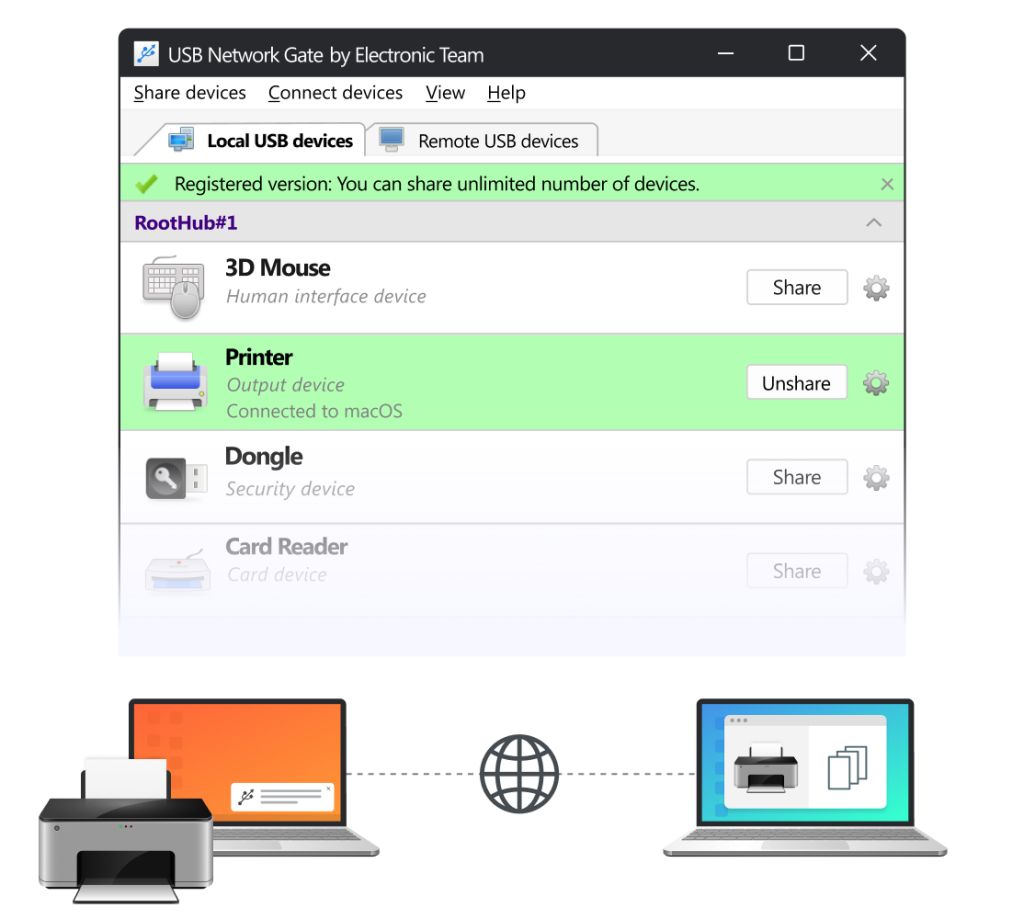
USB Network Gate allows you to make a USB device wireless through Wi-Fi connectivity. This innovative solution can effectively connect computers and USB devices over a network without requiring cables. It also doesn’t require you to remotely access USB peripherals.
Let’s understand through a scenario how you can share a USB over Wi-Fi with the help of a USB Network Gate.
Scenario: You wish to wirelessly access a USB printer from your laptop.
All components:
- Laptop: The laptop is the device that you use when wirelessly accessing a USB printer. You can refer to it as the client’s computer.
- USB Printer: This is the device that you wish to access directly, without involving any cables.
- Host computer: This is the computer that the USB printer is connected to physically. The host computer acts as the server.
- Wi-Fi Network: This is the network that both the client computer and host computer must be connected to.
- USB Network Gate Software: This is the software solution that you will need to install on both the laptop or client computer as well as the host computer.
Step-by-Step Guide:
To wirelessly access a USB printer from the laptop, follow the below steps:
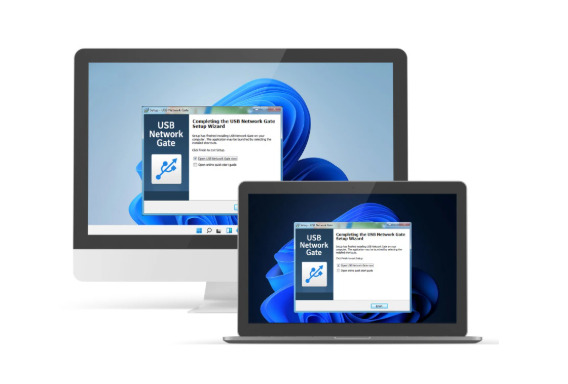
- Download and Install USB Network Gate: First, download the USB Network Gate and install it on both computers – your laptop (or the client computer) and the host computer to switch the USB printer is connected physically.
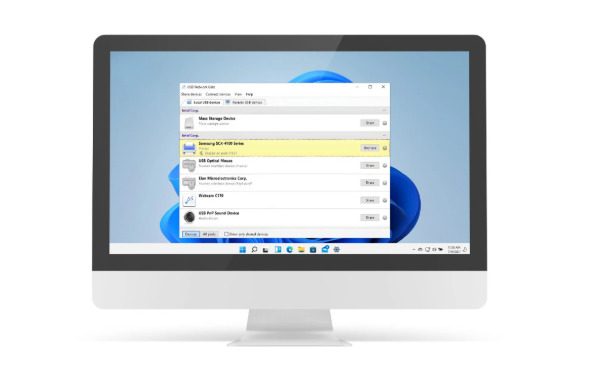
2. Share the USB Printer: Once installed, launch the USB Network Gate on the host computer. Here, you will find the list of all connected devices; look for the USB printer in this list. Once found, click on the button “Share”. You can find this button next to the name of the printer. On clicking, the USB printer will become available to be accessed over the network.
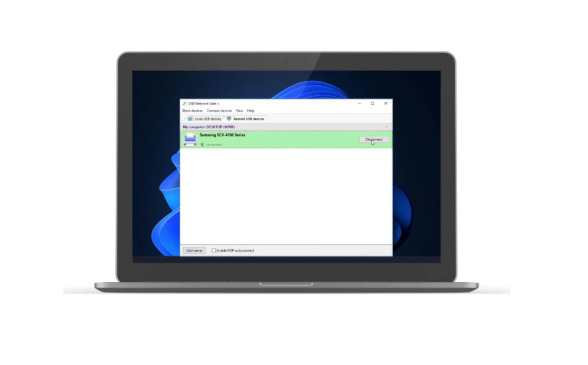
3. Access the Printer: On your laptop (or the client computer), find the USB Network Gate and open it. Go to the tab “Remote USB devices” to find the list of shared printers. Next to the shared printers, locate the button “Connect” and click on it. This will allow you to access the USB printer over Wi-Fi.
4. Print Wirelessly: Once you are able to access the USB printer, you can wirelessly print your documents directly from the laptop connected to the printer. So, just choose the printer and target documents with a few clicks and print them wirelessly.
USB Network Gate’s Key Features:
In this scenario, some of the key features of USB Network Gate software include:
✅ Support for multi-user access: USB Network Gate software allows multiple users to easily access the USB devices shared among them. It will need all those users to be on the same network and have proper permissions.
✅ Platform independent: The software is compatible with a variety of platforms – Windows, Android, macOS, and Linux.
✅ Sharing the USB printer: The software makes the USB printer appear on the remote computer as a device connected locally over the network.
Use FlexiHub to Create a Wireless USB Hub
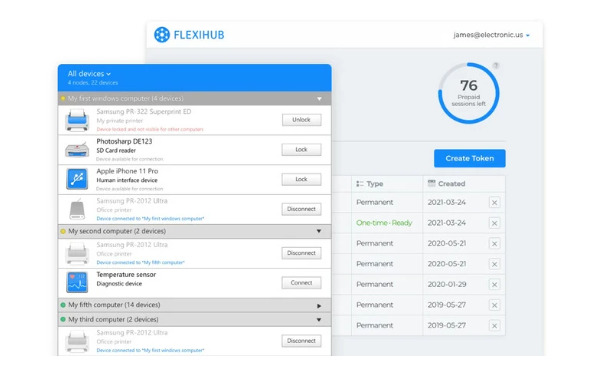
FlexiHub helps you share USB over Wi-Fi, turning any USB device into a wireless system. This innovative software is designed in such a way that users can easily access USB peripherals and manage them from anywhere within the network. This eliminates the need for physical cables and gives you a flexible, clutter-free working station.
Want to know how to share a USB device over Wi-Fi using FlexiHub? This simple guide will walk you through it and tell you step by step the process of using it effectively.
How to Set and Use FlexiHub:
- Sign Up and Install: Create a new FlexiHub account and sign up. After successful registration, download the FlexiHub software and install it. Ensure to install it on both the computers – the host or server (to which the USB device is connected physically) and the client computer or your laptop that you want to access the USB device from.
- Log in: Once you’ve everything ready, use your account details to open FlexiHub software on both computers. This will link the two computers automatically via FlexiHub’s service.
- Connect to the Device: On your laptop or client computer, you can see all the available USB devices that are connected to the recent, thanks to FlexiHub. Locate the USB device to enable wireless accessibility and check the option “Connect”. It will allow you to access the USB wirelessly, effectively like it’s connected to the client computer.
- Access the Device: When you’re done with the above steps, you can remotely access your USB device over Wifi on the client computer if needed. In addition, FlexiHub enables seamless data transmission running in the background.
Use VirtualHere to Share USB over Wi-Fi
VirtualHere helps you share a USB over Wi-Fi from a server (the computer where the USB is connected physically) to a client (the computer using which you want to remotely access the device).
The software lets you use USB devices remotely while retaining the same performance as directed connected devices. This wireless technology is transformative for both office spaces and homes, looking for efficiency, ease, and flexibility of connectivity. You can also explore other professional VirtualHere alternatives.
How to Use VirtualHere and Access Devices Wirelessly
- Install Server Software: To get started, install the VirtualHere server software on your computer connected to the USB device or a device compatible with NAS. The computer or the device will work as the server.
- Install Client Software: After installing the server software, you will need to install the VirtualHere Client software on your computer where you want to remotely access the USB device.
- Find and access USB devices: On the client computer, open the VirtualHere Client software. This software will discover all the available USB devices automatically that the server has shared over the network.
Next, right-click on the USB device that you want to use and choose the option “Use.” Upon doing this, the device connects with the client computer like you are physically connecting it.
- Manage USBs: Using the client interface, you can easily manage all the USB devices and connections. You can connect or disconnect devices anytime you need.
DIY Wireless USB Hub
Interestingly, now it’s possible to create a compact wireless USB hub with Raspberry Pi. It implies that you can use any peripheral USB device connected to the hub’s USB ports for remote connections. This saves you time and resources on extra configurations.
So, if you want to configure a wireless USB all by yourself, follow the below steps:
Step 1: Download and install the USB Network Gate software for Raspberry Pi.
Step 2: Now, go to the Raspberry Pi’s terminal. Run the below-mentioned command:
dpkg -i [package]
apt-get install -f
rpm -i [package]
Or, you can use the command: yum install [package]
Step 3: Launch the application. Now, locate the option “Share”, which should be next to the target USB device. Select this option.
Following the above steps, you can easily configure a DIY wireless USB hub. This means you can remotely access a shared USB device from any given computer connected over the web.
Once the command is executed, it’s possible to access the shared device easily from a machine using the USB Network Gate software. Thus, you can quickly set up an active connection with the client device or computer.
Final Thoughts: Hardware vs. Software USB over WiFi
When comparing hardware-based and software-based USB over WiFi solutions, it becomes clear that each approach serves different needs. Hardware-based solutions provide a straightforward, cable-free setup using dedicated devices, making them suitable for simple, fixed environments with limited requirements. However, they often come with higher costs, restricted scalability, and limited device compatibility.
Software-based wireless USB solutions, on the other hand, offer greater flexibility, broader device support, and easier scalability without the need for additional hardware. As highlighted in the comparison table, software solutions are generally more cost-effective, easier to deploy, and better suited for modern workflows that require remote access, mobility, and efficient device sharing across networks.
| Aspect | Hardware-Based USB over WiFi Solutions | Software-Based Wireless USB Solutions |
| Implementation | Requires specialized physical devices such as wireless USB hubs or extenders | Simple software installation on host and remote computers |
| Deployment Speed | Slower due to hardware setup and configuration | Fast and easy deployment with minimal setup |
| Device Compatibility | Limited to supported USB devices and hardware models | Broad compatibility with virtually any USB device |
| Scalability | Restricted by the number of available hardware ports | Easily scales to multiple devices and users |
| Cost Efficiency | Higher upfront investment in hardware | More budget-friendly with lower initial costs |
| Remote Access | Usually limited to local WiFi networks | Enables USB access over local networks and the internet |
| Maintenance | Requires physical maintenance or hardware replacement | Managed through software updates only |
| Ideal Use Case | Fixed environments with basic wireless needs | Professional, flexible, and enterprise-ready USB sharing |
For users and businesses seeking a versatile, scalable, and future-proof way to access USB devices over WiFi, software-based solutions clearly stand out as the more powerful and practical choice.