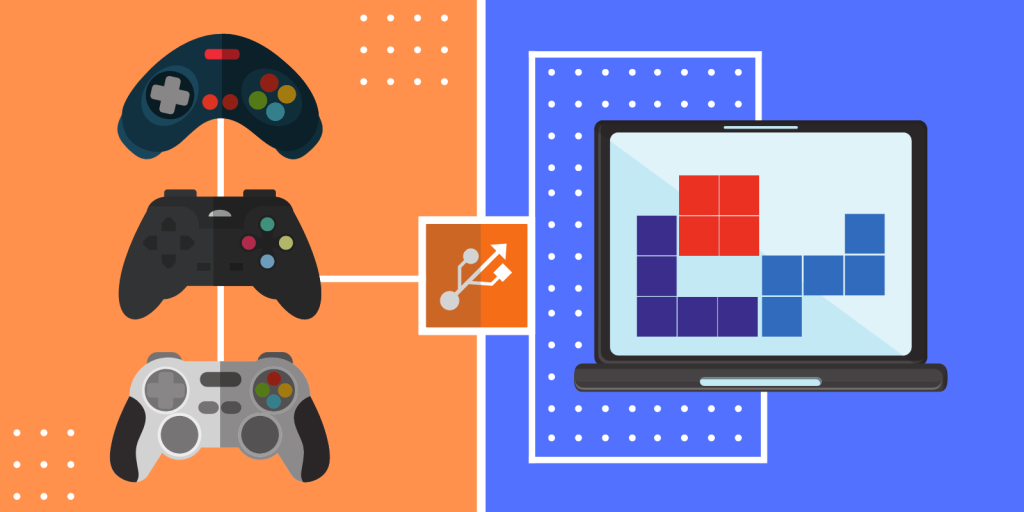
There are multiple situations in which it is very useful to be able to forward a game controller over an RDP connection. Some of the most important reasons to use a game controller through a Remote Desktop are:
- Playing games remotely using the resources of a more powerful computer;
- Redirecting a USB controller through Remote Desktop to access a VM instance in the cloud;
- Remoting into a work PC over RDP to test the game data with a controller (for game developers working from home out there).
Unfortunately, Microsoft does not support gamepad redirection by default and users have to find alternate methods of using a gamepad in a Remote Desktop session. The choices include third-party software solutions, RDP plugins, and modifying Remote Desktop Group Policies.
We’ll take a look at all three methods of using an Xbox and PS controllers in a Remote Desktop session.
Universal Redirection with USB Network Gate
USB Network Gate is a versatile solution to the problem of connecting a gamepad over RDP. The application lets you easily access wireless and wired USB controllers from a Remote Desktop session. You can work with a flight joystick, rudder pedals, controllers, and other peripherals.
The software encapsulates data from a PlayStation or Xbox controller that is physically attached to a computer’s USB port. It then transmits the data over the network to a virtual USB interface created in the remote desktop session. Using this method to forward a controller (for example, a flight universal control system) to an RDP session gives the user full control of the device which appears and acts as if it had a direct physical connection.
Step-by-Step Redirecting USB Controllers via RDP with USB Network Gate
Here you can find detailed video instructions that will help you successfully redirect a gamepad to a remote desktop session:
1. Download USB Network Gate. Install the software on the machine that is connected to the controller (the server).
2. Then, the application also needs to be installed on the computer that will host the RDP session (the client).
3. Launch USB Network Gate on the server and open the “Local USB devices” tab. Locate the controller and click the ”Share” button next to its name.
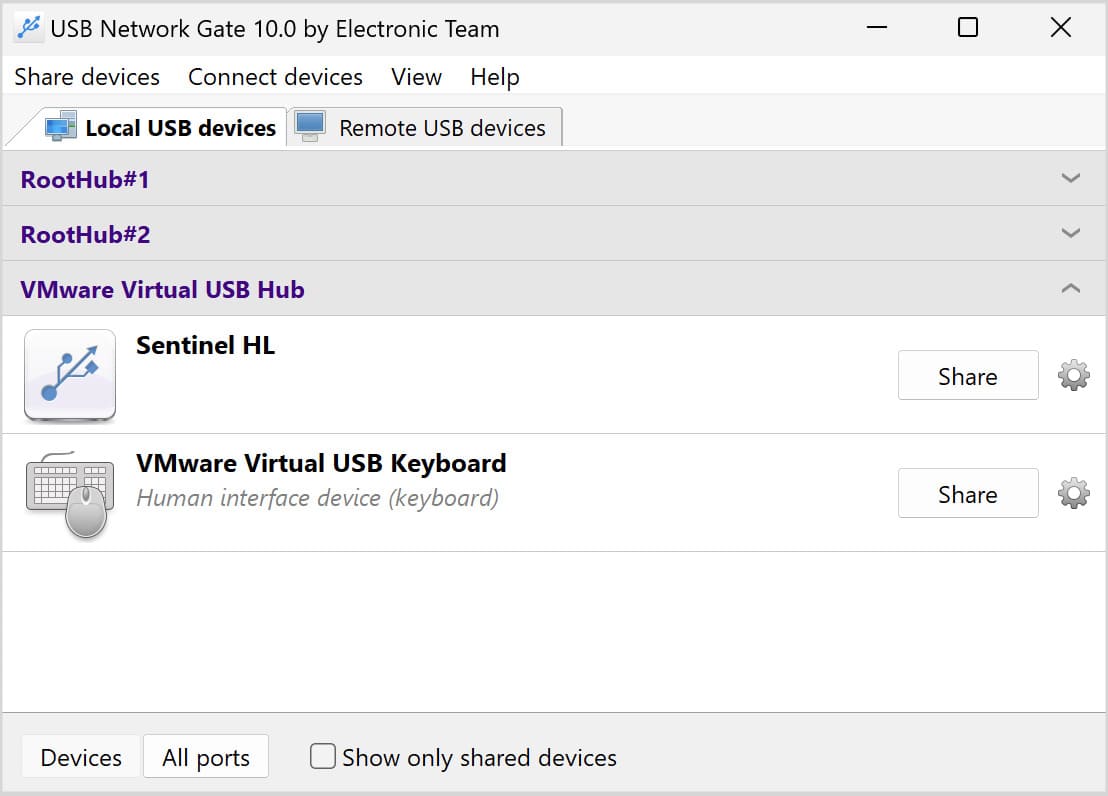
4. Open USB Network Gate on the client and locate the device in the “Remote USB devices” tab. Click “Connect” to attach a controller to an RDP session.
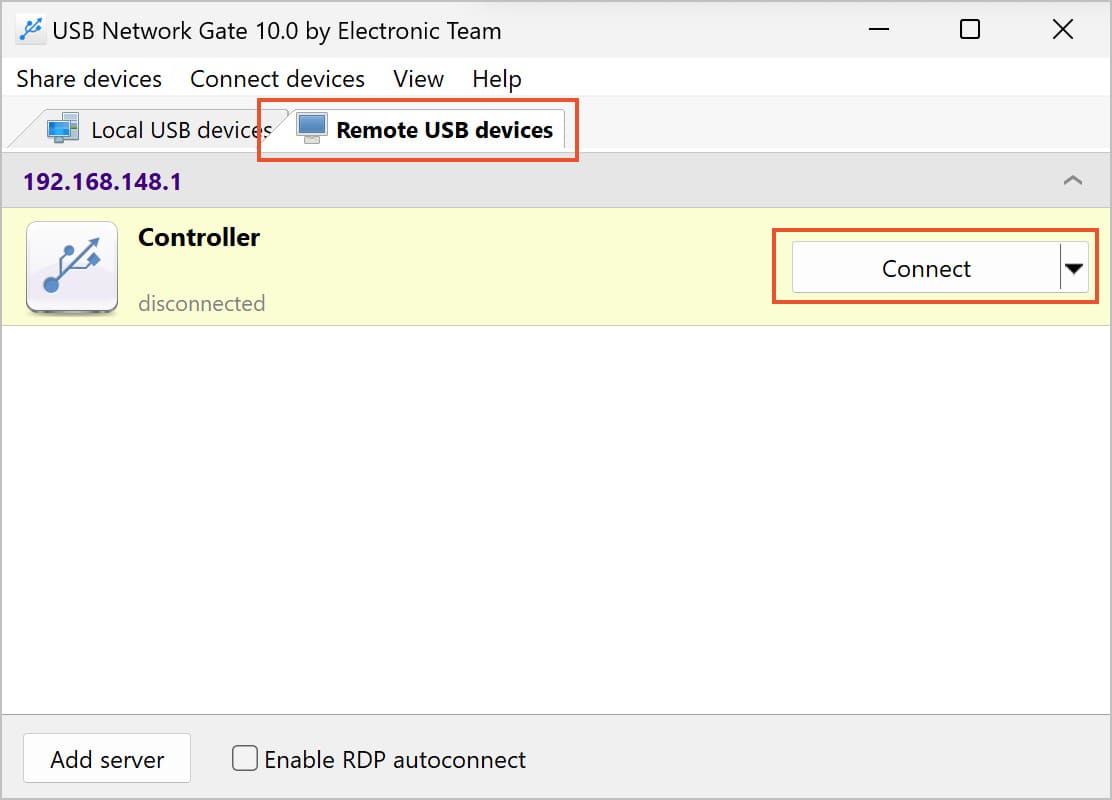
That’s all there is to it! With a few clicks, you can use your controller on a different PC with a Remote Desktop Connection.
Benefits of Using USB Network Gate for Redirecting USB Controllers:
✦ All that’s needed to share a gamepad is to install the USB Network Gate on the computer with the physical connection to the controller. Then, install the software in the remote desktop session that will connect the game controller.
✦ USB Network Gate provides stable and reliable connectivity of controllers to remote desktop controllers by creating virtual ports that emulate hardware interfaces.
✦ USB Network Gate supports gamepad isolation inside a remote desktop session. Devices can be isolated with authorization defined for specific RDP sessions or user accounts.
✦ USB Network Gate supports the use of other types of controllers (different flight yoke systems and joysticks) through Remote Desktop sessions. In addition to standard gamepads, equipment such as steering wheels or any other gaming peripherals can be redirected to an RDP session.
✦ USB Network Gate functionality can be integrated into other commercial software using its set of developer tools. The USB Network Gate SDK lets you easily add game controller passthrough functionality to your application.
Alternative RDP Game Controller Desktop Forwarding with FlexiHub
FlexiHub is a software utility that lets users redirect game controllers, and other types of USB devices, over an IP-based network. This ability is greatly appreciated by users who need to access a USB-connected gamepad from remote desktop environments in diverse geographic settings.
The following steps demonstrate using FlexiHub to set up remote game controller access on a remote desktop:
1. Register and install FlexiHub on the computer connected to the game controller and the machine running the remote desktop that will access the device.
2. Launch FlexiHub and log into the same account on the two computers so they can be connected.
3. Share the game controller from FlexiHub on the local computer.
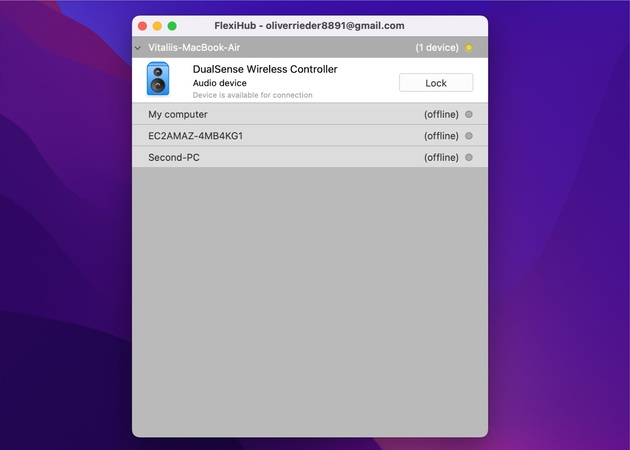
4. Locate the game controller using FlexiHub’s interface on the remote machine.
Access the game controllers from the remote desktop. Once connected, the remote desktop can use the controller with the same functionality as a direct physical connection.
FlexiHub offers users a simple, flexible, and secure method of remotely sharing gaming platforms or other USB-connected peripherals.
Configuring Remote Desktop Group Policies for PS and Xbox controllers
A method of connecting a controller to a Remote Desktop connection without third-party tools involves configuring the Remote Desktop Group Policies.
We will walk you through the steps required to get your physical attached via a USB interface PS or Xbox controller working on Remote Desktop.
In our instructions, the local computer refers to the machine that is physically attached to the game controller. The remote computer is the one that will receive and use the USB controller input through a Remote Desktop connection.
1. Configure Group Policies on the Local Computer
1.1 Open Local Group Policy Editor
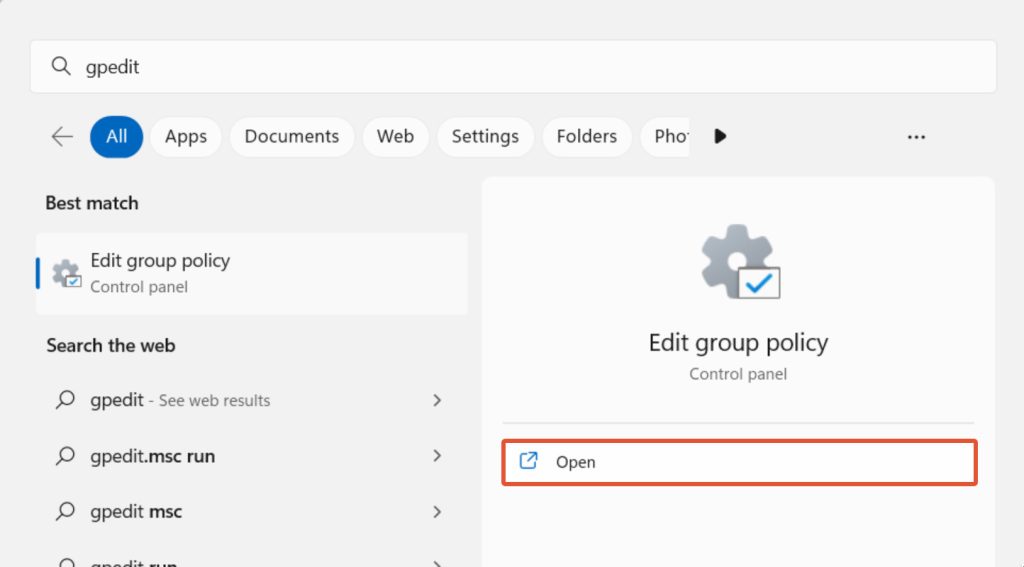
• Search for gpedit and open “Edit group policy“.
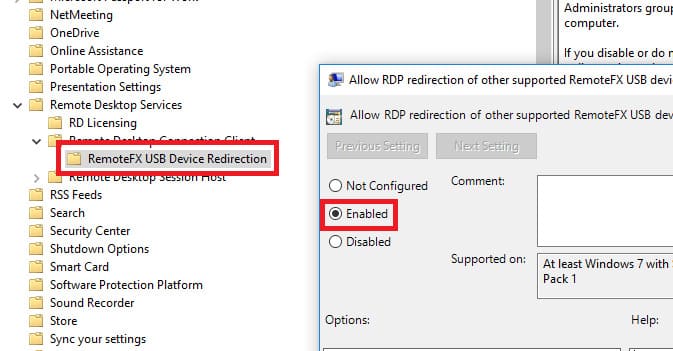
1.2 Navigate to RemoteFX USB Device Redirection
Local Computer Policy → Computer Configuration → Administrative Templates → Windows Components → Remote Desktop Services → Remote Desktop Connection Client → RemoteFX USB Device Redirection → Allow RDP redirection of other supported RemoteFX USB devices from this computer
1.3 Enable USB Device Redirection
• Right-click on the entry and select Edit. Choose the Enabled radio button and change the Access Rights menu to Administrators and Users.
• Click OK to apply the new settings.
1.4 Update Policy and Reboot
• Open a command prompt and right-click to choose Run as Administrator.
• Run this command: gpupdate /force.
• You will receive a message that the policy has been updated successfully.
• Reboot the local machine.
2. Configure Group Policies on the Remote Computer
Next, we need to update the remote computer. This can be accomplished over an RDP connection.
2.1 Open Local Group Policy Editor
• Run the Edit group policy app as before.
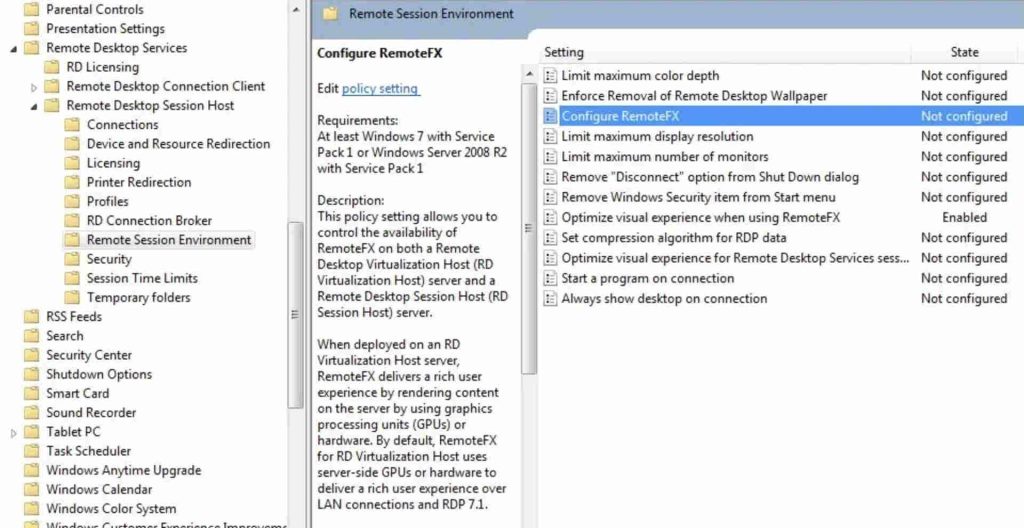
2.2 Enable RemoteFX
Local Computer Policy → Computer Configuration → Administrative Templates → Windows Components → Remote Desktop Services → Remote Desktop Session Host → Remote Session Environment → RemoteFX for Windows Server 2008 R2 → Configure RemoteFX
• Right-click choose Edit and select Enabled and then OK.
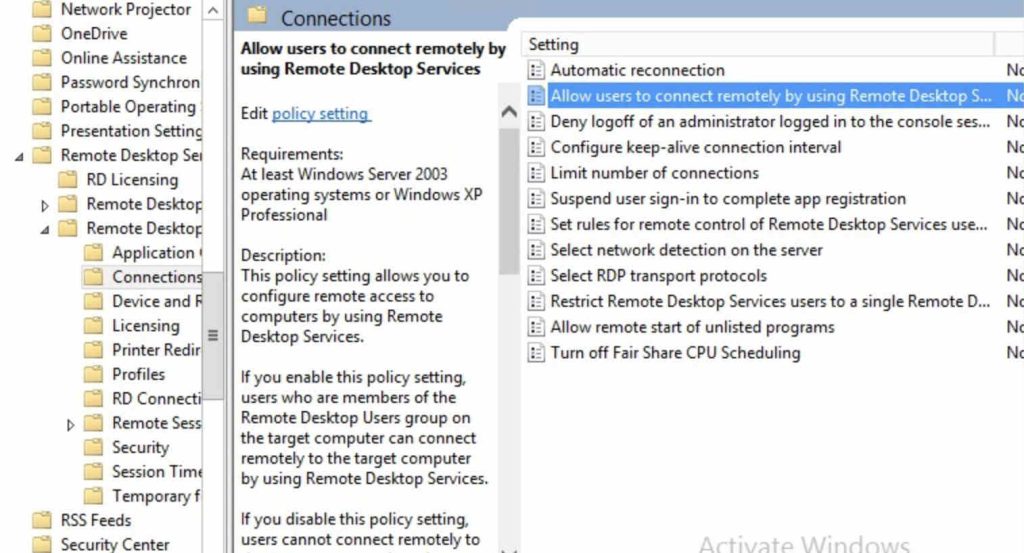
2.3 Allow Remote Desktop Connections
Return to the level Remote Desktop Session Host and navigate to:
Connections → Allow users to connect remotely by using Remote Desktop Services
• Right-click choose Edit and select Enabled and then OK.
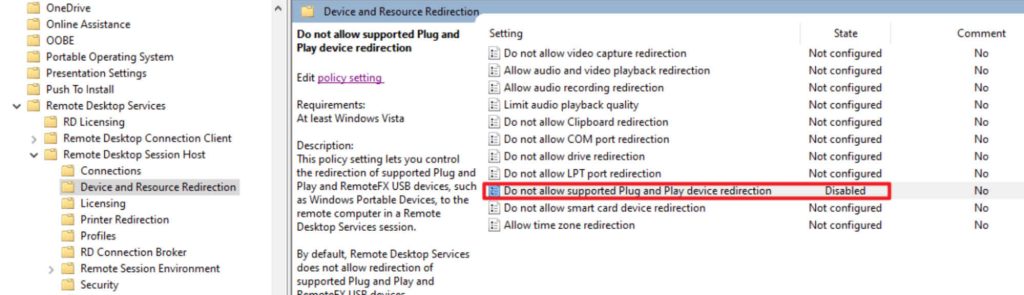
2.4 Enable Plug and Play Device Redirection
Return to the level Remote Desktop Session Host and navigate to:
Device and Resource Redirection → Do not allow supported Plug and Play device redirection
• Right-click choose Edit, select Disabled, and then OK.
2.5 Update Policy and Reboot
• Open a command prompt and right-click to choose Run as Administrator
• Run this command: gpupdate /force.
• After you see the policy has been updated successfully, reboot the remote machine.
3. Finally, we can Forward the Controller over RDP
3.1 Connect and Verify the Controller on the Local Machine
• Connect the controller to the local machine’s USB port.
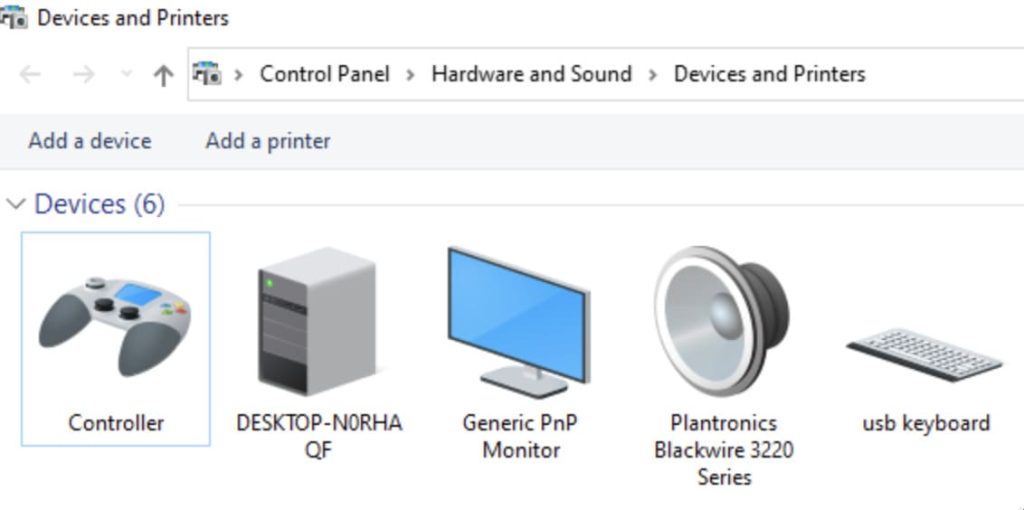
• Open Control Panel → Devices and Printers. Make sure your gamepad is listed.
3.2 Configure RDP Client Settings
• Run Remote Desktop Connection.
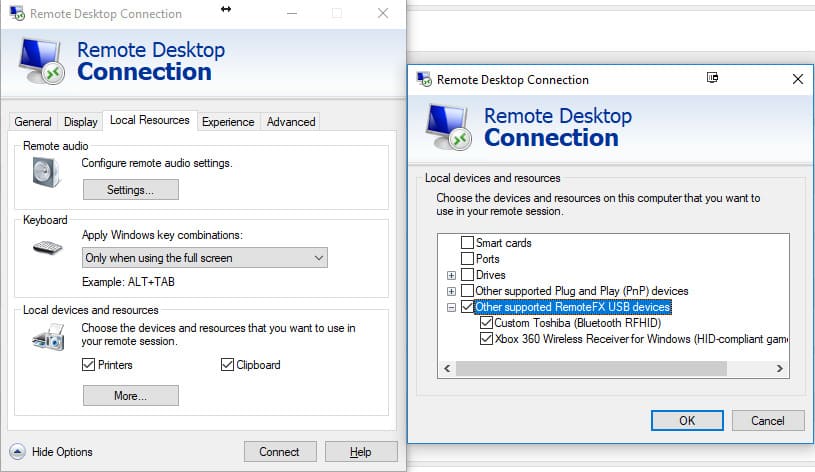
• Click “Show Options” → “Local Resources” tab → “More…“.
• You should see the “Other Supported RemoteFX USB Devices” section if all previous configuration was done correctly.
3.3 Verify the Controller on the Remote Machine
• On the remote computer, open Control Panel → Devices and Printers.
• You should see the controller listed and can use it as if it was directly connected to the remote machine.
RdpGamepad - Microsoft Remote Desktop plugin for Xbox controllers
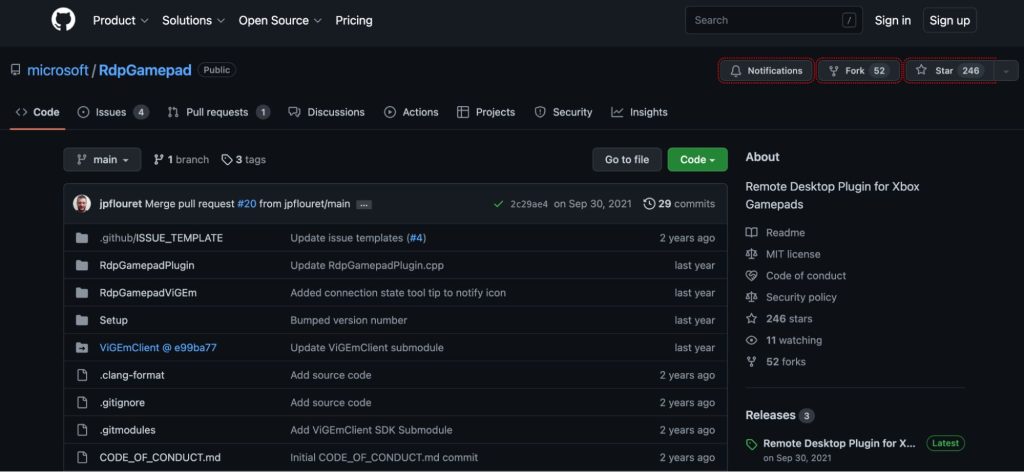
If you are attempting to use an Xbox controller in a Remote Desktop session, there is a plugin called RdpGamepad that enables this functionality. After installing the plugin, it is automatically loaded when you start an RDP session. When the connection to the remote machine is established, you are presented with a virtual Xbox 360 controller.
Follow these directions to use the RdpGamepad plugin.
- Download the latest release of the client installer on the local computer. Double-click on RdpGamepadClientInstall-{version}.exe and follow the instructions to install the plugin.
- On all remote machines that you wish to connect to, download and install the latest ViGEmBus drivers from the ViGEmBus release page. To install, double-click ViGEmBus_Setup_{version}.exe and follow the instructions.
- Then download the receiver installer from the latest release and double-click RdpGamepadReceiverInstall-{version}.exe to install the software.
Frequently Asked Questions
Yes, you can use your controller in an RDP session with several different methods. The most versatile method is by using USB Network Gate. You can also modify the RDP Group Policies before connecting or by installing a plugin that supports Xbox gamepads.
If you have problems with the remote desktop not recognizing your controller, it’s because this feature is not supported in RDP by default. Configuring the Group Policies on the local and remote machines is necessary for your controller to work over RDP. USB Network Gate is another solution that is easy to use and supports redirecting gamepads or any type of USB device.