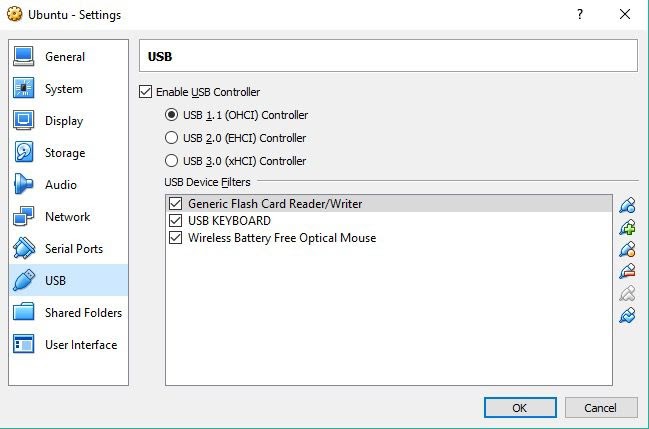
Remote Smart Card Reader Access on Windows

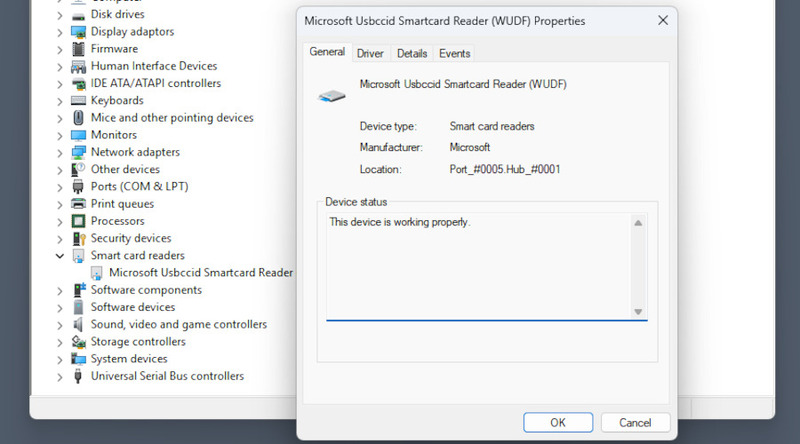
How to Use a Card Reader over RDP Sessions
Two things need to be enabled in order to use a local card reader on a remotely hosted RDP session – a group policy, and a device setting that you can access in the Remote Desktop Connection client.
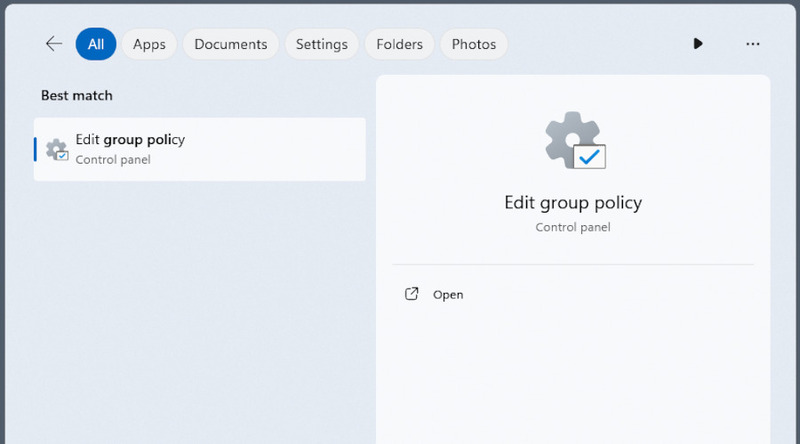
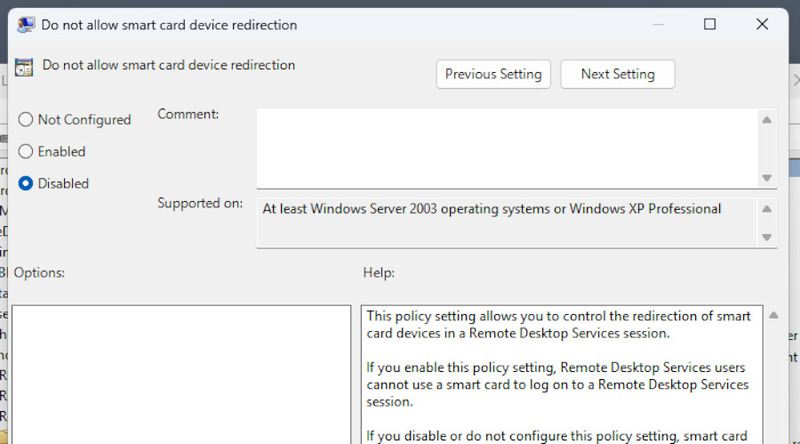
1. On the host, open the Group Policy Editor, either by searching for it, or pressing Win+R and running gpedit.msc.
2. Go to “Computer Configuration” > “Policies” > “Administrative Templates” > “Windows Components” > “Remote Desktop Services” > “Remote Desktop Session Host” > “Device and Resource Redirection” > “Do not allow smart card device redirection”.
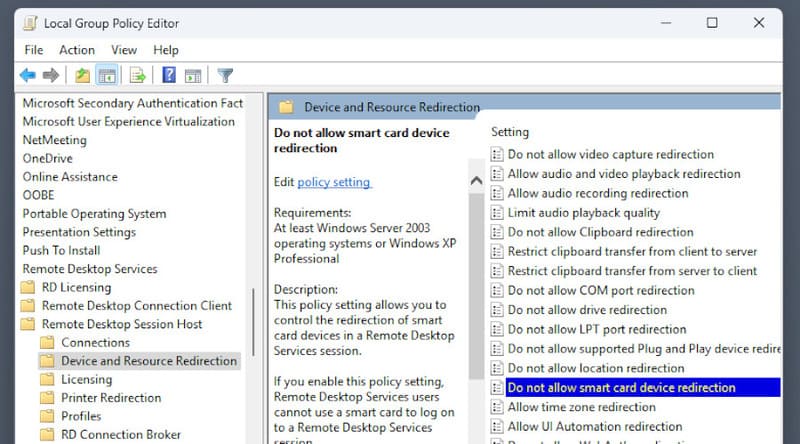
3. Make sure the policy is disabled.
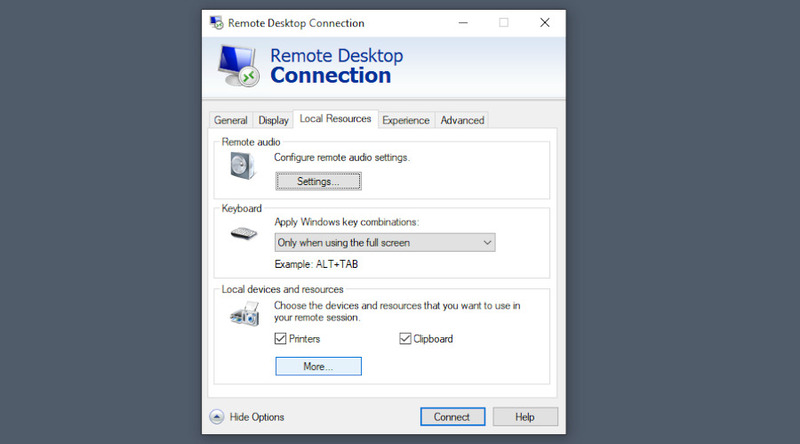
4. On the client, when starting an RDP session, click “Show options” and navigate to “Local resources” > “More”.
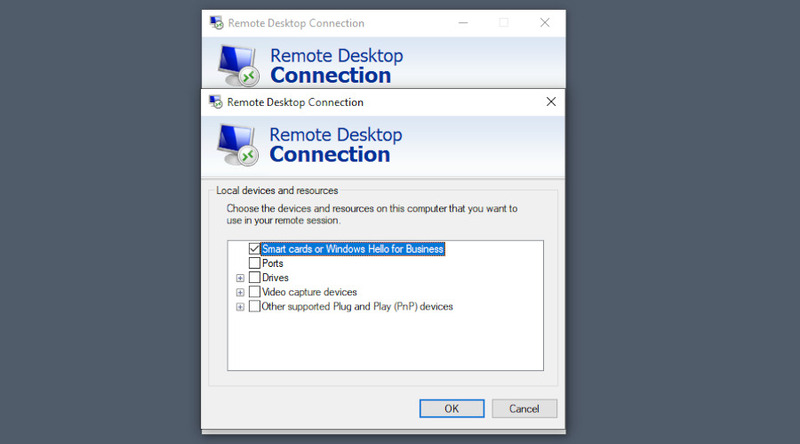
5. Enable “Smart cards or Windows Hello for Business”.
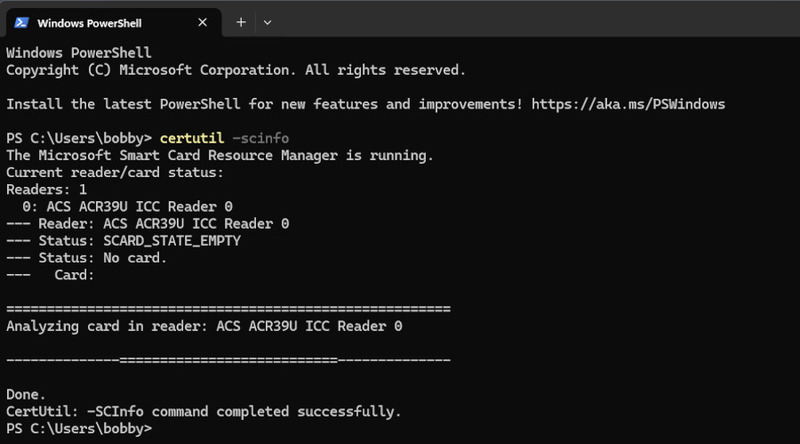
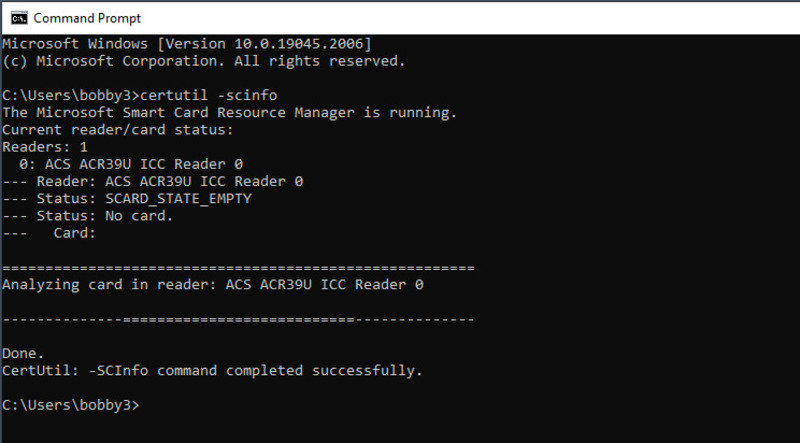
6. To test if your reader has been connected, you can run certutil -scinfo.
How to Access a Smart Card Reader with USB Network Gate
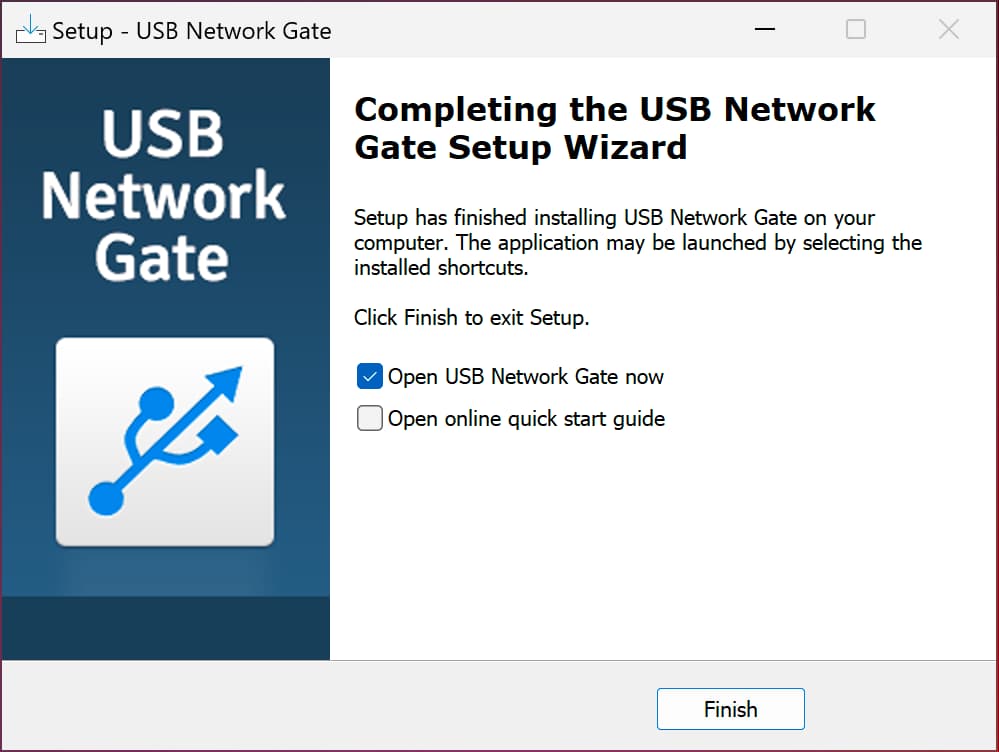
1. Install USB Network Gate on both computers. Activate the copy on the computer that will share the card reader.
2. Click the gear next to the “Share” button of your card reader to open sharing options.
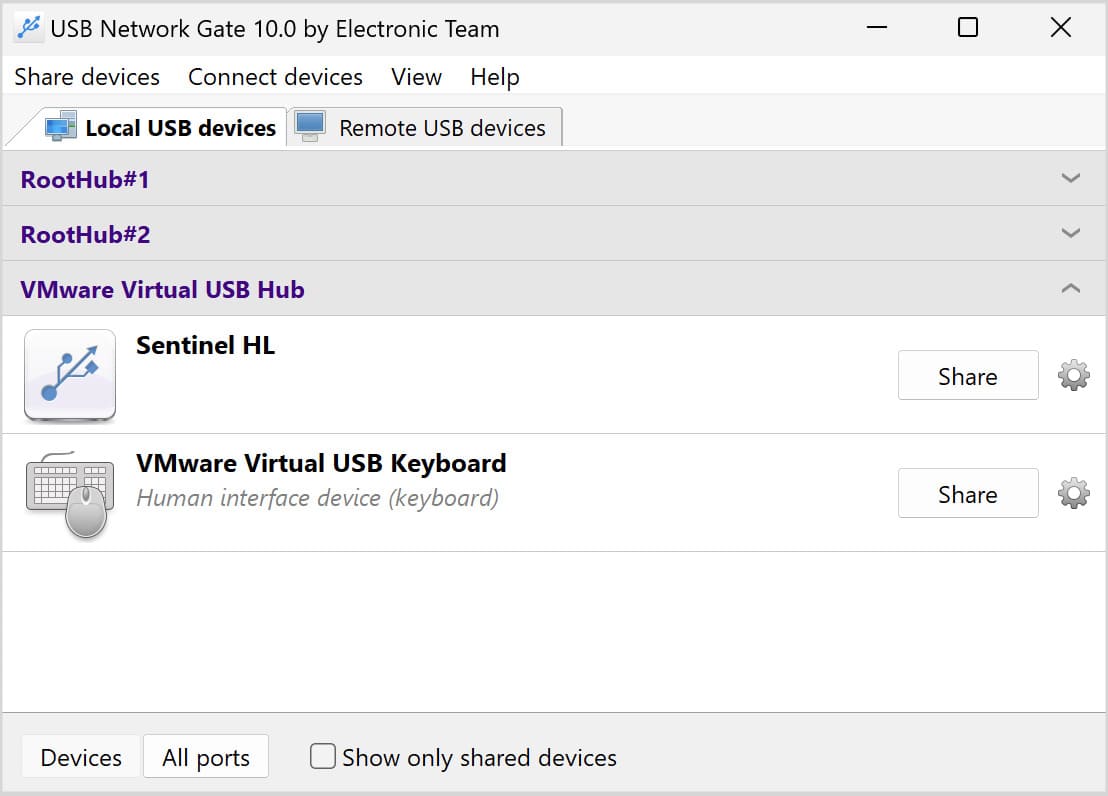
3. Enable encryption and password protection.
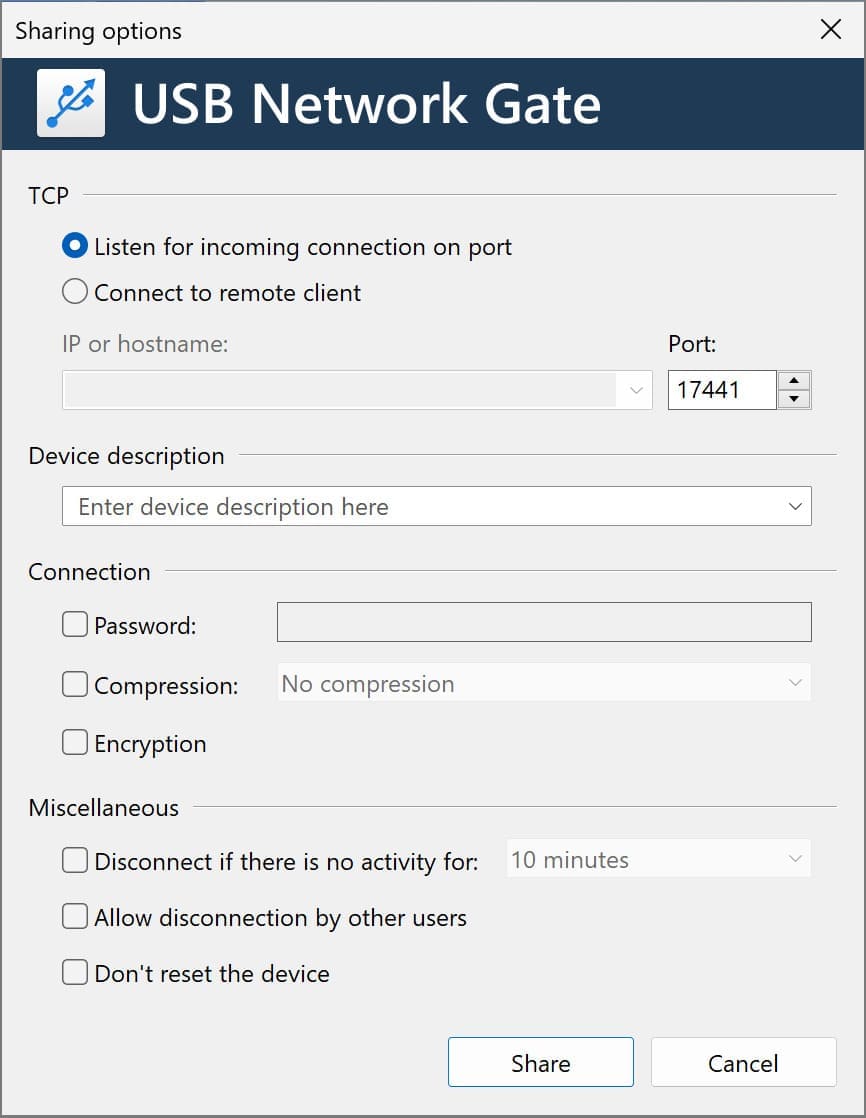
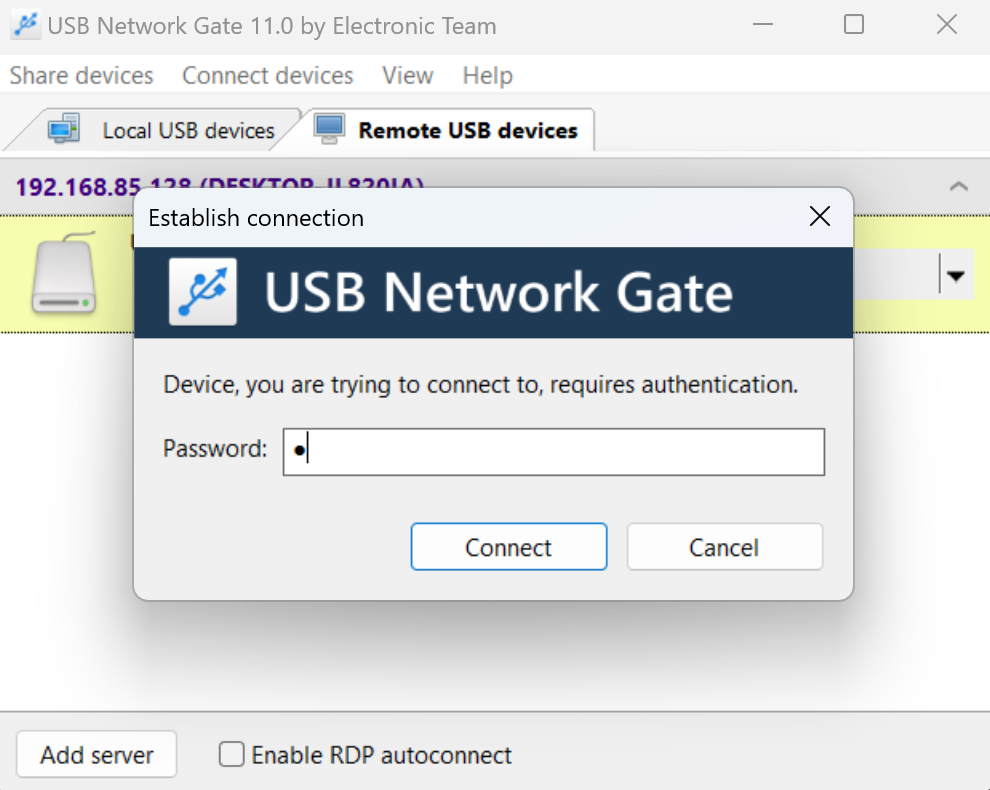
4. On the remote computer or in the virtual machine, you will see the device. Click “Connect” and enter the password.
5. You can check if the device has connected properly by using certutil.
Card Readers in VirtualBox