Fully-functional Drawing Pad via RDP

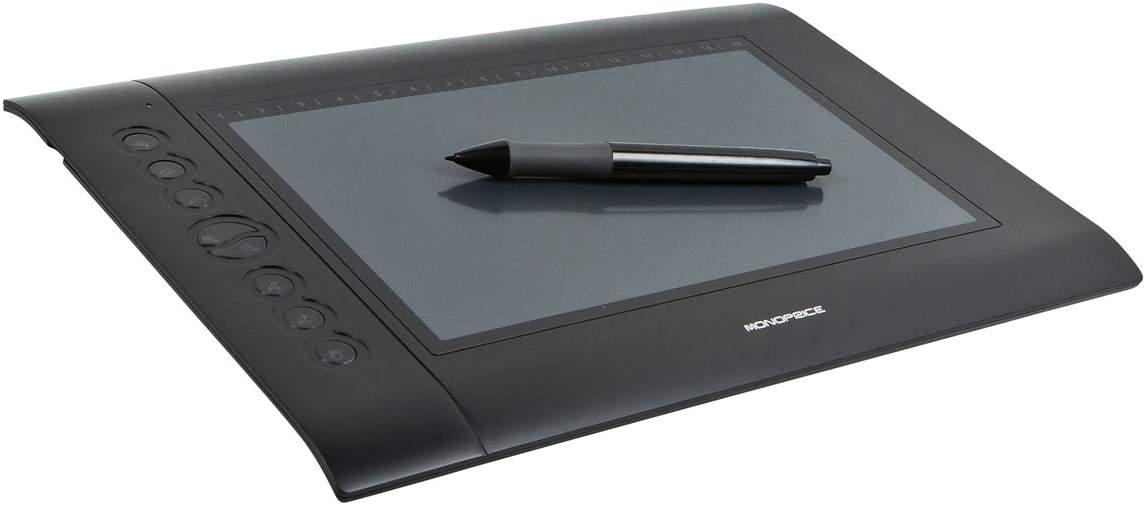
A drawing tablet

If you redirect a drawing pad via RDP, the client can discard important data, such as pen pressure, angle, and velocity. There is a variety of solutions for RDP tablet redirection, but most of them are restricted to specific brands, or only provided as a part of enterprise RDP platforms, which are out of reach for an independent artist.

The simplest, most universal way to redirect a drawing pad to an RDP session is USB Network Gate. With this app, the tablet will act as if it’s directly plugged into the remote computer, sending all relevant data over the USB connection.

USB Network Gate for RDP Drawing Tablet Redirection

USB Network Gate is a tool that can share USB devices on a local network. A shared device is treated by the remote computer like a local one, meaning that it will receive all the necessary drawing data. Only the RDP host needs to have the drivers installed – meaning that you can use a remote session to work from a driverless PC, with minimal setup.

USB Network Gate is a great solution for drawing tablets, for a number of reasons:

  • No dependency on specific RDP platforms
  • Supports any brand of USB tablets
  • Direct connection for the lowest latency
  • Device isolation for multi-user environments
  • No need for drivers on the USB host


A 14-day free trial is available for you to experiment with your setup.

How to Redirect Drawing Pad via RDP

1. Download and install USB Network Gate on the local computer and on the RDP host. The local computer needs to be able to share and connect to devices, but the RDP installation can be installed in connection-only mode.

2. Launch USB Network Gate on the local computer and activate it. You can use the Free Trial to get a code. There is no need to activate the other client.

3. Find your drawing pad on the list of devices and click “Share” next to it.
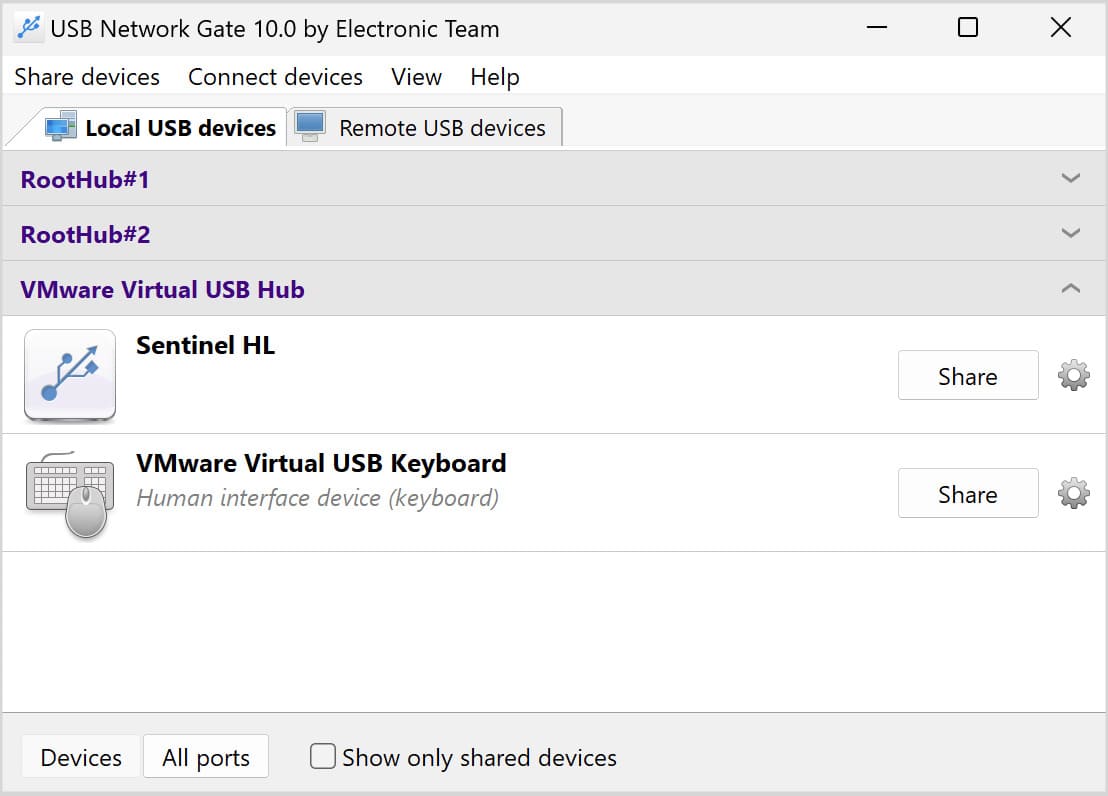
The local USB device tab in USB Network Gate

4. In the RDP session, open USB Network Gate and select the “Remote USB devices” tab. Press “Connect” next to the shared drawing pad. You will now be able to use it.
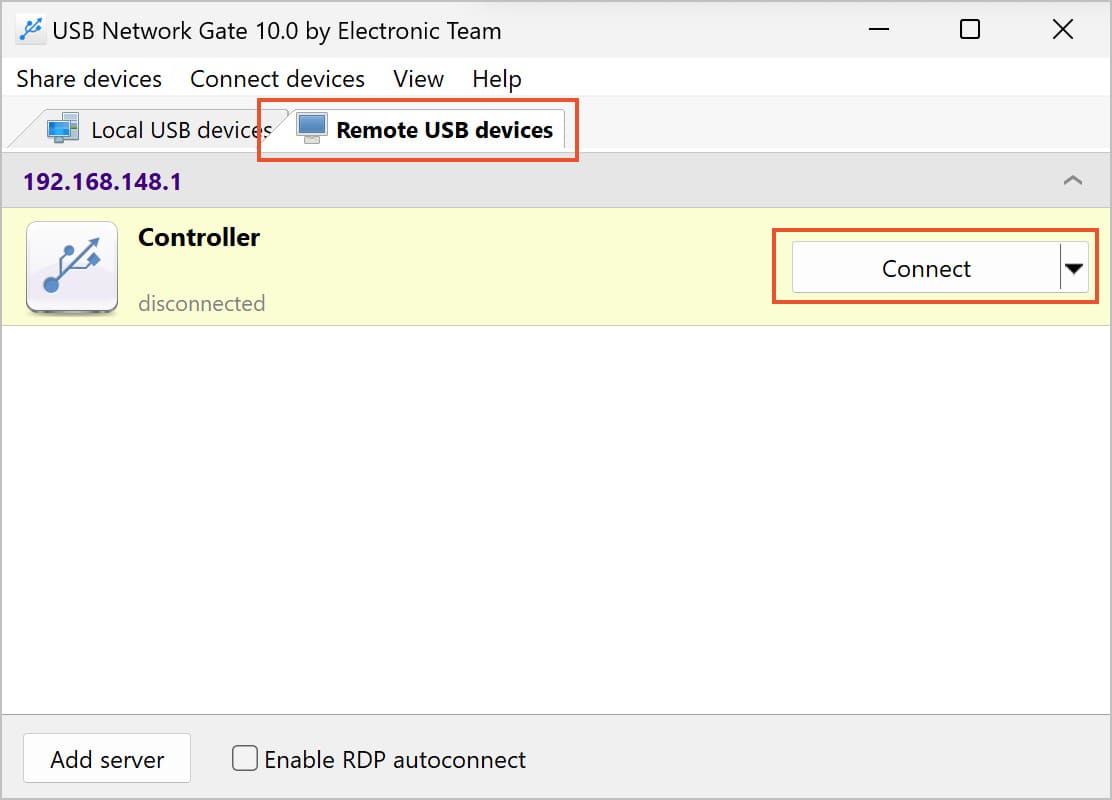
Connecting a remote USB device

Enterprise Drawing Pad Redirection

Does your product need to provide drawing pad redirection as an integral component? Or do you want to supply your remotely employed artists with a custom solution? The USB Network Gate SDK can be used to add all the necessary functionality

The USB Network Gate SDK includes:

  • An API for USB Network Gate integration
  • All prerequisite libraries for the given platform
  • Examples and documentation
  • A copy of USB Network Gate for testing purposes


The SDK can be used to develop applications for Windows, Linux, macOS, and Android on many popular coding languages. An OEM license key can be embedded into developed products for easy distribution.