Access USB in Virtual Machines without Risk

Virtual machine USB access often requires you to expose your computer to the device before passing it to the VM. This can be a problem if you suspect that the device is infected or malicious in any other way. USB Network Gate is a good way to sandbox the device even before it reaches your virtual machine, by reserving the port that it’s on.

You can also use USB Network Gate to provide USB passthrough for virtual machines that have limited USB support.

Using USB Network Gate to Analyze Potentially Infected USB Storage
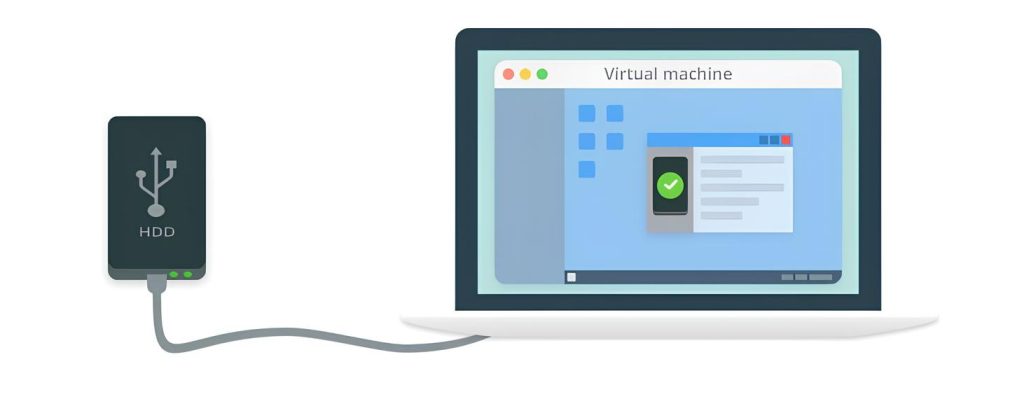
Connect USB drives to VMs securely with USB Network Gate

USB Network Gate is an app that can share USB devices on a local network. However, instead of selecting a connected device, it can also share an unoccupied port – in this case, USB Network Gate will immediately capture any device connected to said port. A port that’s reserved by USB Network Gate can not be seen by the operating system, can not exchange data with the system, and definitely won’t allow it to launch autorun.exe or fall to any similar threats.

Since USB Network Gate works over LAN, you can connect to an instance that’s located inside a virtual machine, even if it doesn’t support USB passthrough for the given device, or USB hot swapping.

USB Network Gate supports a wide variety of VM hypervisors, including VirtualBox, VMWare, Citrix, KVM, and Hyper-V. If you aren’t sure if your setup will work with USB Network Gate, you are free to test it with the 14-day Free Trial.

How to Contain USB in Virtual Machine with USB Network Gate

In this example, we will access USB from VirtualBox without exposing it to the host OS.

1. Download and install USB Network Gate on the VM host and in the machine itself.

The host needs a full installation, while the VM installation only needs to connect.
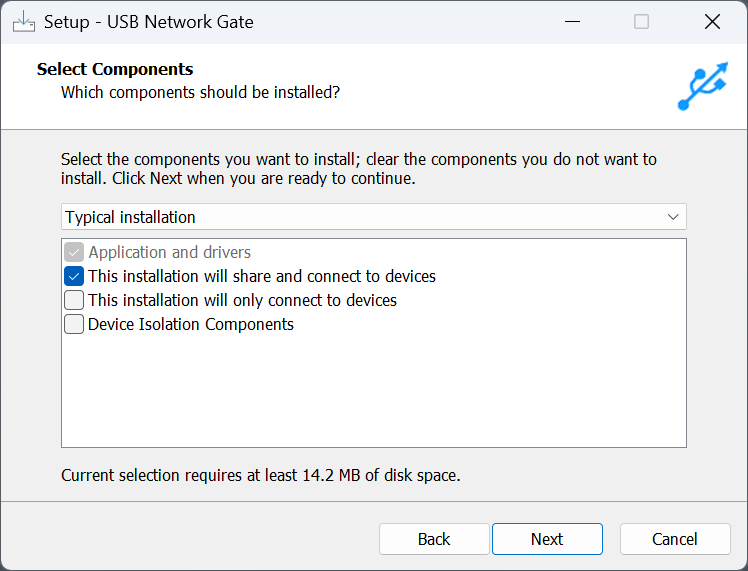
USB Network Gate installation

2. Activate USB Network Gate on the host. You can use the Free Trial code.
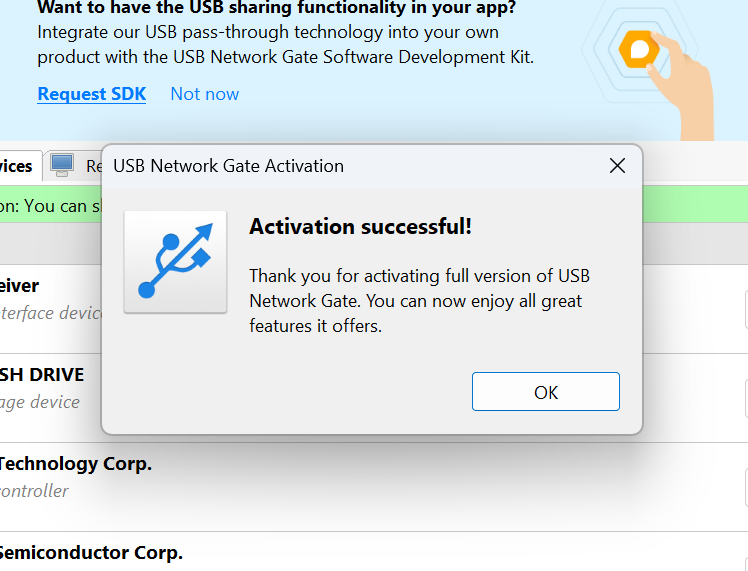
Activated USB Network Gate copy

3. Switch from Devices to “all ports”. This way, you can see and share empty ports as well.
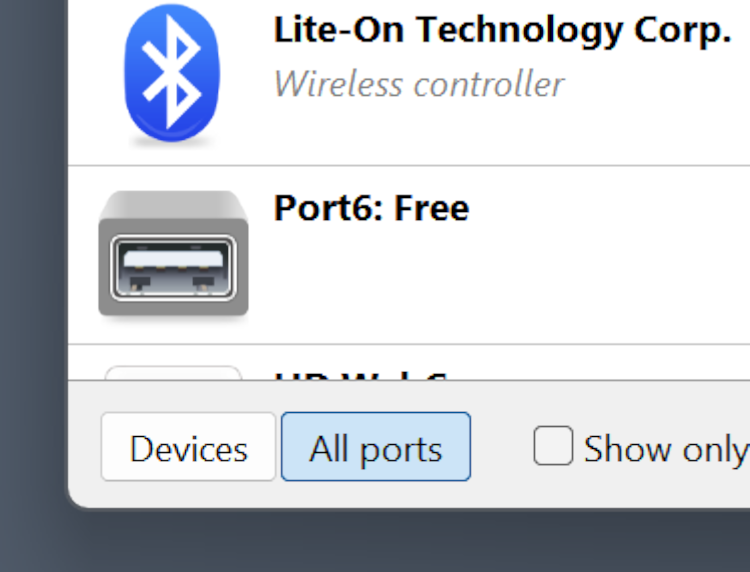
Switching to "All ports" in the USB Network Gate dialogue

4. Click “Share” next to the port you need. This will hide the port on your system and prevent any connected devices from interfacing with your computer.
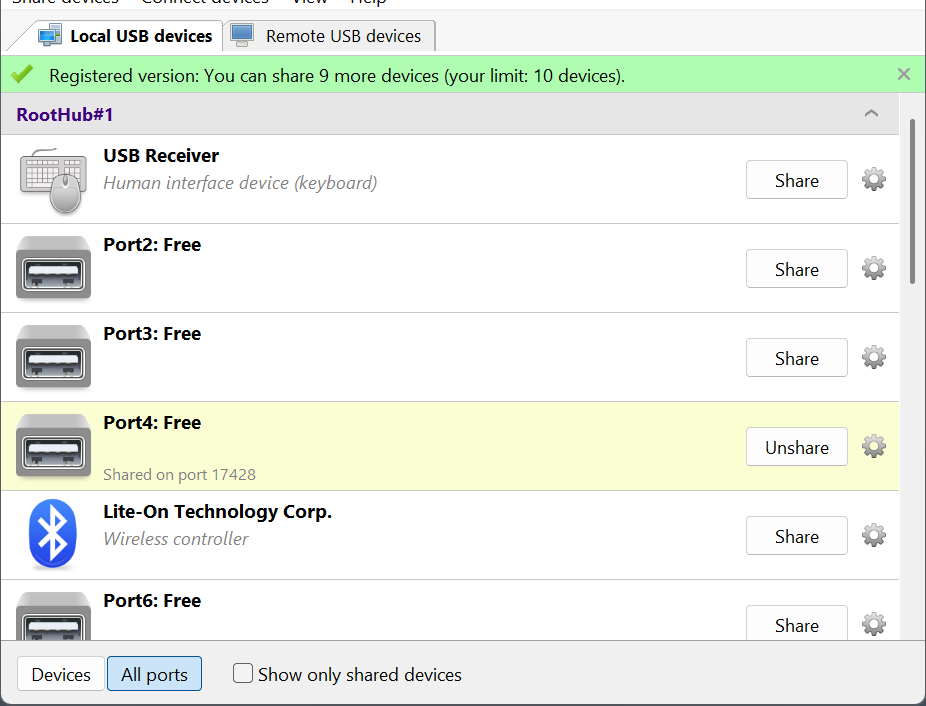
An empty port is being shared

5. Open PowerShell by selecting “Terminal” from the Win+X menu and run ipconfig. Remember your IPv4 address.
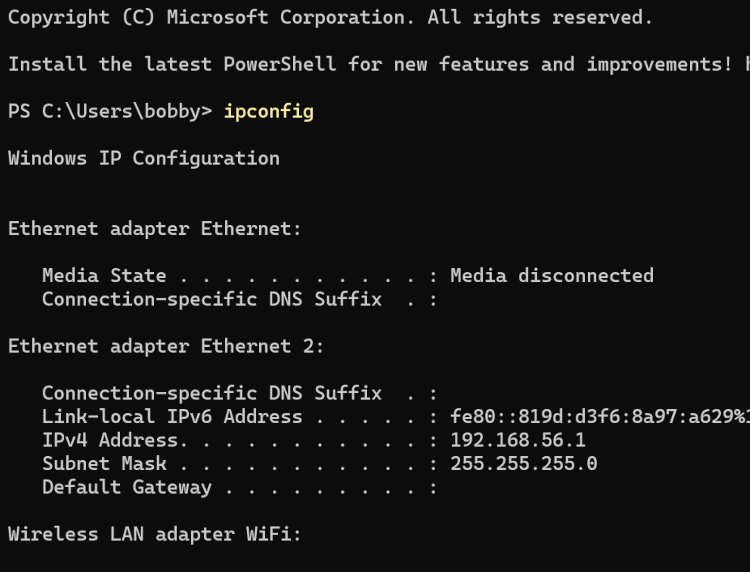
Getting your IP address in PowerShell

6. Launch the virtual machine and open USB Network Gate in it.
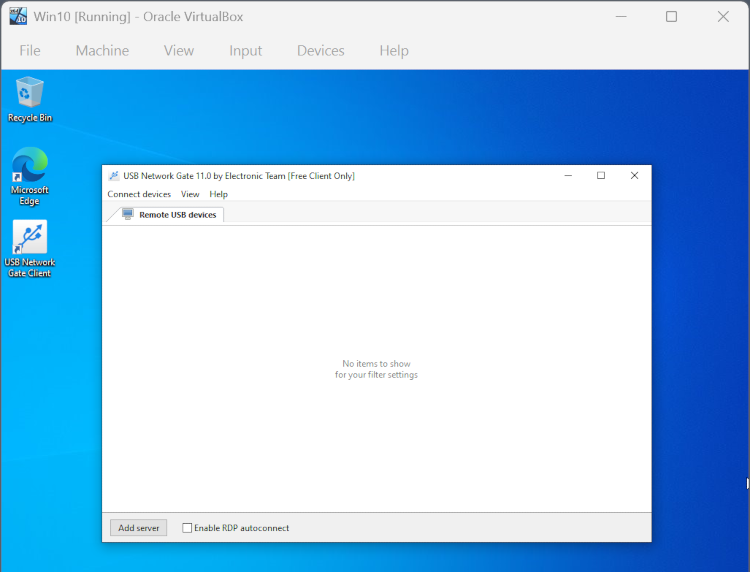
USB Network Gate instance in a VirtualBox VM

7. Click “Add Server” and enter the IP you got from ipconfig.
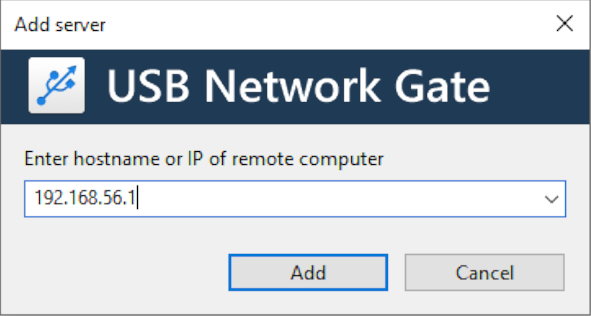
Manually adding your computer via IP

8.Your shared port will appear in the device list. Click “Connect” next to it.
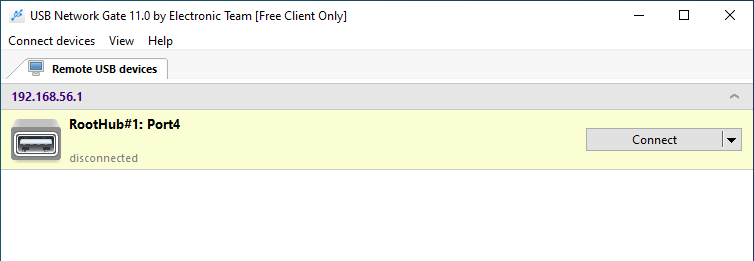
The empty port appears in the virtual machine

9. Now, any connected devices will be passed directly into the VM.
Other Issues Solved by USB Network Gate

Virtualization software often has problems with USB, which vary from platform to platform.

VMWare logo

VMWare is reliant on an arbitration service that starts with the VM. Accordingly, the recommended method to solve any USB issues in VMWare is to restart the VM. This is not a viable solution if you want to use a VM for a lengthy process that can’t be interrupted, or need full USB support to properly shut it down.

Hyper-V logo

Hyper-V passthrough is only natively possible through RemoteFX, which, in turn, needs to be configured through Windows policies. Policies are pretty complicated, and if you aren’t an administrator at your workplace, may be completely inaccessible to you.

XenDesktop logo

Citrix XenDesktop USB is mostly restricted to generic devices, such as mice, keyboards, and storage devices, and requires policy configuration as well – sometimes, both on the client and on the server. This can be a problem for devices with built-in security features as well.

All of the aforementioned issues are easily resolved with the help of USB Network Gate. Its high device limit, high bandwidth, and broad compatibility with USB device types is just what you need to complement a virtual machine.