Enabling VirtualBox USB passthrough functionality lets users in a VBox guest VM easily transfer data to USB peripherals. We are going to show you how to enable the USB in VirtualBox feature so you can use local USB devices in a VM with the same functionality of a direct connection. We’ll also talk about how to facilitate USB in VirtualBox with different operating systems. Additionally, we offer you to try the VBox USB passthrough feature with the help of USB Network Gate and work with your devices in any environment.
What Changed in VirtualBox 7.x?
Oracle has updated VirtualBox to simplify USB device support. Versions before 7.0.0 only provided native USB 1.1 support, while USB 2.0 or 3.0 support depended on the Oracle Extension Pack. Beginning with VirtualBox 7.0.0, high-speed USB controllers (EHCI for USB 2.0 and xHCI for USB 3.0) are included in the base package, simplifying setup. However, the Extension Pack still provides additional features and may still be relevant depending on the functionality required.
The Extension Pack still exists and focuses on optional features such as disk encryption, cloud integrations, VRDP remote desktop, PXE boot ROM, and host webcam passthrough. VirtualBox 7.2, released in August 2025, expanded Arm support for Windows on Arm hosts and Apple silicon Macs, subject to Oracle’s documented platform limitations.
How to Access Local USB Devices in VirtualBox
VirtualBox USB passthrough enables a guest virtual machine to access and interact with USB devices attached to the host computer. Users must manually configure USB passthrough. They must enable a virtual USB controller and use USB filters or the Devices → USB menu to attach peripheral devices. Oracle recommends USB 3.0 in most cases.
The following steps establish USB passthrough to a VirtualBox VM.
1. Power off the virtual machine. USB controller settings can only be changed when the VM is shut down.
2. Enable USB and select the correct controller for your environment.
VirtualBox Manager → select your VM → Settings → USB:
• Check “Enable USB Controller”
• Select a controller:
⚬ USB 3.0 (xHCI): recommended in most cases.
⚬ USB 2.0 (EHCI): for guest operating systems that do not support xHCI.
⚬ USB 1.1 (OHCI): only for legacy systems, with some Windows guests requiring third-party drives installed in the VM.
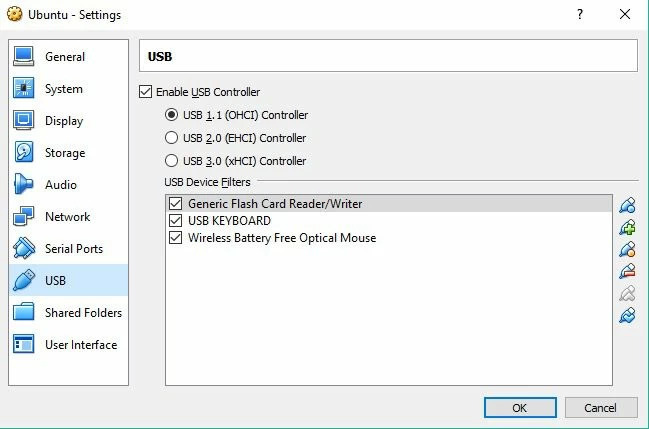
3. Adding a USB device filter is strongly recommended.
In Settings → USB, click the “Add Filter (+)” icon and select your USB device. The filter determines which device can be automatically captured by the VirtualBox VM.
4. Attach the device using the following steps to minimize busy or locked device errors.
• Disconnect the USB device from the host.
• Start the VM and let the operating system finish the boot procedure.
• Connect the device to the host. Once the device is captured by the guest VM, it is immediately disconnected from the host. You cannot use a device that is mounted or in use by the host.
5. If the device is not automatically attached, you must connect it manually in the VM window by going to Devices → USB and selecting your device.
6. Common OS-specific permission issues impact establishing USB passthrough in VirtualBox.
• Linux hosts typically require the user to be added to the vboxusers group, and then require a reboot or a login and out of the VM.
• MacOS hosts may need to allow VirtualBox to capture USB devices by enabling it in Settings > Privacy & Security.
More Flexible Way to Access USB Devices in VirtualBox
For many VirtualBox setups, USB passthrough is the standard way to access locally connected USB devices inside a VM. However, it can become limiting due to manual setup and compatibility issues with certain hardware. USB Network Gate offers an alternative approach, particularly useful in corporate environments.
How to Set Up VirtualBox USB Support on Different Operating Systems
VirtualBox USB support is available on multiple operating systems. Use the appropriate steps for your OS.
VirtualBox USB Passthrough on Windows
1. Enable the USB controller in the VM’s VirtualBox settings.
2. Add USB filters manually using VBoxManage commands from the “Devices” menu. You can also configure filters to automatically capture USB devices by vendor, product, or serial number.
3. Start the VM after setting the filter, and the device will be attached automatically.
VirtualBox USB Passthrough on Mac
On macOS, enabling USB passthrough is simple to set up by using the following steps.
1. Shut down the virtual machine.
2. In the VirtualBox Manager, click “Settings” for your VM and go to the “USB” section.
3. Enable the correct USB controller, usually USB 3.0 (xHCI) or USB 2.0.
4. Add a device filter by clicking the green “plus” icon and selecting the USB device you want to pass through to the guest virtual machine.
5. After selecting the device, start the VM. The USB device should be recognized and available to the guest OS.
VirtualBox USB Passthrough on Linux
If you are using Linux as your host OS, follow these steps to enable USB passthrough.
1. Install the VirtualBox Extension Pack if needed. While USB 2.0/3.0 support is included in the base product, some Linux distributions may require it for full device compatibility. Download the Extension Pack from Oracle and go to “File” → “Preferences” → “Extensions” to add it to the VM.
2. Add the user to the vboxusers group by executing the following command in a Linux terminal: sudo gpasswd -a yourusername vboxusers. Then log out and back in to the VM to apply the changes.
3. Enable the USB controller and add USB filters. Go to the VM settings “USB” tab and enable the USB 2.0 or 3.0 controller you need. Add a new USB filter for the device that will be passed through to the VM.
4. Start the VM, and the device should be available to the guest operating system.
Unmounting USB Devices from the Guest OS
Use these steps to unmount a device from the guest operating system.
1. Select Devices → USB from the VirtualBox menu.
2. Uncheck the USB device you wish to unmount.
3. To reattach the device, check it again from the “Devices → USB” list.
How to Remote Access to USB Devices
Using VirtualBox’s Remote Display Protocol (VRDP)
VirtualBox’s Remote Display Protocol (VRDP) allows users to access a guest OS via a standard RDP connection remotely. The feature offers an excellent solution for establishing remote connectivity to a VM due to its backward compatibility with Microsoft RDP.
VDRP also supports remote access to USB devices. A remotely accessed guest OS can use USB devices attached to the remote machine as if they were locally connected. Users can interact with remote USB peripherals such as printers or security keys from their virtual machines.
VirtualBox has limitations with USB passthrough, particularly for remote access or devices that require strict compatibility. Users may experience unreliable performance with USB devices on a different network or when connected via RDP. VirtualBox USB passthrough does not support some advanced and specialized USB devices.
USB Network Gate: Flexible Alternative for VirtualBox Remote USB Passthrough
USB Network Gate helps to overcome the limitations of native VirtualBox USB passthrough and provides users with a flexible, remote USB device connectivity alternative. The software application enables seamless network access to USB devices, facilitating device sharing between local and remote machines.
USB Network Gate delivers a consistent, reliable connection to virtually any USB device, even those not supported by VirtualBox passthrough. It is a versatile, cross-platform solution that supports Windows, Linux, macOS, and ARM platforms, surpassing VirtualBox’s native USB passthrough capabilities.
How to share a USB device with USB Network Gate
1. Install USB Network Gate on the host machine, which is physically connected to the USB device, and on the guest virtual machine that will access the device.
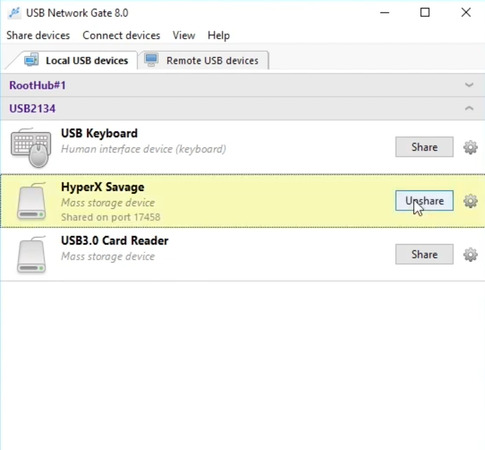
2. Select the service you wish to share using the software’s interface on the host machine and click the “Share” button.
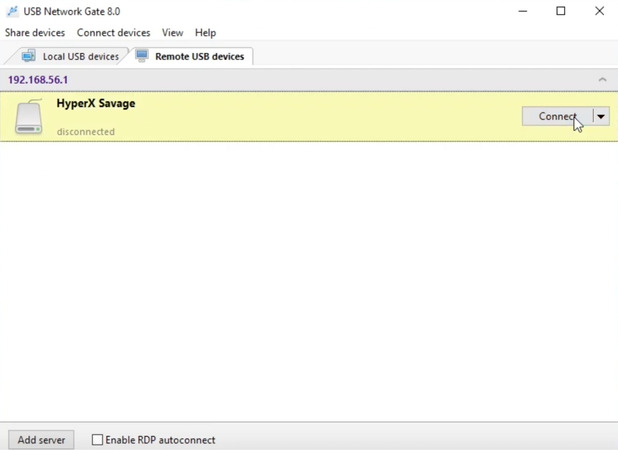
3. Open USB Network Gate on the guest VM, locate the shared device, and click “Connect” to make the device immediately available to the virtual machine.
Why choose USB Network Gate?
• Universal compatibility with a wide range of devices, including ones not supported by VirtualBox;
• Enhanced security with password protection and data encryption;
• Streamlined access to USB devices in VMs across networks and RDP connections.
USB Network Gate offers users a flexible, cross-platform solution for sharing USB devices in virtual machines that provides greater functionality than VirtualBox’s native capabilities.
