How to Share USB Device Between Two Computers

Are you wondering how to connect your USB device to multiple devices and access the device all the time from all your computer systems? It’s possible. If you use USB peripherals regularly, you may have felt the need to access a USB device connected physically to another device.

In this article, we’ll discuss how to share USB devices over network between two computers in detail through two ways – using a USB switch hardware and USB Network Gate software.

Using USB Switch (Hardware Solution)

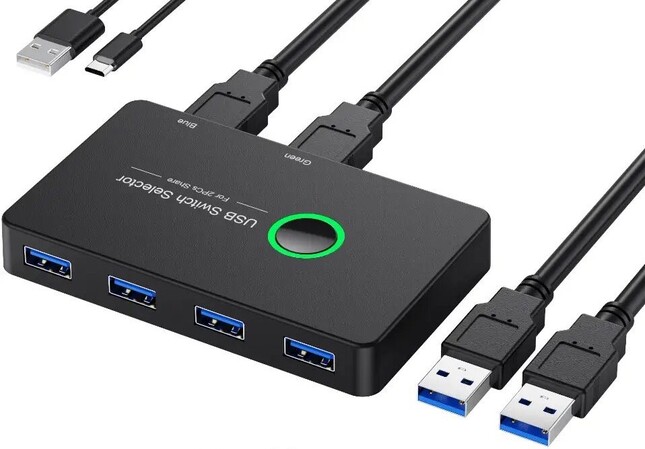
A USB switch is a small hardware device that lets multiple computers easily share one USB peripheral.

USB Switch

But what do you mean by sharing a USB switch between two computers?

A USB switch permits multiple computers to effortlessly share USB peripherals like scanners, printers, hard drives, etc. This option is more budget-friendly but has certain disadvantages, such as a limited number of USB devices and a shorter working distance. However, it doesn’t require you to unplug a USB peripheral from one device and plug it into another.

When using a USB switch, you don’t require setting up a complex network to share a USB device between two computers. The guide below will help you enable a USB switch between two devices.

How to Share USB Devices Between 2 Machines With USB Switch

  1. Connect the USB Switch to the USB device that you need to share. You can even connect a USB device to several connected peripherals.
  2. Establish the connection between the USB Switch and peripheral that requires remote access to a USB device.
  3. On the USB Switch, hit the button.

Now, a device connected to a USB Switch will be able to change its connection to the guest computer from the host computer.

Pros and Cons Hardware USB Switch

Pros

  • A USB hub for multiple computers usually is lightweight and small, so you can easily transport it anywhere and use it on the go.
  • You can quickly connect or disconnect devices using a USB hub without accessing the USB port of a computer.
  • Certain USB hubs come with power management functionality to be able to regulate device power usage and help conserve your battery life.
  • Supports data transfer at high speeds to enable efficient transfer of large files.
  • Compatible with multiple USB devices like scanners, printers, hard drives, etc.
  • You can chain USB hubs together to create more number of USB ports and connect more devices.

Cons

  • Performance degrades on connecting more devices at once.
  • USB hubs might not power high power seeking devices like hard drives, gaming peripherals, etc.
  • Might not support certain devices, resulting in issues like connection problems.
  • Some can be weaker and break.
  • Puts additional cost.
  • Connecting too many devices can be messy without proper cable management.

Using USB Network Gate

The second method to share a USB device between two computers is by using USB Network Gate software, which is an effective solution.

• Convenient Remote Access

Regardless of the distance between the user and the USB device they need to access, using USB over Ethernet software makes the process quick and convenient. This complex but easy-to-use application allows users to share USB devices between a variety of platforms and across long distances.

• No More Messy Cables

Even better, messy and frustrating cables and wires are no longer necessary! The software simply redirects access to the desired device over an Internet connection.

• Full Device Functionality

Users will enjoy the full flexibility and functionality of their USB devices because applications compatible with remote USB devices won’t notice a difference – they will treat them as if they were physically attached to the server machine.

• How USB Network Gate Works

USB Network Gate permits users to share as many devices or USB ports as they’d like via the Internet, LAN, WAN, or VPN.

Remote machines (referred to as clients) can connect to the computer that the user is working from (the server). Once connected, the server can access, control, and manage USB devices that are physically connected to the client computer.

How to Share USB Devices Between Two Computers Via USB Network Gate

Follow the steps below to share USB device over network from the “server” computer side:

1. Run USB Network Gate. Navigate to the “Share Local USB Devices” tab
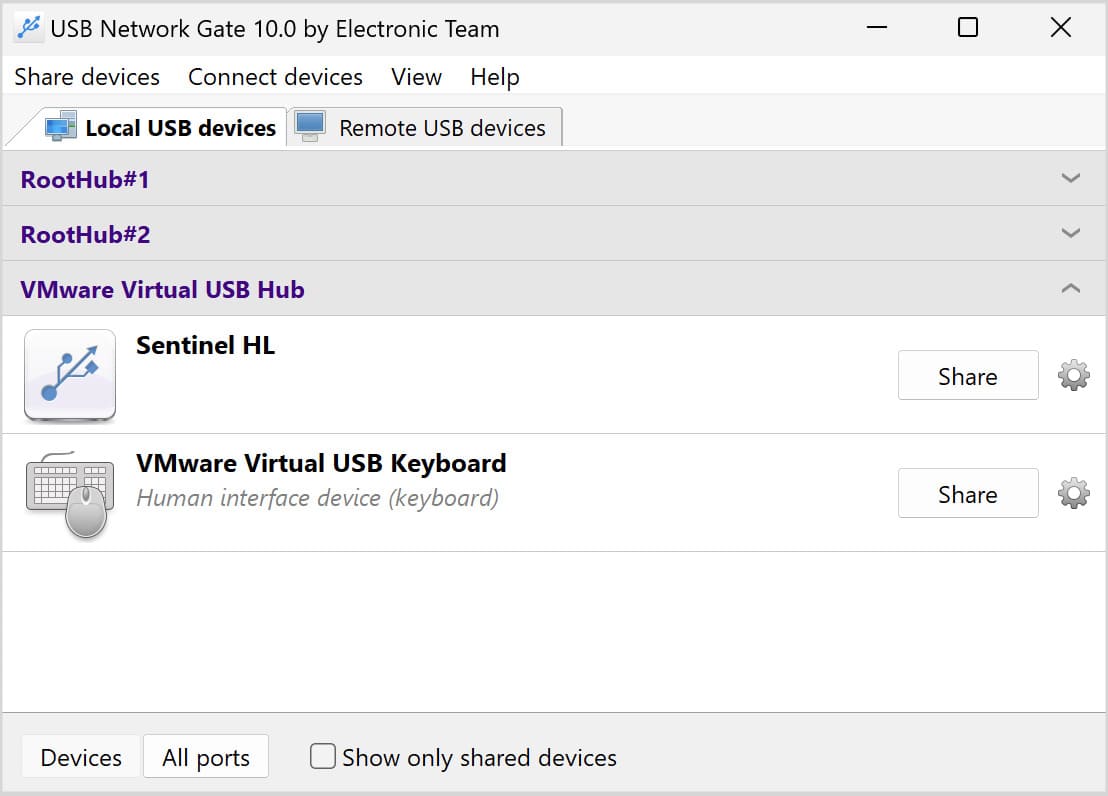
Share local USB devices tab

2. Find the USB you’d like to share with another computer.

3. Hit the “Share” button beside the device name
 
Optional Step: Edit the TCP port used for the connection, and/or enable encryption/authorization/traffic compression

Please note: Share settings can be altered at any time
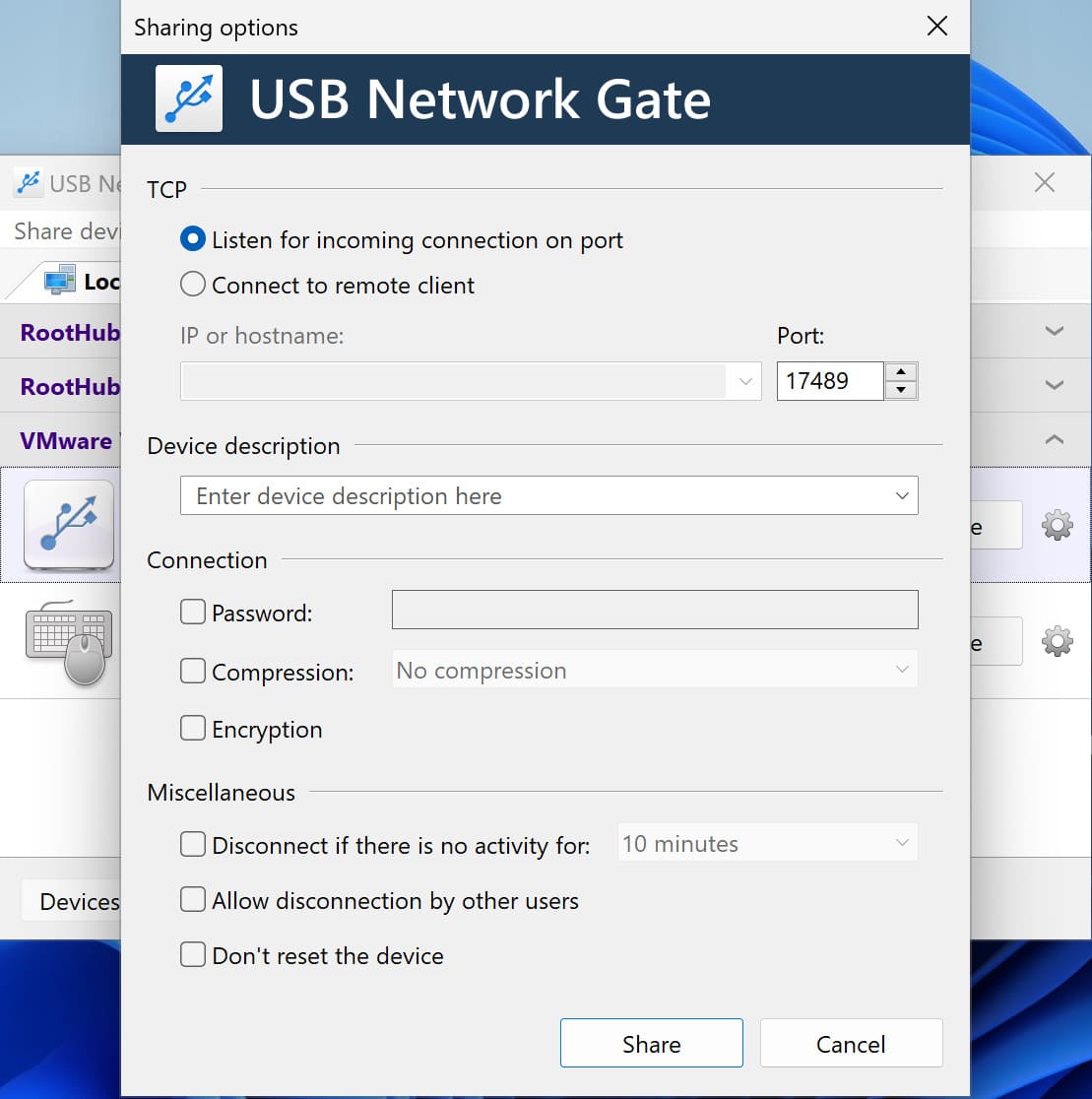
Share settings

How To Connect/Access A Shared USB From The Client Side (Remotely)

1. Open USB Network Gate. Navigate to the “Remote USB Devices” tab (USB Network Gate lets the client automatically detect shared USBs, adding them to a list of devices available for access).

2. Choose the device you want to connect with.

3. Hit the “Connect” button beside the device name.
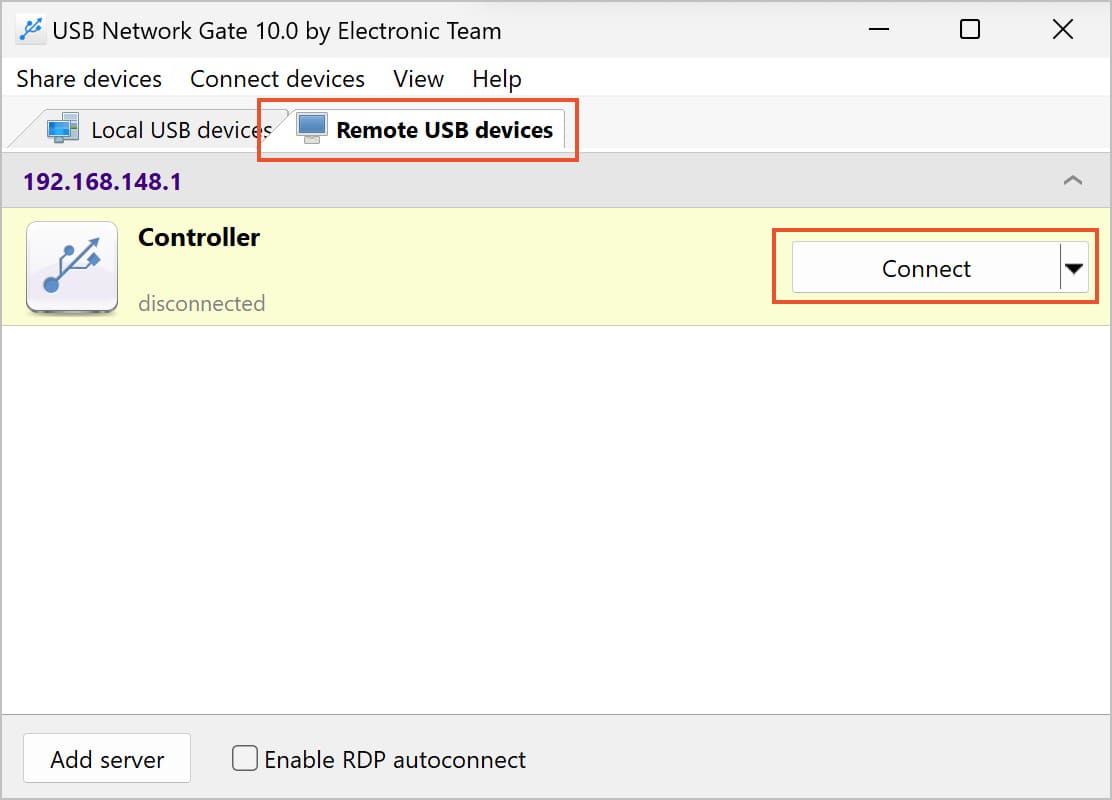
connect to the device

4. And just like that, now your USB device is accessible from any distance, whenever you need it! Convenient, right?

Pros and Cons of USB Network Gate Solution

Pros

  • The software offers a free trial plan for 14 days.
  • It supports all USB device types.
  • One license supports 10 USB devices.
  • Compatible with operating systems - Android, Windows, Linux, and Mac, thus.
  • Compatible with several virtual environments like Hyper-V, VMware, Parallels, and VirtualBox.
  • The tool can connect with USB devices over RDP.
  • Customer support is available 24 hours.

Cons

  • Once the free trial period of 14 days is completed, you will need to purchase the paid plan in order to continue services. There's no forever free plan available.

Comparison: USB Switch vs. USB Network Gate

Feature USB Switch USB Network Gate (USB over Ethernet Software)
Type Hardware device Software application
Purpose Shares one USB device between multiple local computers Shares USB devices over network (Internet, LAN, WAN, or VPN)
Distance Limitations Works only for computers physically near the switch No distance limitation – works over any network connection
Setup Complexity Simple plug-and-play; no installation needed Requires software installation and setup on all participating computers
Connection Method Physical button press to switch control between computers Virtual connection through network redirection
Number of Shared Devices Limited by switch ports (usually 2-4 devices) One license supports 10 USB devices
Cables & Hardware Requires physical USB cables No physical cables needed; uses network instead
Platform Compatibility Usually platform-independent (depends on USB device) Cross-platform support (Windows, macOS, Linux, etc.)
Ideal Use Case Quick local sharing between two nearby computers Remote access to USB devices from anywhere
Example Use Sharing a printer or external drive between two desktop PCs Accessing a USB dongle, webcam, or scanner from a remote office

Sharing USB Devices Between Two Computers Is No More Difficult

From the above information, you know how to access USB devices between two computers. The process is straightforward that anyone with any skill level can do and manage the task within a few clicks.

So, when it comes to choosing one method out of two, consider your requirements and situations as to which one is best suitable for you.

A USB switch is best suited for home or small office setups where two or more nearby computers need to share a device like a printer or external hard drive. It’s affordable, simple, and doesn’t require any technical setup.

On the other hand, USB Network Gate is ideal for business or remote work environments where users need to access USB devices over a network or from distant locations. It provides greater flexibility and scalability, allowing multiple users and devices to connect without the limitations of physical proximity.