Too many computers, but only one USB printer? No problem. You can share that printer over your network and skip the hassle of extra hardware.
If you’re using Windows, you already have what you need to share a USB printer over the network. The only catch? It only works on your local network, and the host PC has to stay on for everyone else to print.
Let’s make printer sharing easier. There are three dependable ways to share USB printer in LAN or across devices. You can stick with the standard Windows feature, try some professional tools made for remote access, or even set up a small hardware device to handle it for you. And that’s exactly what we’re going to dive into here.
For anyone who wants the fastest setup and most stable results, check out the Software Methods section first. It’s straightforward and doesn’t take long to configure.
Native Methods (Built-in Windows Tools)
Thanks to Windows’ built-in sharing options, you can share a USB printer over a network without much effort, as long as every computer is on the same LAN or Wi-Fi.
There are two ways to tackle this: a simple, beginner-friendly option and a more advanced route for the detail-oriented folks.
Pros
- Free and included in Windows
- Works on LAN and Wi-Fi connections
- Secure when set to a Private network
- Supports automation via PowerShell or MMC
Cons
- Host PC must stay on
- Limited to local network range
- Setup differs across Windows versions
- Advanced tools unavailable in Home edition
Easy Methods for Home and Small Office Users
Perfect for quick setup using the Windows interface.
Wondering how to share a USB printer on network Windows 10/11? Let me show you the simplest method.
Share via Windows Settings (Win 10 & 11)
- On Windows 10, open Settings and go to Devices, while on Windows 11, head to Bluetooth & Devices and then Printers & Scanners.
- Pick the printer you want to share, go to Manage, and then select Printer Properties from the menu.
- Go to the Sharing tab to turn on Share this printer and give it a name you’ll recognize.
- Once sharing is turned on, any computer on your LAN can spot the printer in Printers & Scanners and connect to it.
Enable Printer & File Sharing
- Connect the USB printer to the main computer.
- Open Settings → Network & Internet → Advanced network settings → Advanced sharing settings.
- Enable Network Discovery along with File and Printer Sharing.
- Then, confirm the network profile is set to Private.
5. Restart both computers after adjusting the options so that the changes you made will take effect.
Connect from Another PC
- Open Settings → Printers & Scanners → Add device.
- Select Add manually, then choose Select a shared printer by name.
- Type
\\ComputerName\PrinterName, and install the printer driver when asked.
Connect via Direct IP
If your printer includes Wi-Fi or Ethernet support:
- Locate its IP address from the printer’s menu or network settings.
- In Printers & Scanners, choose Add device → The printer that I want isn’t listed → Add by TCP/IP address.
- Type the IP address and complete the installation process.
Advanced Methods (for Power Users & Admins)
Ideal for automation tasks or when you’re managing several printers at once.
Print Management Console (MMC)
Included in Windows 10/11 Pro and Enterprise editions.
- Press Win + R, type
printmanagement.msc, and hit Enter. - Expand Print Servers → [Your PC Name] → Printers.
- Right-click your printer, open Properties, go to the Sharing tab, and enable Share this printer.
PowerShell Automation
Ideal for large-scale setups or when using printer deployment scripts.
Run PowerShell 5.0 or later as Administrator, then use:
Add-Printer -Name "OfficePrinter" -DriverName "HP Universal" -PortName "IP_192.168.1.50"
Set-Printer -Name "OfficePrinter" -Shared $true -ShareName "OfficePrinterShare"
Troubleshooting Basics
If the shared printer isn’t showing up:
- Turn Network Discovery back on and restart both computers.
- Take a quick look at your firewall or antivirus settings and make sure they aren’t blocking printer sharing.
- If you run into errors like 0x00000709 or 0x00000011b, just turn on SMB 1.0 in Windows Features and restart your PC — that usually does the trick.
- If access is blocked, confirm that password-protected sharing and permissions are correctly configured.
Software Methods
If you’ve ever tried to share a USB printer over a network in Windows, you probably noticed it works okay for local connections, but not much beyond that. The good news is, if you want other computers or even different platforms to reach the printer, a USB-over-Network app makes the whole process way easier and a lot safer.
Pros
- Lets you print remotely through LAN or Internet
- Compatible with Windows, macOS, and Linux
- Provides encrypted, secure data transfer
- Works well with virtualization setups (RDP, VMware, Citrix)
- Easier to configure than manual Windows sharing
Cons
- Requires payment for a subscription or one-time license
- Needs an active LAN or Internet connection
Share a USB Printer via USB Network Gate
With the Electronic Team’s USB Network Gate, you can share a USB printer on your LAN. It helps keep everything running smoothly, your data safe, and gives you control over who can print. This is really useful for a business setup.
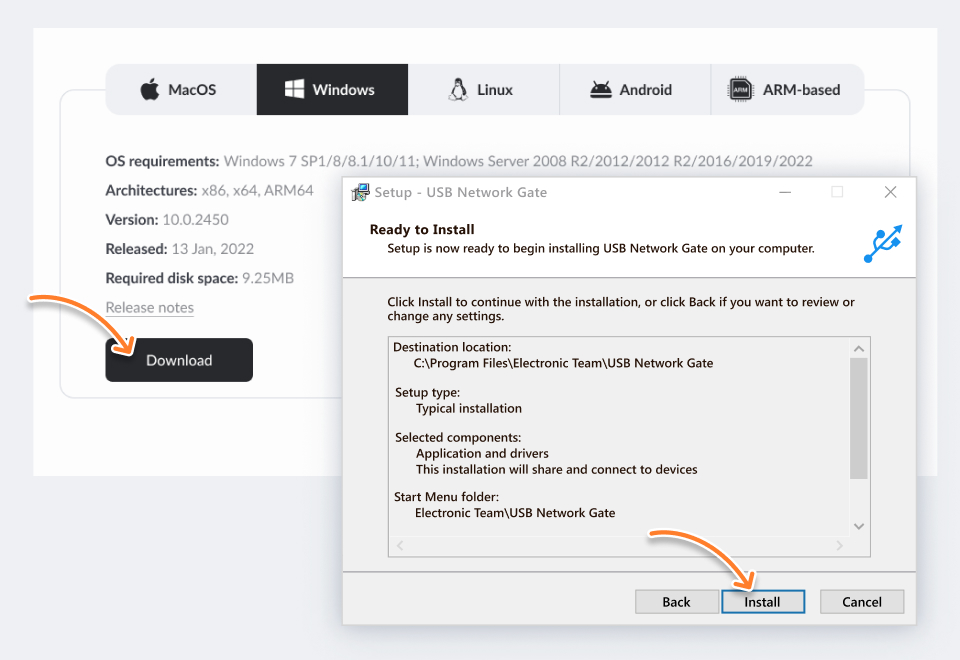
1. Download and Install USB Network Gate on the host and on any client machines that need printer access.
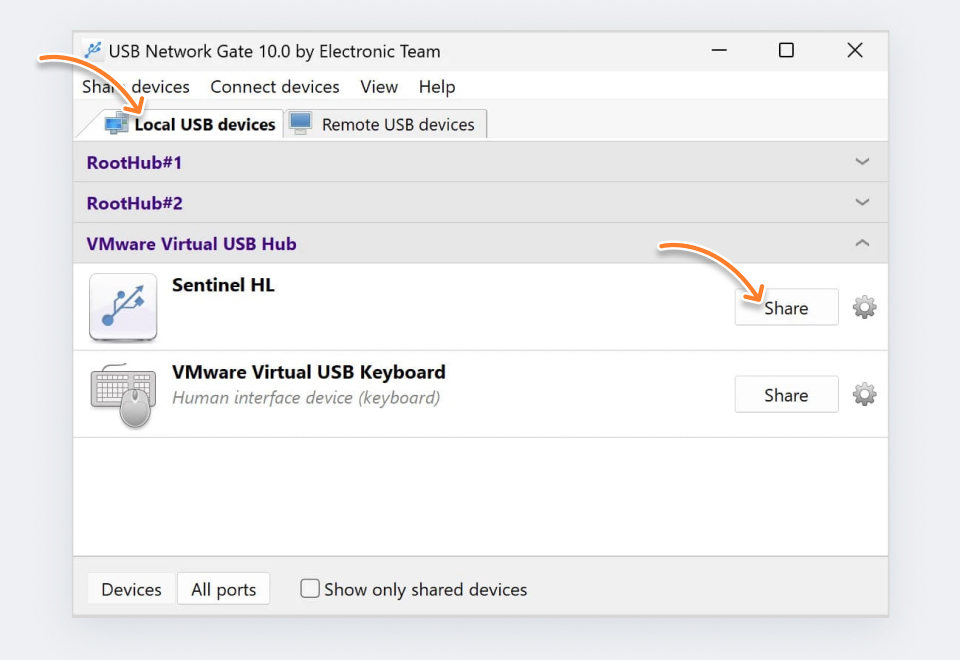
2. Open the program on the host PC, and see the connected printer appear in the list.
3. Select Share beside the printer’s name.
4. On the client computer, go to USB Network Gate, then choose Remote USB Devices.
5. Locate the shared printer and click Connect.
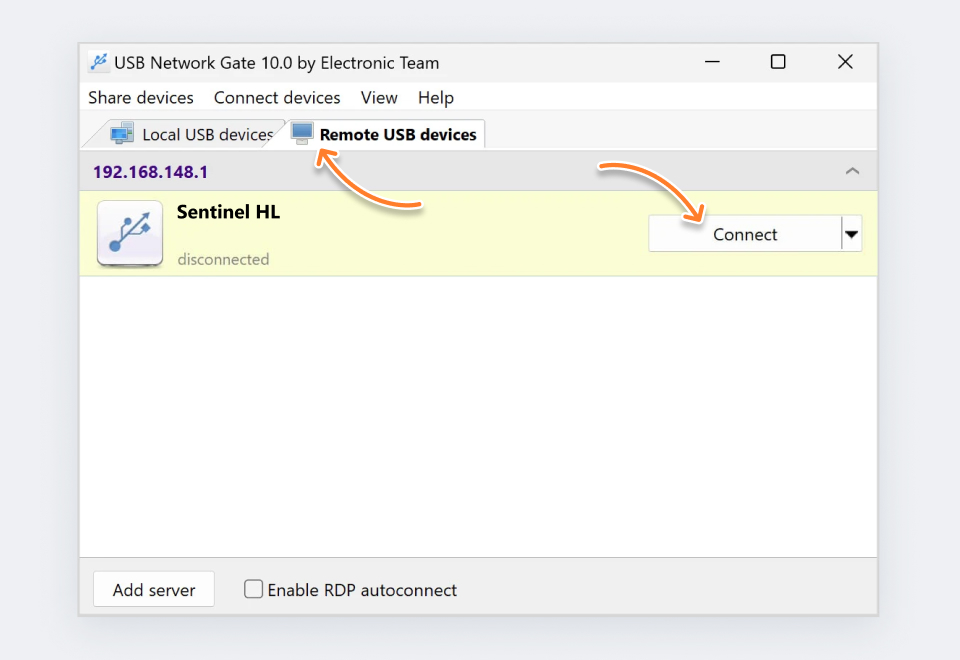
6. From there, the printer functions just like it’s physically plugged into that computer.
Or watch our video tutorial:
Why Choose USB Network Gate
- Direct IP-based connection; no cloud login needed.
- Works on Windows, macOS, and Linux.
- Performs well in RDP, VMware, and Citrix virtual environments.
- Provides encrypted channels and multi-user access control.
Share a USB Printer via FlexiHub
With FlexiHub, you can share USB printer between computers pretty easily, even if they’re not in the same room. It sets up a secure virtual connection, so each computer acts like the printer is plugged right in, even though it’s not.
1. To get started with FlexiHub, install it on both the host PC — the one with the printer — and the client PC.
2. Sign in to your FlexiHub account or create a new one if you don’t have an account yet.
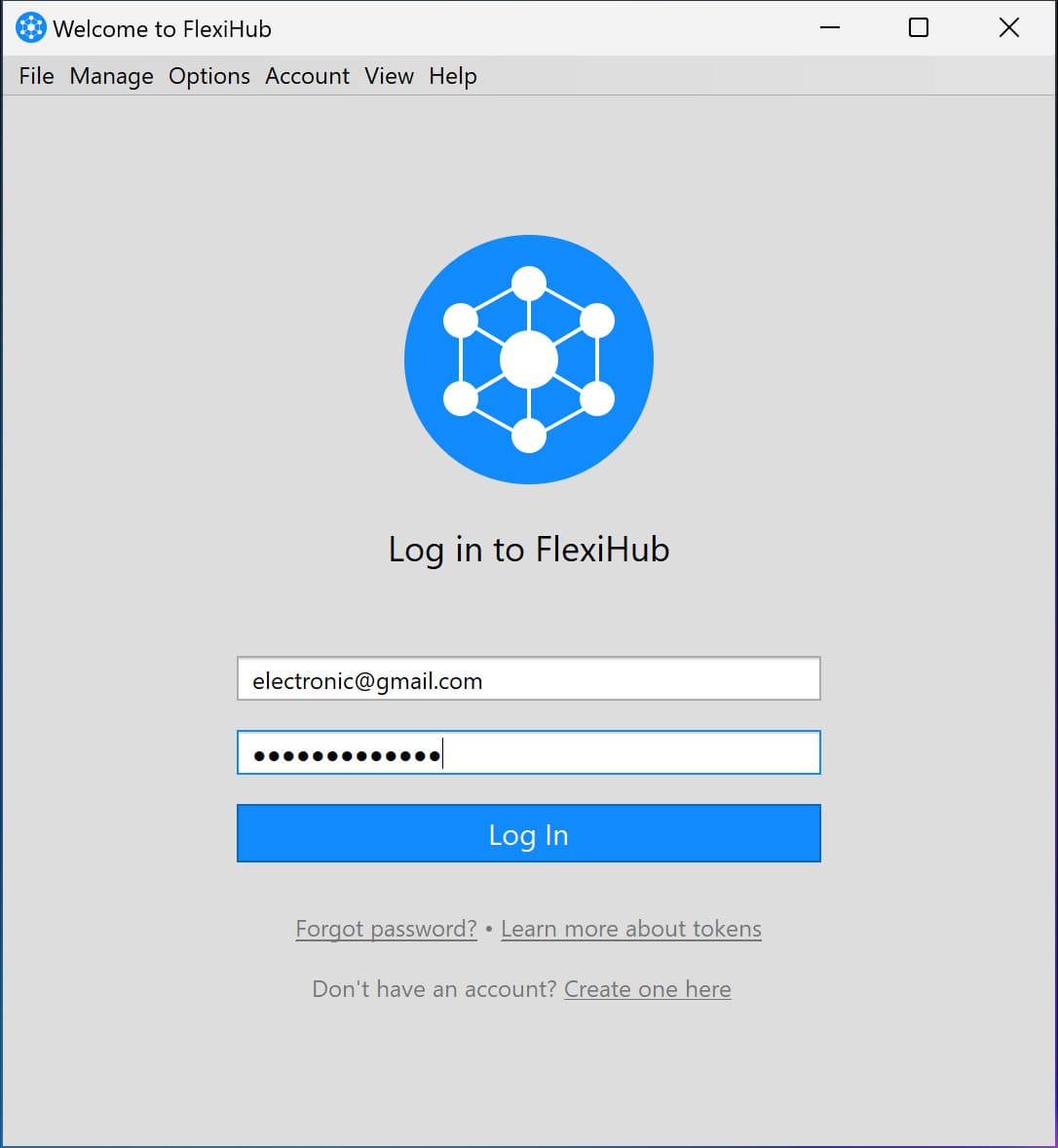
3. On the host computer, connect your USB printer. It will appear in the FlexiHub interface.
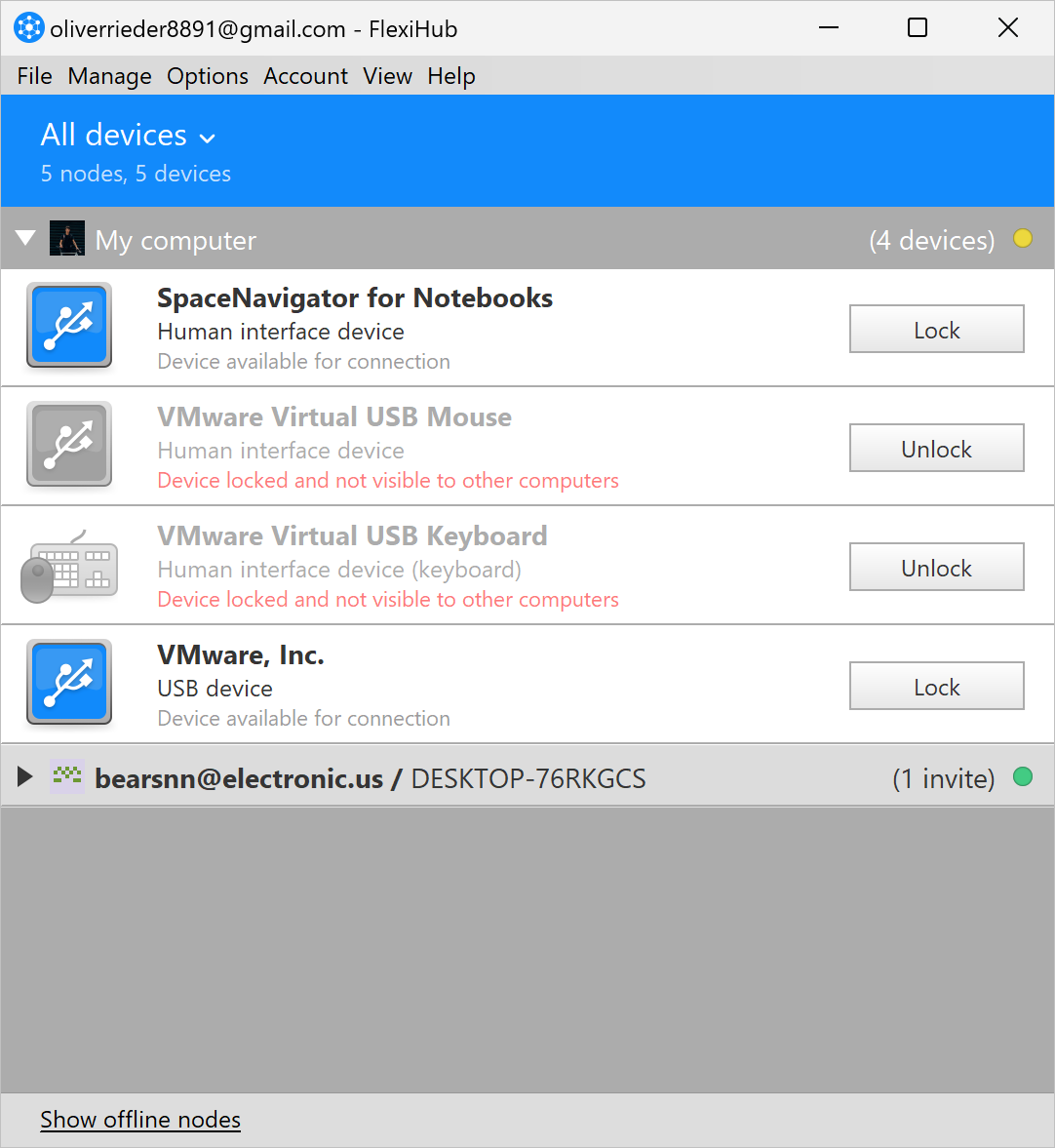
4. Open FlexiHub on the client machine. There, hit Connect next to the shared printer.
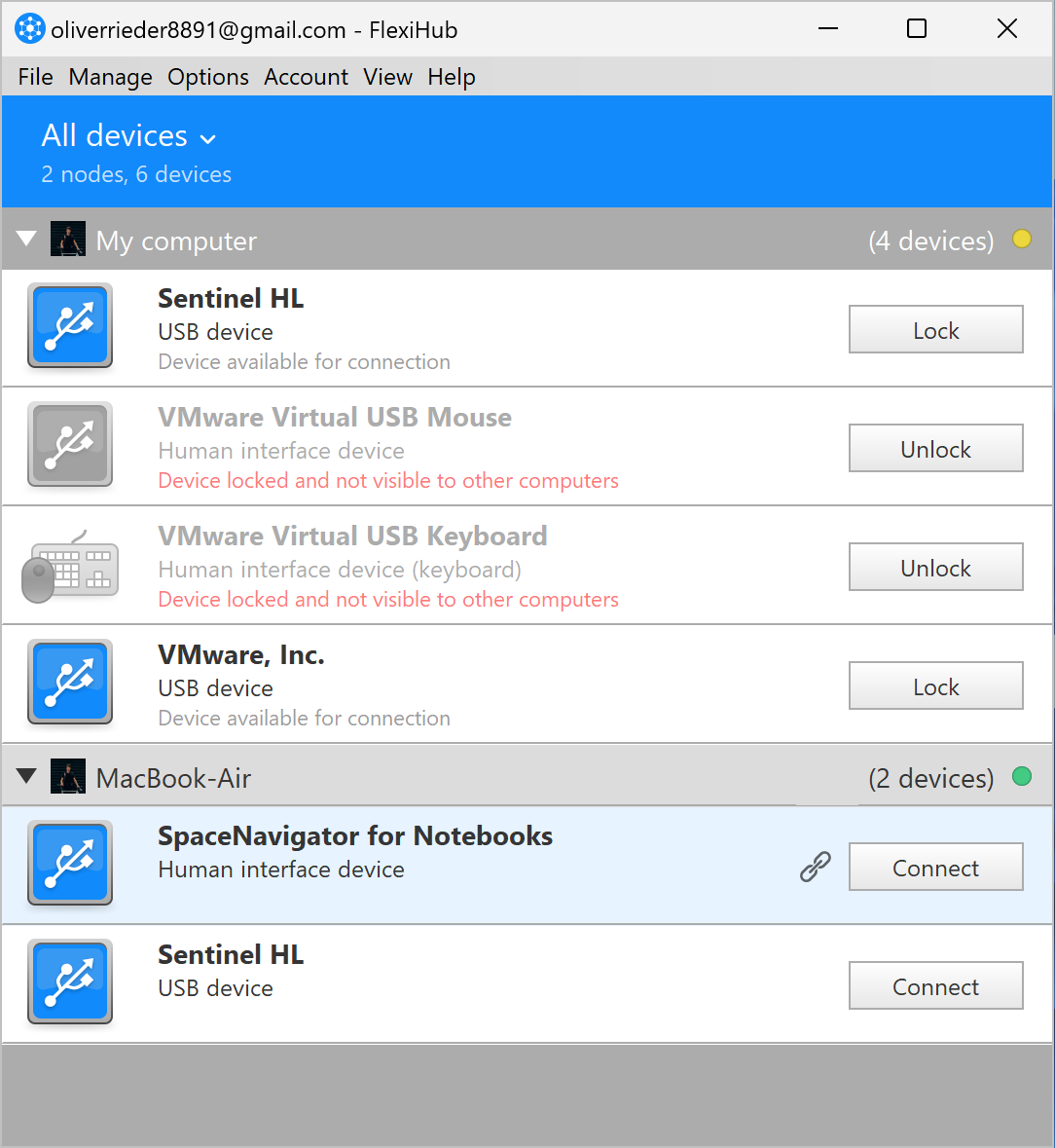
5. Once that’s done, the printer will appear in Devices and Printers. It will work just like a printer connected directly to your computer.
Why Choose FlexiHub
- Performs well on Windows, macOS, and Linux.
- Transfers data securely via 2048-bit SSL encryption.
- Works without adjusting IP settings or opening ports.
- Best for remote work, hybrid offices, virtual environments, and RDP sessions.
Hardware Methods
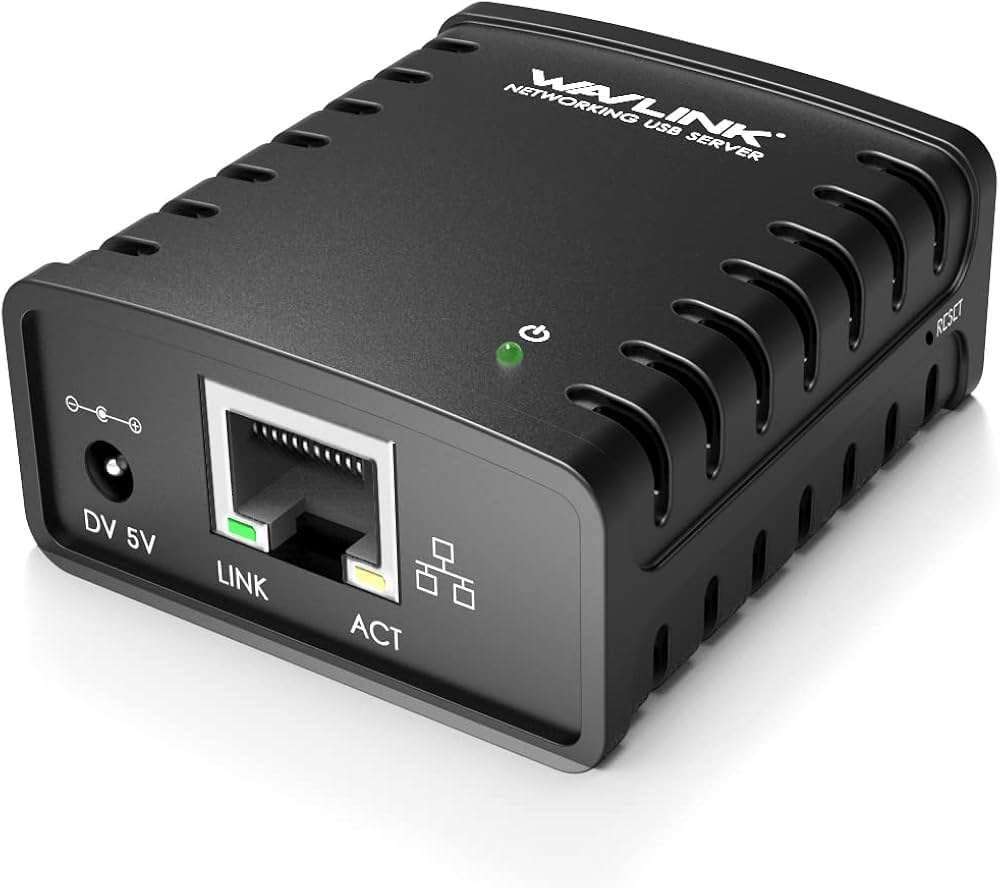
If you want to keep things completely offline, you can share your printer using a USB print server or a router with a USB port.
Pros
- Functions without an Internet connection
- Doesn’t require installing extra programs
- Perfect for small offices or households with multiple users
- Printer remains accessible even if computers are powered down
Cons
- Might need you to buy extra hardware
- Compatibility can be limited with certain printer models
- Setup process depends on the router or brand
- Missing advanced options such as encryption or the ability to access remotely
Use a USB Print Server
- Plug your printer’s USB cable into the print server.
- Then connect the print server to your router using either Ethernet or Wi-Fi.
- Finally, install the printer’s drivers and the manufacturer’s utility on all the computers that will use it to complete the USB printer sharing network configuration.
How to Share a USB Printer via Wi-Fi
Don’t worry if your printer doesn’t have Wi-Fi built in. You can still share a USB printer over a Wi-Fi network. All you have to do is hook it up to a computer or router that can share it wirelessly.
Option 1: Share over Wi-Fi using a Windows PC
- Plug the USB printer into a desktop or laptop that’s already on Wi-Fi.
- Turn on File and Printer Sharing and make sure Network Discovery is active in Windows.
- Set up the printer for sharing (see Native Methods above).
- Other devices on the same network can then find and add the printer using its name or IP address.
Option 2: Share via a Wi-Fi Router with USB Port
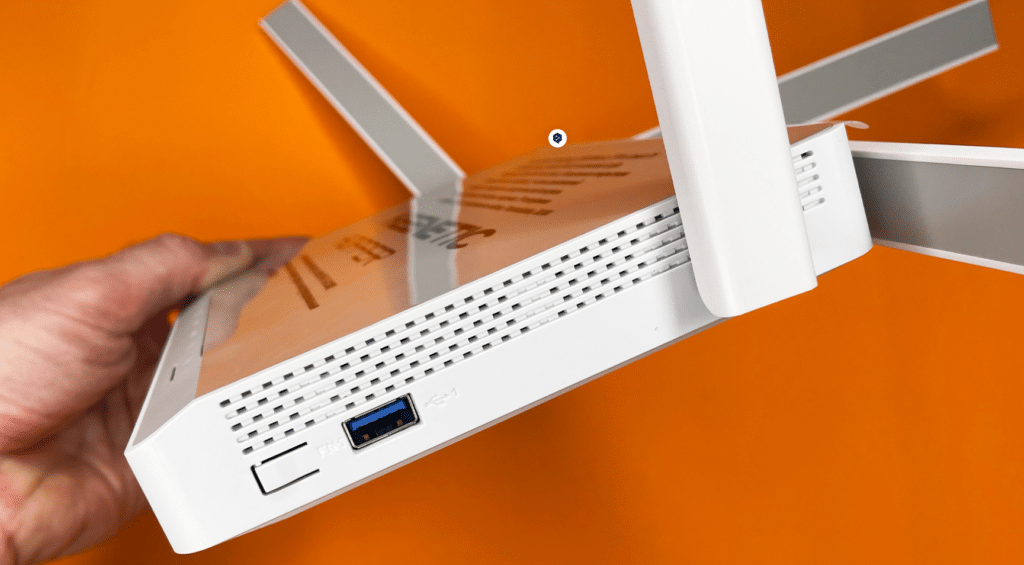
- Connect the printer to the router’s USB port.
- Go to the router’s admin settings. There, turn on Printer Server or USB Sharing.
- Lastly, install the router’s software or add the printer manually on each computer.
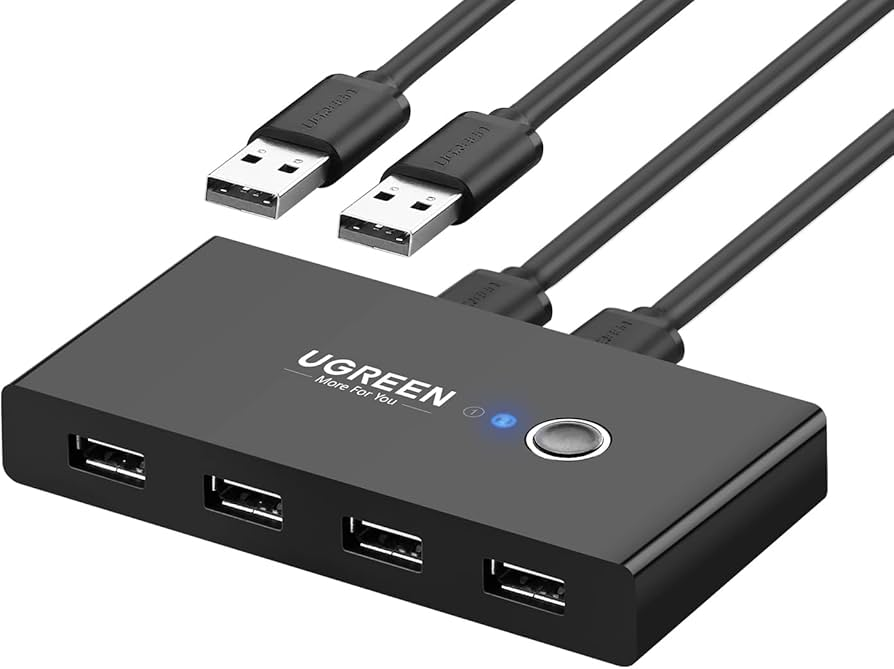
Physical USB Sharing Switch
Alternative Without Network
If you just need to share a USB printer between a few computers (like 2–4) without using Wi-Fi or a LAN, a USB switch is an easy fix. Just follow the steps below — USB Switch helps you route one USB device to several PCs manually.
- Plug the USB printer into the switch’s “Out” port.
- Use the switch’s “In” ports to connect each computer.
- Use the mechanical button on the device so you can manually change which computer will use the printer.
Conclusion
If you’re trying to figure out how to share a USB printer over a network, using your computer’s built-in printer sharing feature is the easiest way to start. It’s perfect for home networks or small offices where everyone’s on the same Wi-Fi or LAN. The best part? It’s free and pretty simple to set up, and make sure the computer that’s connected to the printer stays powered on. The only catch is that it doesn’t always run smoothly across different Windows versions.
For remote work or when using multiple operating systems, or if you need to print from virtual machines or RDP, software-based USB-over-Network solutions are the better fit. FlexiHub is one of your top picks if you want an easy, cloud-based solution with remote access. You can simply install the app and log in.
On the other hand, USB Network Gate is great for IT teams and companies that need local control, with direct LAN/IP connections and a smooth fit into their company’s policies.
If you’re somewhere with bad Internet or just want to go offline, a hardware print server or a router with a USB port is a solid choice. Works great for small offices, service centers, or schools.
Here are some simple tips to help keep your network printing smooth and secure:
- If the printer stops responding, restarting the Print Spooler service can help solve it.
- After reconnecting a shared printer, reinstall its drivers to avoid headaches later.
- Make sure all Windows accounts have passwords for added security.
- Turn on SSL in FlexiHub or USB Network Gate to keep your data safe during transfer.
- Whenever you can, don’t try to share a USB printer over a public network.
FAQ
Yes, you can do that! Just use FlexiHub or USB Network Gate so that you can make it happen.
Yes, it does! Just make sure Network Discovery is turned on.
For sure, as long as you’re using FlexiHub or USB Network Gate over the Internet.
Absolutely. If you’ve got advanced knowledge, you can set up a network print server using:
- CUPS (Common Unix Printing System): A built-in printing system you can use to share a USB printer on a Mac/Linux network.
- Raspberry Pi: An affordable mini-computer running CUPS that works as a print server that can stay on all the time without using much power, and is accessible by any device on the network.