Whether you have issues with an RDP printer not redirecting, compatibility issues with certain printers, long delays before printing, or failures to print, this guide should help you. Just navigate to the appropriate section to see common fixes to your problem.
If problems persist, or the fixes are inconvenient, try USB Network Gate – it’s a USB device redirection utility that you can use for free. This article includes some information about it as well.
Printer is redirected, but not detected
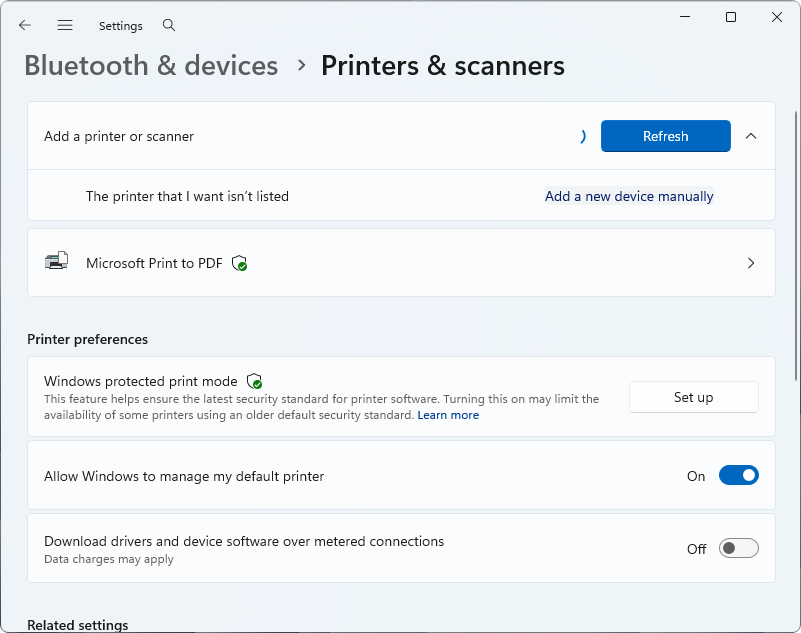
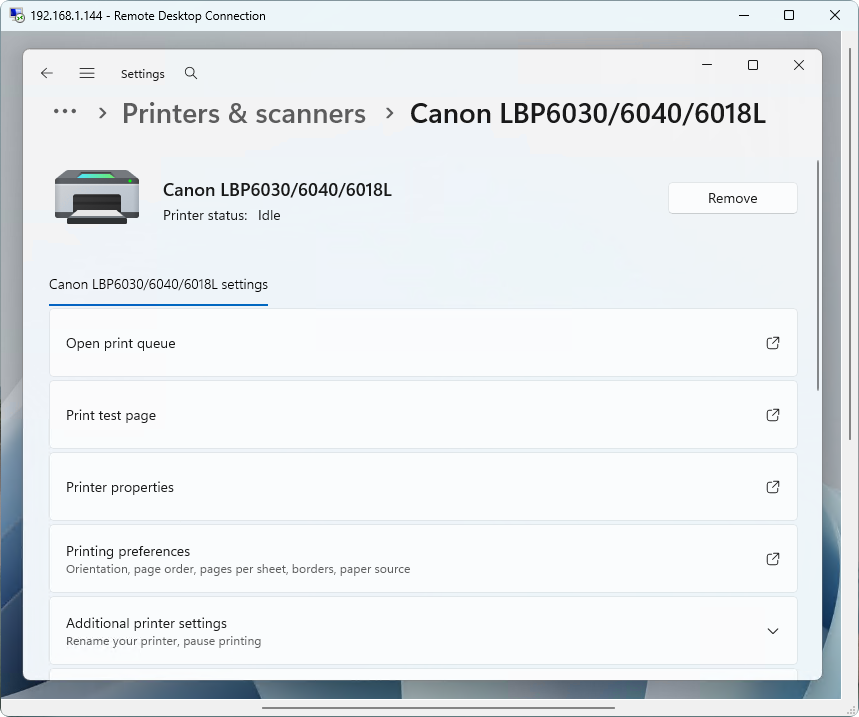
If you’re sure that the printer got redirected, but it wasn’t recognized by the remote system, there’s still a way to add it manually. Go to the Windows printer settings (Settings > Bluetooth & devices > Printers & scanners), click “Refresh”, and once it fails to find the printer, you’ll get the option to “Add a new device manually”.
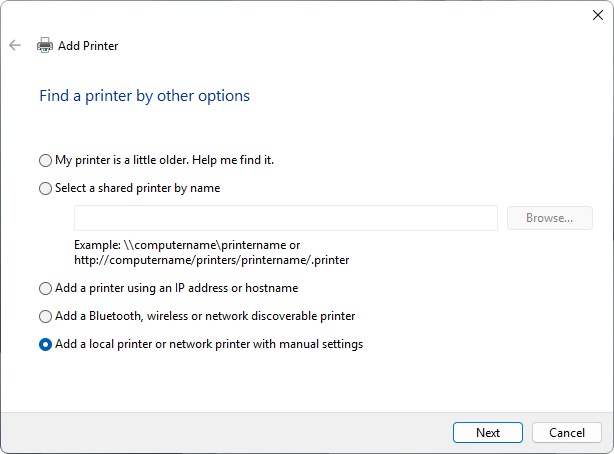
From there, choose “Add a local printer or network printer with manual settings”, and confirm.
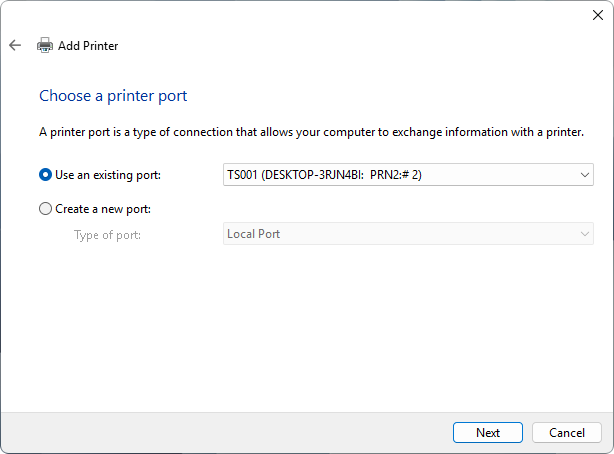
Printers redirected over RDP always use Terminal Server (TS) ports. Use the drop-down menu to choose your printer’s TS port (most likely, it will be the only one on the list).
From here on, configure it and use as per usual. Don’t forget to request a test page to try the connection out.
Issues with PoS printers and prints taking a long time
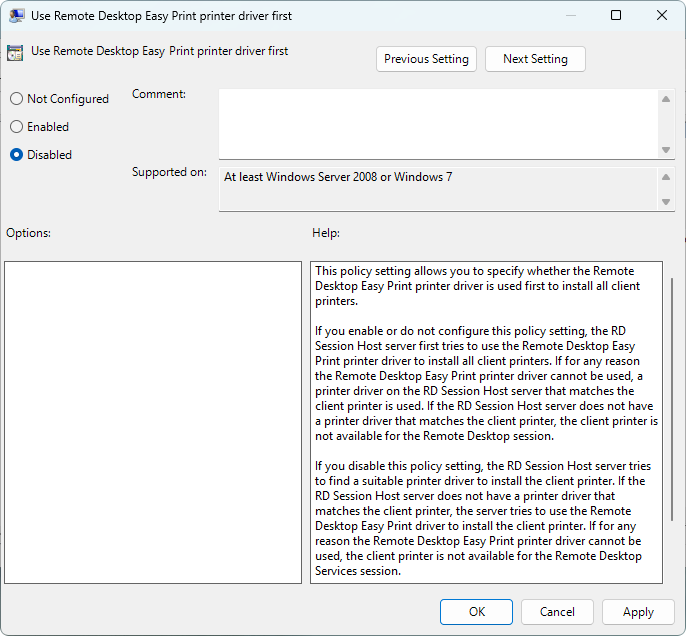
Point-of-sale printers can have compatibility issues with Easy Print. This can lead to Remote Desktop Easy Print not working. Disabling Easy Print in group policies can help, but it will require the session host to install drivers (which is usually not the case with it enabled).
It can be found under Administrative Templates > Windows Components > Remote Desktop Services > Remote Desktop Session Host > Printer Redirection.
Easy Print can also force the client and the server to exchange large files when printing. This can lead to significant slowdowns, if not overwhelm the network entirely. So, for large batches or documents, it’s best to disable Easy Print as well, and use a dedicated driver on the RDP server.
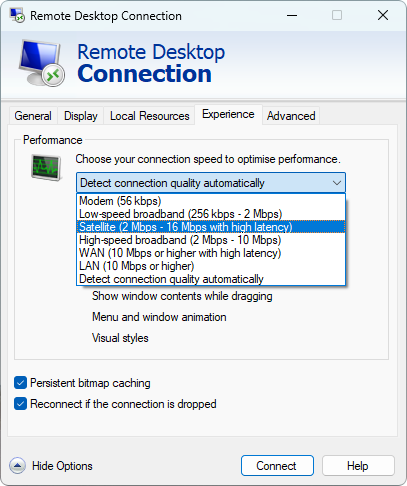
Reducing the performance settings under the “Experience” tab in the Remote Desktop Connection client can also help reduce the load on your connection, and provide more bandwidth for Easy Print.
Printing Doesn’t Work
If a printer is showing up in Windows settings, but doesn’t print, this may simply be a driver issue. Windows automatically installs drivers for printers by default, so if it hasn’t, you most likely need to find the vendor website and do it manually. Some drivers can install improperly if you don’t launch them with admin rights, so do that – just make sure that you got them from an official source.
Additionally, the settings of the printer could be preventing the print. If it’s an Ethernet or WiFi-based printer, use the manual to learn how you can connect to its web configuration suite, and browse the settings for any potential causes.
Try USB Network Gate
USB Network Gate works like a direct connection. This can make things easier, since you don’t need your printer to be recognized by Windows at all – as long as you have the drivers on the opposite end, the printer will work.
You can get a free key for USB Network Gate, and it will allow you to connect one device at a time. Upgrading to a paid version will let you have multiple connections. Try it out – maybe it’s the key to solving your particular problem.
How to Print to a Local Printer Directly
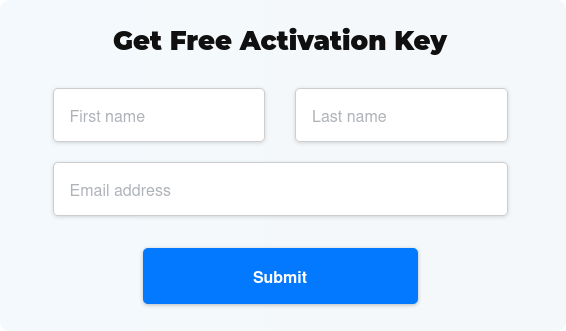
1. Request a free activation key for USB Network Gate.
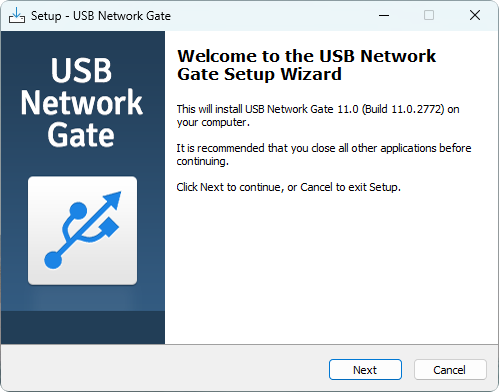
2. Download and install USB Network Gate on the local computer (the RDP client).
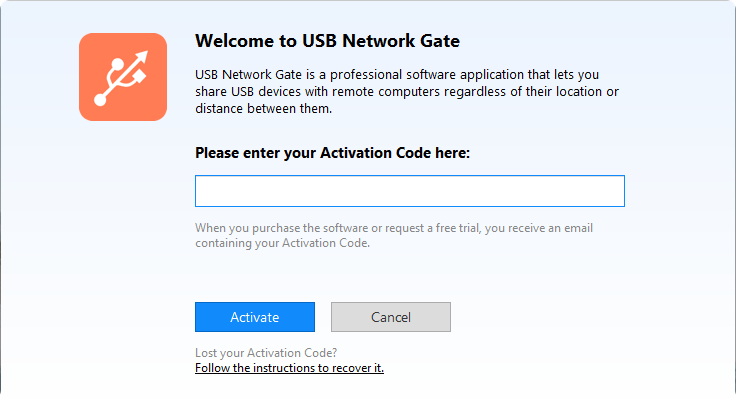
3. Activate the local installation with the key.
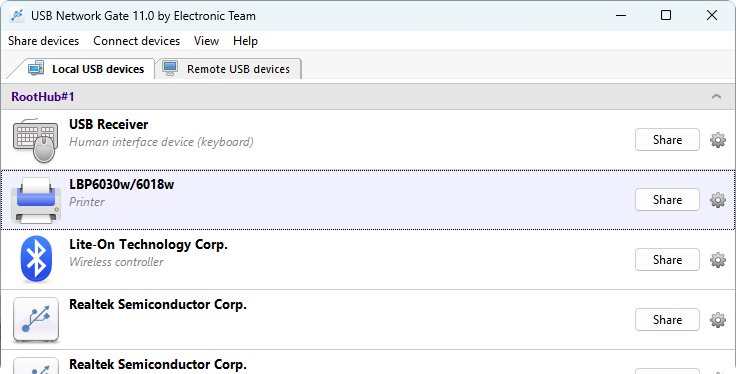
4. Open USB Network Gate and click “Share” next to the printer.
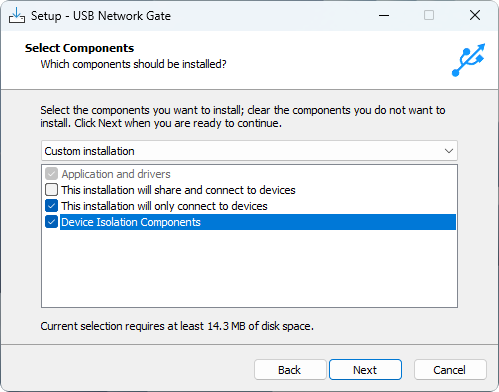
5. Install USB Network Gate on the RDP server. Use the “…only connect to devices” option. Reboot the server.
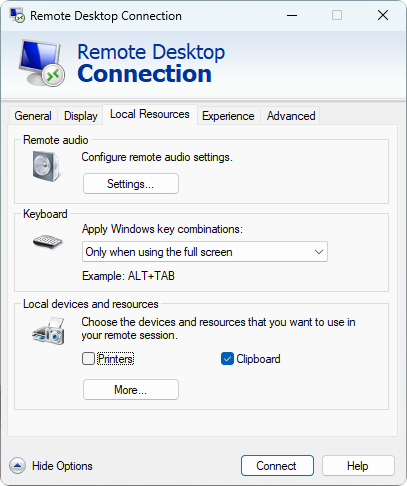
6. Start an RDP connection between the client and the server. Disable “Printers” under Local Resources to make sure that native passthrough doesn’t interfere with USB Network Gate.
7. Open USB Network Gate on the server. Click “Connect” next to the printer.
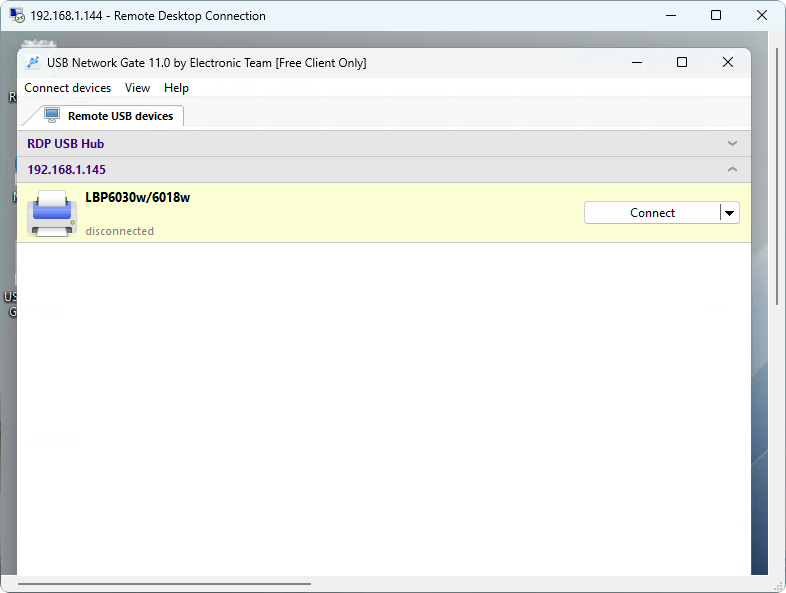
8. You can now use the newly-connected printer.