If you need to access a USB scanner from several computers or remote locations, you don’t have to move it around or plug it into every device manually.
This article explains the process step by step for Windows, macOS, and Linux, helping you optimize your workflow and get the most out of your existing hardware.
Additionally, we’ll show you how to share a USB scanner over a network quickly and securely with the help of specialized software. You can make your scanner available to multiple users, no matter where they are, as if it were directly connected to their own computer.
How to install the scanner in Windows 10
When users connect a scanner to Windows 10 or add it to a home network, they usually can begin scanning documents and pictures immediately.
But for those scanners that do not install automatically, we’ve provided the following instructions to explain how to add scanners to computers running Windows 10.
1. Connect the USB cable from the scanner to an available USB port of a Windows 10 computer.
2. Turn on the scanner. Windows should automatically begin installing the scanner drivers and configuring the device.
3. Navigate as follows: Start > Settings > Devices > Printers & scanners.
4. Select Add a printer or scanner, then wait for it to find nearby scanners.
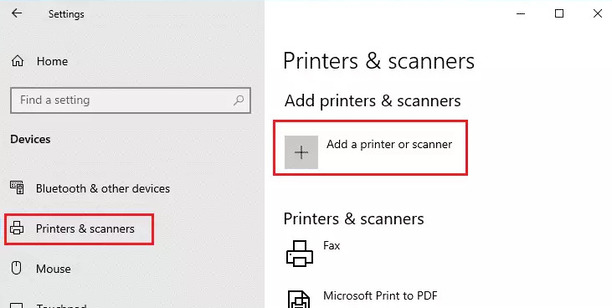
5. Select the desired scanner and click Add device.
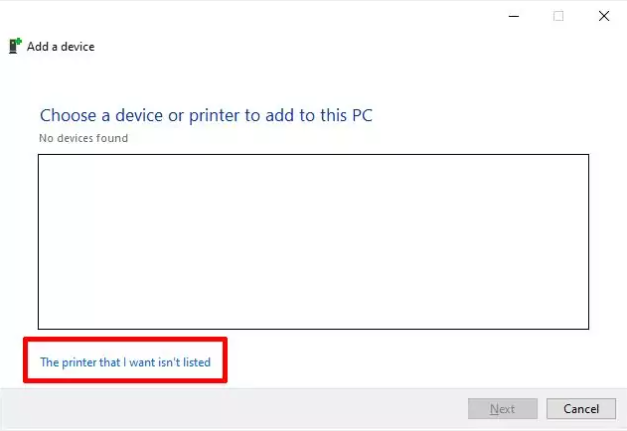
If your scanner isn’t displayed, choose “The printer that I want isn’t listed”, and proceed by following the instructions explaining how to add it manually.
– To allow Windows 10 to locate and install the scanner, ensure the computer and scanner are connected to the same network.
– Users may also find it necessary to get the administrator permissions that allow for the installation of some scanners.
6. Look for your scanner under Printers & devices to verify the scanner was installed successfully.
How to install a scanner in Windows 11
Regarding the process of adding a scanner to Windows 11, it’s quite similar to the ones we showed for Windows 10 steps above. However, there are a few differences that need to be taken into account.
When users connect a scanner with their computer, Windows 11 should automatically install and configure the scanner drivers so users can begin scanning their documents and pictures immediately.
If Windows 11 fails to automatically install and set up the scanner, the steps below explain how to add scanner drivers manually:
1. Navigate as follows: Start > Settings > Bluetooth & devices > Printers & scanners.
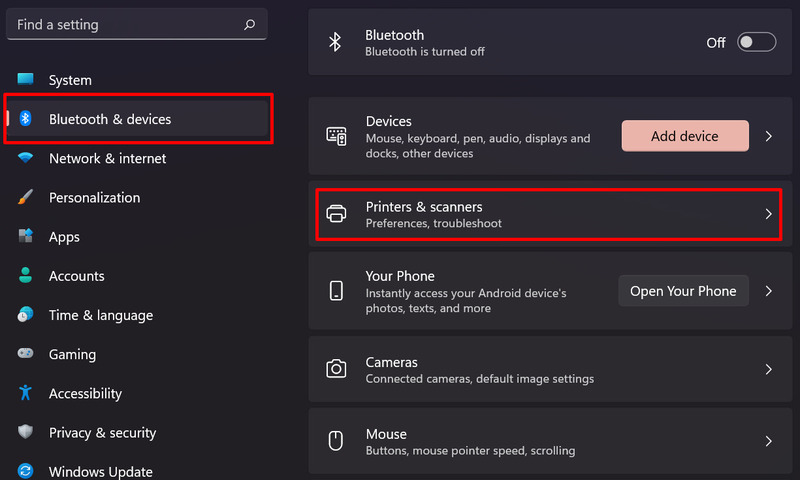
2. Click Add device located in the Printers & Scanners window.
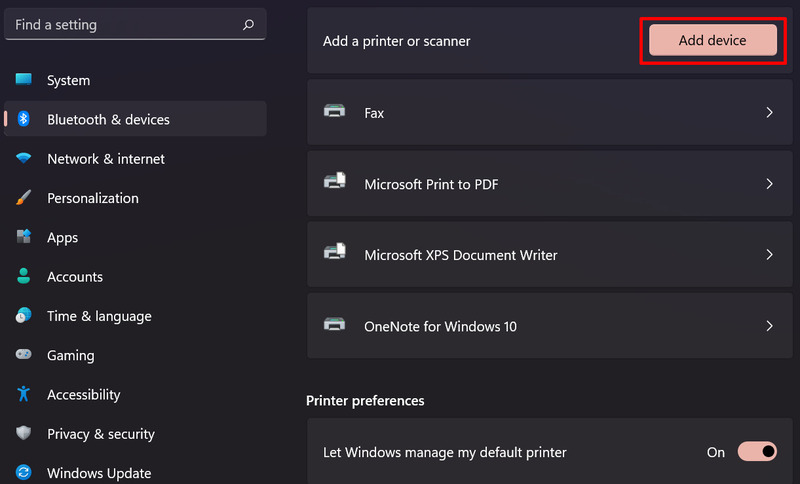
3. Once Windows 11 locates nearby scanners, select the desired scanner by clicking the Add device button beside it.
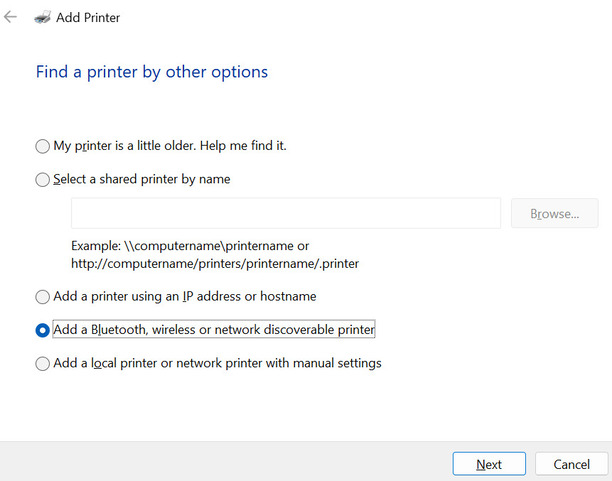
If the scanner is not displayed on the device list, users must add the driver manually. Choose the Add manually option, then proceed by following the instructions provided.
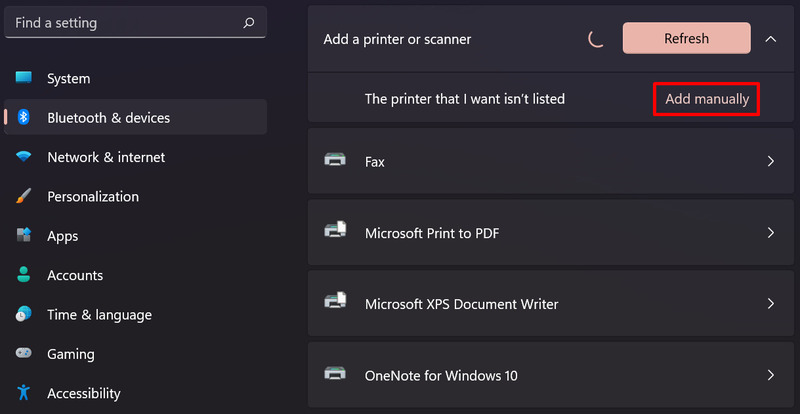
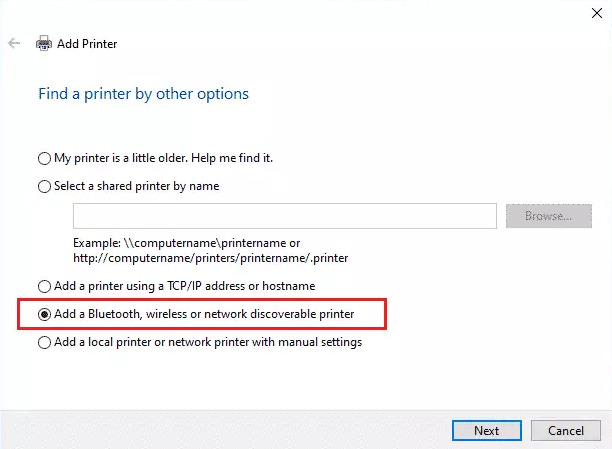
Users should be able to locate a wireless or network printer after following the installation wizard below.
If the desired wireless scanner wasn’t added to the home network, we recommend reviewing the manual that came with the scanner to find information on how to set up your particular device in Windows 11.
How to set up a scanner on Mac
It’s a pleasantly straightforward process to scan documents onto Mac computers. However, before connecting a scanner to Mac, one must ensure the scanning software on their macOS computer is up-to-date.
Follow the steps below to learn how to install a scanner on Mac:
1. Start with connecting a scanner and turning on the devices.
2. Navigate as follows: Apple menu > System Preferences > Printers & Scanners.
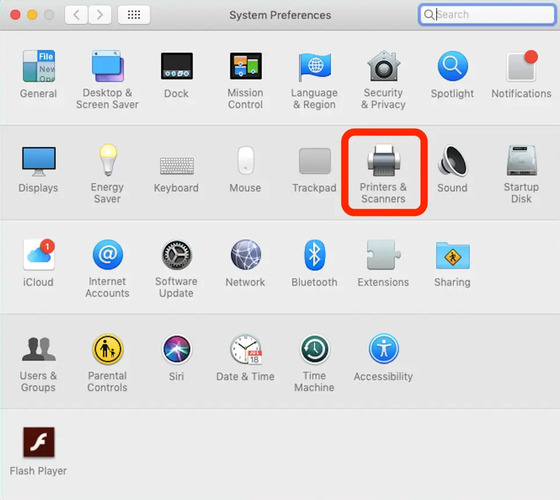
3. If the scanner doesn’t appear in the left-hand list, hit the (+) Add button (if a pop-up menu opens, click Add Printer or Scanner).
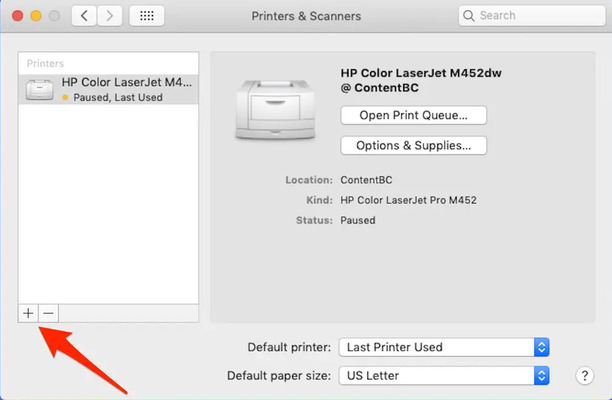
4. Choose the desired scanner and hit Add.
If the scanner still does not appear on the list, refer to the documentation provided with the scanner to find guidance on how to add a scanner to Mac.
How to add a scanner on Linux (Ubuntu example)
Just as with Macs, scanning documents and images onto Linux computers is usually a simple and fast process. Conveniently, Linux has numerous packages for scanning to choose from.
The most popular package is called SANE, and so we’ll show how to use it to add a scanner in Linux on the example of Ubuntu.
SANE (Scanner Access Now Easy) is open-source software enabling scanning on most Linux devices. It also enables Linux devices to utilize various image scanning hardware, and the community revolving around SANE offers added support for more scanners regularly.
Here is how to set up scanners on Ubuntu with SANE:
1. Install SANE (though, it’s usually pre-installed as a base package in versions of Ubuntu 11.04 and later).
You can run the following command to install it:apt-get install sane sane-utils libsane-extras xsane
2. Run the following command to test your scanner:
Applications > Graphics > XSane
Users should see a scanning dialog window from the scanner. If SANE says it can’t locate the scanner, users must perform a manual installation.
3. The majority of the time, the back-end for your scanner gets enabled by default. For certain scanners, users enable this manually—which usually involves enabling the back-end and then adding a scanner to it.
For more detailed instructions regarding manual installation, see the Ubuntu SANE Troubleshooting guide.
Software for sharing USB scanners over the network
When it comes to connecting a USB scanner to multiple computers, the most efficient approach is to use dedicated software designed for remote device access. A reliable tool like USB Network Gate eliminates the need for complex hardware setups, letting you share your scanner over a local network or the Internet with just a few clicks. The software creates a virtual connection to the remote device, so it appears in your system as if it were plugged in directly – ensuring stable performance, secure data transmission, and full compatibility with your existing scanning applications.
USB Network Gate supports multiple platforms and can share scanners on Windows, macOS, Linux, Android, and Raspberry operating systems. For this article, we will mostly concentrate on the Windows part of the app.
It is fairly easy to share scanners with USB Network Gate, as can be seen from this video guide:
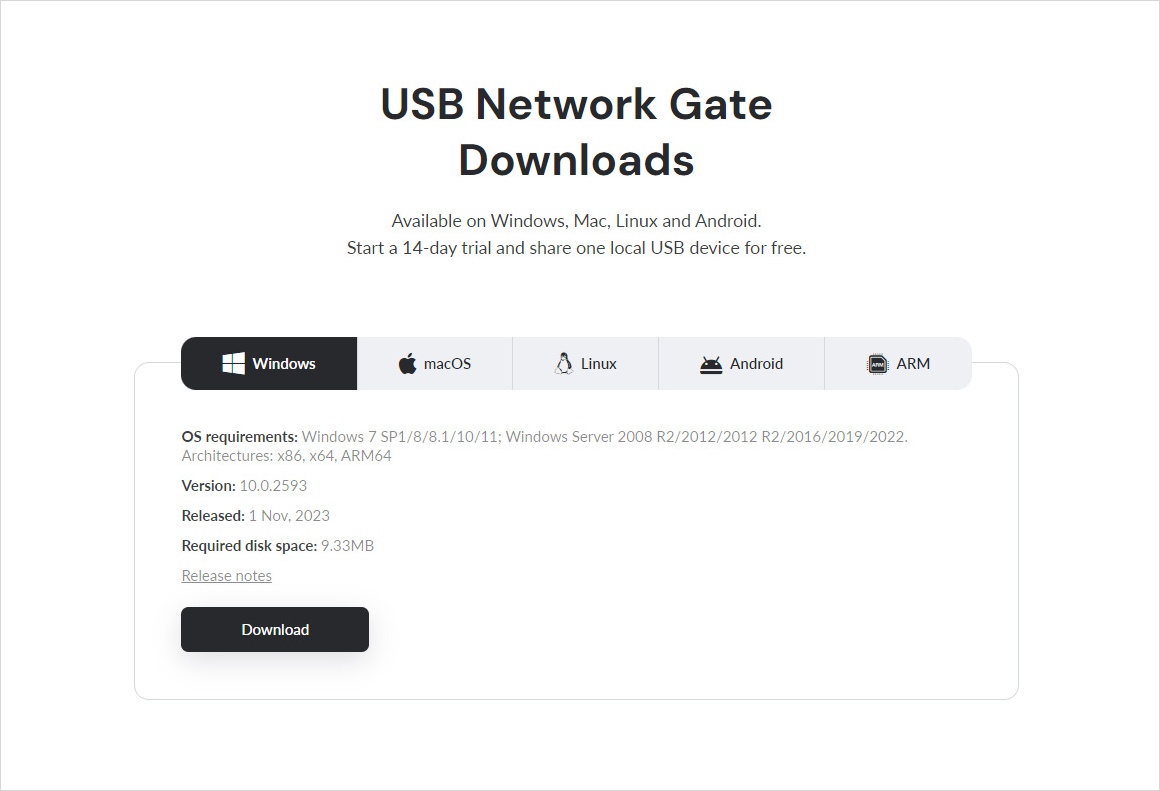
1. First, you need to download and install USB Network Gate on all computers that need access to the device.
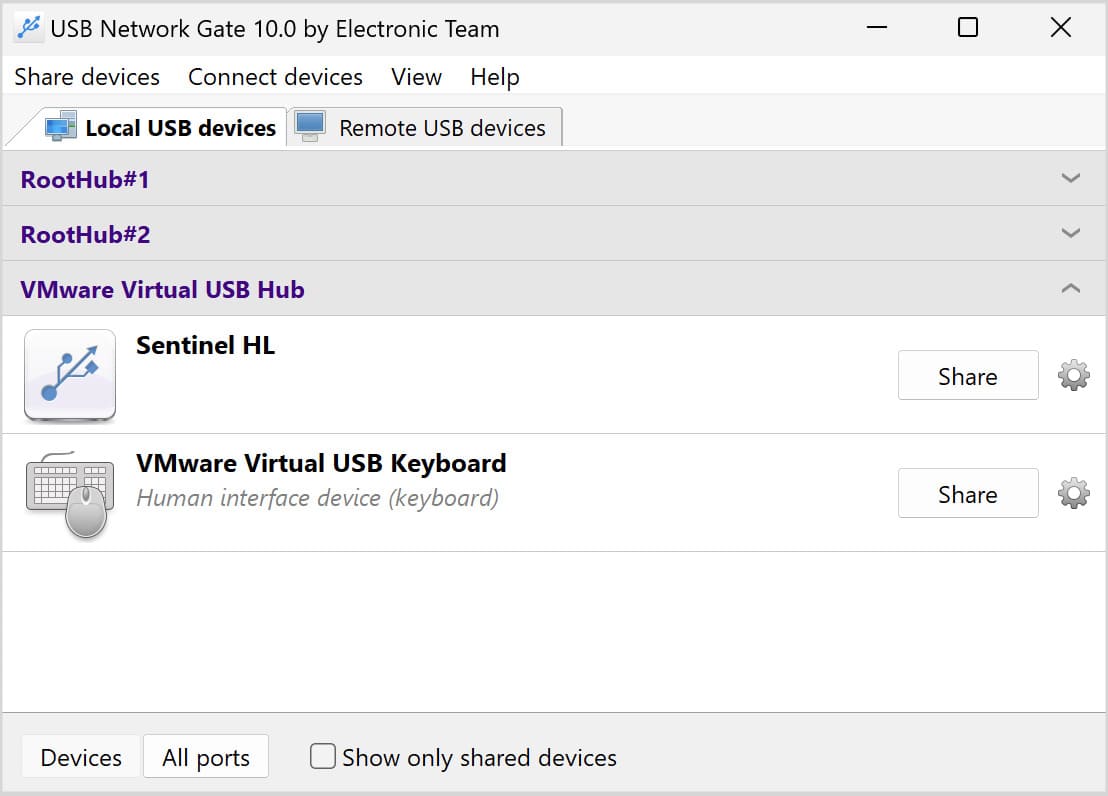
2. Once the installation is complete, launch the app on the computer to which the device is attached. In the window displayed you will see a list of USB devices inserted into the computer.
3. Click the ‘Share’ button next to the USB scanner.
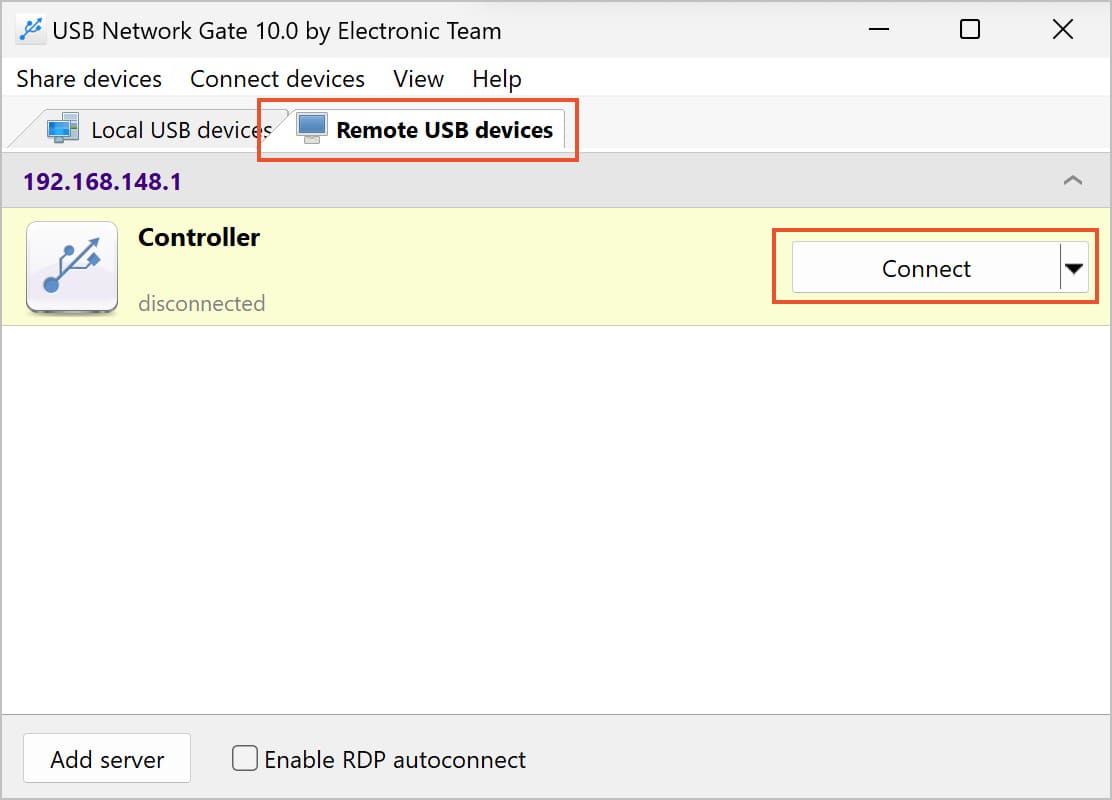
4. Your shared scanner will be visible in USB Network Gate launched on other computers, now they can connect to it to scan over the network.
USB Network Gate benefits:
- There is a 14-day trial version of the software for you to decide whether you want to invest in it or not;
- It works for various kinds of USB devices, including scanners;
- The is no need to install scanner drivers for shared devices.
- If required, you can use encryption to protect the connection or add compression.
- If you have trouble using the software, there is a support service available round the clock.