Developing serial applications often comes with unique testing challenges – especially when access to physical hardware is limited or unavailable. In many cases, modifying the connected device isn’t possible, which makes traditional testing methods impractical.
Fortunately, there’s a flexible and efficient alternative: virtual serial ports.
In this guide, we’ll walk through how to test serial applications using virtual COM ports, explore common testing scenarios, and show practical methods using tools like terminal emulators.
How Serial Port Emulation Works
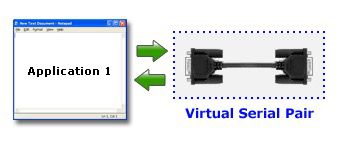
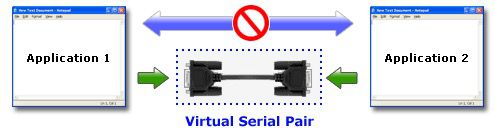
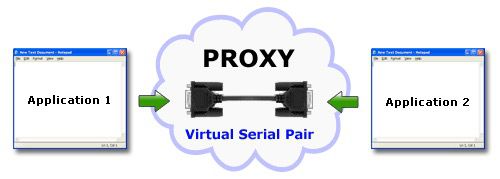
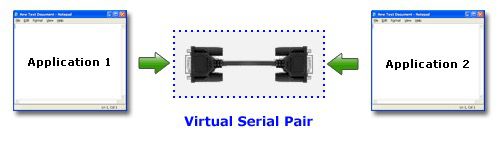
Virtual Serial Port Driver allows you to create virtual COM ports that behave exactly like physical serial interfaces. These ports can be connected via a virtual null-modem cable, enabling data exchange between applications as if real hardware were involved.
Once created, virtual ports:
- Appear in your system like real COM ports
- Support bidirectional communication
- Allow applications to send and receive data seamlessly
This setup makes it possible to simulate real-world communication environments without needing physical devices.
Setting Up Virtual Serial Ports
1. Download Virtual Serial Port Driver and install it on your computer.
2. Start the program and open the “Pair” window. There you’ll see the ‘Add pair’ option. Now, you can either select the virtual serial ports from the dropdown list or specify them manually.
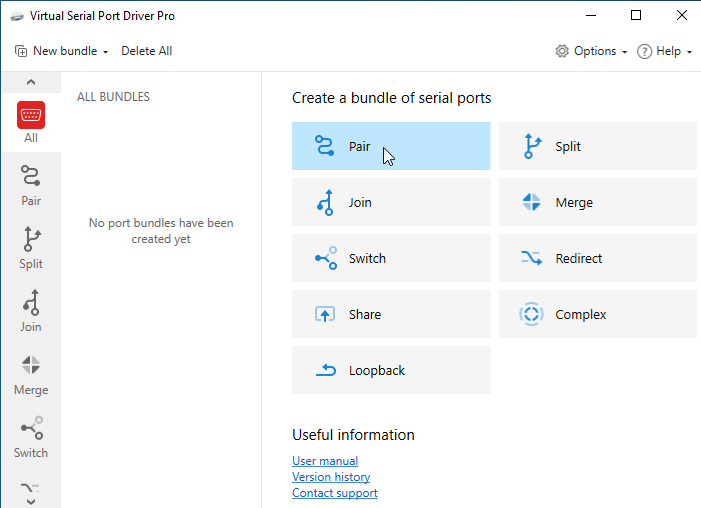
3. What is especially convenient is that you can assign any custom names to the ports you create with Virtual Serial Port Driver (except for those port names already used in your system). Just make sure that the apps that will work with these COM ports support the port names you’ve chosen.
4. Click “Create” and that’s it. The number of virtual COM port pairs you can create with the software is not limited.
5 Common Serial Testing Scenarios
Virtual serial ports are extremely versatile. Now let’s take a look at several scenarios that can benefit from the use of virtual serial ports.
Scenario 1: Testing and Debugging Serial Applications
Testing and debugging serial applications is facilitated by using virtual serial interfaces. If you are developing new software or tracking down issues with installed serial solutions, virtual ports give you more flexibility than physical interfaces. One of their benefits is the ability to multi-thread data with a pair of virtual serial ports.
Scenario 2: Firmware Development and Driver Testing
Firmware developers or technicians working on serial device drivers can use virtual ports for testing and debugging. This lets team members use any network-connected machine for serial testing even if it lacks physical COM ports.
Scenario 3: Remote Device and Application Access
Virtual serial ports allow users to work with remotely located applications and devices when no physical connection can be established. The endpoints just need to be attached to the same network.
Scenario 4: Data Logging, Caching, and Translation
Virtual COM interfaces can be used by applications designed to cache, log, and translate network data flow. They allow technical teams to access serial data transmission without physical connectivity to the devices and programs.
Scenario 5: Loopback Testing and Data Flow Verification
Virtual loopback serial ports can be established and added to bundles. A loopback can be very helpful when attempting to test how a specific port is handling data transfer. With a loopback, line parameters like baud rate will not impact data transmission. You will immediately be able to determine if information is flowing through the connection with no data loss.
Testing Serial Ports with HyperTerminal
One simple method for testing serial communication is using a terminal emulator like HyperTerminal.
How it works:
To launch a new HyperTerminal instance, head to Windows Start Menu > Programs > Accessories > Communication > HyperTerminal.
Say, you have a pair of virtual ports named COM3 and COM4. Here’s how to use HyperTerminal:
1. First, create a connection to COM3 port.
2. After that, open the File Menu and select ‘New Connection’. Enter a name, e.g. Test_COM3, choose the icon, and hit OK.
3. Now, find COM3 in the dropdown list and press OK. Make sure the properties are kept default and press OK.
4. Next step is creating a connection to the other port – COM4.
5. To do this, open the File Menu > New Connection. Enter a name, say Test_COM4, choose the icon, and press OK. Choose COM4 from the dropdown list and hit OK. Keep the properties default and press the ‘OK’ button.
Starting from this moment, you can easily use HyperTerminal to test serial ports. Just type the required text in the white text area of COM3 and the written data will be transmitted via a virtual null modem cable and displayed on the screen of COM4.
As long as HyperTerminal supports data transfer via COM ports, you can use this program to perform a loopback test. If you feel the need for HyperTerminal replacement with a more advanced solution, HyperTerminal Alternative guide will help you.
Testing with Advanced Serial Port Terminal
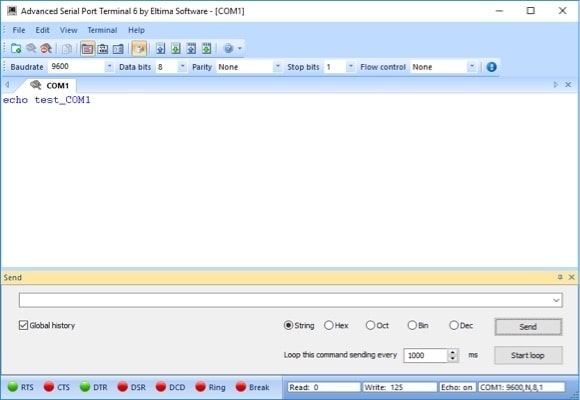
Serial Port Terminal is a high quality free serial terminal emulation solution. Its advanced features set it apart from competitive products with advantages such as the ability to simultaneously monitor multiple serial ports and the variety of formats that are available for viewing data transmission. The developers at Electronic Team fully support the tool and provide regular updates to ensure the application continues to deliver excellent results.
Here is a detailed guide that quickly gets you up and running with Advanced Serial Port Terminal. We will pass over a discussion of customization settings for the time being.
1. After the program is started, you will want to establish a new connection to a serial interface. Choose the “File” >>> “New session” menu option which will bring up the “New session” dialog window.
2. The “New session” dialog window is where you will define connection parameters such as the number of the serial port as well as its baud rate, stop bits, and parity settings. They need to be identical to the connection settings of the serial port that will be accessed remotely.
3. Click the “Open” button to initiate the newly created session.
4. After communication is established, the serial port needs to be opened using one of these three options.
❒ Select “File”>>> “Open port” from the application’s main menu.
❒ Click the “Open port” button located on the toolbar.
❒ Use the “Alt” + “O” keyboard shortcut.
5. You need at least one unoccupied serial port in order to open it for use with the app. This means no other program can be using the interface when the connection is established.
6. Once the port is opened, the connection can be used to send data in text, binary, octal, decimal or hexadecimal format. You can send binary or text files as well as monitor the behavior of the serial interface.
Why Serial Port Testing Matters
Testing serial communication is essential for ensuring reliability across hardware and software systems. Tools designed for this purpose can:
- Monitor and log all port activity
- Simulate data transmission
- Analyze communication protocols
- Detect performance issues and errors
For example, specialized tools can track and display all serial data exchanges in real time, helping developers identify issues faster and optimize performance.