Redirect Microphone in Remote Desktop with USB Network Gate

Remote Desktop Protocol (RDP) is a popular solution for accessing remote computers. However, some limitations make using a microphone over an RDP connection challenging. Users cannot use RDP sessions effectively for tasks that require a microphone, such as video conferencing or remote dictation. Teams commonly face issues such as networking limits, unsupported hardware, or misconfigured software, resulting in poor communication and lost productivity.

Users can achieve reliable USB microphone redirection using specialized software such as USB Network Gate. It delivers a secure, cross-platform solution for sharing USB microphones and other peripherals in RDP sessions.

Using USB Network Gate to Redirect a Microphone over RDP

USB Network Gate by Electronic Team, Inc. solves the problem of connecting a microphone to a remote computer. The dedicated app streamlines the process and redirects USB peripherals so users on the remote machine enjoy the same functionality as they would with a direct physical connection.

USB Network Gate provides teams with the following benefits

  • The software redirects peripherals by sharing USB ports with remote network-attached clients. When you connect a device to a shared port, it is immediately available in RDP sessions without configuration changes.
  • Teams can leverage per-session USB device isolation to assign devices to specific users. This feature is essential in multi-user environments to ensure that a device used by an RDP session is not visible or accessible to other sessions.
  • The application is a cross-platform solution that supports Windows and Linux. The tool enables the use of USB peripherals in remote desktops over Citrix ICA and Microsoft RDP.

Step-by-step Guide:

USB Network Gate lets you share a USB port and any attached device. Users can simply plug a peripheral into a shared port to make it available to other computers over the network. All you need to do is install USB Network Gate on both machines which participate in connection:

  • The USB Network Server component should be installed on the local machine where Microsoft RDP is installed so that USB devices can be shared via RDP.
  • The USB Network Gate client must be installed on the remote computer running the RDP Terminal Server component to access the shared devices.

Users must take the following actions on the local machine with the thin client:
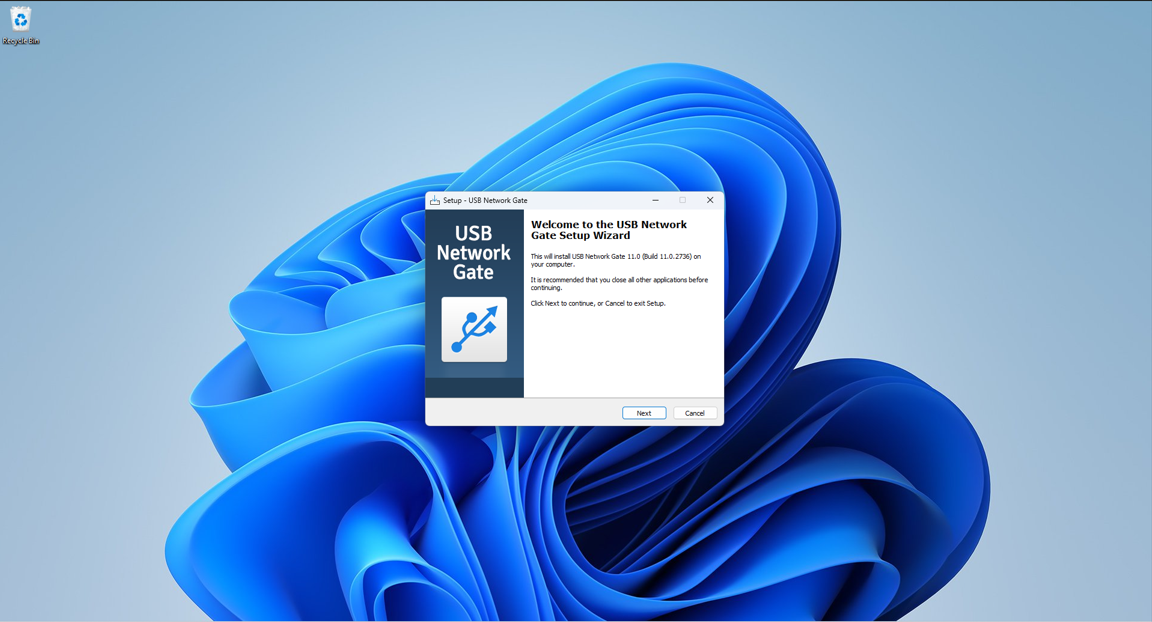
2. Share the desired USB port and the device attached to it.
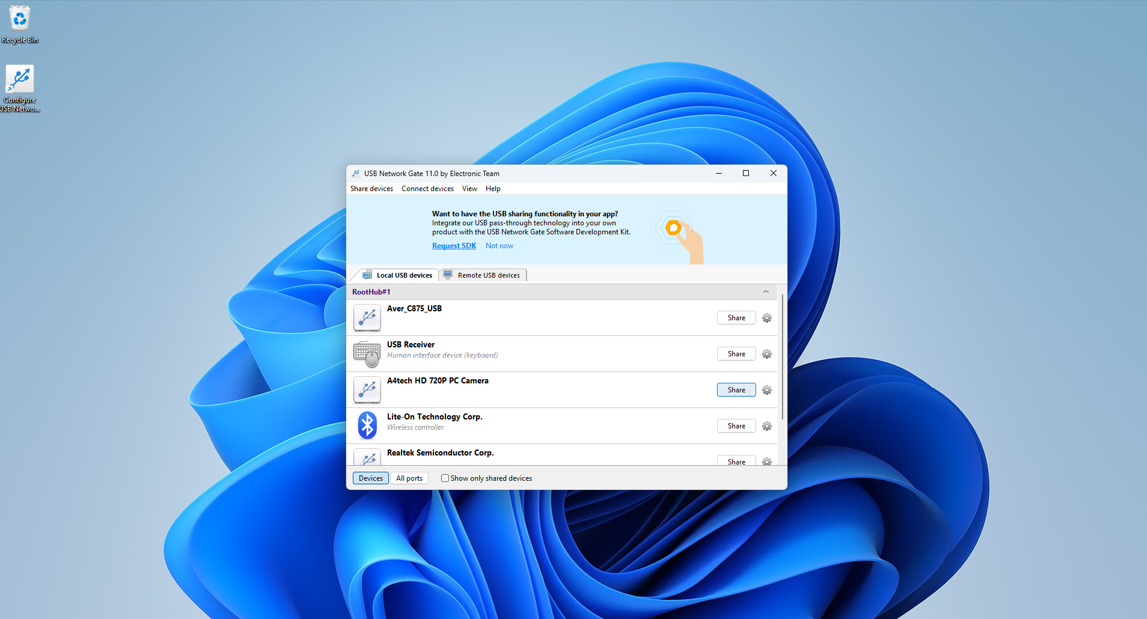
Share the desired USB port and the device attached to it

3. Connect via RDP to the remote desktop.
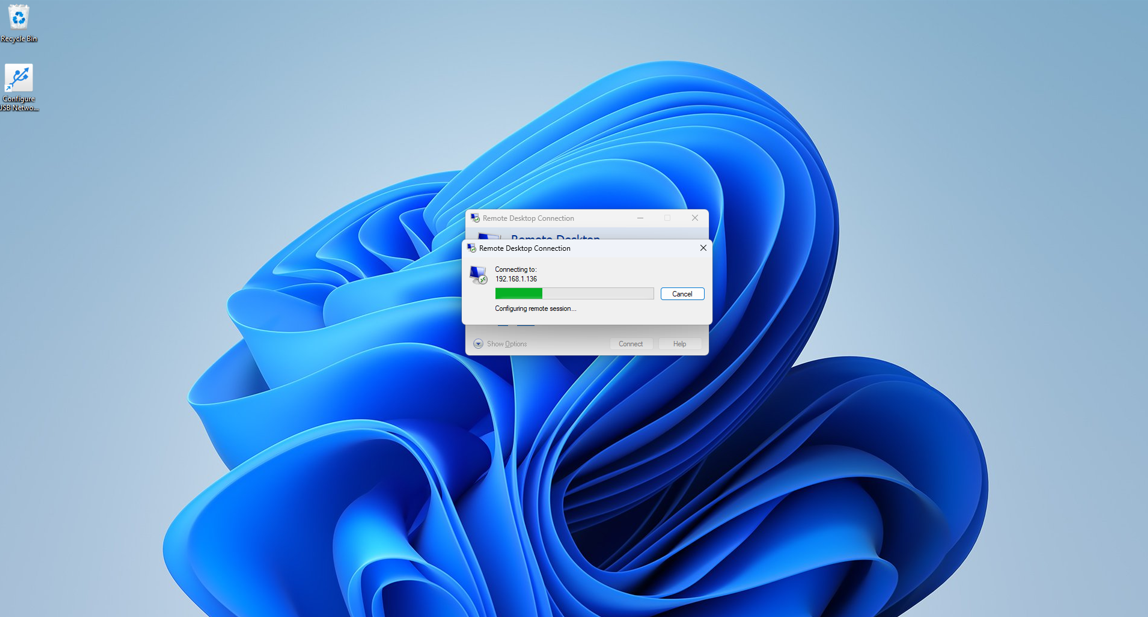
Connect via RDP to the remote desktop

Take the following actions on the remote machine:

1. Enter the password if needed.

2. Launch USB Network Gate after connecting via RDP.

3. Only devices shared on the host will be displayed on the guest computer during the RDP session. You can also search for other shared network devices.
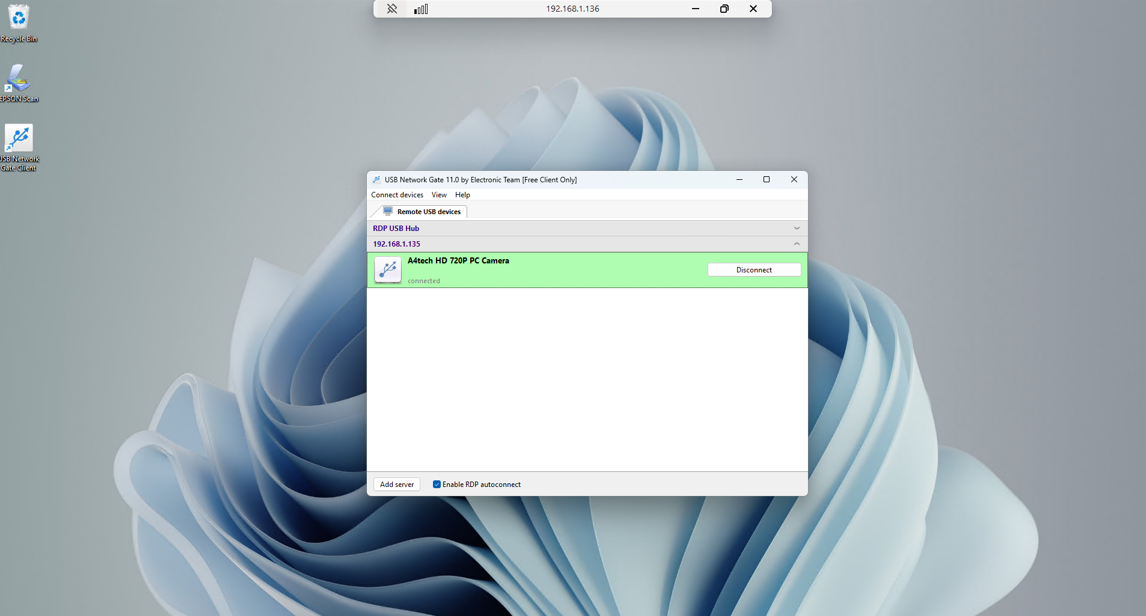
Devices shared on the host

4. Users can select the “Enable RDP autoconnect” option to automatically connect to devices shared on the host without starting the USB Network Gate GUI for convenience when regularly working with shared peripherals.

Note: The RDP protocol provides built-in password protection and encryption, eliminating the need to enter a password during the remote session for devices that have been password-protected on the server.

This guide offers a streamlined method for redirecting a microphone in RDP sessions. USB Network Gate delivers advanced USB redirection with the granular control necessary to utilize remote desktops and peripheral devices efficiently.

FAQ

Remote Desktop Protocol (RDP) offers several native methods for redirecting a microphone to a remote session for use by applications on the remote machine:

  • RDP Audio Input Redirection, a native RDP feature
  • RDP Dynamic Virtual Channels (DVC)
  • Remote Desktop Client Configuration APIs
  • Operating system audio subsystem integration
  • Group Policy configuration

Your microphone may not work in a remote desktop session for several reasons:

  • The RDP client or server could have inactivated the microphone’s audio redirection settings.
  • Incompatible or outdated drivers may be installed on the local or remote machine.
  • RDP settings may be configured incorrectly, making microphone redirection unavailable.
  • Group Policy or registry restrictions may block redirection.