Most RDP clients, including Remote Desktop Connection on Windows, don’t support scanner redirection. Therefore, any scanning tasks done on a remote workstation require additional software. USB Network Gate allows you to connect a local scanner to the RDP session, and does so in a way that won’t disrupt its interaction with scanning software.
How to Redirect Scanner to RDP
In this example, a USB scanner will be redirected from a local PC to a remote RDP host. In addition to the scanner, we recommend redirecting a USB storage device to transfer drivers and scanned images between the computers.
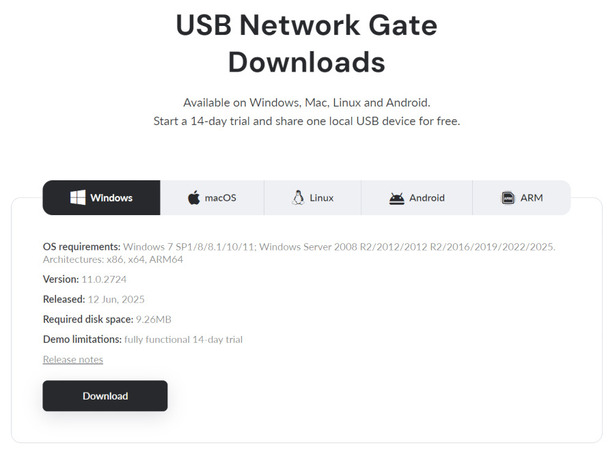
1. Download the free USB Network Gate installer for Windows on the local PC.
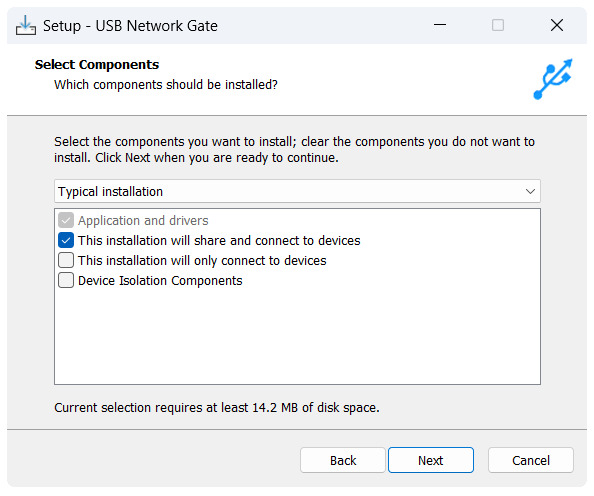
2. Install USB Network Gate. Since this PC hosts the scanner, select “This installation will share and connect to devices”.
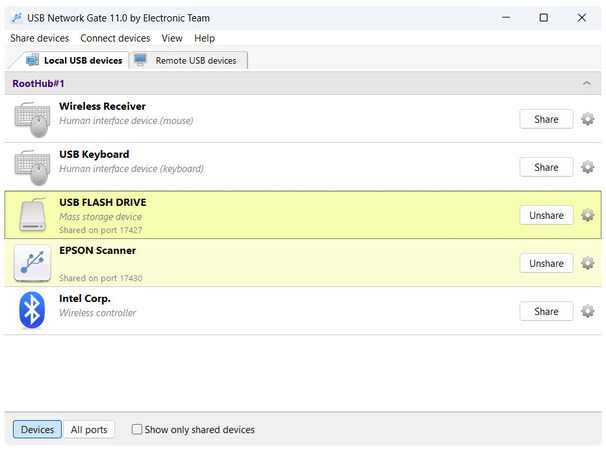
3. Click “Share” next to your scanner. If you sign up for the Free Trial, you can also share a USB storage device.
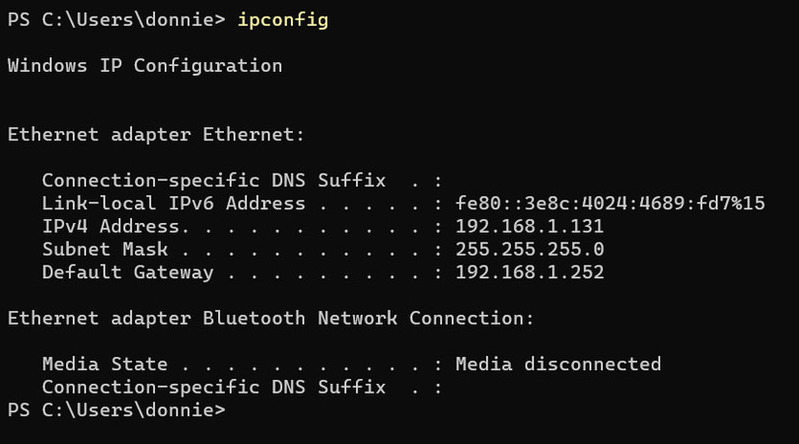
4. Optionally, click Win+X, open the Terminal, and run “ipconfig”. You will need to input your IP if the USB Network Gate client does not detect the shared devices.
5. Start an RDP session with the host.
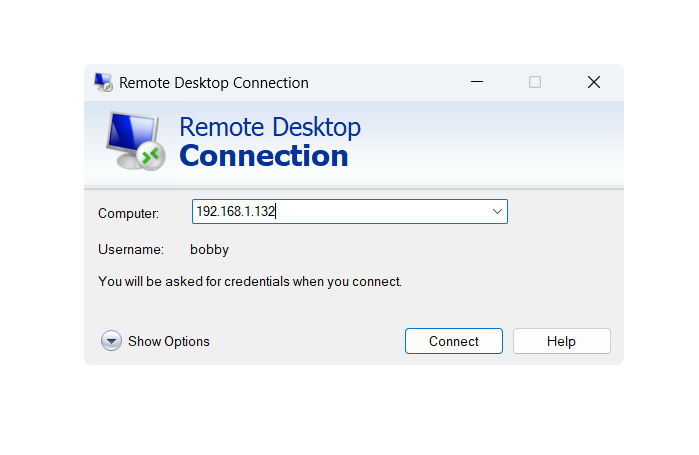
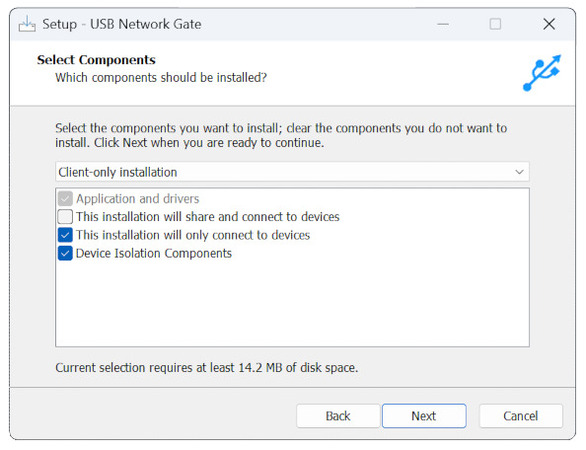
6. Download and install USB Network Gate on the host. This time, select “This installation will only connect to devices”. Device isolation components are recommended for multi-user RDP servers.
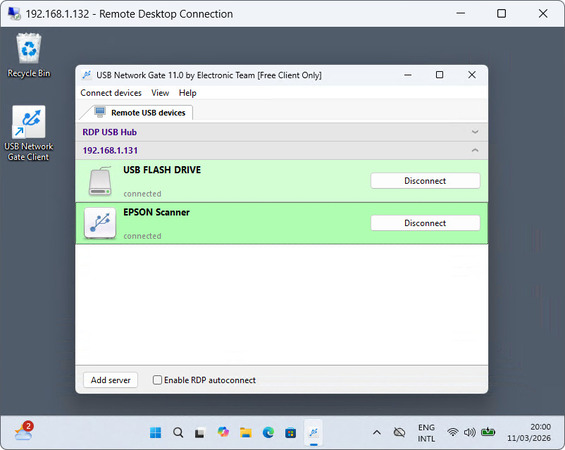
7. Launch USB Network Gate and connect both the scanner and the USB storage device.
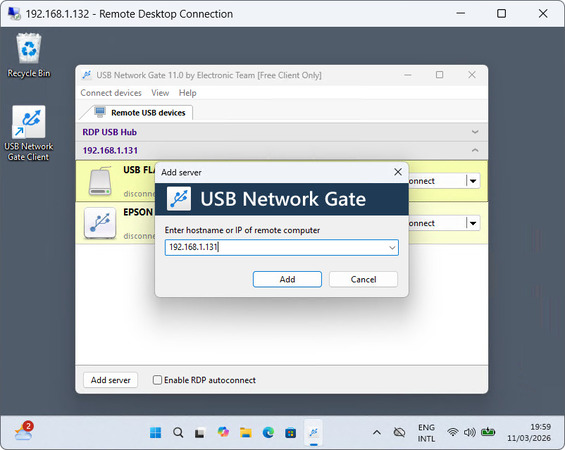
8. If the devices are not detected, you can use the “Add server” button in the bottom left and input the IP of the local computer.
9. Install scanner software from the newly-connected USB storage device.
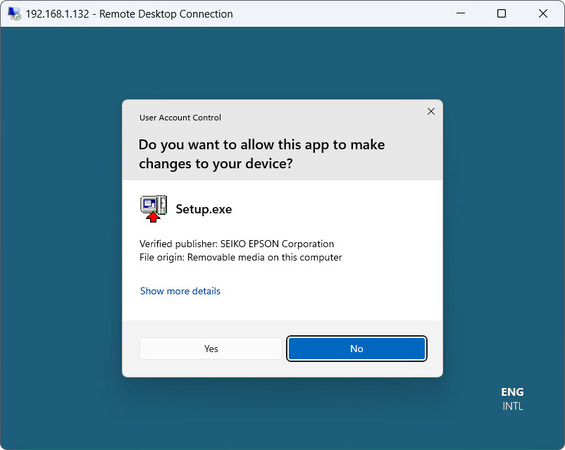
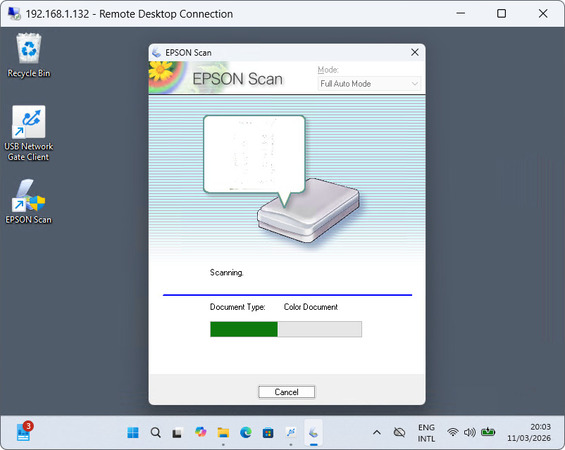
10. Run the scanner software. You can specify the remote USB drive as the file destination.
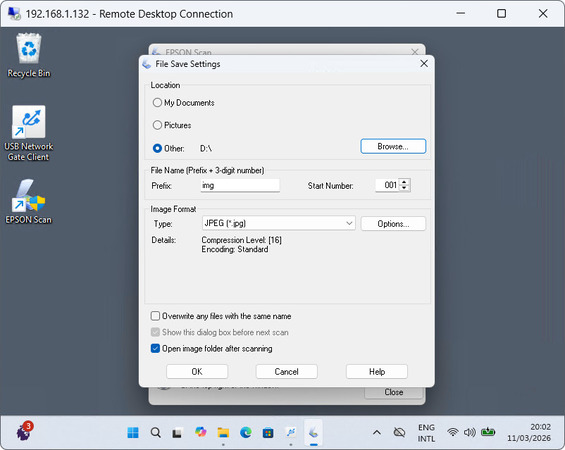
11. Happy scanning!
Why Choose USB Network Gate for Remote Scanning?
USB Network Gate is perfect for RDP scanning for multiple reasons:
– It’s as fast and stable as your local network
– A server can share USB devices to any amount of clients
– It’s the same as a direct connection
– You can use it for other types of hardware
– Device isolation
Dedicated remote scanning software is often made to be a substitute for drivers. However, a lack of drivers is usually not the main problem with RDP scanning. USB Network Gate allows you to use ordinary drivers, and to deviate from the normal scanning process as little as possible. It doesn’t pass the data through an external server, making it as fast as your Ethernet.
Since RDP is often used in multi-user environments, USB Network Gate also provides isolation components, to avoid unwarranted access to your scanner.
In addition, a USB Network Gate license can be used for many other types of hardware – printers, storage devices, controllers, video and audio devices, biometrics, and others. If you want to try sharing multiple devices at the same time, sign up for a time-limited Free Trial.
Frequently Asked Questions
The RDP protocol, and many common clients, such as Remote Desktop Connection on Windows, don’t support scanner redirection. It requires a third-party solution, such as USB Network Gate.
Storage devices, such as USB sticks, are supported in Remote Desktop sessions if you enable redirection for them. You can also use USB Network Gate to scan directly in the session and select local storage. That way, you can scan repeatedly without having to constantly disconnect and reconnect, since USB redirection settings persist during the session.
